


Scheduling IO Phone Text Messages for Future Delivery
This feature lets you compose a text message now and have IO Phone send it automatically at a specific date and time. Use it to time confirmations, reminders, or follow-ups without sending them immediately.
Prerequisites
- IO Phone is active on your account.
- Texting is enabled and registered (see IO Phone Texting Campaign Registry).
- You have at least one IO Phone number configured for texting.
- Your user/workers permissions allow access to IO Phone and the phone bar.
- You can open and edit the Lead/Event you want to text.
Steps: Schedule a Text Message to Send Later
- Open the Lead/Event you want to send the text message for.
-
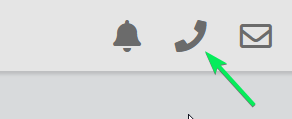
Click the Phone icon on the Lead/Event.
-
In the phone menu, select Text from the dropdown to open the text composer.

-
Type your text message (or choose a text template, if desired).
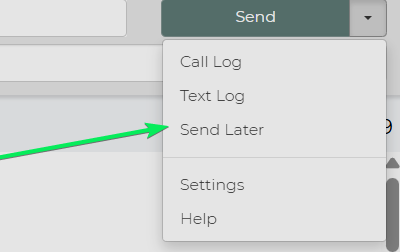
Then click the dropdown arrow next to
Send and choose Send Later.
-
In the scheduling window, select the Date and Time when the text should be sent.
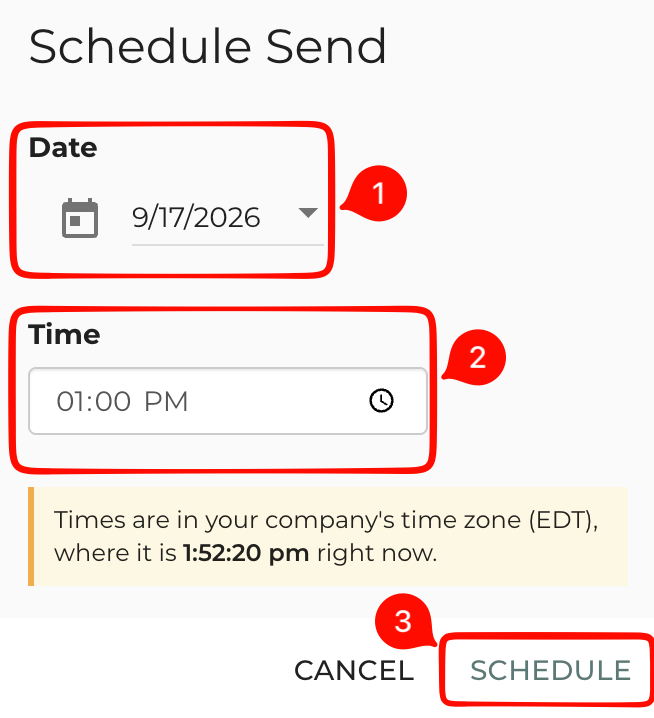
Please note: The "Send Later" dialog interprets the time you enter as your company's time rather than your device's local time. This ensures messages are scheduled according to the account's configured time zone. If the device you're using is in a different time zone than the company address, you will see live-updating notice showing the company's current time to prevent scheduling errors. -
Confirm/save the schedule. The text will be queued and automatically sent at the chosen time.
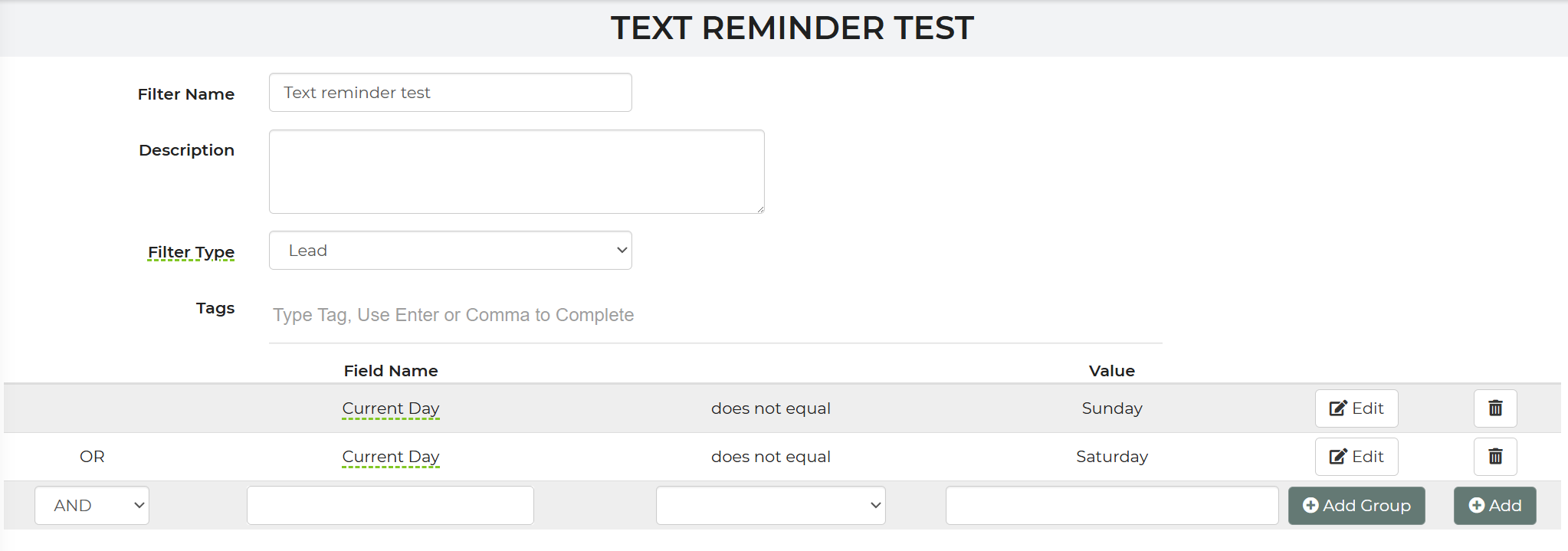
You can setup a filter and automation to "Send Later" on specific days.Here is an example of an Automation & Filter to use:
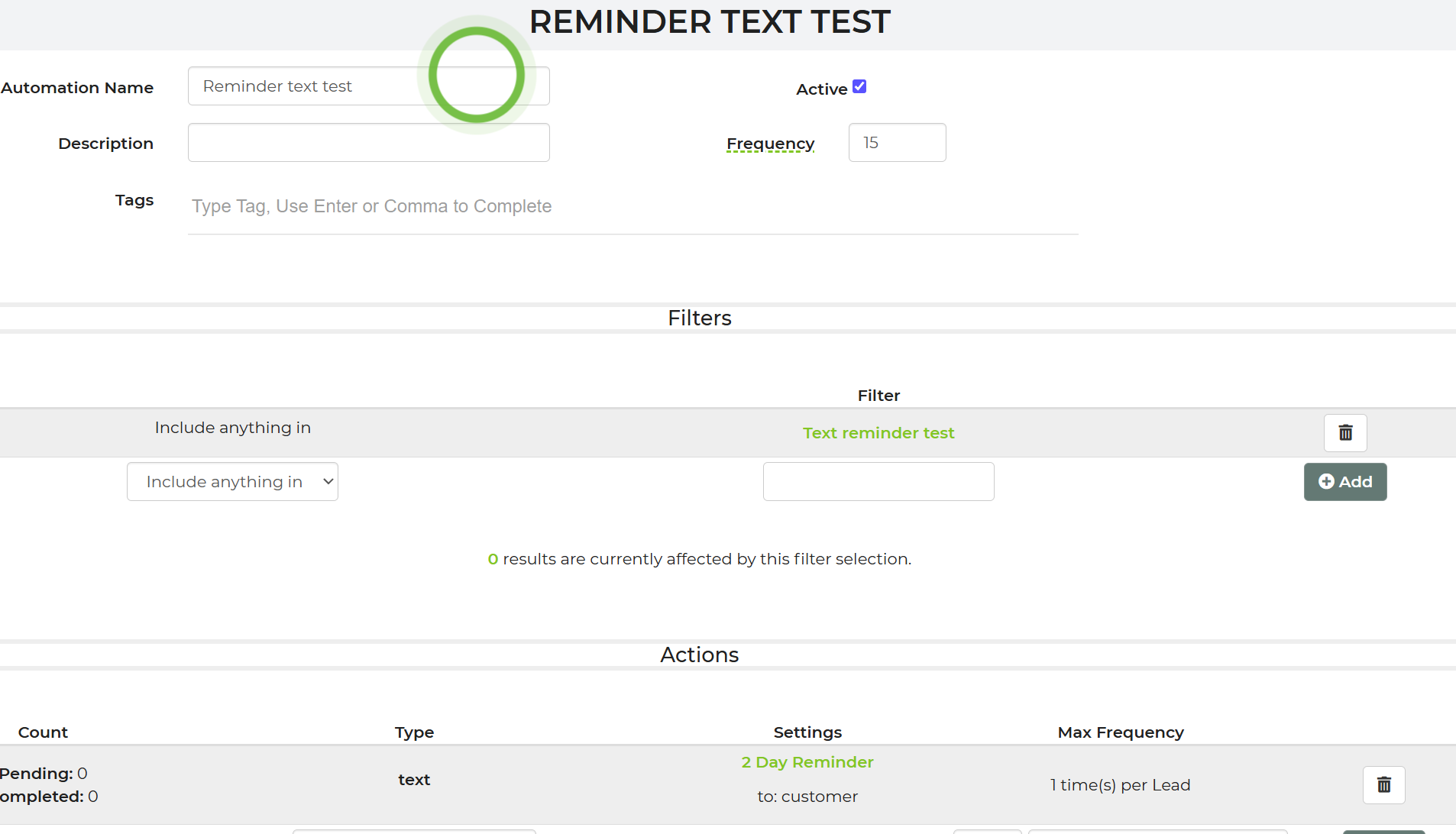
In this example, the text being sent later would not send on Saturday or Sunday.
Feature Options & Parameters
- Send vs. Send Later
- Send: Sends the text immediately.
- Send Later: Opens the date/time scheduler and queues the message for future delivery.
- Date & Time Picker
- Select the exact calendar date and time for delivery.
- Messages send based on your account’s configured time zone.
- Message Content
- Can be typed manually or pulled from a Text Template.
- Keep message length within segment limits to avoid delivery issues (see Text Message Delivery & Length Limits).
Use Cases
- Appointment / Event Reminders: Schedule reminder texts to go out a set time before the event date.
- Payment or Balance Follow-Ups: Queue payment reminders to send after quotes or invoices are issued.
Troubleshooting & FAQs
Q: I don’t see the “Send Later” option.
A: Confirm you are composing the message from the Lead/Event phone icon using IO Phone. If you still don’t see it, your account or user may not have the latest IO Phone features or texting enabled—contact support.
Q: My scheduled text did not send at the expected time.
A: Check the text log (Settings > IO Phone > Text Log) to see the status. If the message shows an error, it may be due to text length or special characters, or texting limits being reached. Adjust the template/content and try again.
Q: Can I edit or cancel a scheduled text?
A: If the message appears in your system as pending/future, you must edit or cancel it before its scheduled time. If you cannot locate or modify it, contact support for assistance.
Q: Why can’t I send any texts at all?
A: Your texting campaign may not be registered, your IO Phone number may not support texting, or your worker permissions may restrict phone usage. See the Texting Campaign Registry article and verify your IO Phone setup.