


Scheduling Emails for Future Delivery
Use this feature to write an email now and have it send automatically at a later date and time. This is useful for reminders, follow-ups, and timing customer communication in advance.
Prerequisites
- You have access to Events -> Leads/Events and permission to open/edit the lead or event.
- The lead has a valid customer email address saved.
- If you want to use an email template, it must be active in the Email Center.
- Your outgoing email settings should be configured correctly if your account sends through a custom email server.
Steps: Schedule an Email to Send Later
- Open the lead or event
Go to the customer’s Lead/Event record. - Open the email window
Click the Mail icon on the lead/event.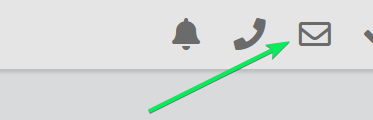
- Compose the email
Type your message/choose an email template, then review the subject and body. - Choose Send Later
Click the dropdown arrow next to Send, then select Send Later.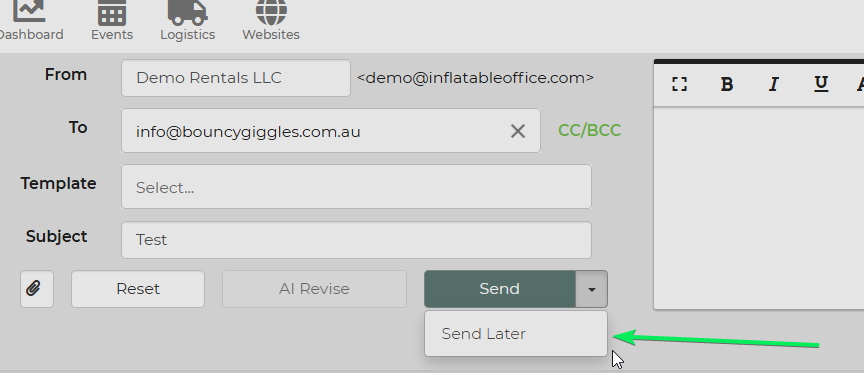
- Select the delivery date and time
Choose when you want the email to be sent.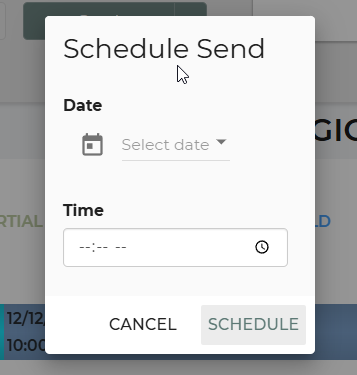
- Save the schedule
Confirm the selection. The email will stay queued and send automatically at the scheduled time.
Feature Options & Parameters
- Send – Sends the email immediately.
- Send Later – Opens the scheduler so you can choose a future send date and time.
- Email Template – Lets you load a saved template from the Email Center before scheduling.
- Manual Edits – You can change the subject and message content before saving the scheduled email.
Use Cases
- Event reminders – Schedule reminder emails to go out before an upcoming event.
- Quote follow-ups – Prepare follow-up emails in advance for customers who have not yet responded.
Troubleshooting & FAQs
Q: I do not see the Send Later option.
A: Open the email window from the lead/event and make sure you are using the standard email composer. If the option is still missing, your account may not have the feature available yet.
Q: I do not see the template I want.
A: Go to the Email Center and confirm the template is active. Then reopen the email window from the lead.
Q: My scheduled email did not send.
A: Check that your outgoing email settings are working correctly in Email Preferences. If you use a custom email server, test the login and verify your SMTP settings are valid.
Q: The customer says they did not receive the email.
A: Confirm the email address on the lead, ask the customer to check spam or junk folders, and review your email delivery settings if needed.
Q: Can I edit or cancel a scheduled email?
A: If the email has not sent yet, it must be updated before the scheduled send time. If you cannot find the scheduled message to change it, contact support.