


Understanding Rental Availability and Conflict Indicators in Leads
The Leads Rental Table separates lead-specific conflicts from total inventory availability. Use the Attention Needed indicators to identify booking conflicts and the Available column to review overall demand across overlapping reservations.
Prerequisites
- Permission to view or edit leads.
- A lead with an event date, start time, end time, and rental items.
- Accurate inventory quantities, required accessories, and turnaround settings.
Understanding the Rental Availability Columns
| Column | Purpose | Interaction |
|---|---|---|
| Attention Needed (🔔) | Shows colored quantity pills for direct conflicts, tight turnarounds, and conflicts affecting other leads. It considers booking priority, turnaround cushions, and required accessories. | Click the bell for the legend. Click a colored pill for conflict details. |
| Available | Shows total availability across all overlapping reservations. It does not apply booking priority or turnaround cushions. | Not clickable. The value remains visually neutral, including when it is negative. |
Note: If none of the lead’s rental items have a hard conflict, soft conflict, or turnaround warning, the entire Attention Needed column and bell icon are hidden.
How to Review Rental Availability
- Go to Events → Leads/Events.
- Open the lead you want to review.
- Locate the rentals table.
- Review the Available value for each rental item to see total availability across overlapping reservations.
- If the Attention Needed column appears, click the bell icon (🔔) to open the Availability Legend. Use the legend to identify what each pill color means.
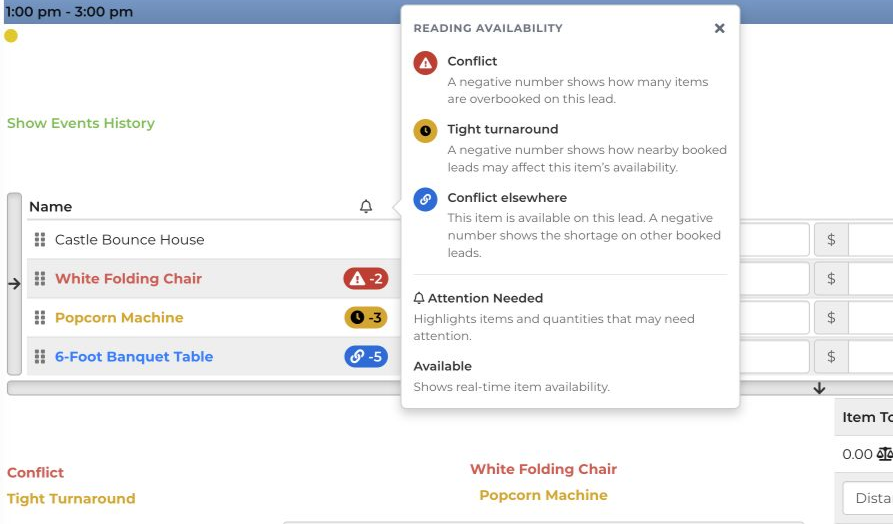
- Click a colored quantity pill beside a rental item to open its contributor timeline.
- Review the default Needs attention tab for booking priority, turnaround buffers, and shortages affecting the lead.
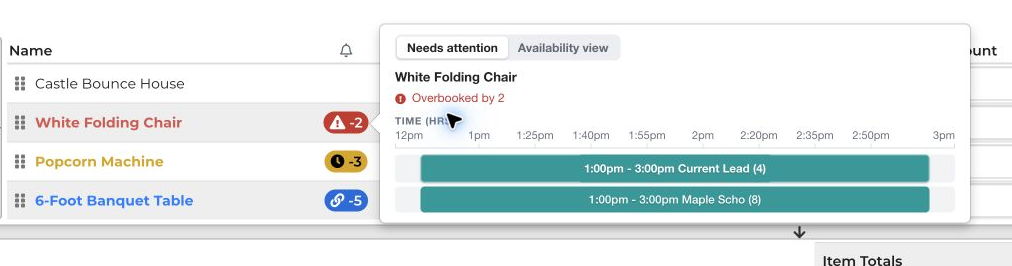
- Click a contributing lead’s name to open that lead and review its reservation.
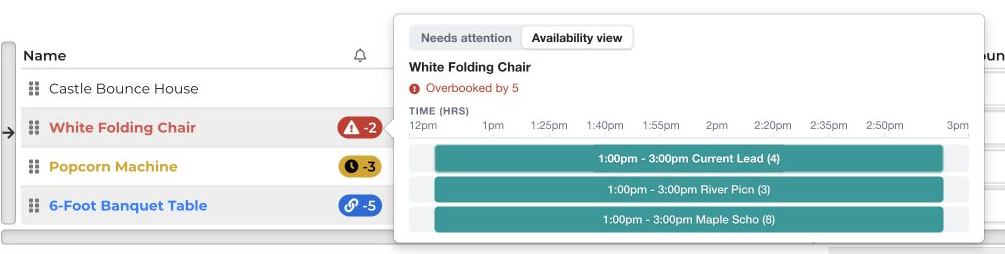
- Select the Availability view tab to see total demand across all overlapping reservations.
Mobile View
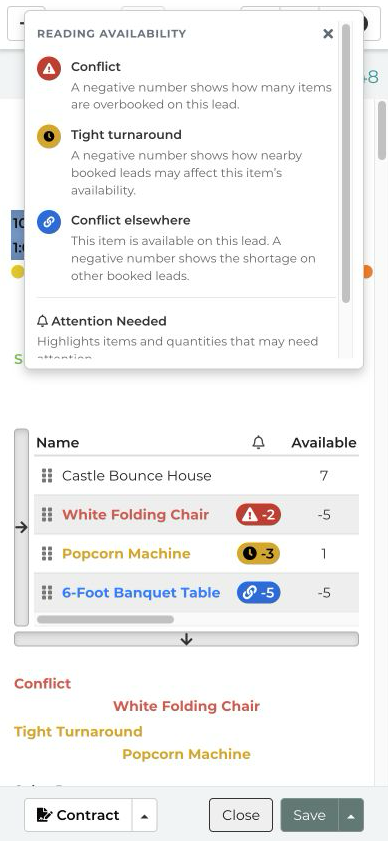
On a narrow viewport, the legend docks near the top or bottom of the screen, away from the bell where possible. The legend has its own scroll area; it is not inserted as another rental row. This screenshot shows the attention numbers remaining visible below it. The rental table can still scroll horizontally for the remaining columns.
Conflict Pill Color Codes
| Color | Meaning | Example |
|---|---|---|
| Red (−X) | This lead has a direct inventory conflict based on booking order. The details identify the item as Overbooked by X. | There are 10 chairs in stock. An earlier booking needs 8 and this lead needs 4, so this lead is overbooked by 2. |
| Gold (−X) | A nearby booking creates a shortage when the turnaround cushion is included. | The overall Available value may be positive, but there is not enough turnaround time between reservations. |
| Blue (−X) | The item is available to this lead because of booking priority, but this reservation causes or contributes to a shortage on a later lead. |
This lead receives the available stock, leaving insufficient inventory for a subsequent reservation. |
| None | There are no hard, soft, or other conflicts. | Clear rows have blank attention cells when other rows have conflicts. |
Feature Options & Parameters
- Availability Legend: Click the bell icon to review the meanings of the attention indicators.
- Needs attention: The default popup tab. It shows booking order, turnaround buffers, required accessory shortages, and contributing leads.
- Availability view: Shows total requested inventory compared with total stock across the overlapping event window.
- Booking priority: Determines which lead receives available inventory first when demand exceeds stock.
- Turnaround cushion: Extends the time an item is considered unavailable before or after an event.
- Required accessories: A rental may require attention when a limited accessory is unavailable, even if the main item is unlimited.
- Compact or concise view: Pill icons may be hidden to save space, but their colors, quantities, and click actions remain available.
- Mobile layout: The legend docks to the top or bottom of the screen and scrolls independently from the rentals table.
Special Inventory Behaviors
- Tents and unsupported rows: Continue to show the standard Available value without an attention pill.
- Unlimited items: Show unlimited availability unless they depend on a required accessory with limited stock.
- Recalculation: After changing rental items, quantities, dates, or times, the Available cell temporarily shows a dash and existing pills are disabled. Updated values appear when the calculation finishes.
- Calculation timing: Values represent the latest completed calculation cycle. They do not continuously refresh while the lead remains idle.
Use Cases
- Resolve a direct overbooking: Open a red pill, review earlier-priority reservations, and adjust quantities, dates, or affected leads.
- Investigate a tight turnaround: Open a gold pill to identify nearby bookings that do not leave enough time for return, preparation, or delivery.
Troubleshooting & FAQs
Q: Why is the Attention Needed column missing?
A: The column automatically hides when none of the lead’s rental items have a hard conflict, soft conflict, or turnaround warning. It may also be unavailable for unsupported inventory rows.
Q: Why is Available positive when a gold warning appears?
A: The Available value does not include turnaround cushions. A gold pill means availability becomes insufficient when the required turnaround time is included.
Q: Why does a blue pill appear if this lead can be fulfilled?
A: Booking priority gives the available inventory to this lead, but its reservation contributes to a shortage on a later lead.
Q: Why is the Available value negative but not highlighted?
A: The Available column is intentionally neutral and non-clickable. Use the colored Attention Needed pill to determine which lead has priority and where the conflict occurs.
Q: Why does the Available cell show a dash?
A: The lead is recalculating after a change to its items, quantities, dates, or times. Wait for the latest calculation to finish.
Q: Why can’t I click an existing conflict pill?
A: Pills are temporarily disabled during recalculation to prevent outdated conflict details from opening.
Q: Why does an unlimited item show a conflict?
A: The unlimited item may depend on a required accessory that has limited stock. Open the pill to identify the constrained accessory.
Q: Why does a tent show availability without an attention pill?
A: Tents and other unsupported rows retain their standard Available value but do not receive attention pills.
Q: How do I clear a conflict?
A: Open the conflict details, identify the contributing reservations, and update the affected quantity, rental item, event time, or event date. Wait for recalculation to confirm that the conflict has cleared.