


Fix Incorrect Address Geolocation on a Lead
Use the address issue tools on a lead when its venue address is associated with inaccurate geolocation coordinates. You can review the mapped location and force the software to retrieve updated geolocation data.
Fix a Lead’s Address Geolocation
- Go to Events → Leads/Events.
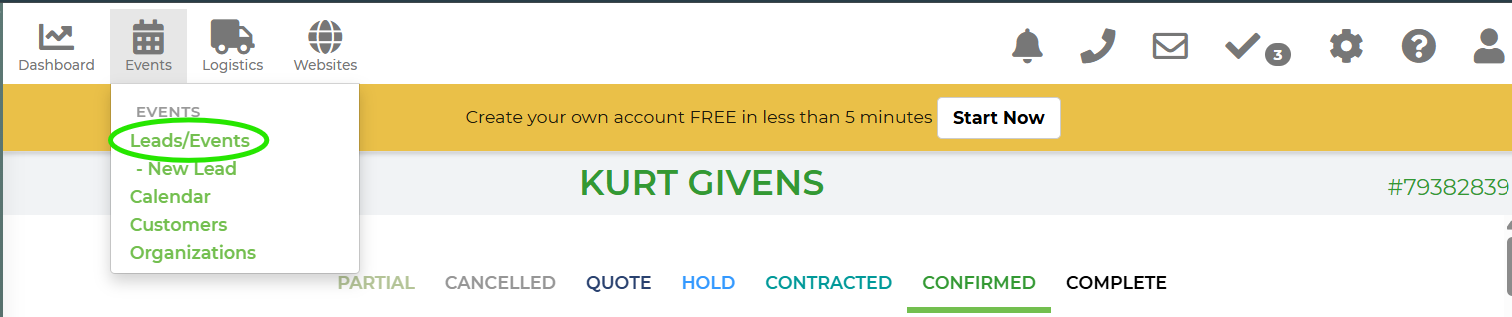
- Select the lead or event with the incorrect location.
- Review the Venue Address and correct any inaccurate or missing information.
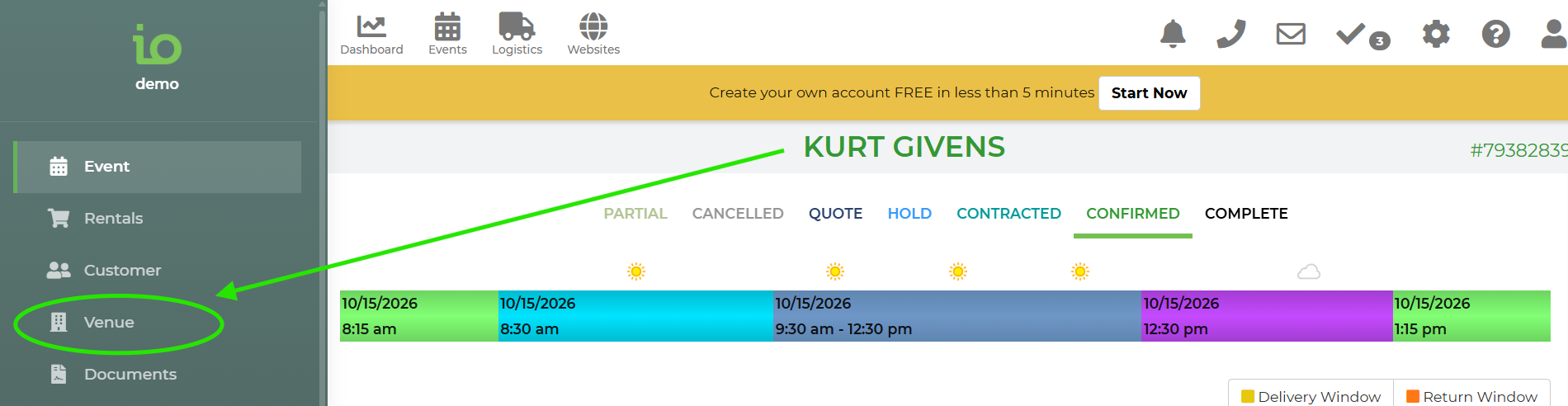
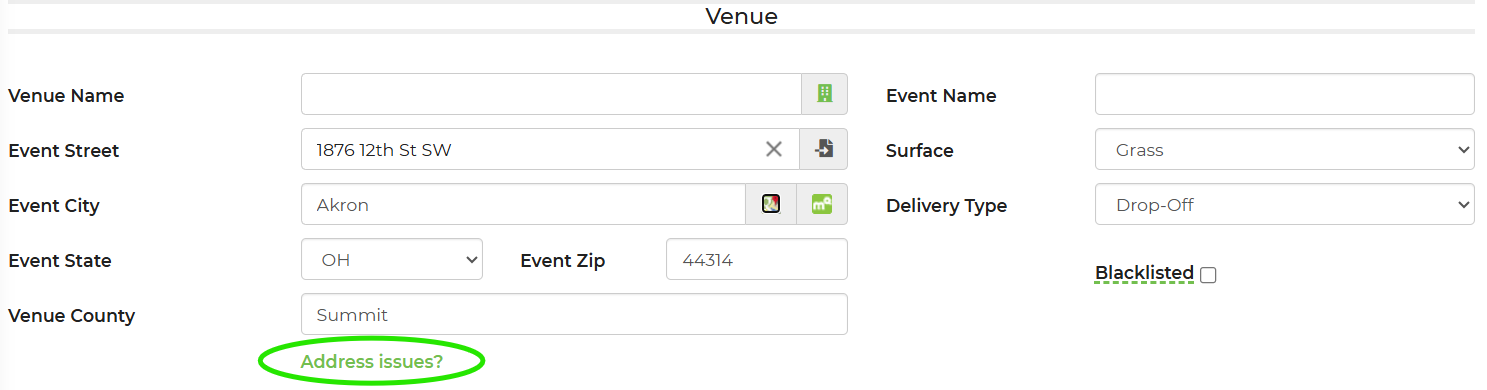
- Select "Address Issues?"
- Select the Google Maps icon to retrieve geolocation coordinates for the address.
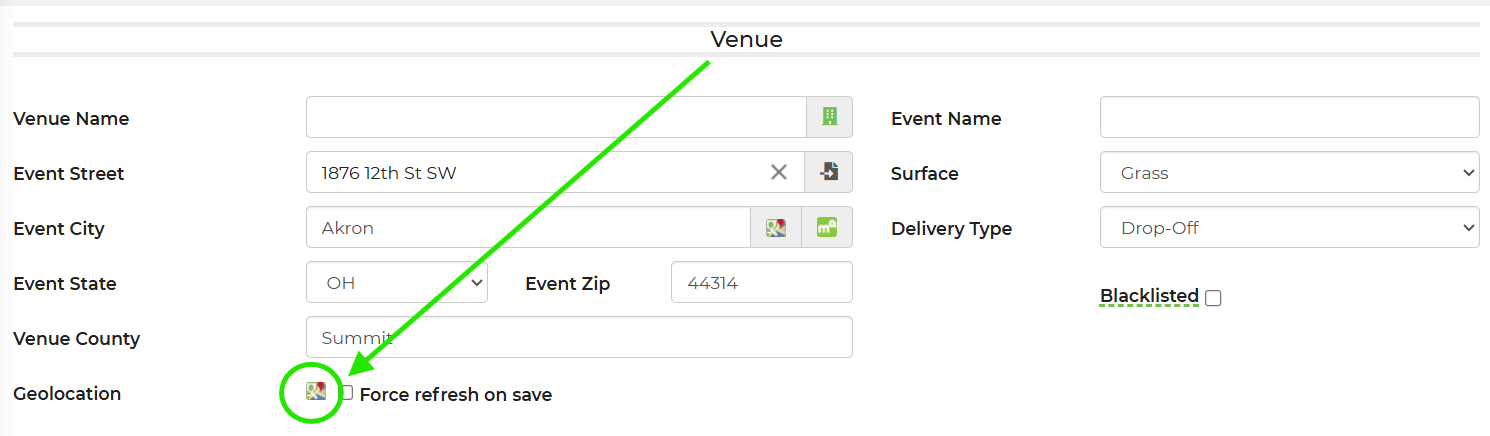
- Confirm that the location represented by the coordinates aligns with the listed venue address.
- If the address and geolocation do not align, select Force refresh on Save.
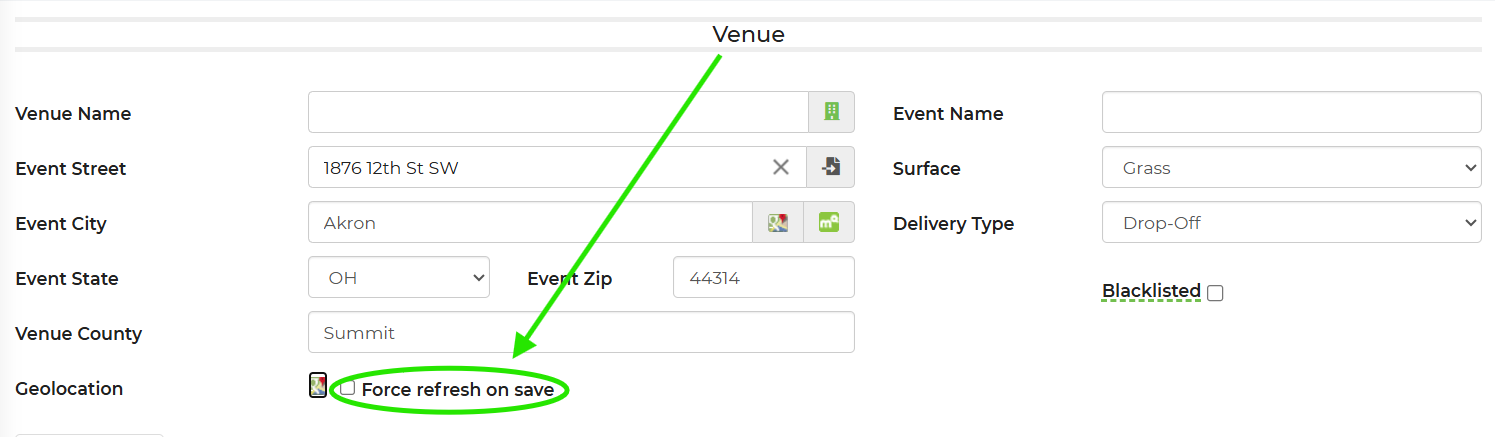
- Save the lead. The software will use a geolocation service, such as Google Maps, to locate the address again and update its geolocation information.
Use Cases
- Correct a lead that appears at the wrong location on a map or delivery route.
- Refresh geolocation information after correcting an incomplete or inaccurate venue address.
Troubleshooting & FAQs
Why does the mapped location not match the venue address?
The original address may have been incomplete, incorrectly formatted, or matched to the wrong location by the geolocation service. Correct the address, select Force refresh on Save, and save the lead.
Why did the location not update?
Confirm that you selected Force refresh on Save and then saved the lead. Also verify that the venue address contains accurate street, city, state, and postal code information.
Should I refresh the geolocation if the address and coordinates already align?
No. A forced refresh is generally only needed when the stored geolocation does not match the venue address.