


IO Phone - Adding an On-Site Contact to a Lead
Use an On-Site Contact when the person managing the event on location is different from the main customer who booked it. This is especially useful for IO Phone text automations so delivery or logistics messages go to the right person on event day.
Step-by-Step Instructions
Add an On-Site Contact to a Lead
- Open the Lead/Event you want to update.
- Go to the customer section on the lead.
- Select New Additional Contact.
- Choose New OnSite Contact.
- Enter the on-site contact's details, including their phone number.
- Save the lead.
Use the On-Site Contact in an Automation
- Go to Settings > Automations.
- Open an existing automation or create a new one.
- Add or edit the Text action.
- Set the recipient to the On-Site Contact instead of the default customer/mobile field.
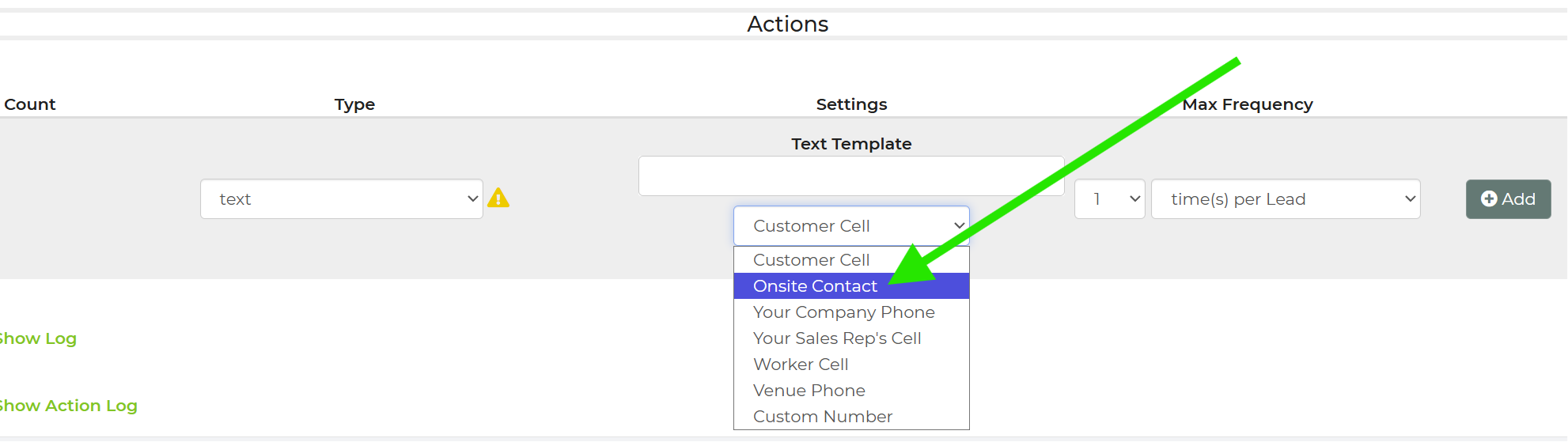
- Save the automation.
- Make sure the lead you want to target already has an on-site contact assigned.
Feature Options & Parameters
- Primary Customer: The main person or organization that booked the event.
- On-Site Contact: The person physically present at the event location.
- Automation Recipient: Must be set to On-Site Contact if you want texts to go to that person.
- IO Phone: Required for sending and logging automated text messages.
Use Cases
- Send arrival or setup texts to the school staff member, site manager, or event coordinator who will actually meet your crew.
- Keep logistics texts separate from the main customer when the booking contact is not the person on location.
Troubleshooting & FAQs
Q: The automation did not text the on-site contact.
A: Check all three requirements: the lead has an on-site contact assigned, the automation is set to target the on-site contact, and IO Phone texting is active on the account.
Q: I added an on-site contact, but no message was sent.
A: Confirm the on-site contact has a valid phone number entered. If there is no number to send to, the text cannot be delivered.
Q: I do not see the option for New OnSite Contact.
A: Make sure you are editing the lead in the customer section and choosing New Additional Contact. If the option is still missing, review your user permissions.
Q: Where can I check whether the text was sent?
A: Open Settings > IO Phone > Text Log to review message activity and status.
Q: What happens if a lead does not have an on-site contact?
A: An automation that is set to text the on-site contact will not have a recipient for that lead. Add the on-site contact during booking to avoid missed day-of communication.