


Manufacturer Items: Create and Copy Inventory Templates
Manufacturer Items are reusable inventory templates for products sold by manufacturers. Other users can select a manufacturer and model to copy the product information into their own rental inventory.
Prerequisites
- Access to Settings -> Inventory.
- Permission to add or edit inventory.
Create a Manufacturer Item
Use Manufacturer Items for products your company manufactures or sells.
- Go to Settings -> Inventory.
- Click the dropdown next to "Add inventory".
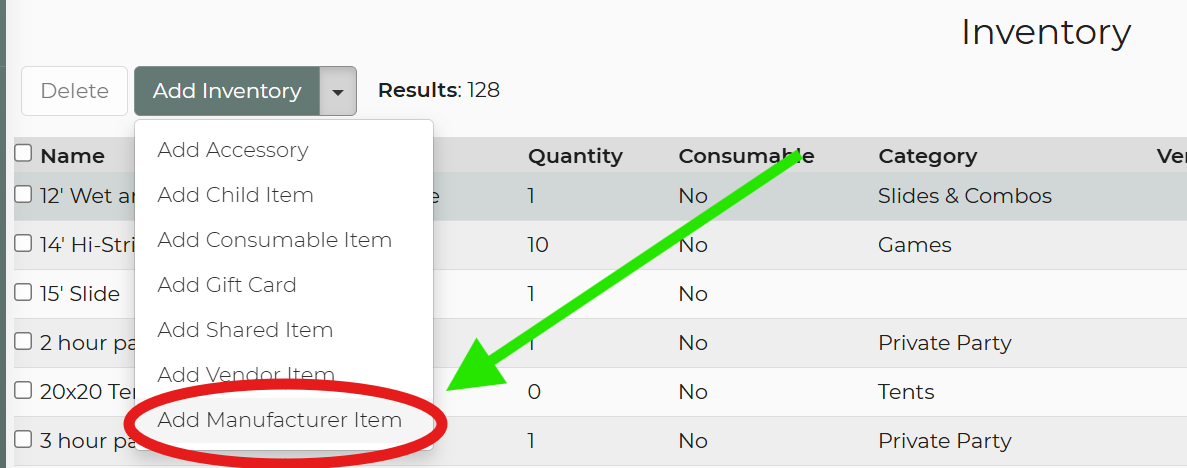
- Select the Manufacturer Item.
- Enter the manufacturer, model, description, images, and other product information.
- Save the item. The software creates an entry in the manufacturer database that can be used when other companies add inventory.
Important: Manufacturer Items are catalog templates. They do not sync to customer websites and should not be added directly to leads.
Copy a Manufacturer Item into Your Inventory
- Go to Settings -> Inventory.
- Start adding a new inventory item. (Generally, there will be a pop up to select from)
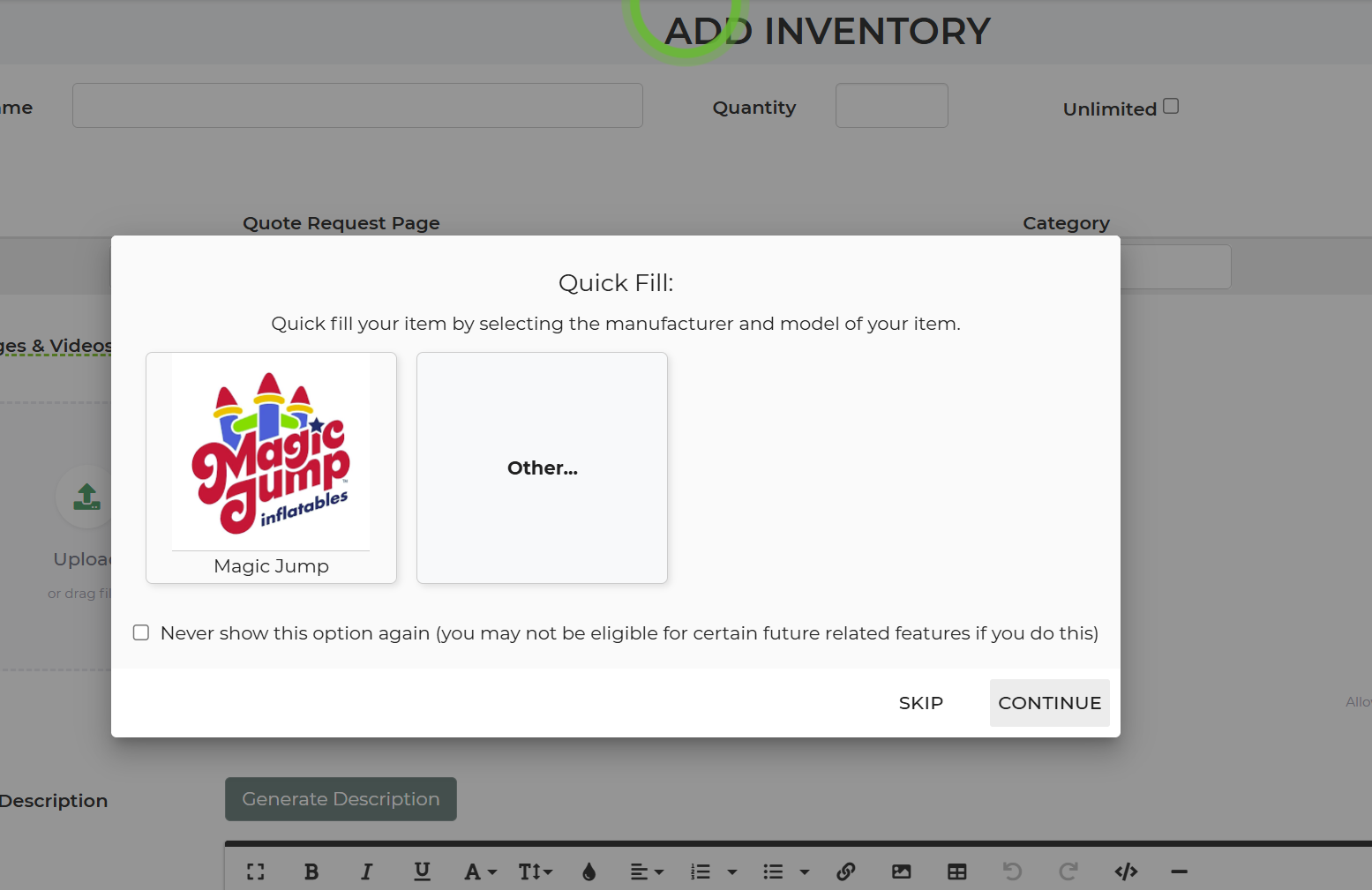
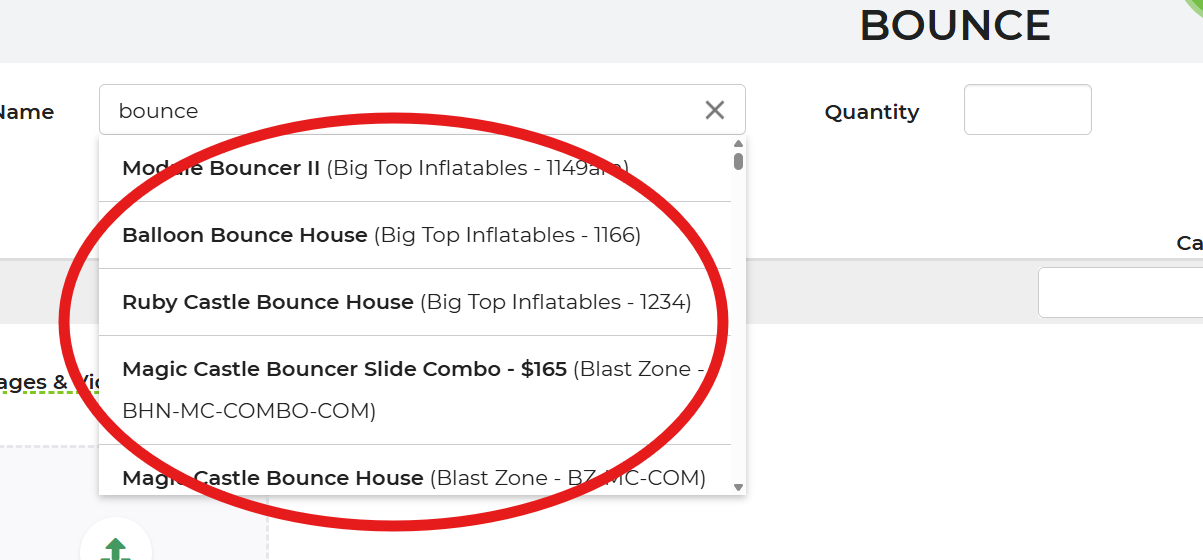
- If there is no pop up just start typing in the item name and the dropdown will show available options.
- Select the product’s Manufacturer.
- Select the corresponding Model.
- Copy the Manufacturer Item into your inventory.
- Review the copied name, description, images, quantity, category, and pricing.
- Make any account-specific changes and save the inventory item.
Feature Options & Parameters
- Manufacturer: Identifies the company that produces or sells the item.
- Model: Identifies the specific product to copy.
- Manufacturer Item: Creates a catalog template rather than a standard customer-facing rental item.
- Copied Inventory Item: Creates an inventory record that you can customize with your quantity, category, pricing, and display settings.
Use Cases
- Manufacturer catalog: A manufacturer creates templates for the products it sells so rental companies can add them more quickly.
- Faster inventory setup: A rental company selects a manufacturer and model, copies the item, and then adds its own quantity and pricing.
Troubleshooting & FAQs
- The Manufacturer Item does not appear on my website. This is expected. Manufacturer Items are catalog templates and do not sync to websites. Copy the item into your regular inventory and configure the copied item for website display.
- The Manufacturer Item appears when editing a lead. Do not select the catalog template directly. First copy it into your rental inventory, and then add the copied inventory item to the lead.
- I cannot find a manufacturer or model. Confirm the manufacturer and model names. The product must exist in the manufacturer database before it can be selected.
- The copied item does not appear on my website. Assign a category and confirm that the copied item is enabled for customer-facing pages. (May need to Force a Sync)
- The copied details or price are not correct for my business. Edit the copied inventory record and enter your own description, quantity, pricing, and other settings before using it.
- I do not see the Manufacturer Item option. Confirm that your account has access to manufacturer inventory and that your user can add or edit inventory.