


Rental Inventory: Set Up a Wet/Dry Choice
Use this setup when one rental item can be booked either dry or wet, and you want the customer to choose between those options during booking. This method keeps one main inventory item and adds a required wet/dry selection to it.
Prerequisites
- Access to Settings -> Inventory.
- The main rental item already exists in Inventory.
- A category named Hidden is available, or you can create it.
- You understand how to create inventory items and accessories.
- If the wet version costs more, know the extra amount you want to charge above the base item price.
Step-by-Step: Create a Wet/Dry Choice
- Create a hidden selector item.
- Go to Settings -> Inventory -> Add Inventory.
- Create a new inventory item named Choose Wet or Dry.
- Set the quantity to Unlimited.
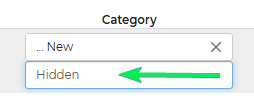
- Assign it to the Hidden category so it does not show as a standalone rental on your website.
- Save the item.

- Create the Dry accessory.
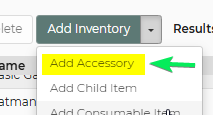
- In Inventory, use the Add Inventory dropdown and select Add Accessory.
- Create an accessory named Dry Option.
- Set the quantity to Unlimited.
- Leave the price at $0 if the dry option uses the base price of the main rental.
- Make sure it is added to customer-facing pages as needed.
- Save the accessory.

- Create the Wet accessory.
- Create another accessory named Wet Option or Wet Option ($$).
- Set the quantity to Unlimited.
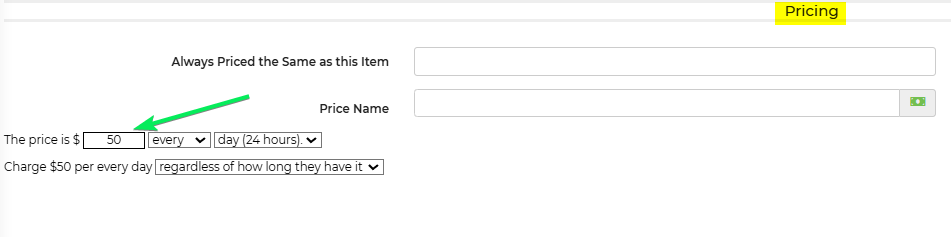
- If the wet version costs more, enter only the additional charge in the Pricing section.
- Save the accessory.

- Link the Wet and Dry accessories to the hidden selector item.
- Open the Choose Wet or Dry inventory item.
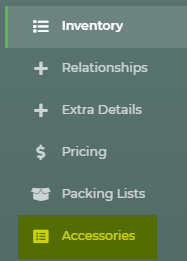
- Go to the Accessories section.
- Add both Dry Option and Wet Option as accessories.

- Limit the selector to one choice.
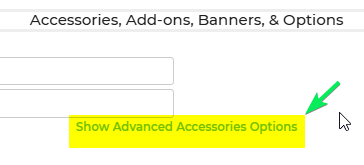
- In the Choose Wet or Dry item, click Show Advanced Accessory Options.
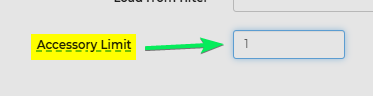
- Set the Accessory Limit to 1.
- Save the item.
- Attach the selector to each wet/dry rental item.
- Open a rental item that can be offered wet or dry.
- Go to its Accessories section.
- Add the Choose Wet or Dry item.
- Click Show Advanced Accessory Options.
- Set Required to 1 so the customer must choose one option.
- Save the rental item.

- Test the setup.
- Open your website or a test lead.
- Add the rental item to a cart.
- Confirm the customer must choose either Dry or Wet.
- Confirm the wet upcharge is added only when the wet option is selected.
Feature Options & Parameters
- Choose Wet or Dry item: A hidden inventory item used only to hold the wet/dry selection.
- Quantity = Unlimited: Prevents the selector or options from being limited by stock count.
- Hidden category: Keeps the selector from displaying as a normal rental item on the website.
- Dry Option price: Usually set to $0 so the main item price is used.
- Wet Option price: Enter only the extra amount charged above the main item price.
- Accessory Limit = 1: Allows only one option to be selected: wet or dry.
- Required = 1: Forces the customer to make a wet/dry selection before checkout or quote submission.
Use Cases
- Single slide with two uses: Offer one slide as either dry at the base price or wet with an added fee.
- Seasonal pricing: Keep one main rental item online while letting customers choose a wet version only when needed.
Troubleshooting & FAQs
- The wet/dry choice is showing as its own rental on my website.
Make sure Choose Wet or Dry is placed in the Hidden category. - Customers can select both Wet and Dry.
Open the Choose Wet or Dry item, go to Accessories, and set the Accessory Limit to 1. - Customers are not required to choose Wet or Dry.
Open the main rental item and set the Choose Wet or Dry accessory to Required = 1. - The wet price is too high.
The Wet Option should contain only the additional upcharge, not the full rental price. - The dry option is adding extra cost.
Set the Dry Option price to $0. - I want separate wet and dry items with shared availability instead.
Use a parent/child inventory setup instead of this wet/dry choice method.