


You can store special legal/usage rules on each inventory item (rental) and have those details automatically show up inside your contract for any event that includes that item. Using item level contract details to add special terms, safety notes, or instructions for specific inventory items and have them automatically appear on your customer contracts. This keeps your main contract template clean while still covering unique rules per rental.
What “Extra Contract Details” Can Be Used For
Examples of item level extra contract details:
- “This inflatable must be staked into grass, not set up on gravel or rocks.”
- “Requires a dedicated 20‑amp outlet within 50 feet of setup.”
- “Customer must provide 1 adult attendant per slide at all times.”
- “No shoes, food, or drinks allowed on this unit.”
- “The maximum weight is 800 lbs”
- “Do not have more than 5 toddlers in the bounce house at a time”
These rules live within the inventory item itself and are pulled to the contract only when that item is being rented.
Use Cases
- High‑risk or complex items
Add extra waiver language for mechanical rides, climbing walls, dunk tanks, etc., without cluttering the main contract for simpler rentals.
- Per‑item setup and site requirements
Specify water setup, weight limits, height requirements, or surface requirements for each inflatable so customers see the correct rules for exactly what they booked.
Feature Options & Parameters
- Per‑item scope
Contract details are stored on each individual inventory item. Update the item to change its text for all future contracts.
- Formatting
Depending on your account:
- Plain text only, or
- Rich text (bold, lists, line breaks) that carries through to the contract.
- Document visibility
By default, these details are intended for customer contracts. Your account may also be configured to:
- Show them on internal documents (e.g., crew/packing lists), or
- Limit them to customer‑facing documents only.
- Template control
Whether the text appears and where it appears is controlled by your contract template. Standard templates will already be configured to show item‑level details.
Step 1 – Add Contract Details to Each Inventory Item
- Settings -> Inventory
Navigate to the Advanced Settings and locate "Extra Contract Details"
-
Enter the item‑specific rules/terms/conditions.
-
Type the rules that should appear on the contract whenever this item is booked.
-
Keep them short and clear (bullets or short sentences work best).
-
Save the item.
-
Repeat for any other rentals that need their own contract details.
Step 2 – Test on a Lead/Event
- Create or open a test lead.
Add one or more items that you know have custom contract details filled out.
- Generate/preview the contract.
Use your normal “Contract” option at the bottom of the lead.
The lead status must be in Contracted status in order to view the contract. - Confirm the item details show correctly.
You should see:
- Each item listed, and
- Its custom rules printed at the bottom of the contract, above the signature as pictured below.
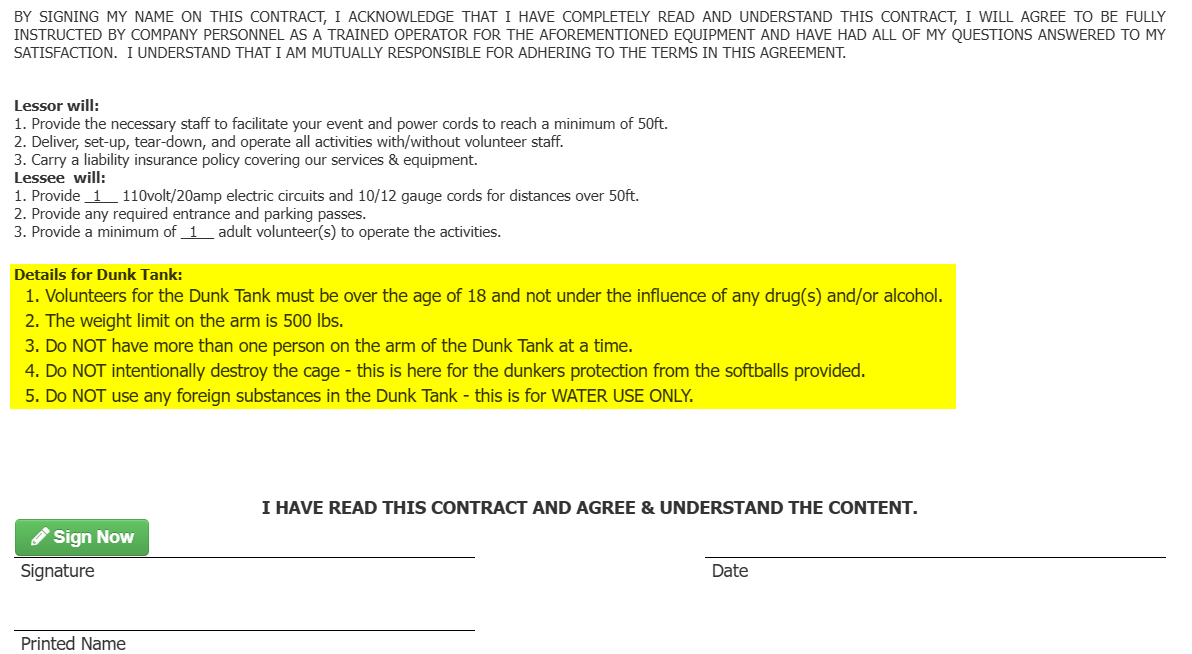
If an item doesn’t have any custom details, that item’s section will be blank.
Best Practices
- Keep global terms separate.
Put rules that apply to every rental in your main contract, and only use item‑level details for special cases, such as rules for a dunk tank or a waterslide.
- Be consistent.
Use similar wording and structure for all item details so the contract is easy to read.
- Avoid conflicts.
Make sure item‑level rules don’t contradict your global contract language. If they do, update one or the other.
- Update when equipment changes.
If you change any conditions to any of your units, make sure you are updating these.
FAQs
Q: What happens if an item doesn’t have any custom contract details?
A: Then nothing special will show for that item in the “Extra Details for:” area. Only items with text in their contract‑detail field will output content.
Q: Can I show these details only on some contracts (for example, customer vs. internal)?
A: Yes. You control which contract templates contain the merge field. Put the field only in the templates where you want item‑specific text to appear.
Q: Can I format each item’s details as bullet points?
A: Yes. Enter them as bullets or separate lines in the item’s extra contract detail field, and style the surrounding section in your template as needed.