


Copying an Upselling List from Another Inventory Item
Use this feature to quickly reuse the same upsell suggestions on multiple items by copying the upsell list from one inventory item to another.
Prerequisites
- Access to Settings → Inventory and permission to edit items.
- At least one inventory item that already has an upsell list configured.
- Upselling enabled/configured in Settings → Preferences → Online Quoting (recommended). See Upselling Items on Quotes.
Step-by-Step: Copy an Upsell List to Another Item
-
Open the destination item (the item you want to add upsells to):
- Go to Settings → Inventory.
- Click the item you want to edit.
-
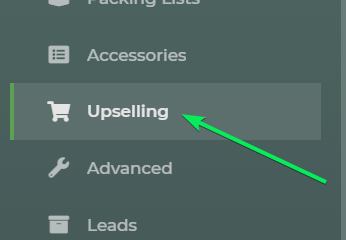
Go to the Upselling section:
- In the left-hand column of the item editor, click Upselling.
-
Use “Copy Upsell List from Item”:
- In the Upselling section, find the Copy Upsell List from Item field or control.

-
Choose the source item:
- Start typing the name of the item whose upsell list you want to copy.
- Select the correct item from the results.
-
Review the copied upsell list:
- After selecting the source item, its upsell list will be copied and displayed below in the Upselling section.
- Review, add, remove, or edit any upsell items as needed.
-
Save the item:
- Click Save on the inventory item to apply the copied upsell list.
Feature Options & Parameters
- Copy Upsell List from Item: One-time copy of upsell entries from another inventory item. After copying, each item’s upsell list can be edited independently
- Upsell Display Method (global setting):
- Configured in Settings → Preferences → Online Quoting.
- Methods (from Upselling Items on Quotes): Normal, Price Levels, Selected Only.
- The copied list supplies the candidate upsell items; the method controls how they are shown to customers.
Use Cases
- Standard upsell set for similar items: Copy the upsell list from a popular bounce house to other bounce houses so they all suggest the same concessions and add-ons.
- Category-based upsells: Create a “template” item with your preferred upsells for slides, then copy that list to every slide item.
Troubleshooting & FAQs
-
I can’t find the item to copy from.
- Check that the source item exists and is active in Settings → Inventory.
- Verify spelling and try typing fewer characters of the name.
-
The copied upsell items aren’t showing on quotes.
- Make sure each upsell item is active and allowed on the quote request page.
- Confirm upselling is turned on and configured in Online Quoting settings.
- Review Upselling Items on Quotes for display rules.
-
Does changing the source item later update other items automatically?
- No. Copying creates a separate upsell list on the destination item. Edit each item’s upsell list individually after copying.
-
I copied the wrong list. How do I fix it?
- Manually remove the unwanted upsell items from the Upselling section.
- Optionally repeat the steps and copy from the correct source item.