


The Training system lets you create and share training materials for your team and the wider user community. Use it to organize videos and documents, target them to specific audiences, and track self-learning for employees and leaders.
Prerequisites (to create)
- Permission to manage training content (account owner or admin role).
- For video content:
- A YouTube URL or
- A device with microphone/screen recording capability (for built-in recording/screencast).
- For paid content: permission to create/manage Add-Ons (if attaching trainings to paid add-ons).
Accessing the Training System
- Log in to your account’s back end.
- Go to Settings > Trainings to manage individual training materials.
- Go to Settings > Training Guides to group trainings into structured learning paths.
- Note: The previous “Surveys & Training” area has been renamed to Surveys & Quizzes. Quizzes still work as before and are not replaced by this Training system.
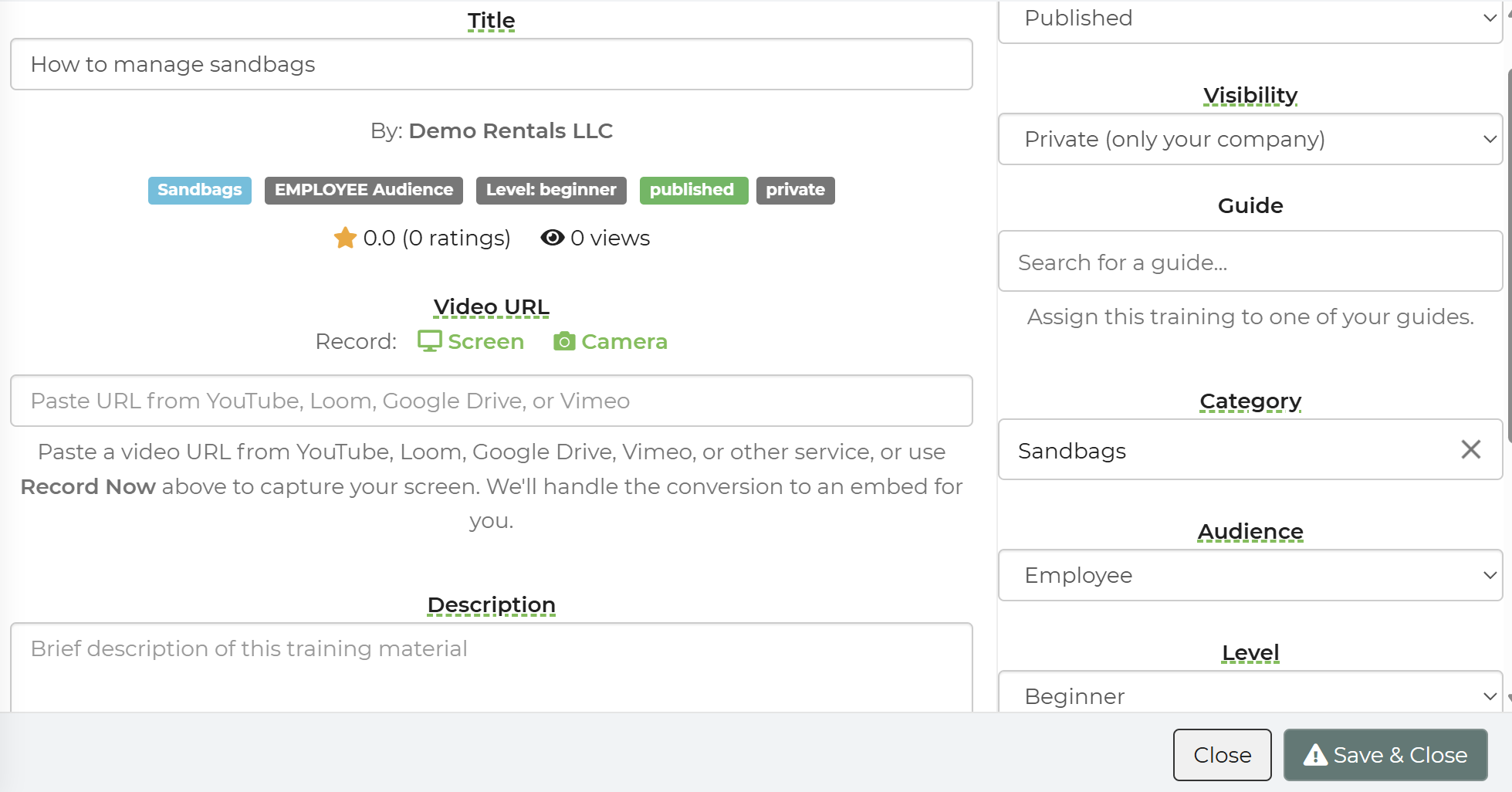
Creating a Training
- Navigate to Settings > Trainings.
- Click Add Training (or similar “New” button).
- Enter a clear Title and short Description (what this training covers and who it’s for).
-
Add your content:
- Text/Document: Type or paste instructions, procedures, or notes.
- YouTube Video: Paste a YouTube URL into the video field.
- Record Video/Screencast: Use the built-in recorder to capture your screen and/or camera, then save.
- Set Visibility and Audience (see “Feature Options & Parameters” below).
- Choose a Level (all, basic, intermediate, or advanced).
-
Optionally:
- Mark the training as a Favorite (for quick access).
- Attach it to an existing Training Guide.
- Attach it to a paid Add-On if this is premium content.
-
Set the Status to:
- Draft while you’re still editing, or
- Published when it’s ready for others to use.
- Save the training.
Building Training Guides (Learning Paths)
- Go to Settings > Training Guides.
- Click Add Guide (or similar “New Guide” button).
-
Enter:
- Guide Name (e.g., “New Driver Onboarding”, “Advanced Sales Leadership”).
- Optional Description (who should complete this and when).
-
Add trainings to the guide:
- Search or browse the list of Trainings.
- Select the trainings in the order you want learners to complete them.
- Save the guide.
Employees and owners can then follow these guides to systematically complete the included trainings.
Using Trainings for Your Employees & Leaders
- Create one or more Trainings and Training Guides as described above.
-
Decide how you will assign or share:
- Send direct links to specific Trainings or Guides, or
- Direct users to the workers/owner site section where trainings are listed (if exposed there in your account).
-
For employee-focused content:
- Set Audience = Employee and Visibility = Private (if only your staff should see it).
-
For owner/leader development:
- Set Audience = Owner/Leader and an appropriate Level (intermediate/advanced).
- Optionally link related quizzes in Surveys & Quizzes if you want to test knowledge after a training. FEATURE FORTHCOMING
Sharing Public Content With the Community
- Create a Training as usual under Settings > Trainings.
-
Set:
- Visibility = Public
- Audience = All (or targeted, if it’s aimed at specific roles)
- Publish the training.
-
Other users can:
- View and use your training material.
- Rate and review it.
- Provide feedback to help you improve it.
-
If your public content generates significant value, you can:
- Attach it to a paid Add-On you own.
- Encourage others to subscribe to your premium training library.
Feedback and Ratings
Feedback to Creator
- Learners can submit comments or feedback directly on a training.
- Creators can review this feedback to improve or expand content.
Ratings & Reviews
- Trainings can be rated by users who complete them.
- Higher-rated trainings are easier for others to find and trust.
Feature Options & Parameters
Visibility
- Private: Only your account (team) can see the training.
- Public: Shared with the wider community of users.
Audience
- All: Suitable for anyone.
- Employee: For frontline staff, techs, drivers, etc.
- Owner/Leader: For managers, owners, and leaders.
Level
- All: No assumed skill level.
- Basic: Introductory content.
- Intermediate: Requires some prior knowledge.
- Advanced: Deep-dive or expert-level material.
Status
- Draft: Visible only to editors/creators; not yet live.
- Published: Available to its intended audience.
Content Type
- Text/Docs: Procedures, checklists, policies.
- YouTube Video: Link out to hosted video.
- Recorded Video/Screencast: Captured directly in the system.
Favorite
- Marks a training for quick access (e.g., most frequently used or critical trainings).
Guides
- Group multiple trainings into a structured path.
- Can be used for new-hire onboarding, role-based curricula, etc.
Rating & Review
- End users can score and comment on a training’s usefulness and clarity.
Paid Add-On Attachment
- Connect trainings to an Add-On product you own.
- Useful when you have a large or premium training library.
Example Use Cases
- Employee Onboarding: Create a “New Hire Guide” with basic safety, setup, customer service, and operations trainings.
- Leadership Development: Build an advanced Owner/Leader guide with trainings on financials, hiring, and process improvement, restricted to owners and managers.
- Community Knowledge Sharing: Publish public, community-level trainings on marketing ideas or creative setups, then attach advanced modules to a paid Add-On for subscribers.
Troubleshooting & FAQs
Q: My employees can’t see a training I created. What should I check?
- Confirm the training’s Status is set to Published, not Draft.
- Verify Visibility is not overly restricted (e.g., set to Private but shared only where they cannot access).
- Check the Audience (set to Employee or All if they are staff).
Q: How is this different from “Surveys & Quizzes”?
- Trainings are the learning content (videos, docs, guides).
- Surveys & Quizzes (formerly “Surveys & Training”) are for:
- Testing knowledge (quizzes), and
- Collecting feedback (surveys).
- Use them together: Training teaches, Quizzes verify understanding.
Q: Can I reward employees or clients for creating good training content?
- Yes. You can:
- Track views, ratings, and feedback on public trainings.
- Manually award discounts, free service, or other rewards based on content performance.
Q: Can I charge for my training materials?
- Yes. Attach your premium trainings to a paid Add-On you configure in your account.
- Subscribers to that Add-On get access to the premium training content you associate with it.
Q: How do I organize large amounts of content?
- Use:
- Level (basic/intermediate/advanced) to segment by difficulty.
- Audience (employee vs owner/leader) to segment by role.
- Guides to group related Trainings into logical paths.
- Favorites for your “must-complete” trainings.