In Optional Fields, you can turn on more fields than IO has by default. The optional fields can also be renamed to other things, and can have default values to start with. An example of a default value might be to add more questions to and notes field that you would want a sales rep to gather while booking a lead.
Customer/Event Notes
Despite the location of this setting, Customer Notes and Event Notes cannot be turned off. They are in this area of the settings to allow default values.
Customer Notes are specific to an individual customer's profile. The next time that customer books, the notes saved will populate along with their saved contact info. Editing the Customer Notes in one lead will edit the Customer Notes for that profile in ALL leads.
Event Notes are only specific to this one lead. They don't travel with the customer profile from lead to lead.
Venue Name/Notes
Using the Venue Name field allows a "venue profile" to be saved and recalled at a later time, and allows you to specify the name of a particular geographic location vs. the name of the organization. For example, the customer from "First Baptist Church" may be booking an event at "Lake Shore Park." Lake Shore Park may be a venue you delivered to many times for many different customers. Saving a venue name will allow you to recall that venue's address for various customers.
Venue Notes are another optional notes field that work in conjunction with the venue name. When the venue name is recalled on a lead, the venue address as well as the Venue Notes can be automatically filled in. Any changes you make to the venue notes, will update all leads with that venue assigned to it.
Custom Fields
You can now also add custom fields at the bottom of the Optional Fields and set them to appear on the lead and/or quote form. See here for an example: https://rental.software/support/knowledge...
Multi-location
For multi-location accounts with optional fields that have the same name, we only show the name once in reports and filters and you would then choose the field for the appropriate location.
Adding Optional Fields to Signable Documents
You can add optional fields to your signable documents so customers can fill in extra details before they sign. For example, a field for "equipment inspection notes". Whatever the customer enters is saved on the signed copy, so you keep a record of it.
Before you begin: You'll need at least one signable document template. To create one, go to Settings > Document Center > Signable Document Templates and click Add.
Add an optional field to a signable document:
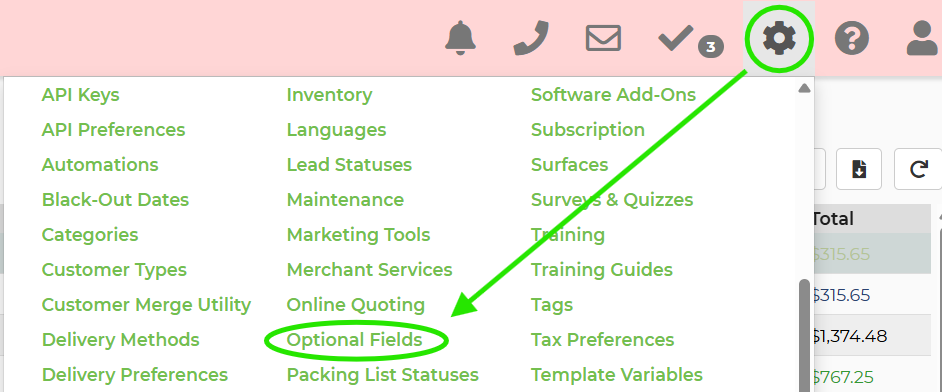
- Go to Settings > Optional Fields.
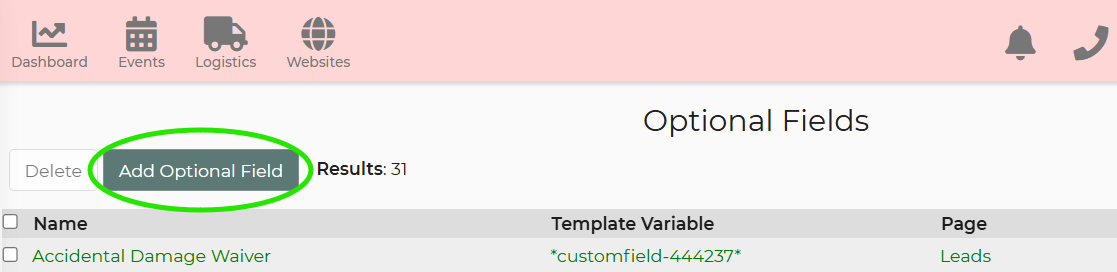
- Click Add Optional Field.
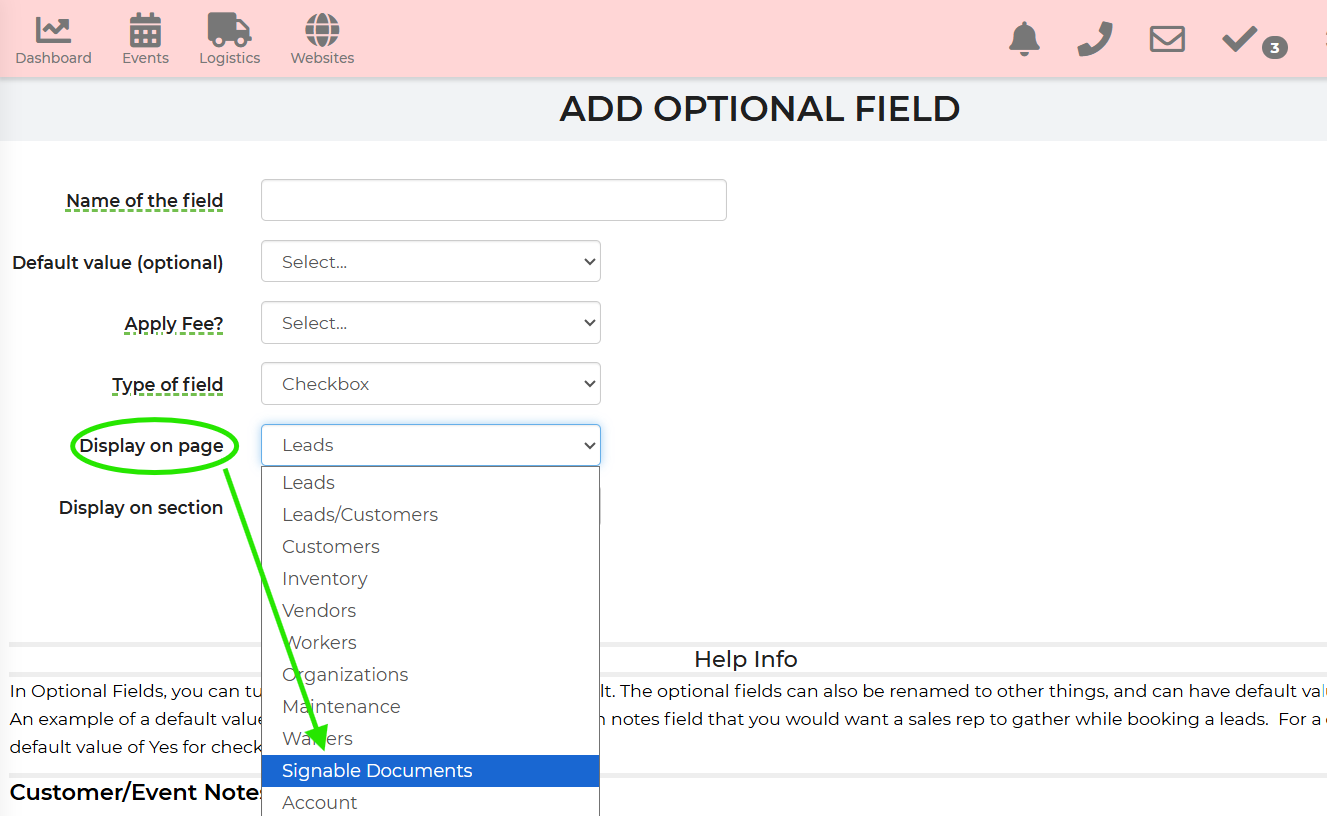
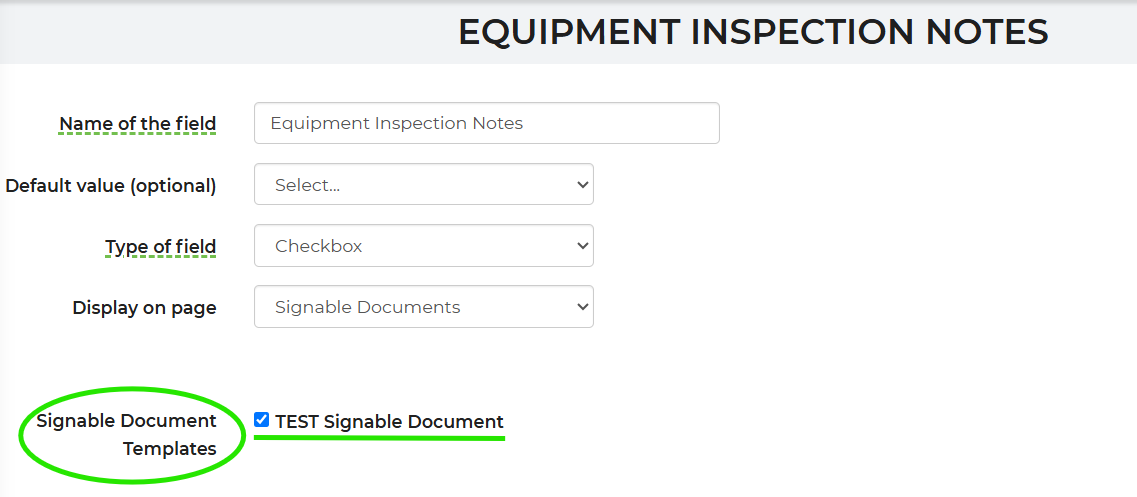
- Under Display on Page, select Signable Documents.
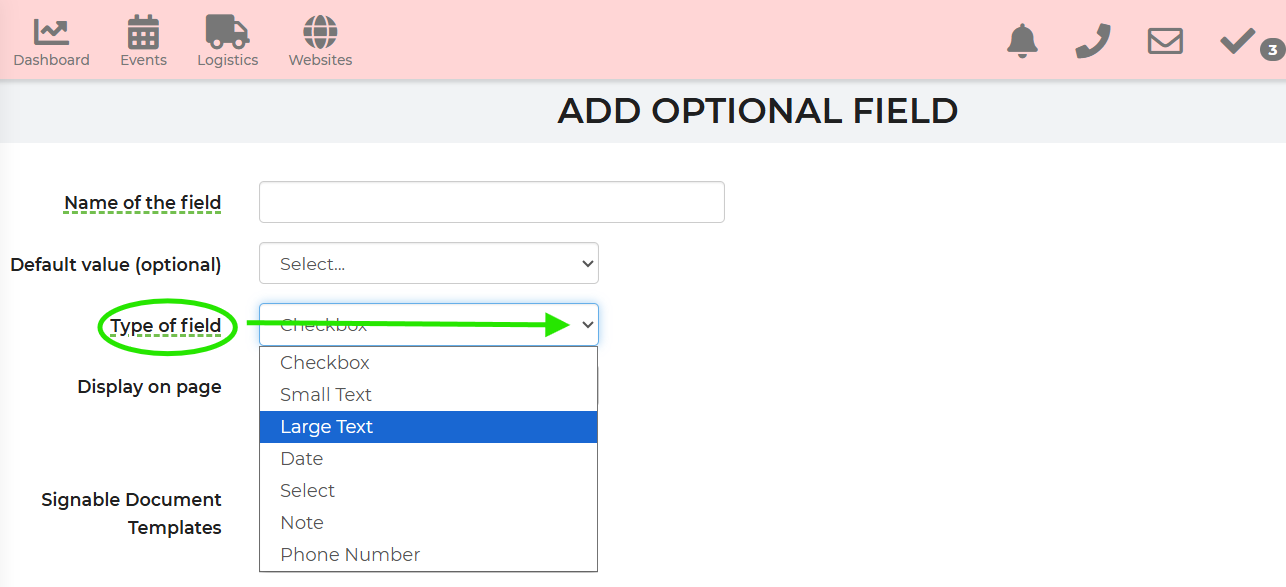
- Choose a field type and enter a name. For example, choose Large Text and name it "Equipment Inspection Notes".
- Select the signable document template where the field should appear, such as your pickup form.
- Click Save.
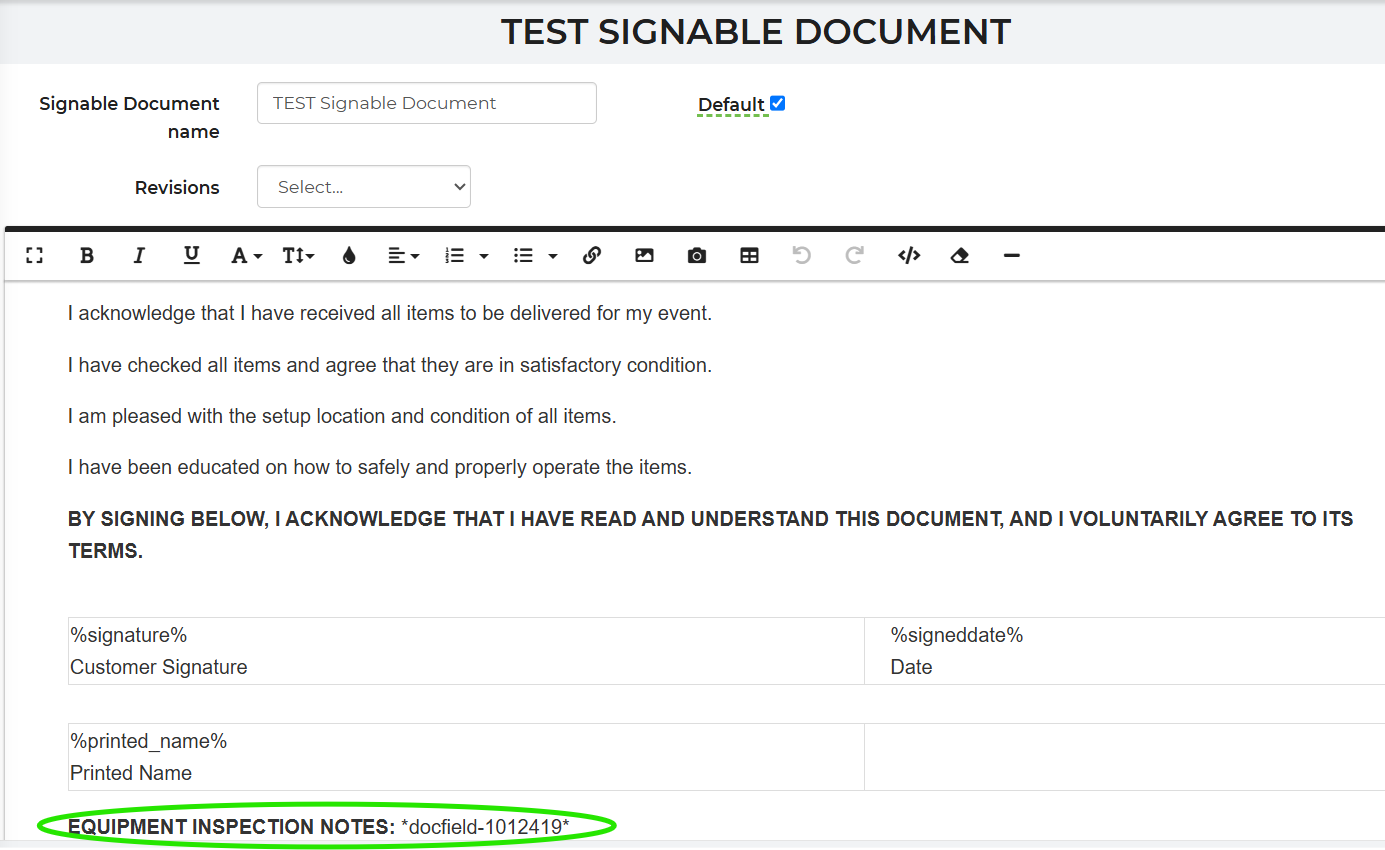
- Open the template (Settings -> Document Center -> Signable Document Templates) to make sure the new field shows up where you expect.
HTML
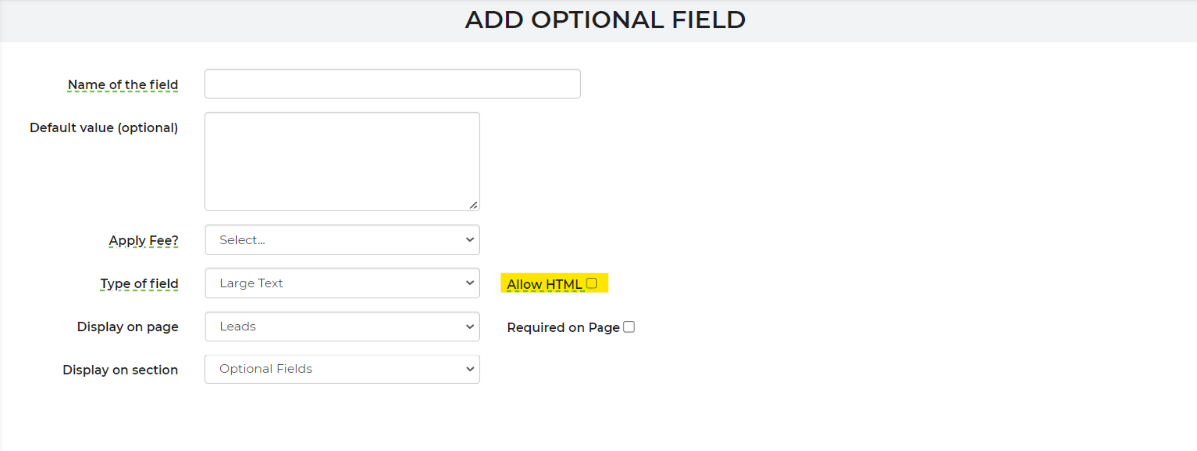
You can also add an HTML editor to large text fields. The type of field must be "Large Text", as pictured below.