


Image Editor
InflatableOffice includes a built-in Image Editor that lets you clean up, crop, remove backgrounds, and watermark your rental inventory photos directly inside your account—no external software like Photoshop required.
All processing runs directly in your web browser, meaning your images stay private and edits happen fast without waiting for third-party uploads.
Where to Find the Photo Editor
You can access the Photo Editor in two convenient ways:
- Standalone Editor (Settings):
- Go to Settings in your main navigation.
- Search Image Editor.
- Best for general photo preparation, testing logos, and batch editing.
- Directly from Inventory:
- Open an inventory item.
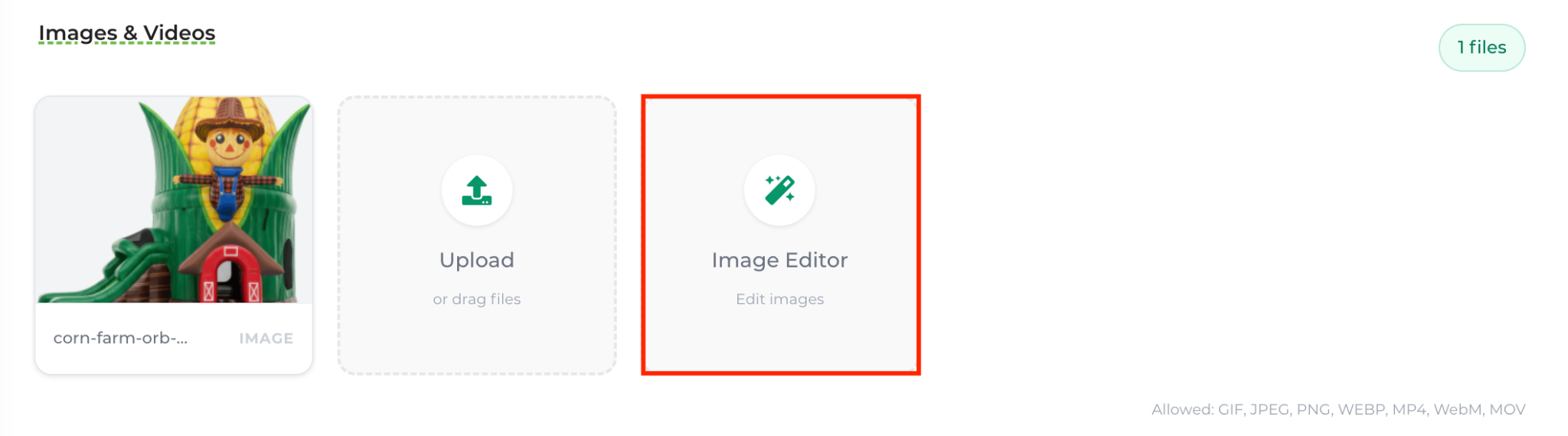
- Navigate to the Image & Videos section on a new or an existing product.
- The editor will be to the right of the “Upload” section.
Key Features & How to Use Them
1. Cropping & Resizing
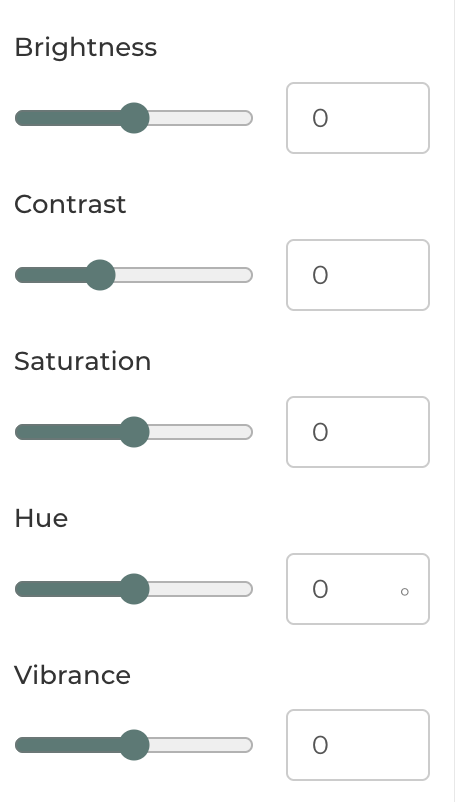
- Crop: Click and drag the crop frame handles over the preview, or enter specific pixel coordinates in the inspector. Click Apply Crop when satisfied (or Use Full Photo to reset).
- Resize: Enter your desired Width and Height. Enable Lock Aspect Ratio to prevent stretching or distorting your rental equipment.
- Zoom: Use your mouse scroll wheel to zoom in and out of the canvas for precision adjustments.
2. Removing & Cleaning Up Backgrounds
The editor offers several tools to handle backgrounds of all kinds:
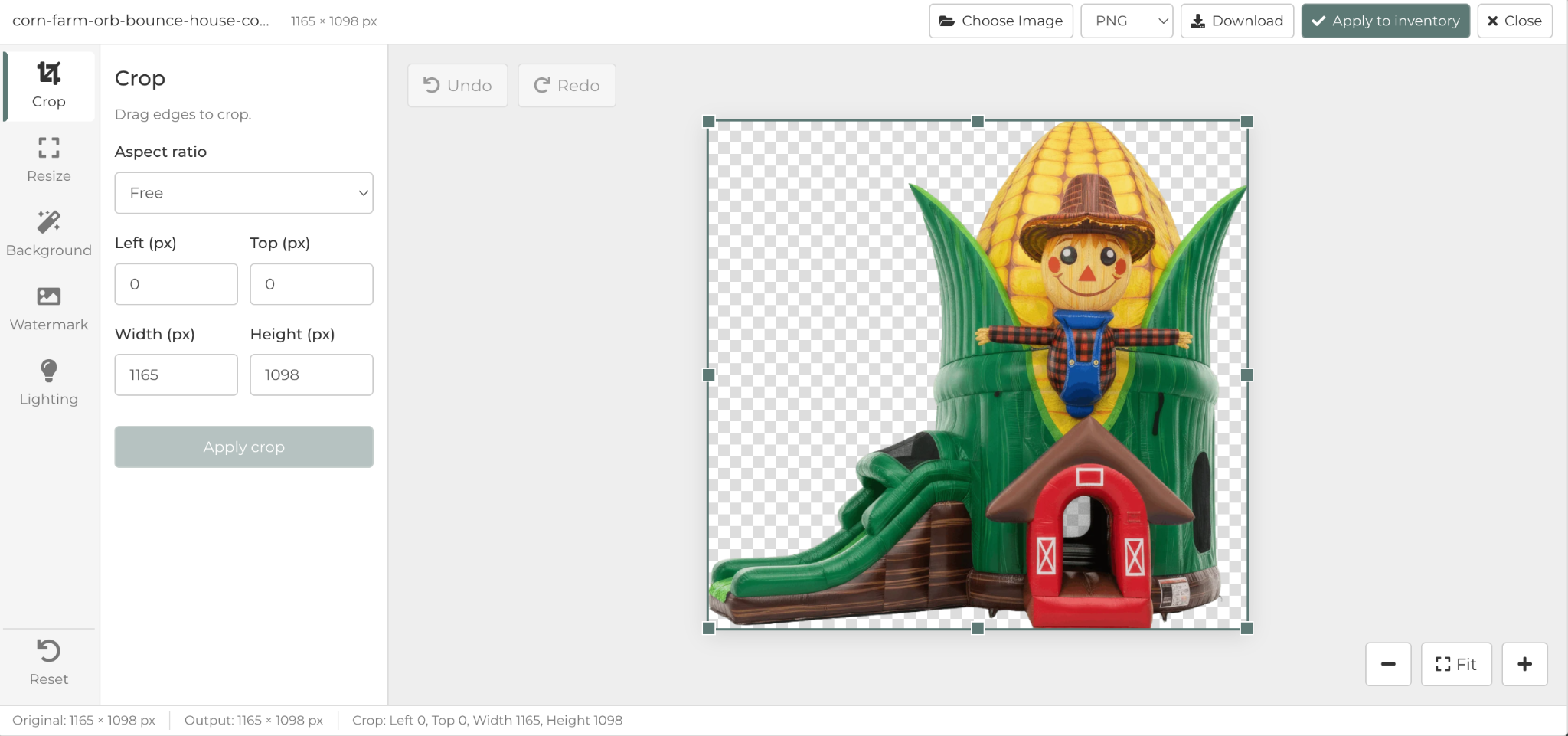
- Auto Remove & Crop: Uses local AI detection to automatically cut out the main subject (bounce houses, tents, obstacle courses).
- Eraser Brush: Use the Eraser brush to manually wipe away leftover background details, or use the Restore brush if a piece of your product was accidentally removed.
- Undo / Redo: Step back through your adjustments at any time.
- Reset: Reset the image to the originally uploaded image and give it a try again.
3. Color & Lighting Adjustments
Tune your photos to look bright and professional on your storefront:
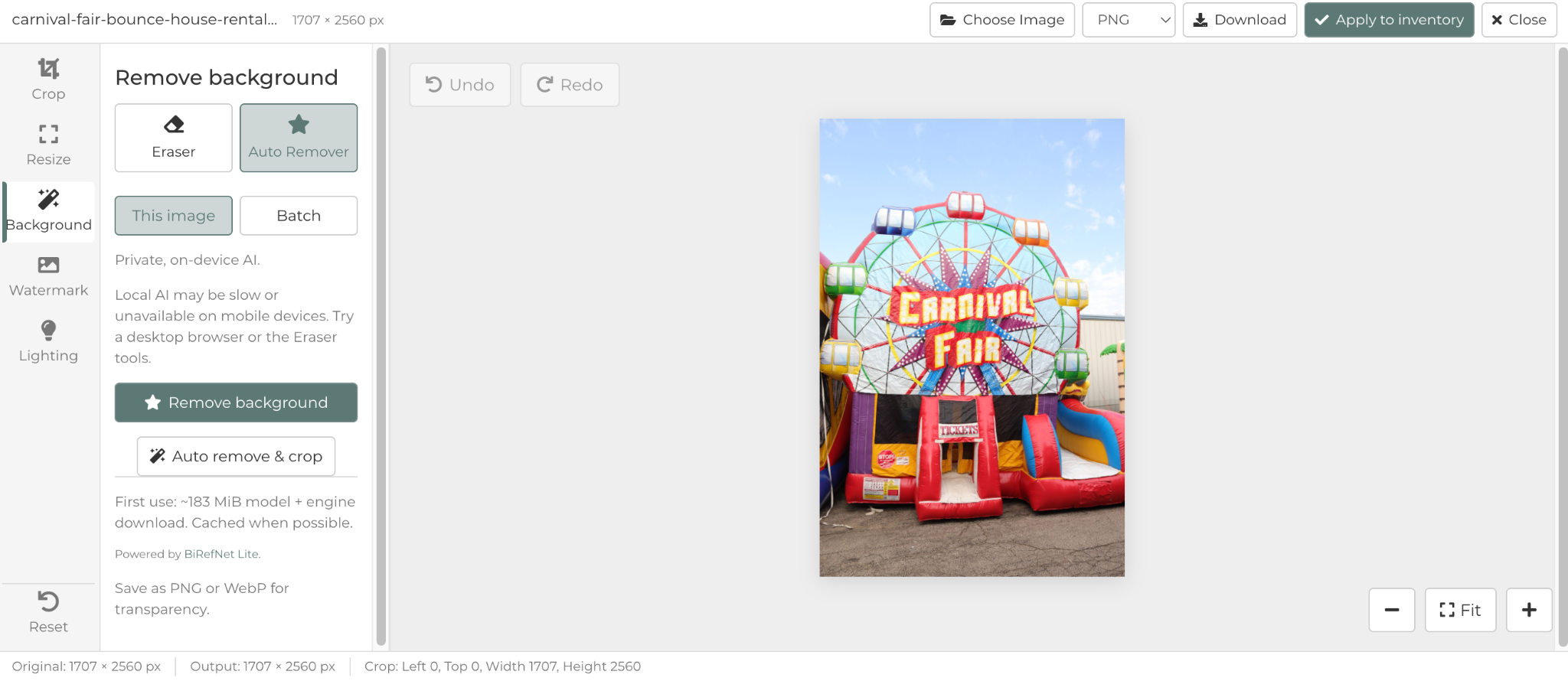
- Brightness: Brighten up photos taken in dim warehouses or overcast weather.
- Contrast: Make colors pop and add definition.
- Saturation: Enhance the vivid colors of inflatables and party gear.
- Hue: Adjust overall color balance.
- Vibrance: Boost muted colors while keeping already-vivid colors and skin tones looking natura. Makes colors pop more intelligently.
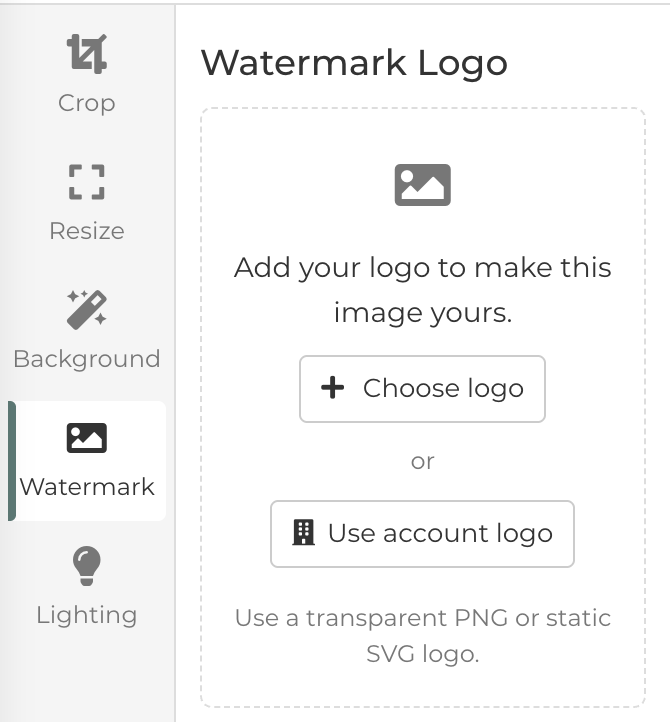
4. Adding Logos & Watermarks
Protect your images and brand your catalog by placing your logo directly onto your photos:
- Account Logo: Click Use Account Logo to instantly pull the logo already configured in your account settings—no need to search your computer files.
- Upload Custom Logo: Upload any raster image (PNG, JPEG) or a vector SVG file.
- Position & Opacity: Drag your logo to any position on the canvas, adjust its size, and use the Opacity slider to create a subtle watermark.
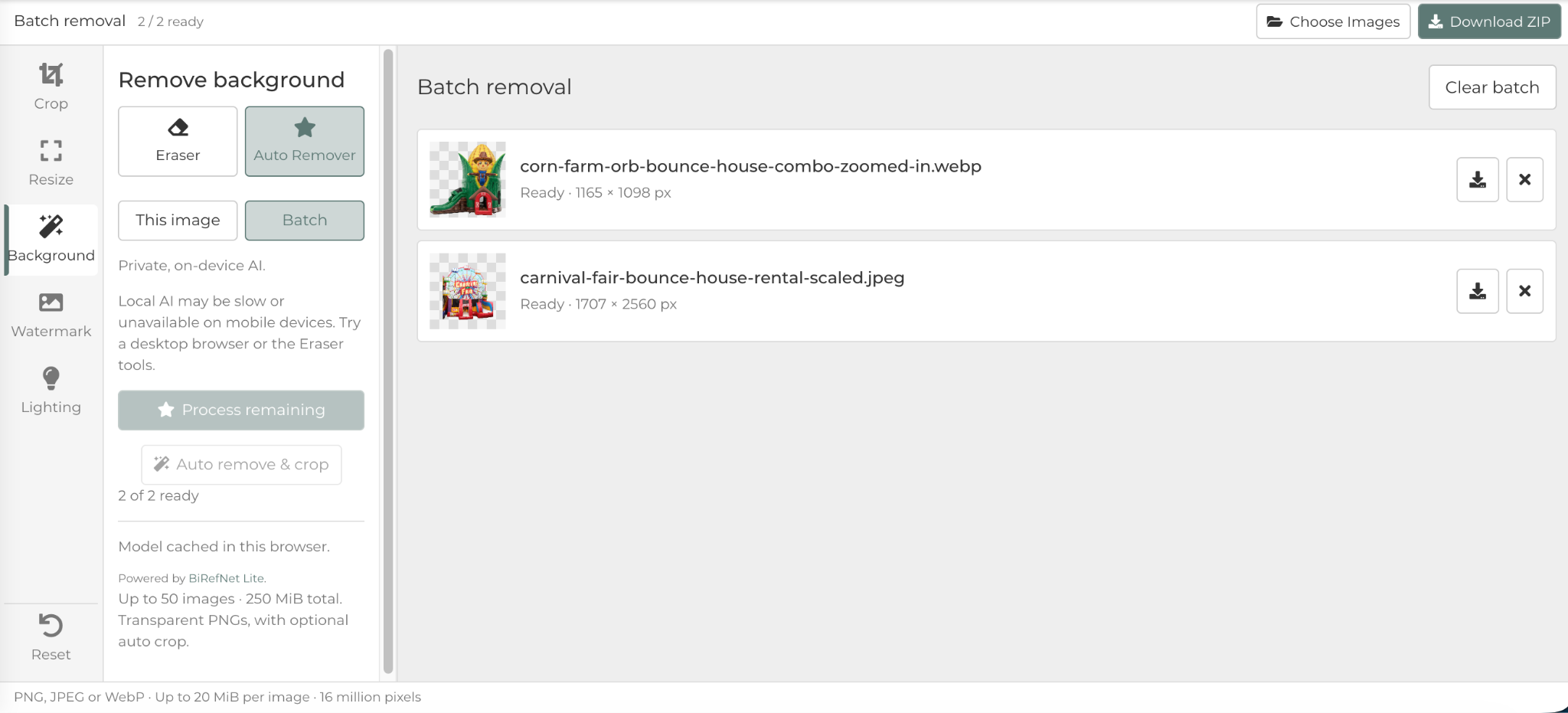
5. Batch Background Removal
Need to prepare multiple items at once?
- Select Batch Mode in the standalone editor.
- Upload a group of photos.
- The tool will process the background removal sequentially across all selected images and let you download them all together.
Saving & Exporting Your Work
- Applying to Inventory: When opened from an inventory page, click Apply to inventory to replace, add, or upload a photo directly on that item.
- Downloading Files: When using the standalone editor, choose your preferred format and click Download:
- PNG: Recommended for transparent backgrounds.
- JPEG: Automatically flattens onto a clean white background (ideal for standard catalog listings).
- WebP: Lightweight modern format for fast web page loading.
Helpful Tips & Best Practices
- Desktop Recommended for Background Removal: The AI-powered background removal tool requires processing power that may be slow or restricted on mobile devices. For best results, edit photos on a desktop or laptop browser.
- Supported File Sizes: Supports files up to 20 MB and 16 Megapixels (up to 8,192 pixels per side).
- Browser-Local Privacy: Your photos are not sent to any third-party external AI APIs—all edits are handled locally in your browser session.