


We make it easy for you to add videos to your products. To add videos to your product pages directly from the Inventory editor, you have a couple different options; you can embed a video, link to one using the description toolbar or attach the video using the description toolbar.
How to Add a Video (Embed)
1) Go to Settings -> Inventory and open the item you want to edit.
2) In the Description editor, click the </> symbol.
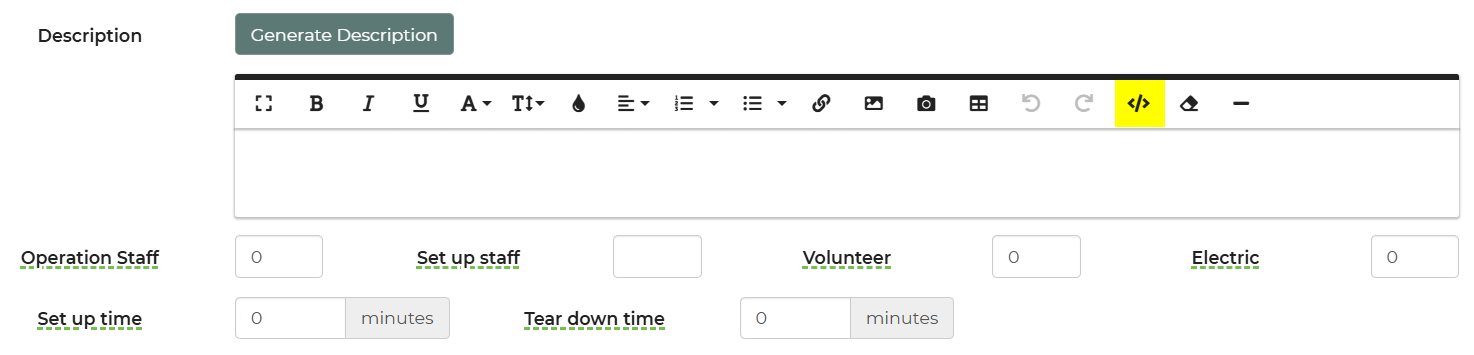
3) Paste your video embed link where you want the video to display within the description.
4) Insert the video, then click Save on the item.
How to Add a Video Link (Clickable Text or Image)
1) In the item’s Description editor, click the camera icon on the toolbar.
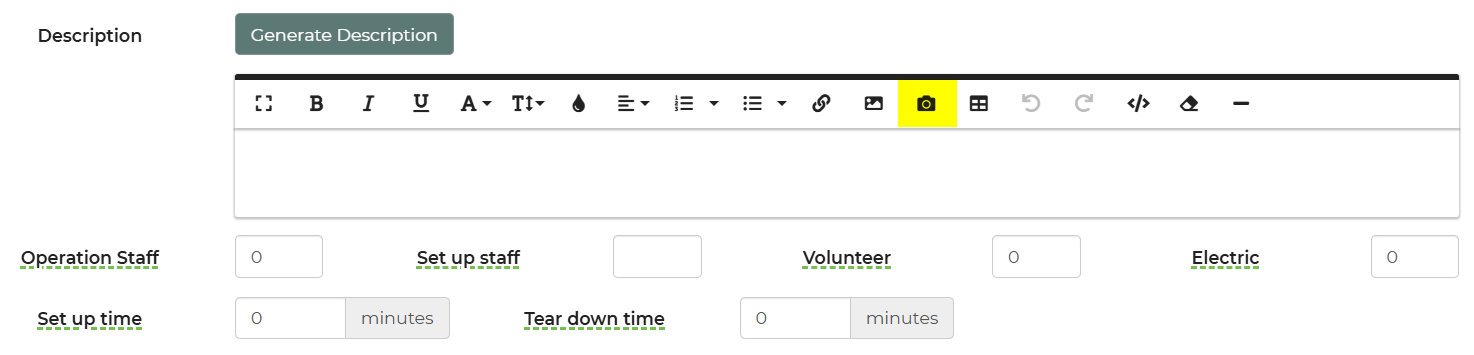
2) Paste in the URL link, or paste in the embed code, then click Save on the item.
How to Add a Video Link (Clickable Link)
1) In the item’s Description editor, type the link text
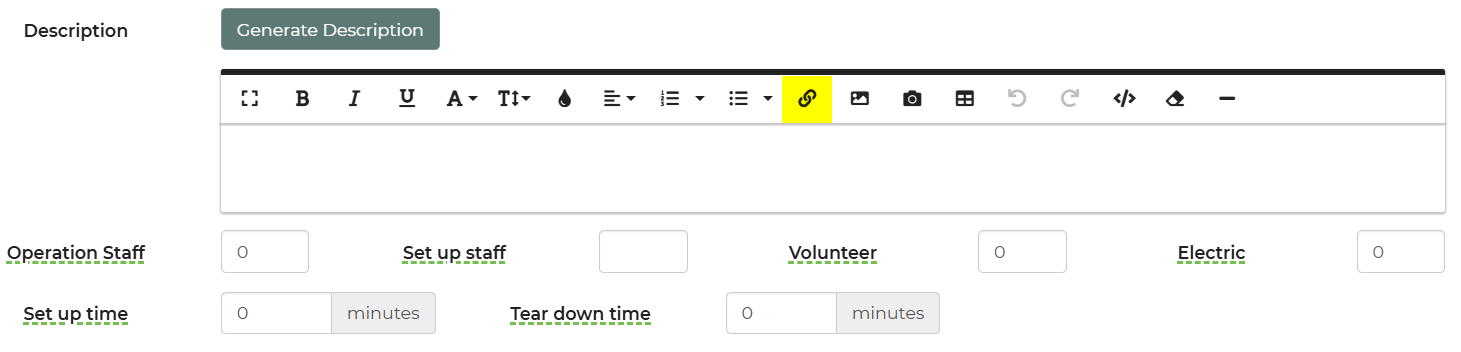
2) Click the link icon on the toolbar.
3) Paste the full video URL (https://…).
4) Insert the link, then click Save on the item.
Troubleshooting & FAQs
Q: The video doesn’t appear on the page.
A: Confirm you clicked Save on the item.
Q: Check that your video URL is correct and publicly viewable.
A: Use a full https:// URL.
Q: The link works, but the video won’t embed.
A: Some hosts restrict embedding. Use the link option instead or switch to a host that supports embeds.
Q: The page loads slowly after adding a large video.
A: Consider linking instead of embedding or placing the video lower in the description.