


We've developed an email template to help you gather up revenue while we’re at a stand-still. Gift card sales are a great way to secure payments without having to secure a booking date. The amounts, restrictions, and guidelines are up to you. You should look into the gift card laws in your state and seek legal counsel to make sure you comply.
We will provide an email template to send out to your mailing list. You can add gift cards on the beta site by going to the inventory page and adding a gift card via the drop down "Add" menu. You may also want to add a gift card category. Anyone using our WP module will automatically have their website updated with the gift card items. If you make a category for gift cards, you may have to update your site menu to include that category. Choose a value for the gift card and then enter the rest of the details like price. Note you can sell a gift card at a lesser value to motivate customers to buy gift cards (ex. $300 GC for $285). Gift cards are not eligible for promotions such as specials and coupon codes. Customers can purchase gift cards just like any other purchase on your site. Once the full balance is paid for a lead with a gift card on it, the automatic gift card email will send out an email to the customer with the gift card information.
You may also issue gift cards manually. This is useful if you are trying to avoid giving a refund and avoid tracking a customer credit, making it their responsibility to use their credit later. You can issue gift cards for credits on any lead that has a credit. When there is a credit, a link will show to allow you to do this. You can also issue gift cards from customer profiles. Manually issued gift cards like these, require you to manually send the gift card email. After saving, you can choose to email from the lead or customer and select the template for auto gift card emails. Additionally, we have added a new gift card page where you can manage gift cards.
You'll notice that all of this is primarily on our Office Upgrade version. You have all been given access to the beta so you can use this feature. If you are using the old site, your customers may still use issued/purchased gift cards with no issue.
How to Issue Gift Cards
There are 3 ways you can issue a gift card.
- There is a credit on a lead. Click the link by the credit to create the gift card. Load the gift card email and send.
- Someone is buying a gift card. If a gift card item is on a lead and the full payment for that lead is made, we create and send the gift card to the customer. It's a gift card auto email that needs turned on.
- You want to just issue a free gift card. You do this from the customer profile. Then load the gift card email and send. You can do the same by going to Settings→ Gift cards→ Click "Add Gift Card".
View a video demo on our YouTube channel.
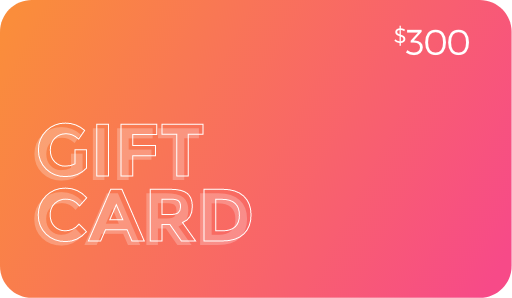
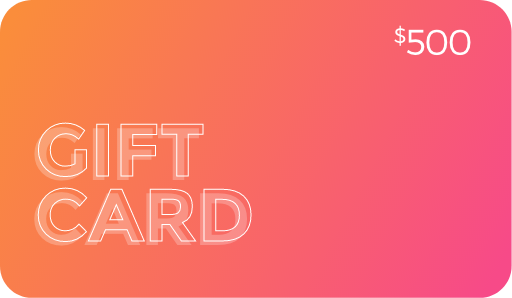
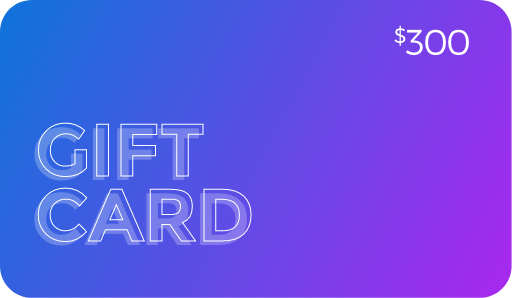
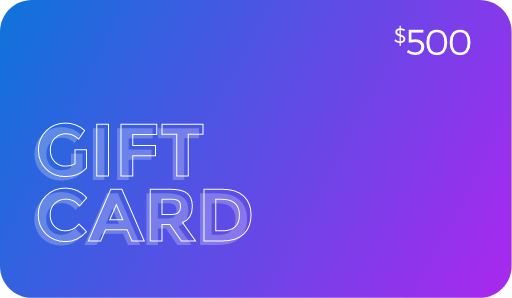
Examples of the Gift Card artwork
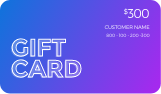
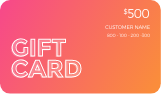
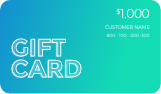
$300 Gift Card $500 Gift Card Any Amount Gift Card
Cancelling a Gift Card
If you would like to cancel a gift card you can do so by going to Settings→ Gift Cards. Select the customer whose gift card you would like to cancel off the list then set the amount to $0. You can also change the amount of any issued gift card here.
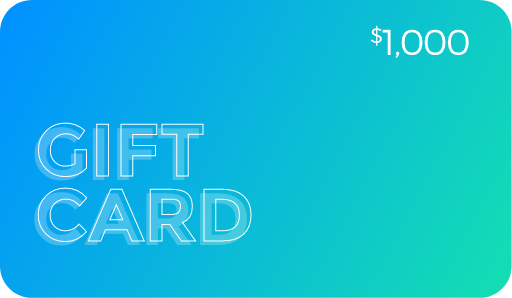
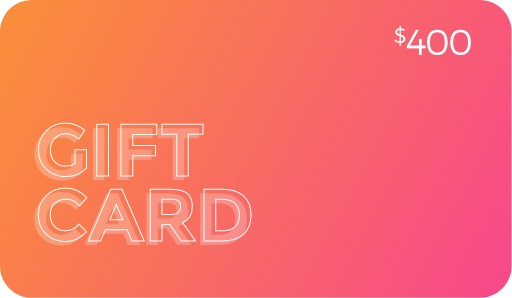
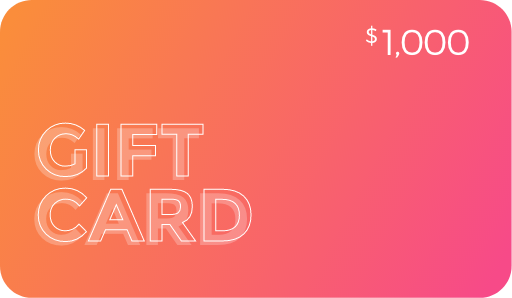
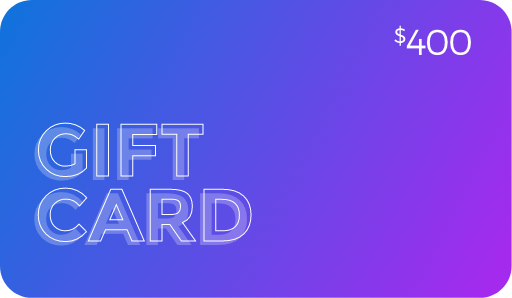
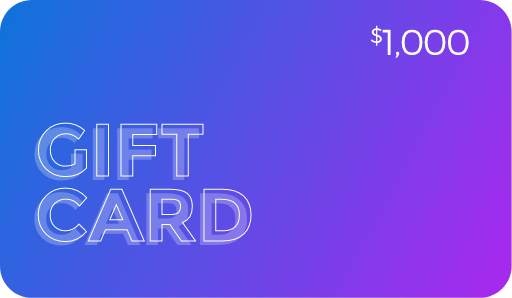
Gift Card Images for Available Use
Just right click and save them to your computer, then upload them to your account to be used for you inventory.



Redeeming Gift Cards
To redeem a gift card on a lead in the backend, open the applicable lead and navigate to the Payments section. In the Referral Number field, paste the gift card code as shown below. Once entered, the payment type will automatically update to Gift Card.
Next, enter the amount you would like to apply from the gift card in the Amount field. The available gift card balance will appear to the right and will update automatically after an amount is entered. Once the gift card code has been entered and the amount specified, click the plus (+) button on the far right to add the payment to the lead, then save your changes. The screenshot below illustrates this process.

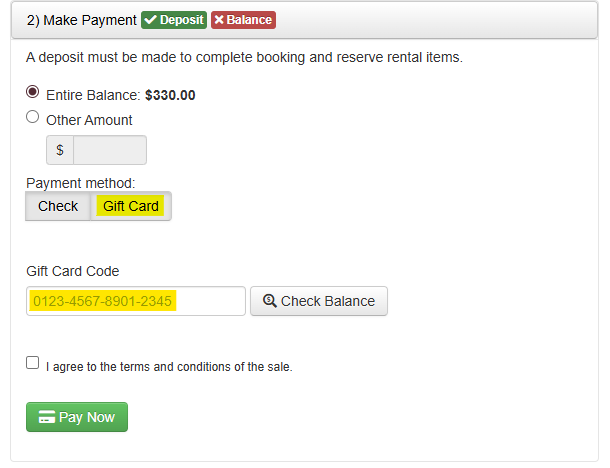
Customers can redeem gift cards directly within their event contract by navigating to the Payments section. To do so, they should select Gift Card as the payment method and paste the gift card code into the designated field, as shown below. After entering the gift card code, customers may also click Check Balance to view the remaining balance on the gift card before applying the payment.
For a visual walkthrough, you may also click here to watch the section of the gift card video above that covers redeeming gift cards.
Gift Card in Your Accounting
Gift cards when sold are a liability. When redeemed you reduce that liability. If you are using the software/EventOffice with QuickBooks, we will enter the invoice as we normally do. The best thing for you to do once the sale is complete is to disassociate the invoice with the lead in our software by making a copy of it in QB. Then delete the original. On the copy, you will need to follow your accountant's advice for how to realize the income, create the liability, and then reduce the liability when the gift card is used.
Don't Want to Offer Gift Cards?
By default, the gift card button shows as a payment option to your customers. If you don't want it to show, go to Settings -> Document Center -> Pages, locate and select the Contract Page, toggle to source/code view, then, paste the following code at the top.
<style type="text/css"> #giftcard-btn {
display: none; } </style>