


Once you have already gotten setup with your the software account there are 3 places you may want to update your logo.
- Updating your logo inside of account preferences
- Change the logo on your contract, invoice and account statement
- Change your logo on an integrated website
1. Updating your logo inside of your account for general purposes
- Settings
- Account Preferences
- Logo URL
- Upload
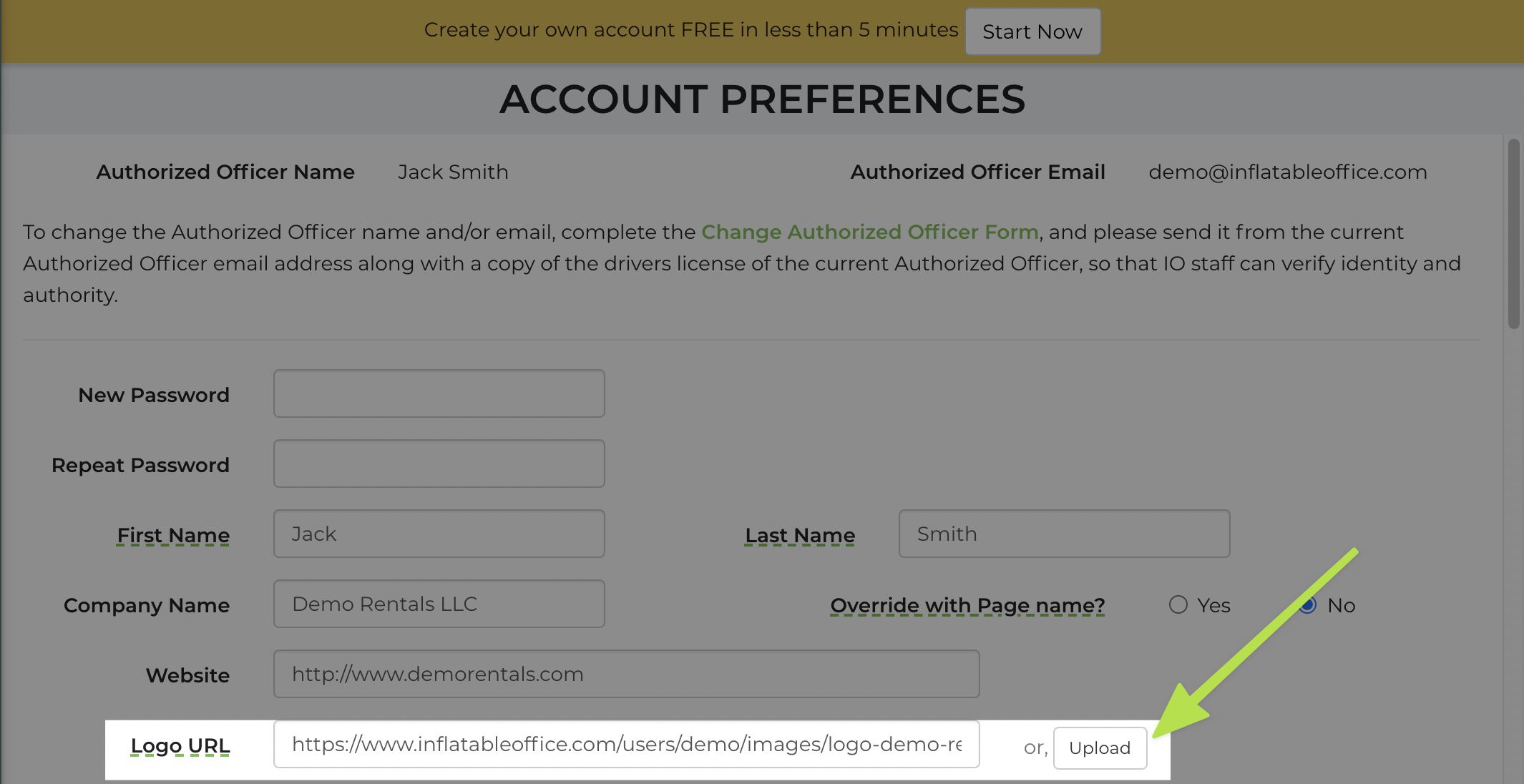
Note: This option is used solely to insert your logo into templates that reference the company logo variable (%header%). Any other templates will require the logo to be updated manually, as described in the next section.
2. Change Logo on your Contract, Invoice and Account Statement
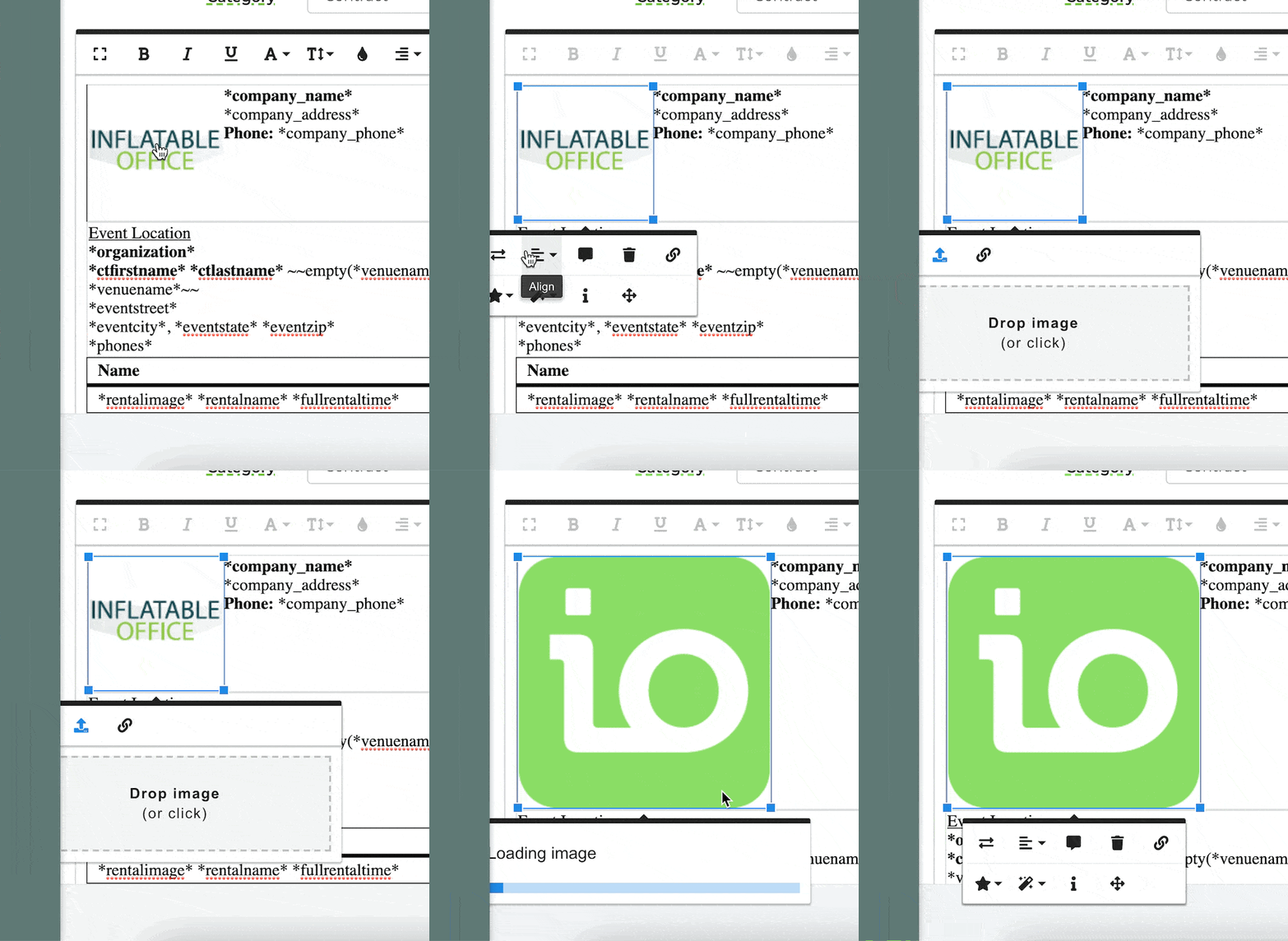
Navigate to Settings → Document Center, then select Contract Templates, Invoice Templates, or Account Statement Templates, as appropriate. From the list, choose the template you wish to edit. Click the existing logo within the template and select the Replace button (indicated by two arrows) to upload a new logo from your files. Be sure to save your changes once completed.
3. Change logo on integrated website
Click here to view the article and watch the accompanying video for step-by-step guidance on updating the logo on your IO website.