


Getting Started: Add Your First Inventory Item
Keep it simple to start. Begin with a basic rental item to learn the workflow. You can add complex items (modular banners, multi-section obstacles, etc.) later.
Add a rental item so it displays on your website and can be quoted/booked.
Prerequisites
- Access to Settings → Inventory.
- At least one Category (recommended). Manage at Settings → Categories.
- A pricing approach decided (hourly, daily, or mixed).
- Optional: Images and a short description for the item.
Add a New Inventory Item
- Go to Settings → Inventory.
- Click “Add Inventory.”
- Name: Enter the item name (displayed on your site and quotes).

- Quantity: Enter the number of the item you have, or select “Unlimited.

- Category: Assign at least one Category so the item appears on your website. If adding multiple categories, set a Primary.

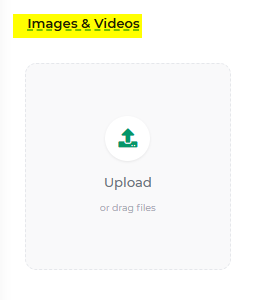
- Images & Videos (optional): Upload and reorder images to improve customer engagement. (Allowed: GIF, JPEG, PNG, WEBP, MP4, WebM, MOV)
- Description (optional): Add a short, clear description.

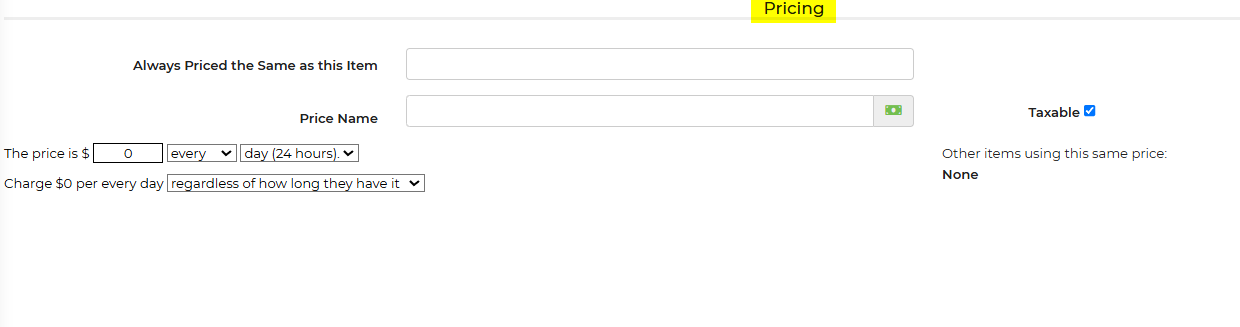
- Price: Add pricing for the item. See Pricing for details.
- Packing List: Create a list of items that you would need to set up the item accordingly based on the surface type they select at checkout.

- Accessories/Add-Ons/Banners: Add accessories that could be rented along with the item.

- Click “Save.”
Feature Options & Parameters
- Setup/Tear-down Time: Add default minutes for scheduling and staffing.
- Recovery Time: Buffer hours to prevent back-to-back bookings. (Advanced)
- Display Settings: Choose where the item appears (website, quote page, packing list, etc.).
Troubleshooting & FAQs
- The item doesn’t appear on my website. Make sure it has at least one Category and is enabled to display on customer pages in Advanced Settings.
- The price isn’t showing as expected. Confirm a price is set and that any accessory/package overrides aren’t suppressing it. See Pricing.
- Quantity confusion. If left blank, quantity becomes “1” on save. Use “Unlimited” when stock shouldn’t limit availability.
- I have multiple of the same item. Use serial numbers and same-name items to track units individually. Or increase the quantity.