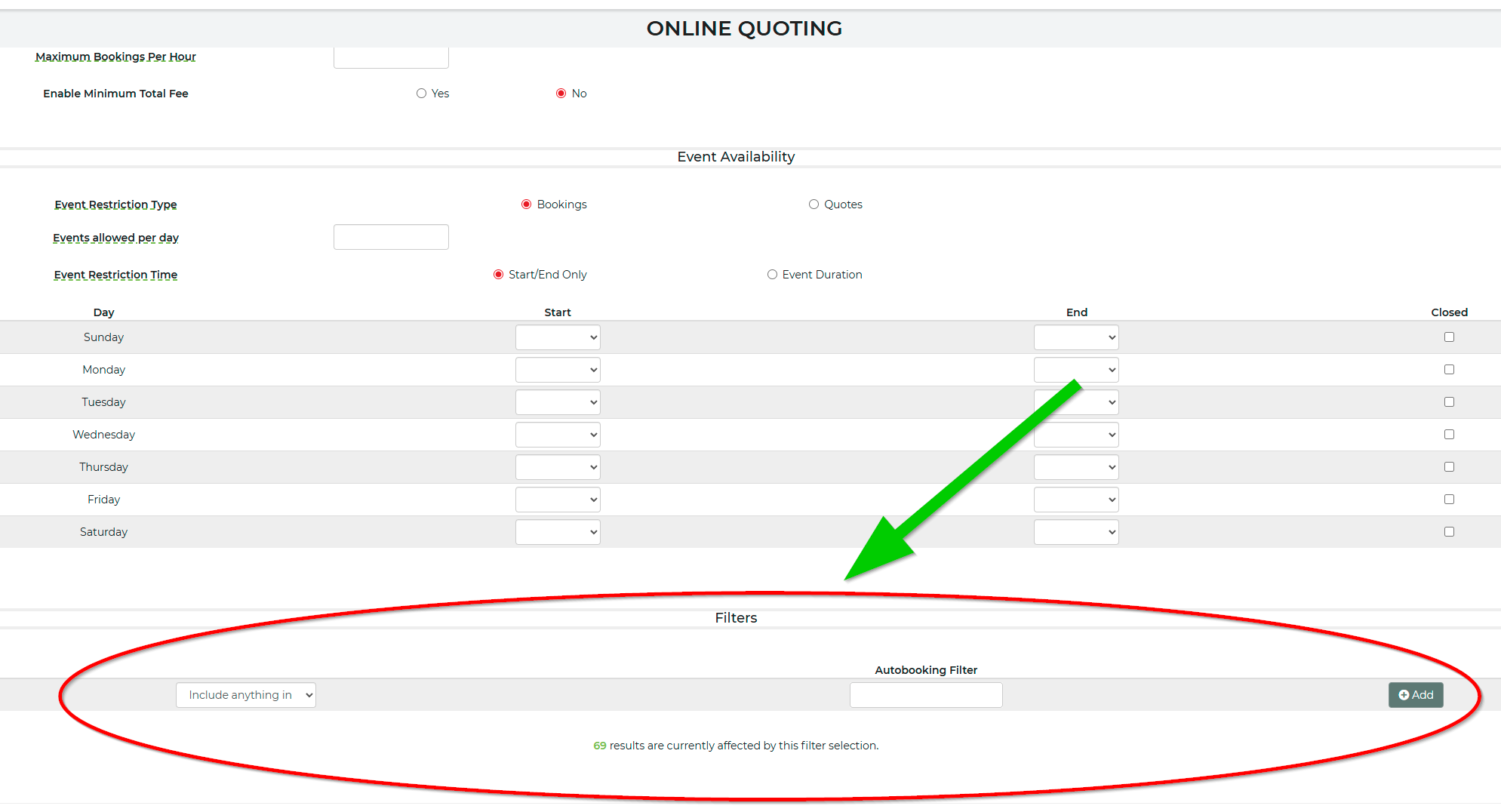
Our Online Quoting, allows you to be able to edit settings that control how your customers can get quotes and auto-book. You can restrict auto-booking, choose to show conflicts to customers at different stages of the quoting process and you can control days and times that you'd like to restrict events in the Event Time Restriction area. You'll be able to block off a day depending on the time or you can block out a day of the week completely.
Restrictions can be overridden on a lead by placing the lead in a status that is reserving the equipment. By default, these statuses are typically Contract or Confirmed.
Auto Booking
InflatableOffice/EventOffice gives you the option of allowing people to completely booking an event entirely from your website or not. We recommend doing this or at least doing this with some of your products and services because we have seen that customers want to do this and companies that allow it will sell more. On each inventory item, you can restrict quoting or booking as well, even if you allow it here.
We allow you to set a required number of days of notice that you need before allowing someone to book an event. This is a very useful setting because you need time to prepare for an event. You do not want someone booking that night while you sleep and expecting a morning delivery. We recommend giving yourself at least 1-3 days of notice. When a customer tries to book within this restricted period, you will get an alert of an attempted booking (as long as you have that alert turned on) and the lead will be flagged inside the software to encourage you to give it attention.
We allow you to prevent creation of new leads within a certain time. This is commonly used by users that do not wish to have 10 leads from the same customer. When you enter a number of minutes in this field, we will check to see the last submission time for that customer, and if within the minute restriction, we will overwrite their last lead with the new information. We do not recommend this because our system can easily handle multiple leads from the same customer. It is built to handle it. Plus, seeing all their leads and the order they submitted them gives you information on their thought process. You can start to see them zero in on a budget with their last leads. You can see what they really want by looking at their first leads. This all helps you sell to your customer. But if you prefer to keep it simple, setting this to something like 60 minutes will keep your leads from the same customer at a minimum.
Advanced Booking Restrictions
This allows you to set a restriction on how many days in advanced a customer can book. If you do not want your customer to book anything sooner than 3 months, you would enter "90" here. This is in daily increments.
Allow Multi-Day
Keeping Multi-Day Rentals turned on will allow your customer to enter event dates that span more than one calendar day. Turning this off will not allow your customers rent for more than one day.
You will no longer be able to select the multi-day option directly within the WordPress plugin unless it has already been activated in this section. This update ensures that the multi-day functionality is properly synchronized across both platforms, preventing discrepancies and potential errors. By requiring you to first enable the setting in the software, we are promoting a more streamlined and consistent workflow, reducing any ambiguity when managing multi-day options in the quoting process.
Maximum Bookings Per Hour
This setting can limit the number of bookings during a certain hour. This will check higher status leads for the same start hour and compare against the max value.
Conflicts or Showing Availability
We also allow you to show your availability in different ways. There are good reasons for all of the available choices. Let's review them below.
- Don't Show Availability: This is great if you have the time and want to try to communicate with customers and sell them on other items. The lead will come in. The customer will not be able to book but you will be alerted if they are interested in something unavailable. Then you can contact them and either encourage them to change their date or offer them a different item.
- Show Availability Post-Cart: This is the next step up from not showing availability. It allows you to still collect their interest in your equipment by not showing them the item is unavailable until they submit their information and get a price. On the screen showing the prices, unavailable items are highlighted, and they cannot proceed with booking. Any booking attempt will give them a message that someone will contact them shortly and alert you.
- Show Availability Pre-Cart: If you want your customers to immediately know what is available for the dates and times they are interested in, use this option. Once we know the date and time of their event, we will display item availability on the website and prevent them from adding it to the cart. We will also show it in their cart and prevent them from moving forward on booking or submitting a lead with their information if they change their date and times after they put it in the cart.
Upselling Customers
When this is turned on (marked yes), we will display up to 3 items that the customer may be interested in and adding to their order when viewing their order summary. There are two different options when selecting how your customer sees these items.
1. Normal - normal will show items we think are a good fit that can be affected by your upsell selections on your inventory items. You can choose items you want to display when a certain other item is selected.
2. Price Levels - price levels will show items in three different price levels so your customers can choose something that is more fitting to their budget.
3. Selected Only - this will display only the items selected in the upselling section of each inventory item.
In both cases, we look at popularity, availability, and rating to display the items your customers would most likely be interested in that you could also fulfill. For more information on upselling, see this article.
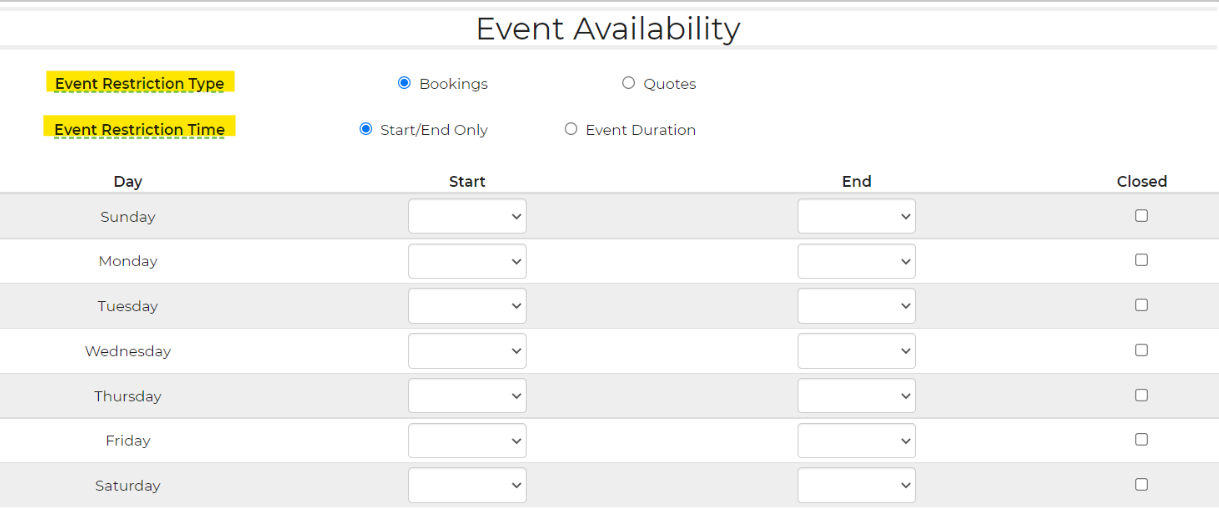
Event Availability Hours
You can set the hours/days that you are willing to operate events or deliver/return equipment. We recommend only restricting bookings so that you can always see what customers are interested in and possibly adjust policies globally or just for a specific lead that comes in. However, if you prefer a more hands-off booking system, you would want to restrict quotes to make less work for yourself explaining to a customer why you are not interested in their business. Restricting booking simply gives the customer a message saying someone will contact them shortly when they attempt to book and are not allowed. Restricting quotes will prevent saving and generation of the quote, giving them an error that you are not open during those times.
Restricting the start/end only is the most common choice. It means that as long as their request starts and ends during times you are open or available, you will service the event. Restricting duration however will prevent any event spanning a time when you are closed from being quoted or booked. You would use this if you did not want your equipment out at all during certain parts of the week. Possibly you would block off a Tuesday if you are always cleaning and preparing for the next weekend during that time and do not want to have anything out.
Show Availability Pre-Cart
Turning on this feature will display the inventory availability to the customer on your website before adding to the cart, in the cart and on the quote request form. If you do not want to display your inventory count to your customer, you can keep this turned off.
Show Availability Post-Cart
Turning on this feature will display availability to the customer on the order summary or quote confirm page, after you have gathered their personal and event information.
Enable Minimum Total Fee
Enabling the minimum total fee will allow your customers to pay the difference of the item(s) for delivery without the hassle of losing a sale. For more information and benefits on enabling this, please see this article.
Filters
You can apply filters to fit your Online Quoting requirements.