


Create a Contract Using the Default Template
Contract templates define the terms and content used when contracts are generated. You can maintain multiple templates, but only one template can be the default for automatic booking and newly created contracts.
Prerequisites
- Permission to access Settings -> Document Center and manage contract templates.
- Permission to view and edit leads if you need to generate a contract manually.
- A contract template containing your company’s terms and policies.
- A valid customer email address and an active contract email template if you plan to email the contract.
Set Up the Default Contract Template
-
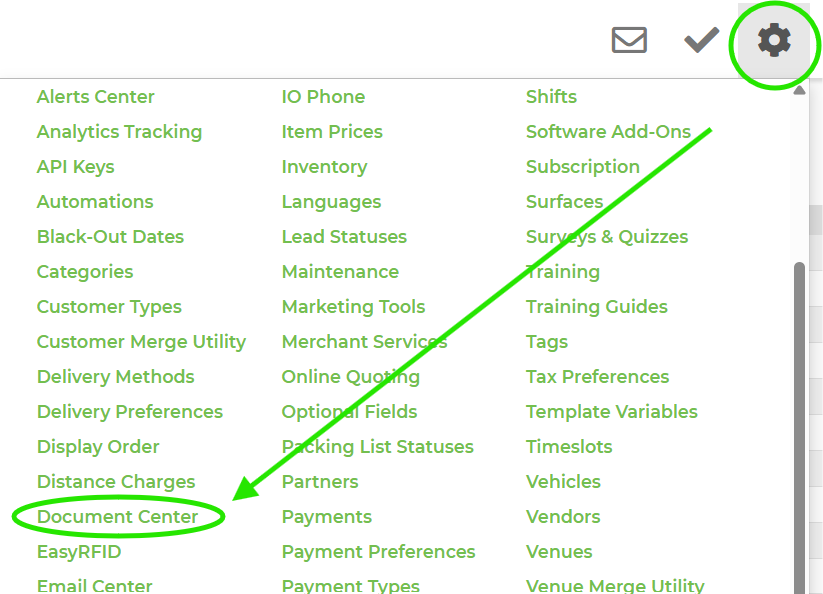
Go to Settings -> Document Center.
-
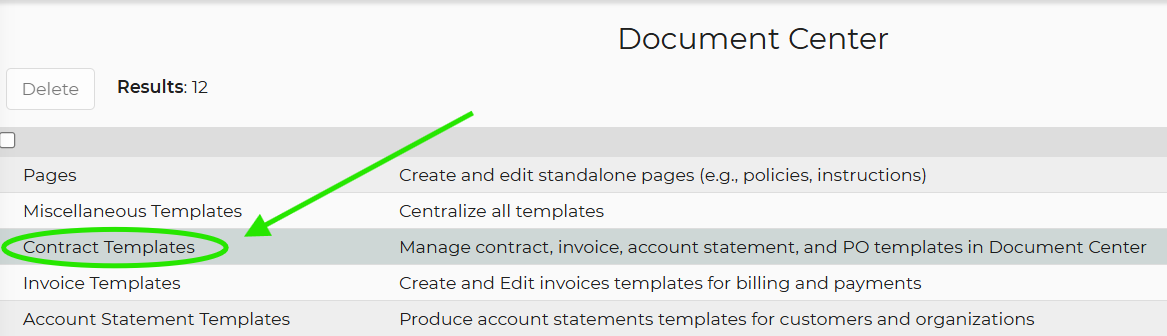
Select Contract Templates.
-
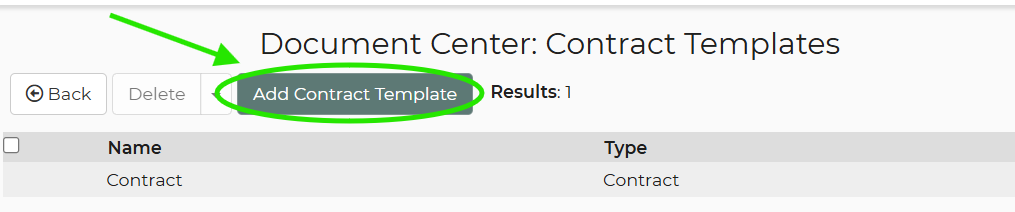
Open the template you want to use, or create a new contract template.
- Edit the contract content to include your company’s terms and policies. The provided placeholder text is for example purposes and may not meet your local legal requirements.
-
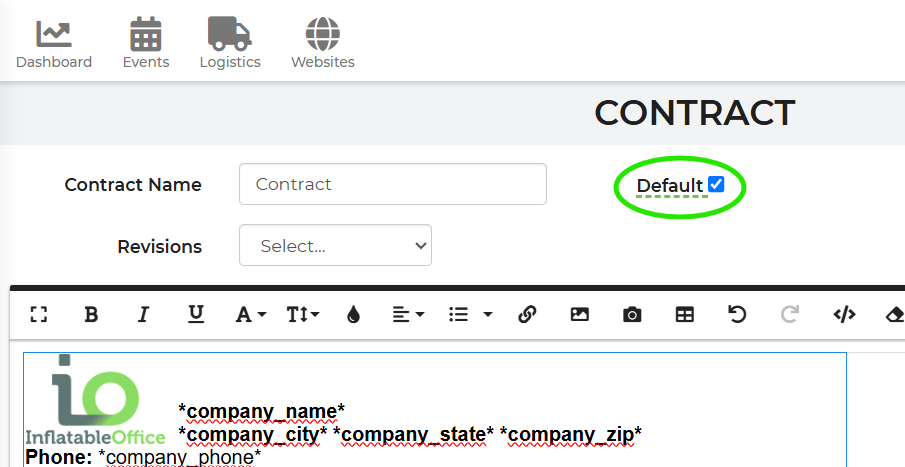
Use the template’s default setting to designate it as the default contract. Only one contract template can be the default.
- Click Save. Newly generated contracts will use the updated default template.
Generate a Contract from a Lead
-
Go to Events -> Leads/Events and open the applicable lead.
-
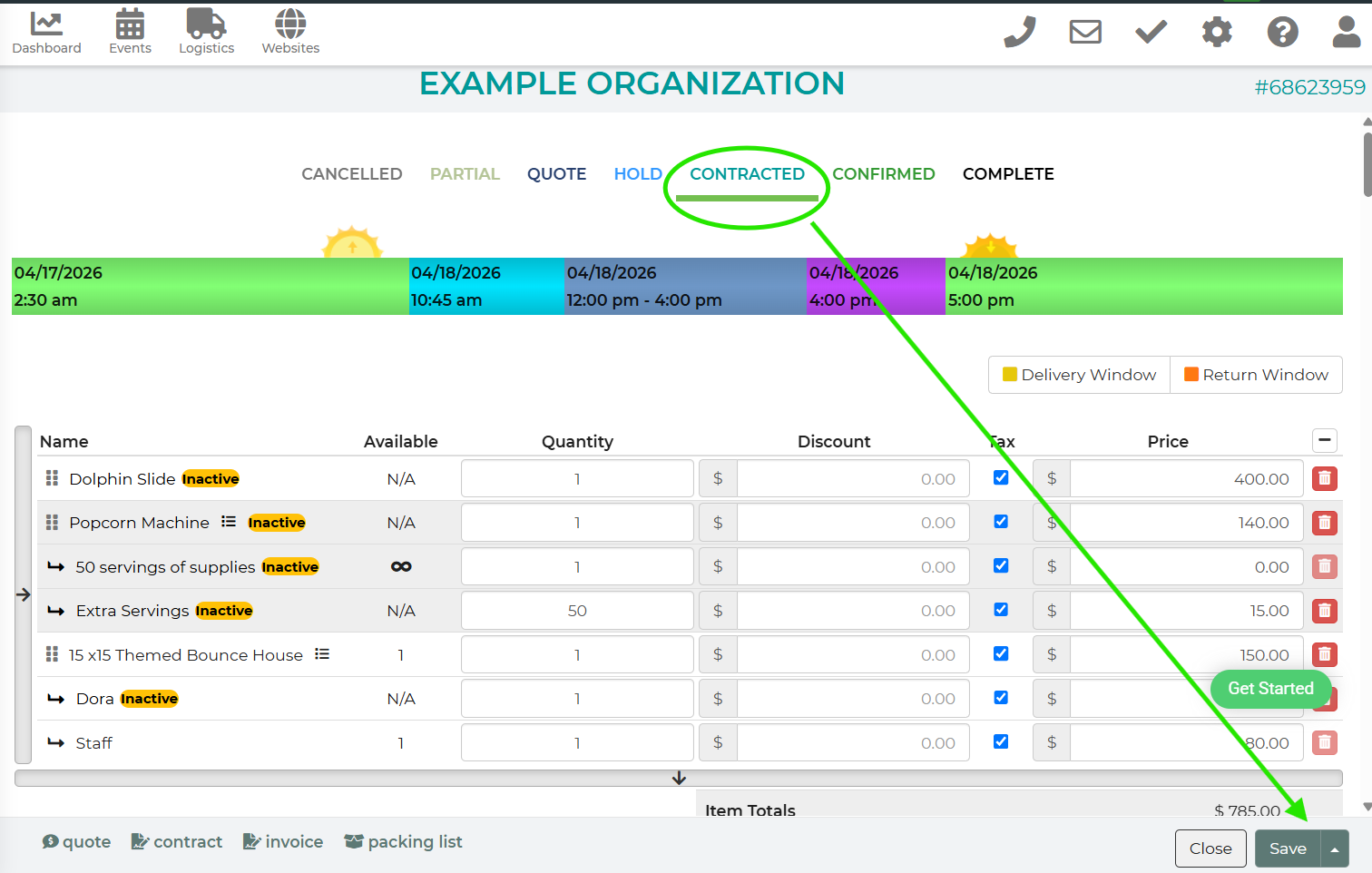
Click Contracted in the lead status area then Save to populate the Contract for this lead.
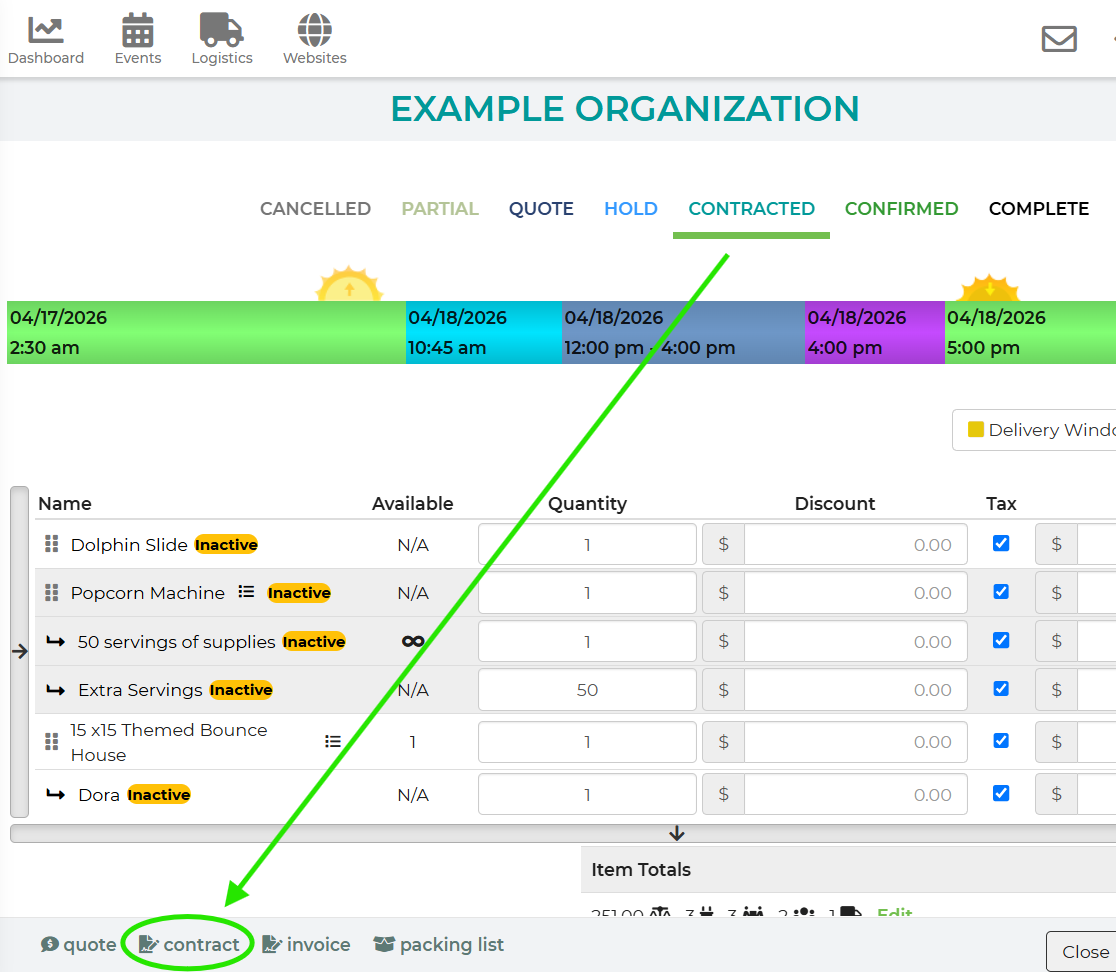
- To preview the contract for the lead, click Contract on the bottom left corner of the screen.
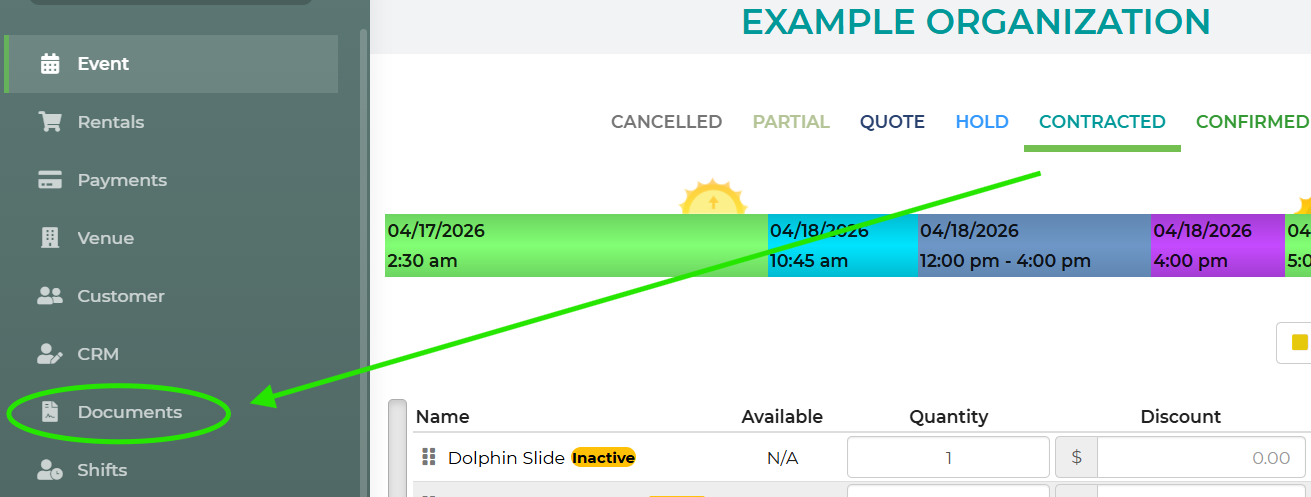
- Additionally, you can review the generated contract from the lead’s Documents section.
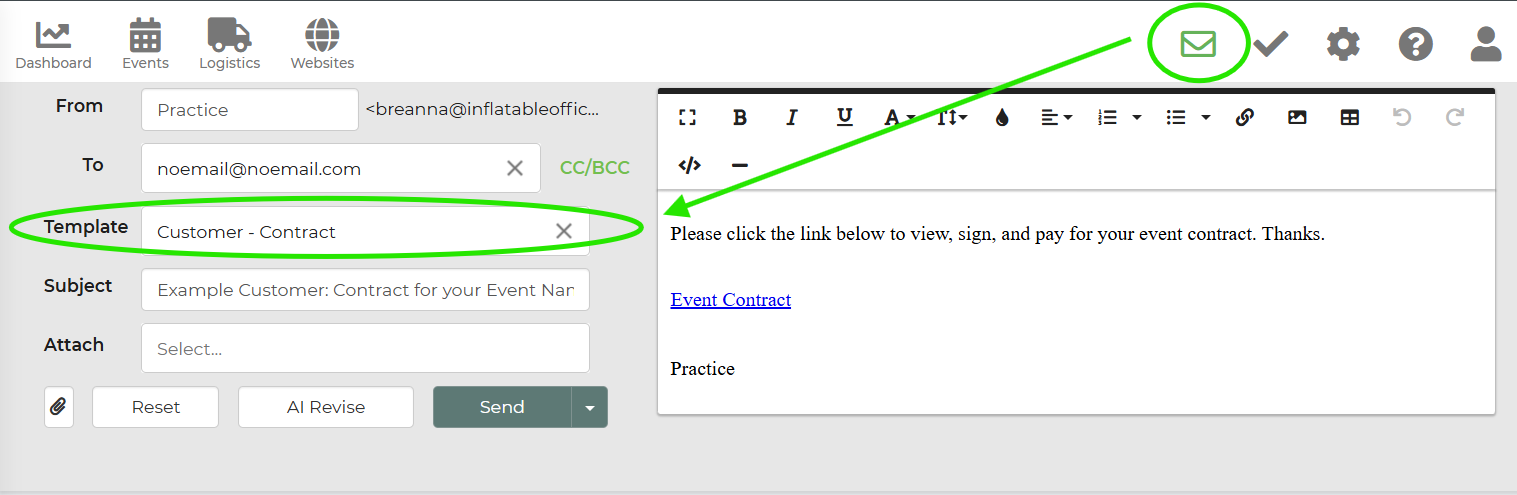
- To send the contract, click the Email button and select your contract email template, such as Customer - Contract.
Feature Options & Parameters
- Multiple templates: Create templates for different rental types, locations, or policies.
- Default template: Only one template can be the default. It is used for customer auto-booking and newly generated contracts when another template is not selected.
- Template variables: Variables such as *homephone* are replaced with information from the lead automatically when the contract is generated.
- Existing contracts: Changing the default template does not update contracts that have already been generated.
Use Cases
- Automatically use your standard terms when customers complete online booking.
- Quickly generate a contract by changing a lead’s status to Contracted.
Troubleshooting & FAQs
- The wrong template was used.
Open Contract Templates and confirm that the correct template is designated as the default. The change applies only to newly generated contracts. - Changing the status did not create a new contract.
The shortcut creates a contract only when the lead does not already have one. Check the lead’s Documents section for an existing contract. - My template changes do not appear on a contract.
Previously generated contracts are not automatically updated. Generate or update the contract after saving the template changes. - I cannot access Contract Templates.
Confirm that your user role has permission to access Settings, Document Center, and Contract Templates. - The customer did not receive the contract link.
Confirm that a contract exists, verify the customer’s email address, and send the appropriate contract template from the lead’s Email button. - I need different terms for one event.
Create a custom contract from the lead instead of changing the default template for every customer.