


Link a Worker’s Email to Their Worker Profile
Connect a worker’s individual email account to their profile so emails can be sent using that worker’s authentication. Worker email connections are configured separately from the company’s general email settings.
Prerequisites
- Access to Settings -> Workers and permission to edit worker profiles.
- The worker’s correct email address and login credentials.
- Access to the email account to complete any Gmail, Outlook, or multi-factor authentication prompts.
- For manual setup, the email provider’s SMTP server, port, and security settings.
- CRM access and IMAP settings if incoming email should be imported and associated with leads.
Link a Worker’s Email
- Log in to your account.
- Go to Settings -> Workers.
- Select the worker whose email account you want to connect.
- Locate the email settings within the worker’s profile.
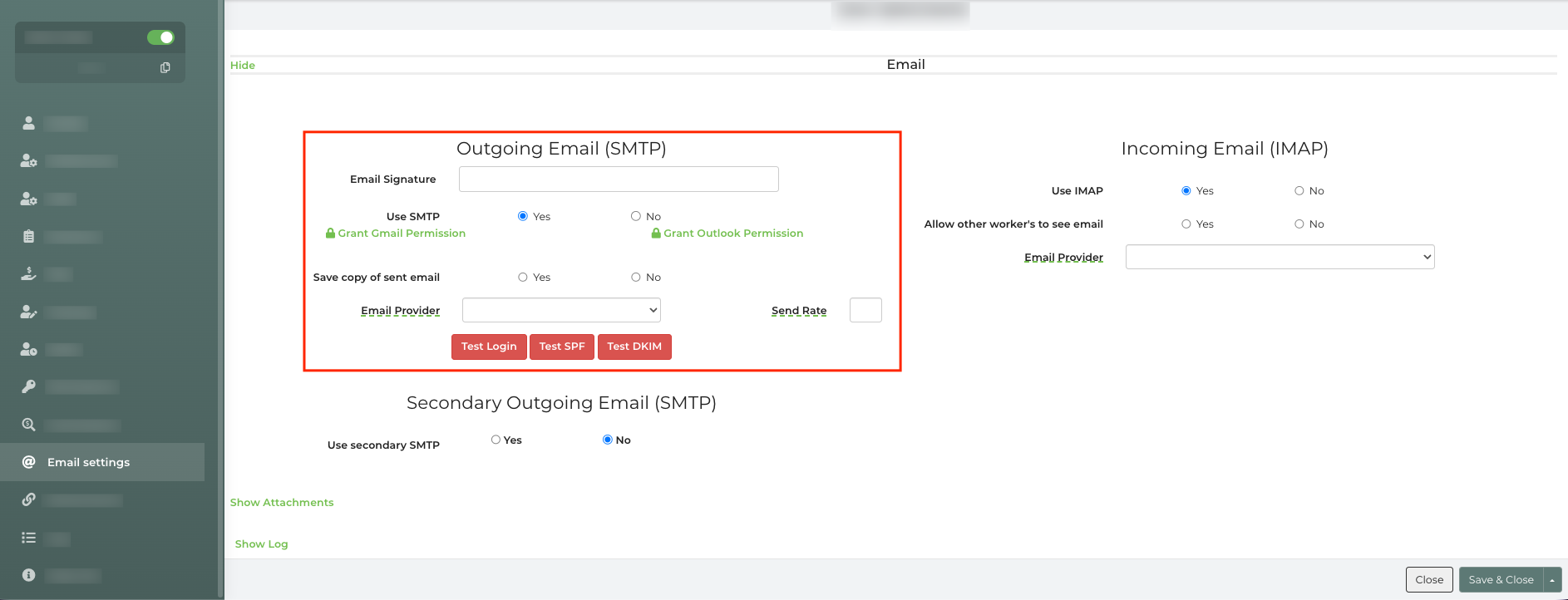
- Select the appropriate connection method:
- Gmail: Click Grant Gmail Permission, sign in to the worker’s Gmail account, and approve the requested access.
- Outlook or Microsoft 365: Click Grant Outlook Permission, sign in to the worker’s Microsoft account, and approve the requested access.
- Another provider: Set Custom Email Server to Yes, then select the email provider.
- If the provider is not listed, select Other and enter the provider’s SMTP server, port, and security settings.
- Enter the worker’s email username and password when required. Some providers may require an app password instead of the regular account password.
- Complete any additional authentication steps required by the email provider.
- For a manual SMTP connection, click Test Login.
- When the connection or test succeeds, click Save & Close.
Worker Email vs. Company Email Settings
Worker Email
- Configured within an individual worker’s profile.
- Connects that worker’s email account.
- Must be configured separately for each worker who sends from an individual account.
Company Email Preferences
- Configured through Settings -> Email Preferences.
- Controls the company’s general email connection.
- Does not automatically connect individual worker email accounts.
To have the email From and Reply-To fields use an individual worker’s account, configure email authentication on that worker’s profile.
Feature Options & Parameters
- Grant Gmail Permission: Connects a Gmail account using Google authentication.
- Grant Outlook Permission: Connects an Outlook or Microsoft 365 account using Microsoft authentication.
- Custom Email Server: Enables manual SMTP configuration for other email providers.
- Email Provider: Applies preset server settings when the provider is listed.
- Other: Allows manual entry of SMTP server settings.
- Username and Password: Authenticates a manual email connection. An app password may be required.
- Test Login: Verifies that manually entered outgoing email settings are valid.
- IMAP Settings: Used for incoming email integration. Incoming email features require the CRM module.
Use Cases
- Allow sales representatives to send customer emails using their individual email accounts.
- Connect worker inboxes to CRM communication so supported customer emails can be associated with leads.
Troubleshooting & FAQs
The worker’s email will not connect.
- Confirm that you opened the correct worker profile rather than the company Email Preferences page.
- Verify the email address, username, and password.
- Confirm that the worker approved all requested Gmail or Microsoft permissions.
- Complete any multi-factor authentication prompts from the provider.
- If using manual SMTP settings, verify the server name, port, and security type with the email provider.
- Check whether the provider requires an app password.
Q: The Test Login button returns an error.
A: Review the SMTP server, port, username, password, and security settings. Enter the information as though you were adding the email account to a new email application.
Q: Gmail is connected, but emails cannot be sent.
A: Confirm that Google is permitted to send email on the worker’s behalf. If that permission was not granted, revoke the connection and use Grant Gmail Permission again.
Q: Emails still show the company address as the sender.
A: Confirm that the individual worker’s email authentication is connected. The company email connection alone does not authenticate each worker’s address.
Incoming emails are not appearing in the CRM.
- Confirm that the CRM module is active.
- Verify the worker’s IMAP configuration.
- Allow time for the system to check for new messages.