


Review Notifications in the Workers App
The Notifications screen keeps a history of alerts available to your worker account. Use it to find missed notifications, review unread alerts, and open related information.
Prerequisites
- Access to the Workers App.
- An active worker account.
- You must be signed in to your worker account.
Open and Review Notifications
- Open the Workers App.
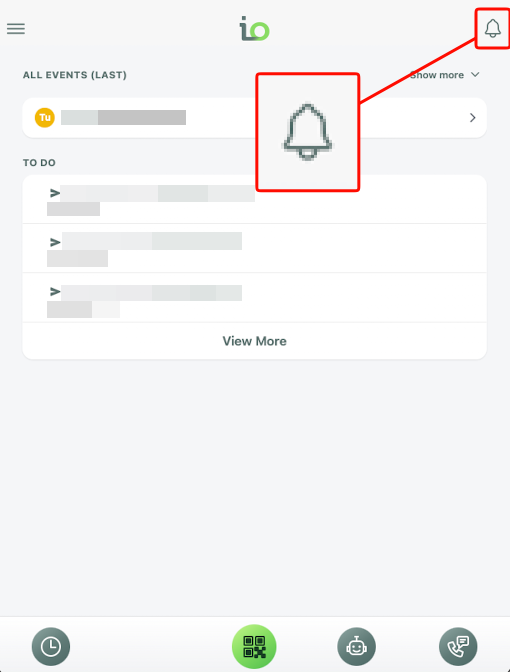
From the app dashboard, select the Notifications bell (🔔) in the top right corner.
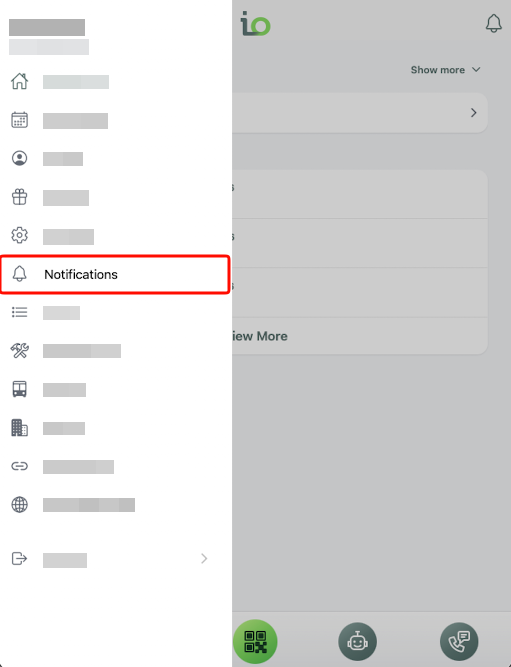
From the app menu, select Notifications.
- Review the 25 most recent notifications displayed on the screen.
- To view older notifications, select Load more. Additional notifications are added without removing those already displayed.
- Use All or Unread to filter the list:
- All: Displays your available notification history.
- Unread: Displays notifications that have not been marked as read.
- Select a notification to open its related screen or record when a destination is available. For example, an alert may open its associated packing list.
- Mark an individual notification as read, or select the option to mark all notifications as read.
- Refresh the Notifications screen to check for newly available alerts.
Note: Marking a notification as read removes it from the Unread view but does not remove it from your notification history.
Feature Options & Parameters
| Option | Function |
|---|---|
| All | Shows your available read and unread notification history. |
| Unread | Shows only notifications that still need to be marked as read. |
| Load more | Adds older notifications to the current list. The screen initially displays the 25 most recent notifications. |
| Mark as read | Marks one notification as read while keeping it in the notification history. |
| Mark all as read | Marks all currently unread notifications as read. |
| Refresh | Updates the screen with any newly available notifications. |
| Select a notification | Opens the related screen or record when the notification has an available destination. |
Use Cases
- Review a missed alert: Open Notifications when a push notification was dismissed, disabled, or not seen.
- Check pending items: Use the Unread filter before beginning time-sensitive work.