


Getting Started: Fill Out a Customer Quote Form
Complete a test quote to see how customers interact with your inventory, receive pricing, and begin the booking process. This also helps you verify your inventory, availability, and online quoting settings.
Prerequisites
- Add a few rental items to your Inventory.
- Make sure the items are assigned to a category and displayed on customer pages.
- Have access to your customer-facing Quote Request form.
- Choose an event date at least four days in the future to test the default auto-booking process.
Complete a Test Quote
- Select an event date and time. Use a date at least four days away when testing the default settings.
- Browse the available categories and select one or more rental items.
- Review the selected items in the cart.
- Enter the requested customer, event, and venue information.
- Submit the form to generate the quote.
- Review the quote as the customer would see it.
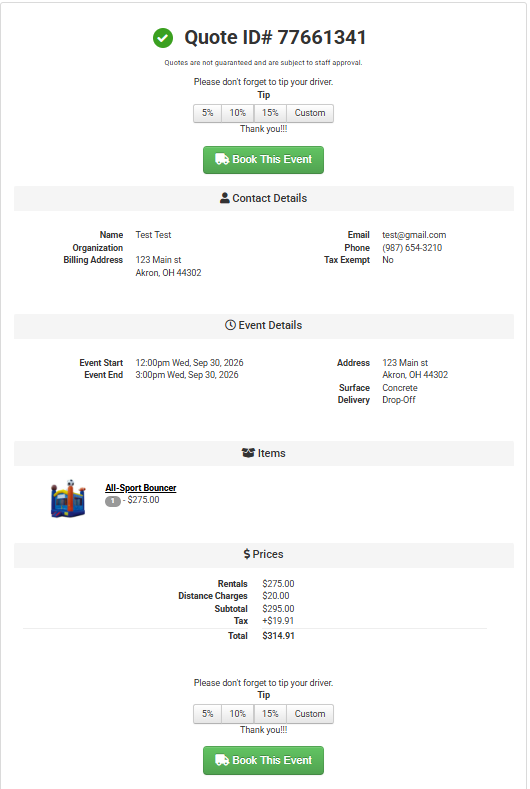
- If the inventory is available and auto-booking requirements are met, continue to the booking contract by clicking 'Book This Event' to test the complete process.
- Review the resulting lead or event in your account. A completed test booking may reserve the selected inventory.
Watch the Create an Event video.
Finding Your Quote Request Form
If you do not have a link to the form on your website:
- Go to Settings.
- Open Document Center and select Pages.
- Locate the Quote Request page.
- Copy the URL shown next to Link.
- Open the URL in a new browser tab.
Feature Options & Parameters
- Auto Booking: Enabled by default. When inventory is available and all booking requirements are met, the customer can continue from the quote to a booking contract. Manage this under Online Quoting.
- Days of Notice: The default is three days. Events within this period cannot be auto-booked. Use a date at least four days away for a complete test.
- Display Quote: This must be enabled for customers to view the quote and begin auto-booking.
- Inventory Availability: Unavailable items or other conflicts may prevent the customer from completing an online booking.
- Item Restrictions: Individual inventory items can be configured to require staff approval before booking.
Use Cases
- Verify account setup: Confirm that inventory, pricing, images, categories, and availability appear correctly to customers.
- Review the customer experience: Test the steps a customer follows from selecting rentals through receiving a quote and starting a booking.
Troubleshooting & FAQs
- I can get a quote but cannot continue to booking. Confirm that auto-booking and Display Quote are enabled. Also check the required days of notice, inventory availability, and item-level booking restrictions.
- The event is too soon to auto-book. Select a date at least four days in the future when testing the default three-day notice requirement.
- An inventory item does not appear. Make sure the item has a category and is enabled for display on customer pages.
- The selected item is unavailable. Choose another item or date. Existing reserved events can reduce the available quantity.
- Will submitting the form create a lead? Yes. Submitting a customer Quote Request form creates a lead in your account.
- I cannot find the Quote Request form. Go to Settings → Document Center → Pages, locate the Quote Request page, and copy its link.