


Global Payments and Fiserv refunds are processed as dependent refunds, meaning every refund must be tied to a specific prior card transaction. This restores automated refunds for Global users and works similarly to Fiserv refunds.
Prerequisites
- You are using a supported processor, such as Global Payments or Fiserv, as a connected merchant in Settings -> Merchant Services.
- The lead has at least one successful card payment processed through Global or Fiserv (not cash/check/manual).
- You have permission to edit leads and payments in your account.
How Global or Fiserv Dependent Refunds Work
- Refunds are linked to a prior card charge.
- You refund from the Payments section of the lead using the Refund button on the original payment row.
- Partial refunds are supported.
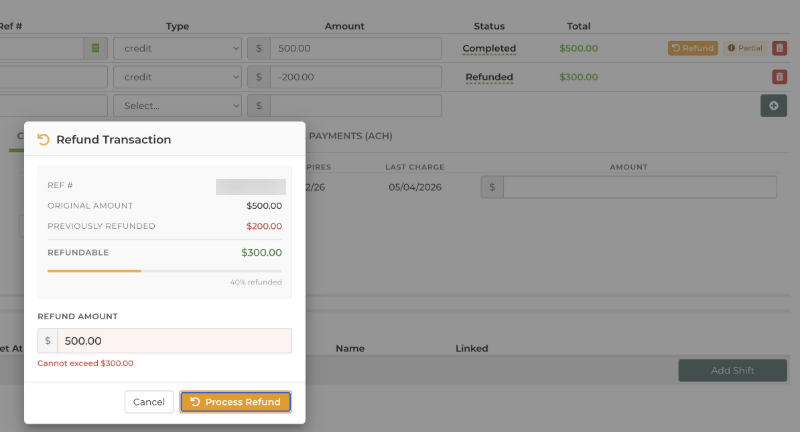
- The total refunded for a payment cannot exceed the original amount for that payment.
- Refund amounts are entered as positive numbers in the Refund dialog.
- The old method of entering a negative amount in “Charge Existing Card” will now fail with instructions to use the Refund flow.
Step-by-Step: Issuing a Refund with Global or Fiserv Payments
- Open the lead.
Go to the lead that contains the payment you want to refund.
- Go to the Payments section.
Scroll to the Payments area on the lead.
- Find the original card payment.
Locate the successful Global or Fiserv card payment you want to refund.
- Click the Refund button.
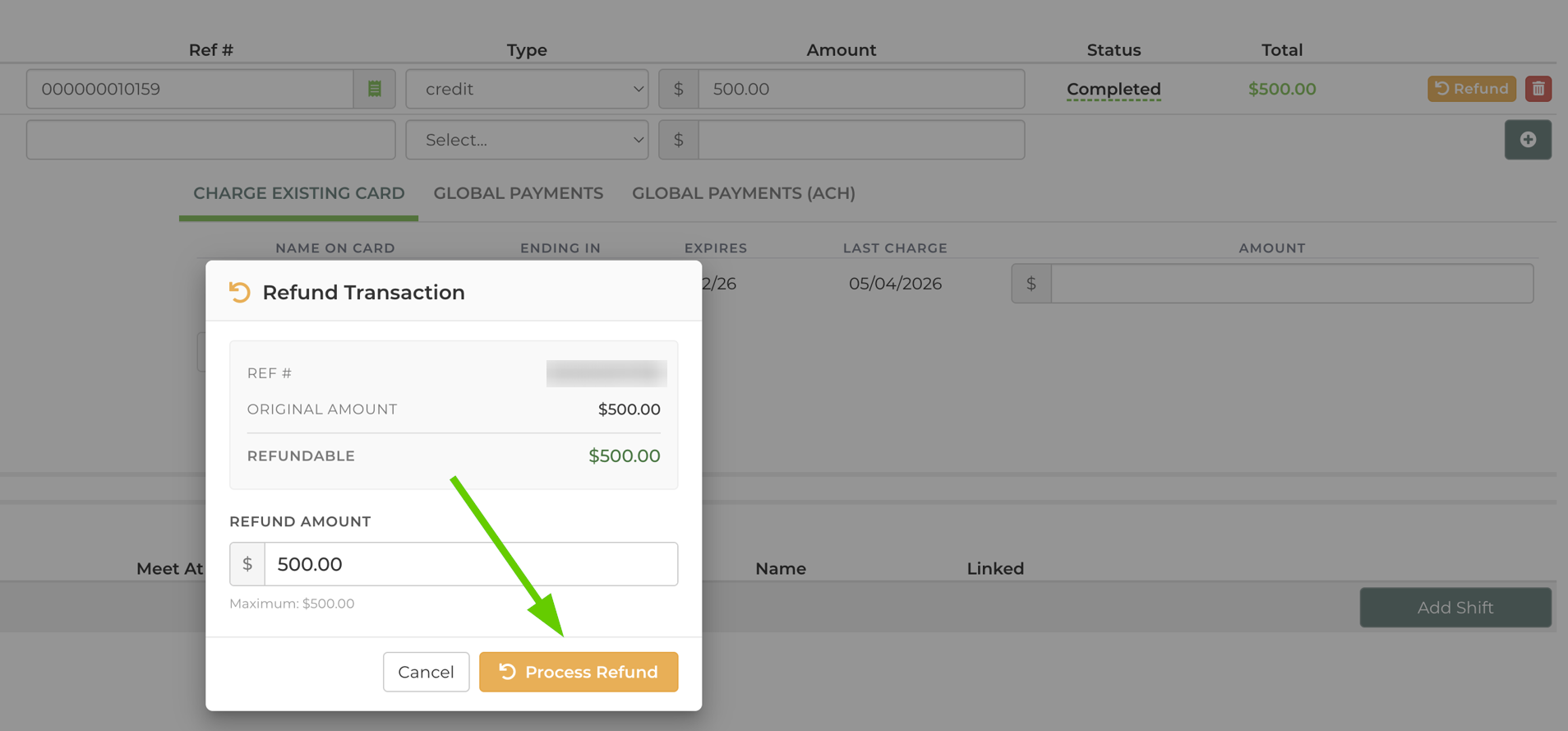
Click Refund on that payment row. This selects the original transaction for the dependent refund.
- Enter the refund amount.
- Enter a positive dollar amount, for example 50.00.
- Do not type a minus sign in the Refund dialog.
- For a partial refund, enter less than the original payment amount.
- Submit the refund.
Click the button to process the refund.
- Confirm the result.
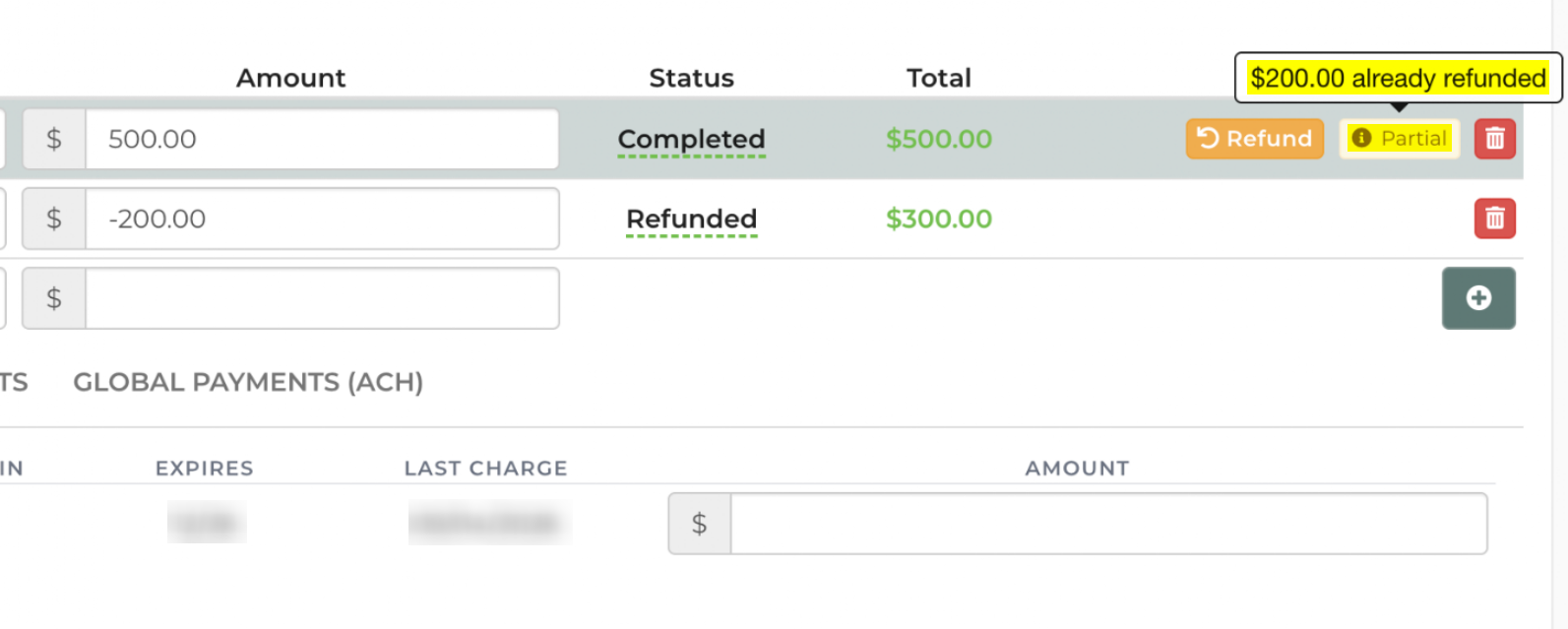
- A new refund entry shows in the Payments list.
- The balance and total paid on the lead reflect the refund.
Important Notes About the Payments “Refund” Button
- The Refund button next to an eligible payment line is the normal automated refund flow for Global and Fiserv card payments.
- The button appears only when that payment is eligible for a refund.
- Use the Refund button on the original payment row instead of entering a negative amount in Charge Existing Card.
Feature Options & Parameters
- Gateway
- Automated, in-app refunds are supported for:
- Global Payments (dependent refunds only)
- Fiserv - Flat Rate / Interchange Plus (dependent refunds)
- Other processors, such as Square or PayPal, still require manual refunds in their own dashboard, with a matching negative payment recorded in the software. See this article.
- Automated, in-app refunds are supported for:
- Refund Type
- Dependent refunds only - you must have a prior successful Global or Fiserv card charge on the lead.
- Standalone or “open-ended” Global card refunds are no longer supported in the software.
- Amounts & Limits
- Refunds are entered as positive amounts in the Refund dialog.
- The total refunded for a payment cannot exceed the original payment amount.
- Multiple partial refunds are allowed until the original amount is fully refunded.
- Multiple Cards
- If a lead has multiple stored cards, you can refund each card separately by selecting it and issuing a refund.
- Each card’s refund limit is based on its own charge history.
Use Cases
- Canceling an event but keeping a partial fee
Refund part of the customer’s payment, for example keep a non-refundable deposit and refund the rest, directly back to the original Global or Fiserv card.
- Correcting overcharges
If you accidentally charged too much, issue a partial refund tied to that specific transaction without involving a manual processor login.
Troubleshooting & FAQs
Q: I tried entering a negative amount and the refund failed.
A: Dependent refunds no longer use negative amounts in the refund workflow. Click the Refund button next to the original payment, then enter a positive refund amount.
Q: I don’t see a Refund button.
A: Check the following:
- You are on a lead with a successful Global or Fiserv card payment.
- You are looking under the Payments section.
- Your merchant in Settings -> Merchant Services is set up with Global Payments or Fiserv.
- The payment is not already fully refunded.
- Your user has permission to edit lead payments.
If everything looks correct and you still don’t see it, contact support.
Q: The system won’t let me refund the full amount I entered.
A: The total of all refunds for a particular payment cannot exceed the original payment amount. Check past refunds on that payment and adjust your amount accordingly.
Q: Can I refund a payment that was recorded as cash, check, or an external processor?
A: No. Dependent refunds only work for card payments actually processed through Global or Fiserv. For other payment types or processors, refund the customer through your processor or offline method, then record a matching manual negative payment on the lead. See this article.
Q: My refund shows as failed with an error from Global or Fiserv.
A: The card or transaction may not be eligible for a refund due to processor rules. Contact Global Payments or Fiserv support with the error details if needed.
Q: I used to issue Global refunds without picking a previous transaction. Can I still do that?
A: No. Global no longer supports open-ended refunds in the software. All Global refunds must now be dependent on a specific prior transaction, which is handled by using the Refund button on the original payment row.