


-
Configure Last Minute Upsell Offers
- Access to Online Quoting settings.
- Permission to manage email templates, text message templates, filters and automations.
- Inventory items with current pricing, availability, images and customer-facing descriptions.
- An active email configuration. Sending text offers also requires an active text messaging service.
-
Open the Last Minute Upsell settings
- Go to Settings and open Online Quoting.
- Open the Last Minute Upsell section.
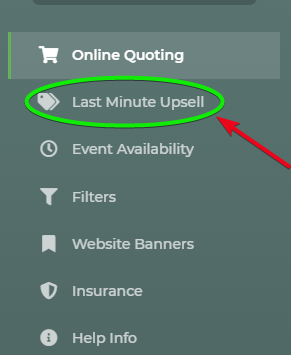
- Select Yes to enable.

-
Set the offer timing
- Set the Stop-Sending threshold. Customers will no longer receive an offer once the event falls within this period.
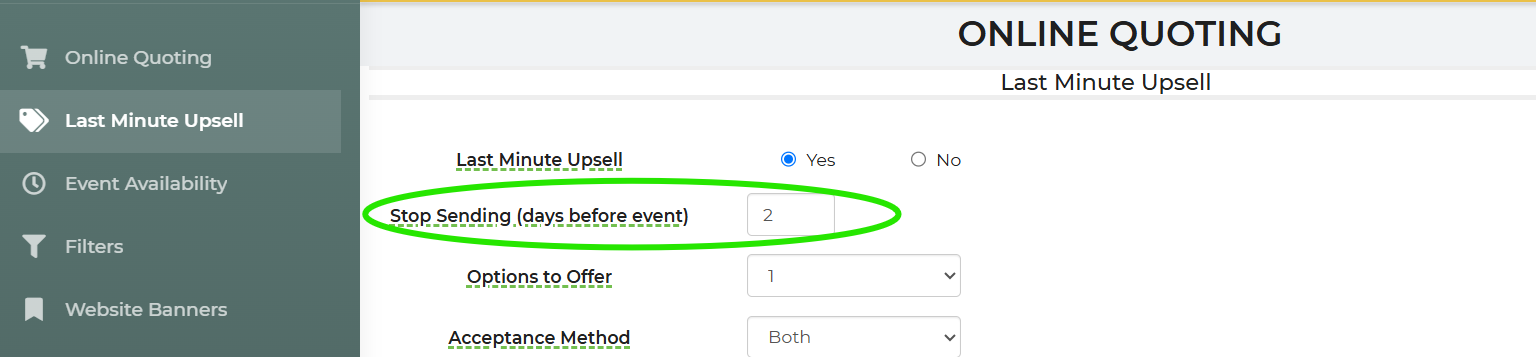
- Set the Stop-Sending threshold. Customers will no longer receive an offer once the event falls within this period.
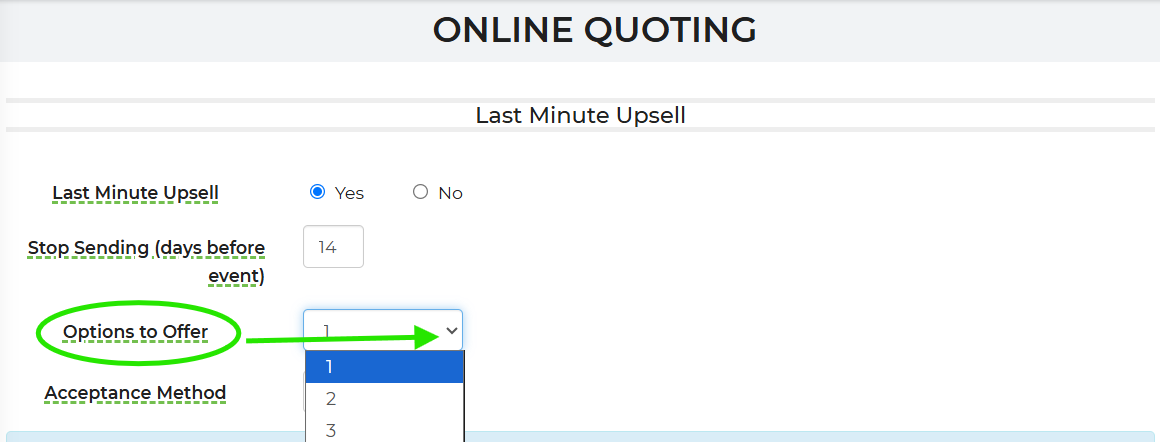
- Set the number of offer options
- Choose how many eligible items to present in each upsell email offer.
- The supported range is 1–3 items. The default is one item.
- Set the Acceptance Method to either Add To Order, Pay Immediately, or Both.
(How customers accept the upsell offer.)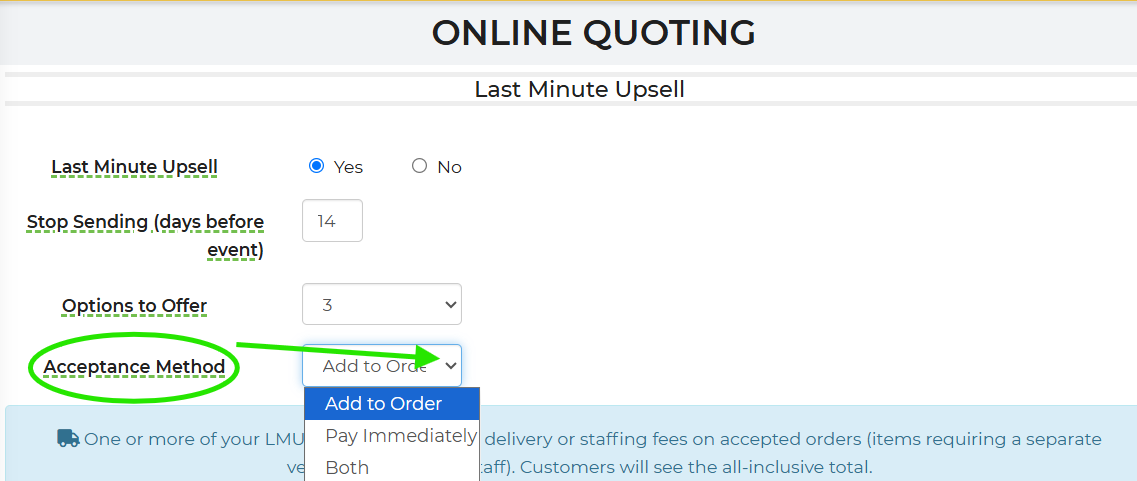
-
Select the items to offer
- Select specific inventory items or use a filter to identify eligible items.
- Choose items appropriate for the event.
- Confirm that the items are available for the entire event duration.
- Review each item’s name, image, description and price.
Offer Rules:
Individual items override duplicates found in filters. Filters apply to all matching inventory items. If both target the same item, the item entry's discount wins.
Items already included in the customer’s order should not appear in the offer.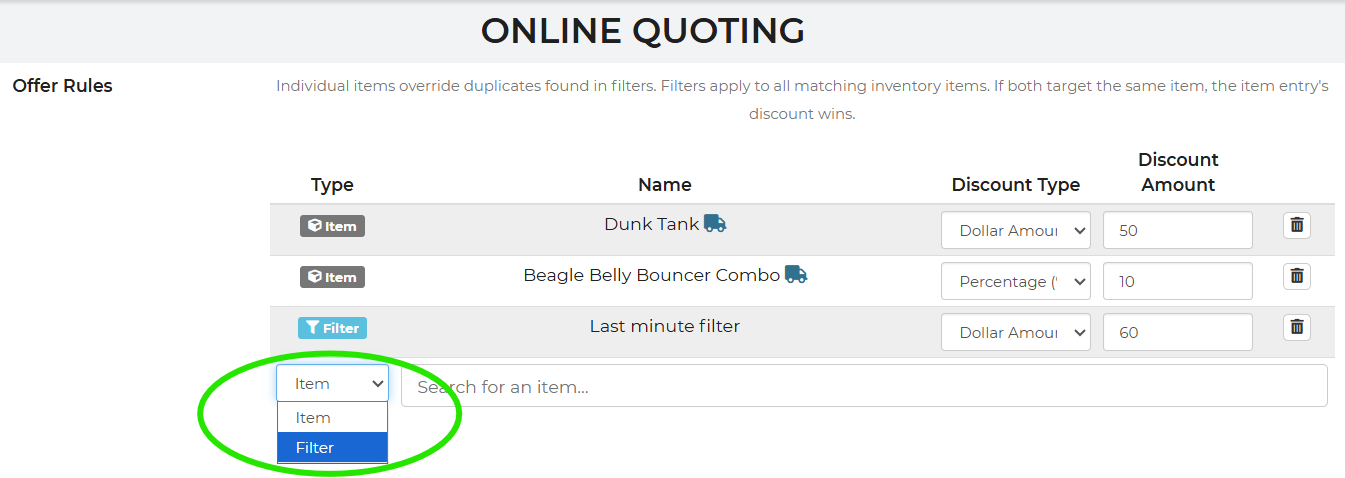
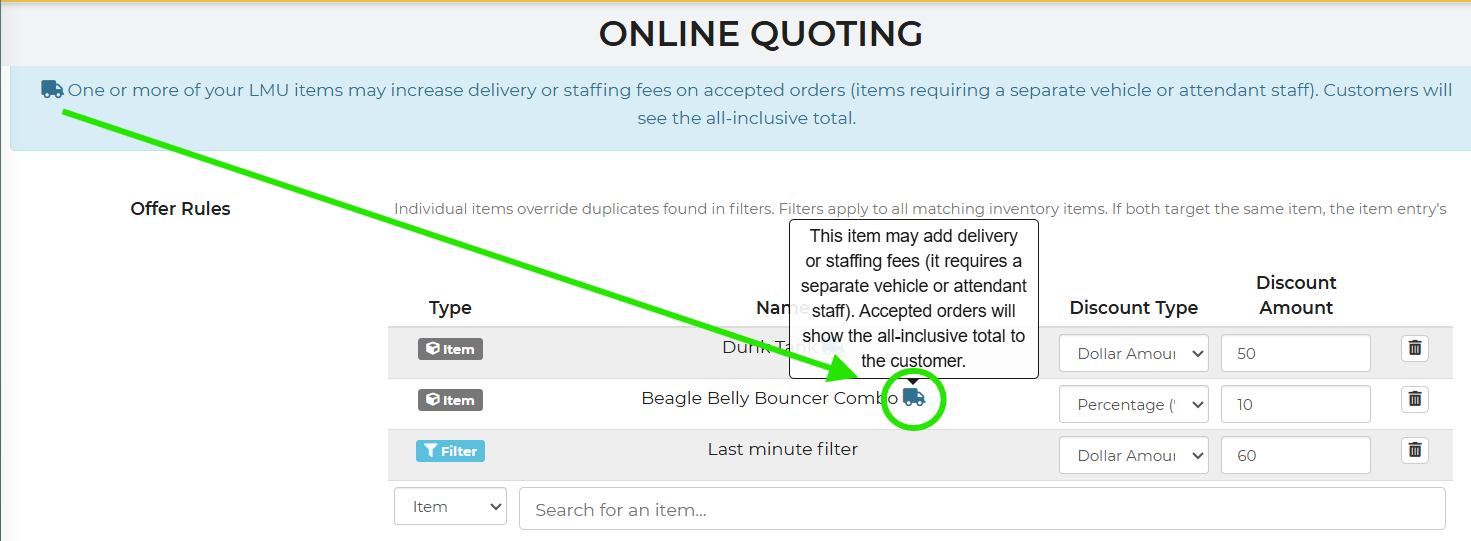
If a blue truck appears next to your selected item, this indicates that the item may add delivery or staffing fees (it requires a separate vehicle or attendant staff). Accepted orders will show the all-inclusive total to the customer.
-
Configure the discount
- Select a fixed dollar discount or percentage discount.
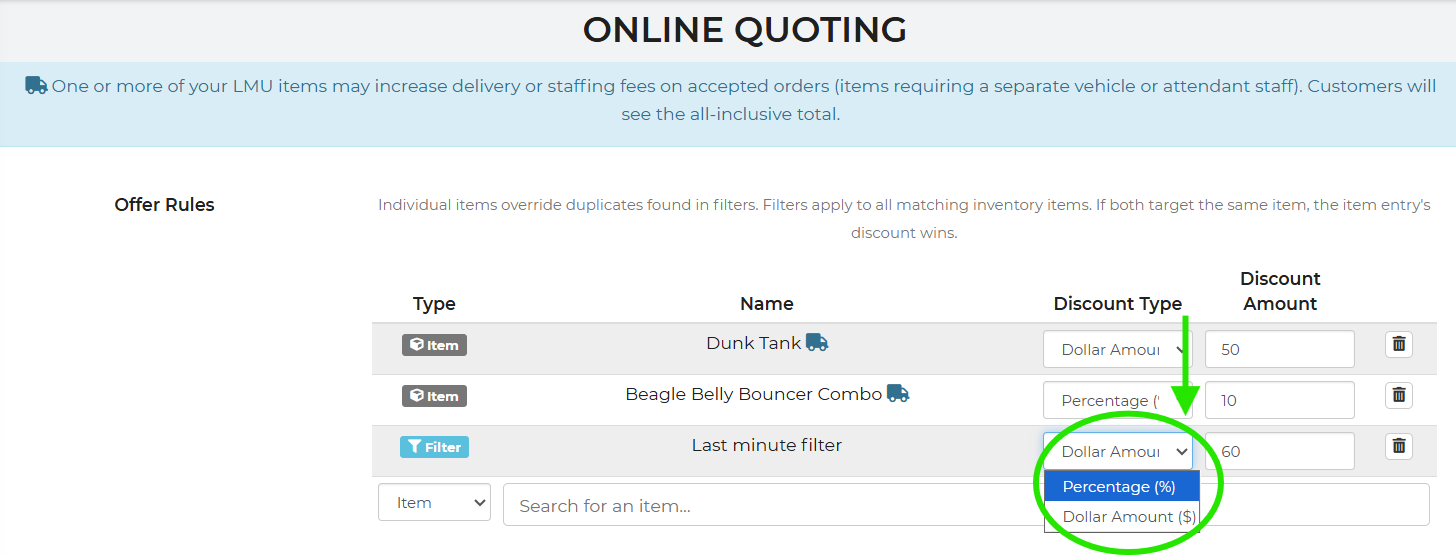
- Select a fixed dollar discount or percentage discount.
-
Configure the email and text content
- In the Email Center, go to the Customer - Last Minute Upsell email template.
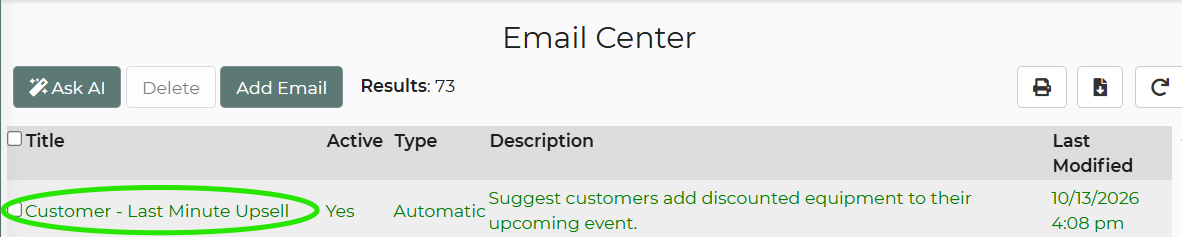
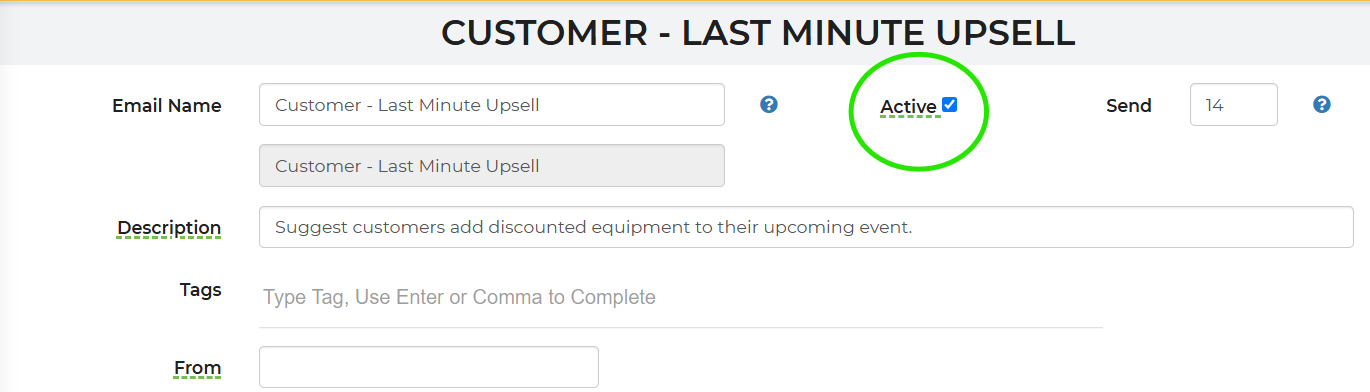
- Click Active to activate the email template.
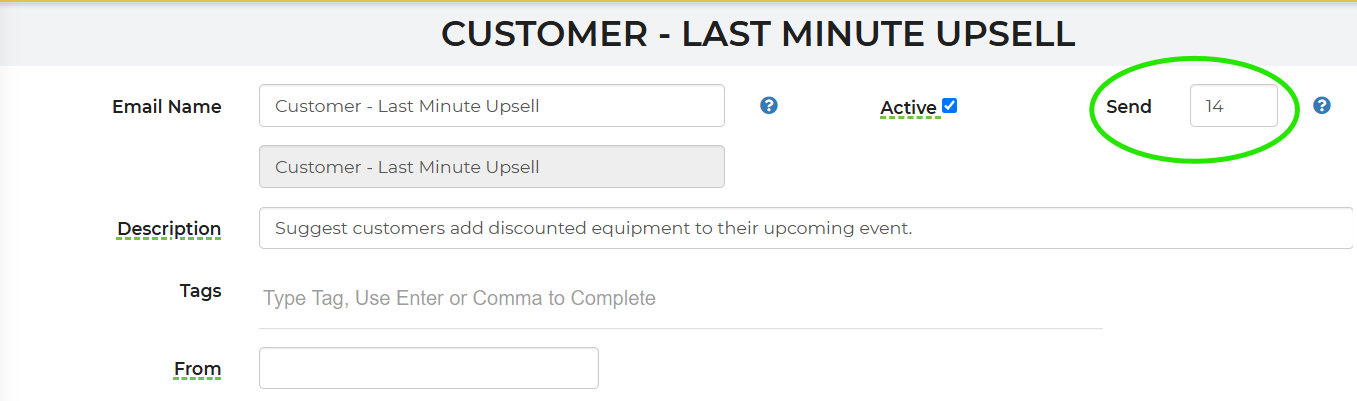
The email template is set to send out 14 days prior to the event by default. (You can customize the amount of days prior to the event by changing this number in the template.)
8. Save & Close
How to Test the "Last Minute Upsell" in a Test Lead: - In the Email Center, go to the Customer - Last Minute Upsell email template.
- Go to an existing confirmed lead that is happening within 14 days or create a new lead that is confirmed.
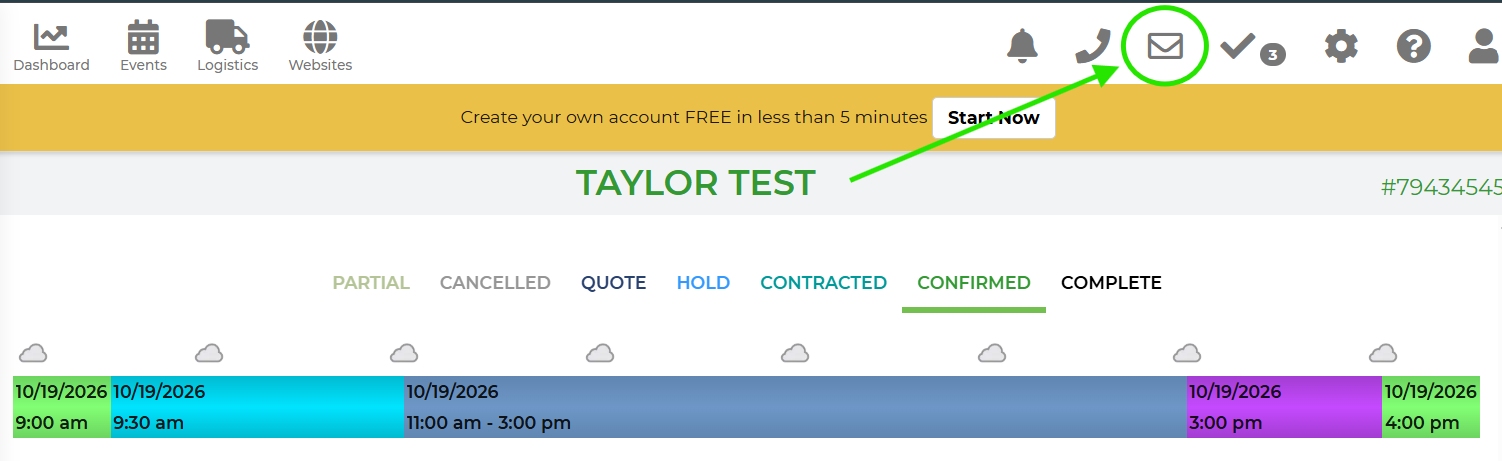
- Locate the email icon in the top right hand corner.
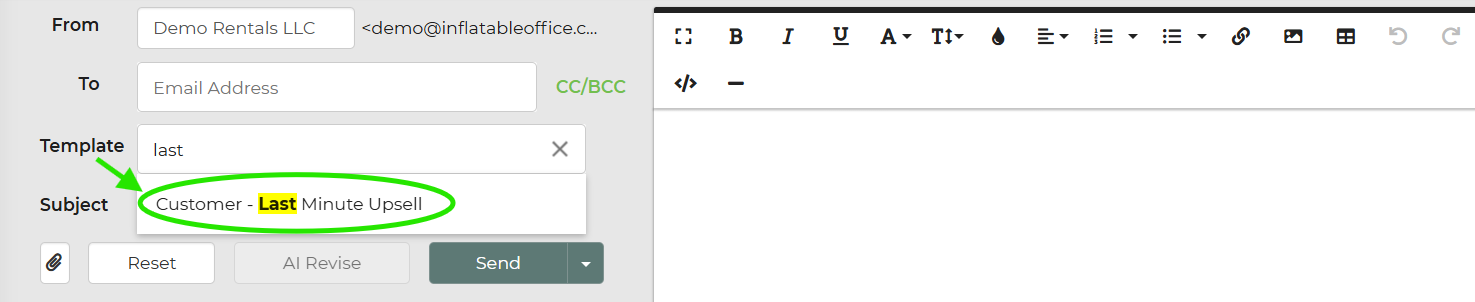
- Select the email template 'Customer-Last Minute Upsell'
- Review the email template to confirm the correct price with the discount
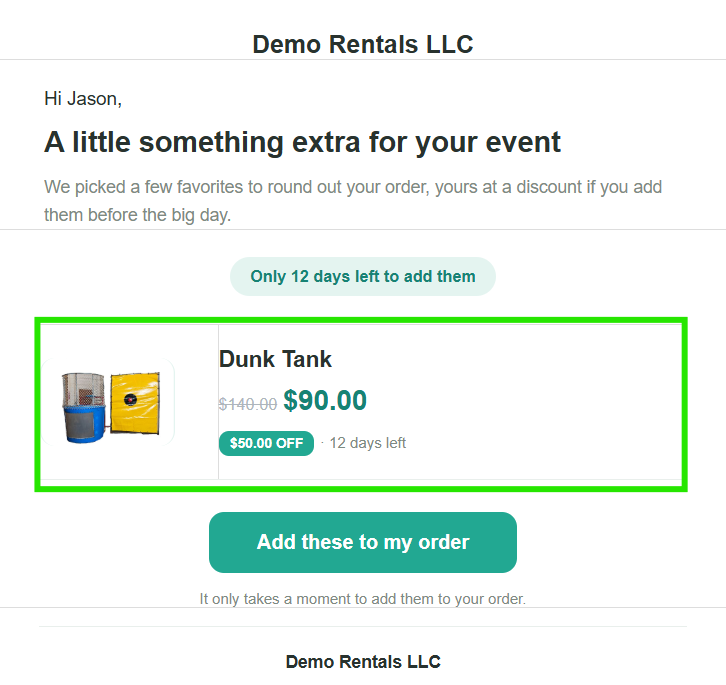
- Click 'Send'
- Promote unused inventory: Offer available concessions, games, tables, or other add-ons shortly before a confirmed event.
- Run timed campaigns: Create separate automation copies to send different offers at different points before the event.
Last Minute Upsell offers let you promote available items at a discounted price to customers shortly before a confirmed event. Customers can review discounted items, add a selection to their existing order and continue to payment when enabled. The Last Minute Upsell Offers are typically sent to customers using the email template that will need to be activated in the Email Center.
| Send window (Setup in the email template) | Determines how many days before the event an offer can be sent. The default is 14 days. |
| Stop-sending threshold (Setup within the "Last Minute Upsell" Section under Online Quoting) | Prevents offers from being sent too close to the event. The default is 2 days. |
Prerequisites
*Important: Offers should exclude items already included in the event or unavailable during the event.
Test availability before enabling the automation for all eligible customers.
Configure a Last Minute Upsell Offer
Feature Options & Parameters
| Option | Effect |
|---|---|
| Send window | Determines how many days before the event an offer can be sent. The default is 14 days. |
| Stop-sending threshold | Prevents offers from being sent too close to the event. |
| Item selection | Uses individually selected items or a filter to build the eligible offer list. |
| Discount type | Applies either a fixed dollar amount or percentage discount. |
| Number of options | Displays between one and three eligible items. The default is one. |
| Customer action | Controls whether the customer adds an item, continues to payment, or completes both actions. |
| Communication channel | Sends the offer through email, text message, or configured copies of the automation. |
Use Cases
Troubleshooting & FAQs
Q: Why was an offer not sent?
A: Confirm that the event is in a confirmed status, falls within the send window, and is not inside the stop-sending threshold. Also verify that the automation and message template are active and that the event matches the Last Minute Upsell filter.
Q: Why is an inventory item missing from the offer?
A: The item may already be on the order, be unavailable during the event, or fail the selected inventory filter. Check its availability, pricing, and customer-facing settings.
Q: Why is the discounted price incorrect?
A: Verify the item’s current regular price and confirm whether the offer uses a fixed amount or percentage discount. Test the final price before reactivating the automation.
Q: Why did the item create a balance instead of collecting payment?
A: Check the configured customer action. An add-to-order action can add the item without requiring immediate payment. The customer can then continue through the existing payment workflow.
Q: Will accepting an offer change the event status?
A: No. The item is added to the existing order while the event remains confirmed. Review any resulting balance, contract addendum, and operational changes.
Q: Why was the text message not delivered?
A: Confirm that text messaging is active, the customer has a valid mobile number, and the Last Minute Upsell text template and automation action are configured correctly.
Q: The email does not show a product image.
A: Confirm that the inventory item has a customer-facing image and that the email template’s offer content is configured to display it.