An API (Application Programming Interface) allows another application or service to communicate with your account. Every time information is requested from or sent to your account through the API, it is counted as an API transaction.
This article explains which transactions are billable, what they cost, what the limits are, and how to find out where your transactions are coming from.
What Does Not Count Toward API Charges
Most customers will never generate billable API transactions during normal day-to-day use of Rental Software.
The following are included with your subscription and do not generate billable API transactions:
- Using Rental Software normally
- Managing inventory and categories
- Processing reservations and orders
- Using the Rental Software WordPress plugin
- Normal communication between your website and Rental Software
These activities are part of the normal operation of your account and are already included with your plan.
What Creates Billable API Transactions
API transaction charges usually apply when an API key has been created and is being used by another application, service, or custom integration, or when you are sending data from our software to an outside program.
You can manage your API keys here: API Keys Settings
Anything communicating with Rental Software using one of the API keys shown on this page will generate API transactions.
Common examples include:
- Connecting EventHawk using an API key
- Using Zapier automations
- Creating your own custom software or integration
- Connecting AI assistants or AI agents to your account
- Any third-party software that uses your Rental Software API key
If you created or supplied an API key to another application, that application is responsible for the API requests being made on your account.
How Transactions Are Counted
- One API call is one transaction, no matter how many records it returns. A call that returns a list of 100 leads counts the same as a call that returns 1.
- A call that is rejected before it runs is not counted. This covers a missing or wrong API key and a rate limit rejection (HTTP 429).
- A call that runs and then finds nothing is still counted. For example, asking for a page of results past the end of a list returns HTTP 404 and counts as a transaction.
- An automation that uses the Send Data action counts one transaction for each record it sends. If a send has to be retried, the retries are free.
API Transaction Pricing
| Transactions in the month | Price |
|---|---|
| First 500 | Included at no additional charge |
| Next 3,000 | $0.01 per transaction |
| Everything beyond that | $0.001 per transaction |
For example, 2,000 transactions in a month costs $15.00: the first 500 are free and the next 1,500 are billed at $0.01 each.
API transaction charges appear on your invoice as:
API Charges = $X.XX
API Limits
Current system limits are as follows:
- 15 requests in 10 seconds. When this limit is hit there is a mandatory cooldown period of 20 seconds.
- 300 requests in 300 seconds (5 minutes).
If one of these limits is reached, the request receives an HTTP 429 Too Many Requests response with a Retry-After header that says how many seconds to wait. The account owner is emailed when this happens, at most once per hour.
If you are using AI to connect to our server, whether via the API or not, make sure you give the AI engine our limits so we do not have to turn off your account temporarily.
Starting with the October 2026 release: the cooldown becomes 60 seconds, and a third limit is added that allows 2 requests per second. Build your integration to wait for the number of seconds in the Retry-After header instead of a fixed time, and it will keep working when these values change.
See API - Errors and Rate Limits for how to handle a 429 response in code.
If Your Transaction Counts Seem High
You cannot currently set your own hard limit for API transactions on an API key. Once an API key has been provided to another application, that connected application determines what information it requests and how frequently it requests it.
Starting with the October 2026 release: a new page, Settings > API Preferences, lets you set a daily call limit and a monthly cost limit for your whole account. When a limit is reached, further API calls are refused with HTTP 429 until the next day (daily limit), or until the next month starts or the limit is raised (monthly cost limit). The limits apply to the account as a whole, not to one key.
Because of this, transaction counts can vary significantly depending on how a third-party application or automation has been configured.
For example, some applications may:
- Request the same information every few minutes
- Download large lists of records instead of requesting only new or updated data
- Repeatedly query information that has not changed
- Perform multiple API requests when a single request would accomplish the same task
If you notice unexpectedly high transaction counts, we recommend reviewing the configuration of the application, automation, or integration generating the activity. Custom software, AI agents, automation platforms, and third-party integrations can often be adjusted to request only the information they actually need or to run less frequently, reducing unnecessary API usage.
Monitoring your transaction logs regularly can help identify inefficient integrations and prevent unnecessary API charges.
Viewing Your API Usage
If you would like to see exactly where your API transactions are coming from, you can review the transaction log for each API key.
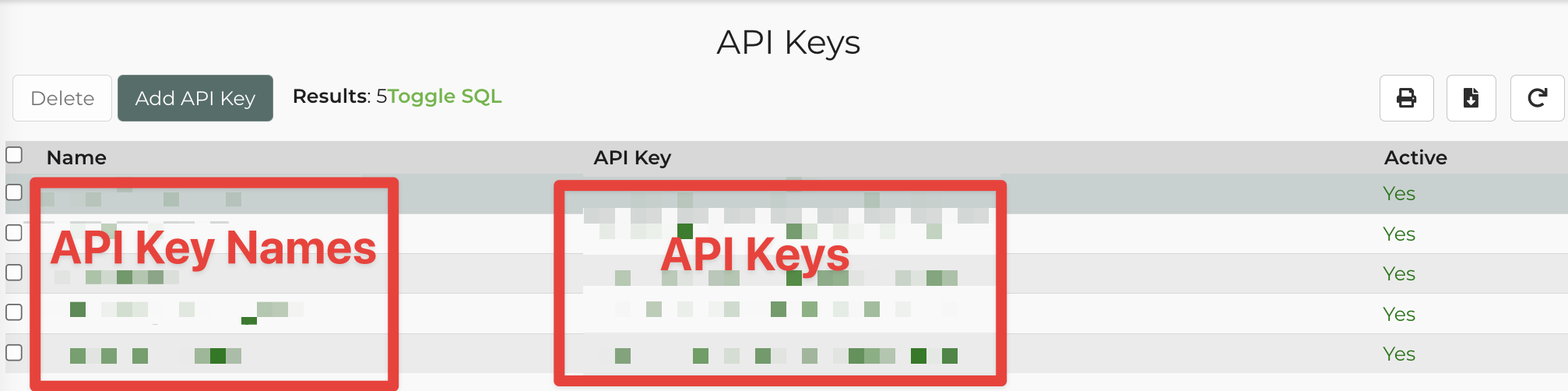
Step 1 - Open the API Keys Page
Navigate to: https://rental.software/account/#/settings/api
This page displays every API key associated with your account, including both active and inactive keys.
Step 2 - Open an API Key
Click any API key to open its details page.
For the purposes of reviewing API usage, the most important section is the Transaction Counts area located on the left side of the page.
Step 3 - View Transaction Counts
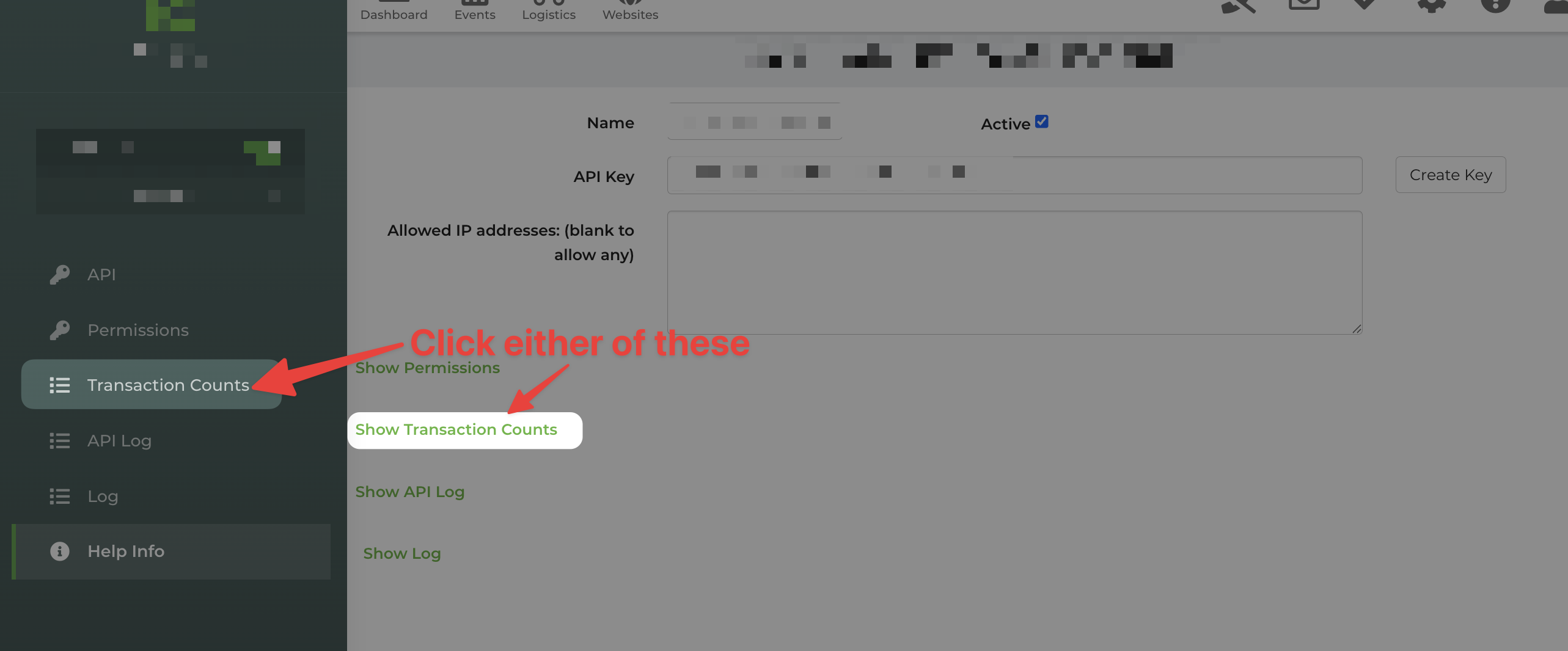
Click either:
- Transaction Counts in the left navigation menu
- Show Transaction Counts
This expands the daily transaction log for that API key.
Understanding the Transaction Log
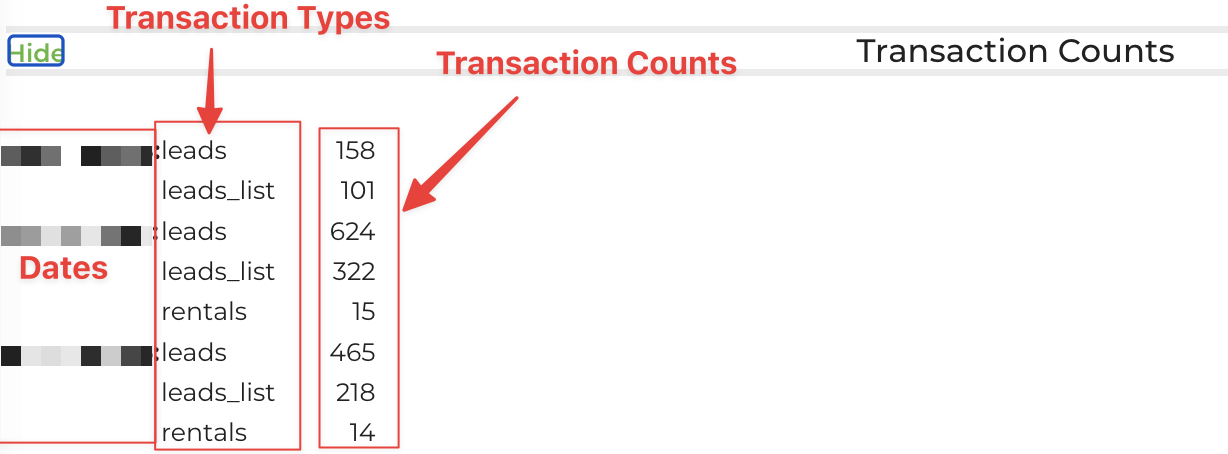
The transaction log groups API usage by day and shows which API endpoints were accessed.
Each entry contains:
- Date - the day the requests occurred
- Endpoint - the type of information being requested, such as leads_list, rentals_list, or leads
- Transaction Count - the number of API requests made to that endpoint on that day
For example:
YYYY-MM-DD
leads_list - 2,363 transactions
rentals_list - 96 transactions
leads - 57 transactions
Reviewing this log is the easiest way to identify which connected application is generating API traffic and how much activity it is creating each day.
Another Place to Check: Automations
If you are trying to trace down transaction charges and do not see any API keys listed on the API Keys Settings page, another place to review is your automations.
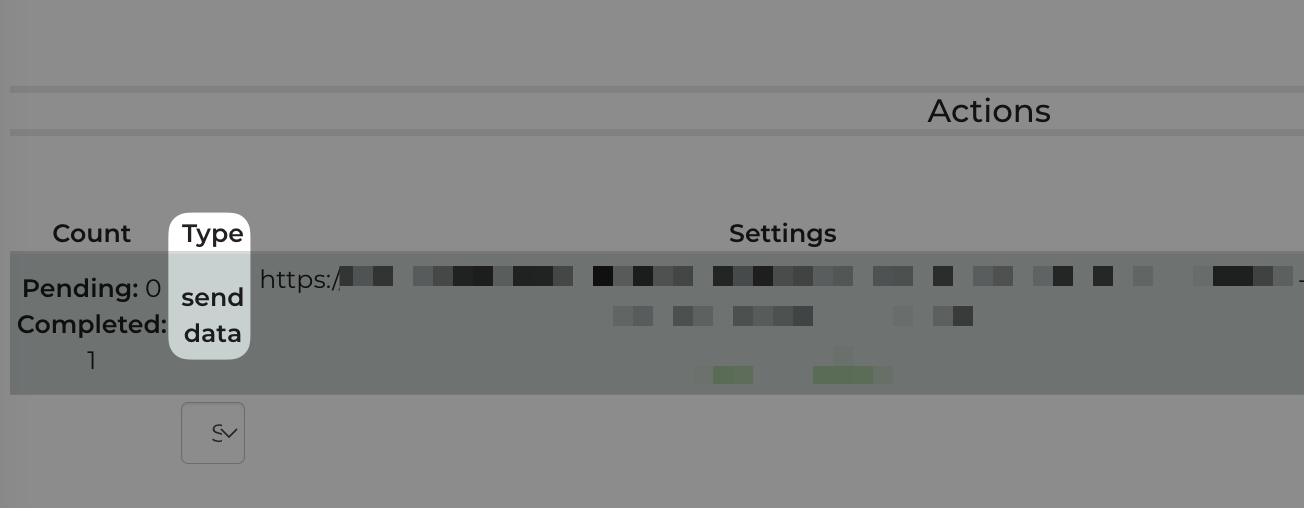
Some automations can generate the same types of billable transactions, especially when they use the Send Data action to send data out of Rental Software. These transactions are not tied to an API key, so they do not show up in the Transaction Counts of any key.
How to Review Automations
- Open the Settings menu.
- Click Automations.
- Review your automations and look for any that use the Send Data action.
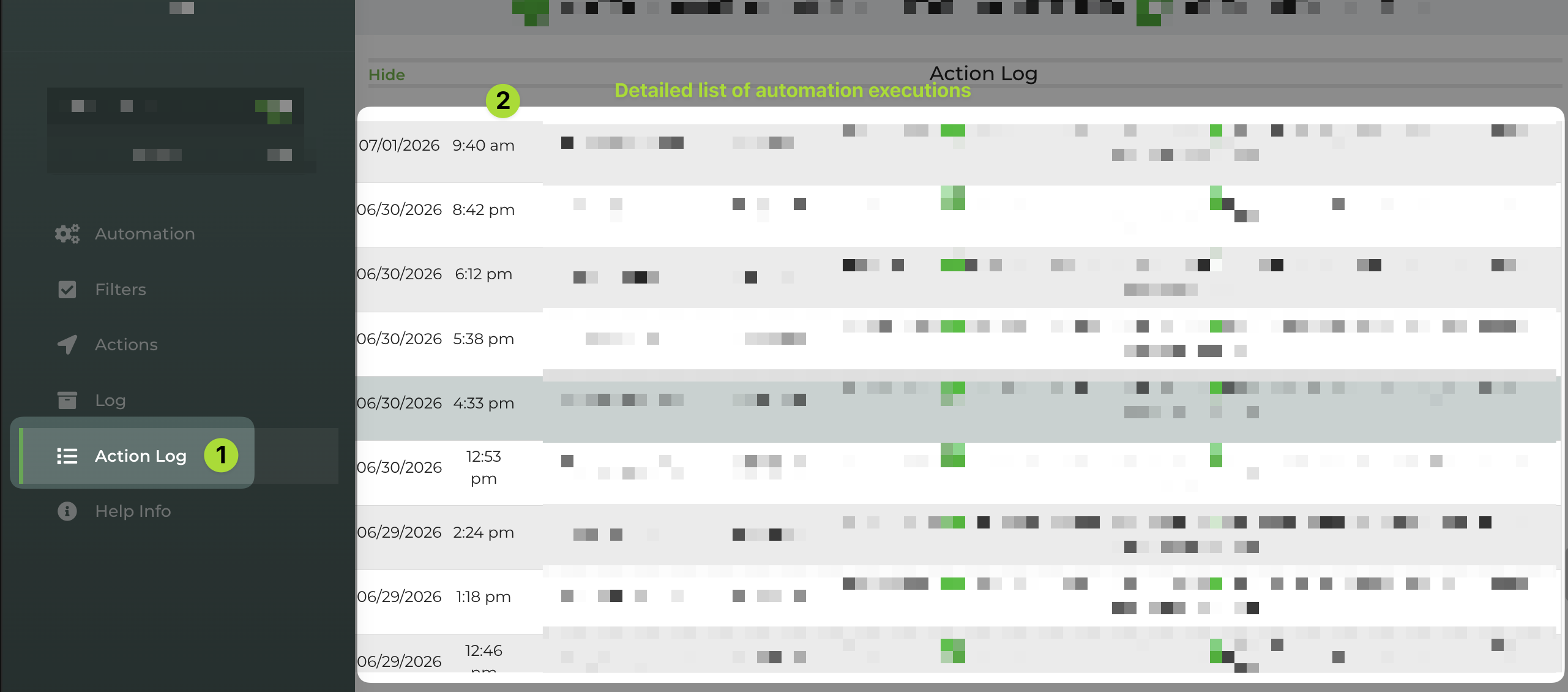
If you are auditing automation activity and want to see what has been happening, open the automation and click Action Log in the left-hand navigation menu.
The Action Log shows a history of each time that automation ran, which can help you identify whether an automation is contributing to transaction activity.
Automation using the "Send Data" action:
Action Log for Automation: