


You can set up a new API key to integrate with external applications such as Zapier, Event Hawk, or a custom integration. API access does require our API & WordPress module, which can be activated here.
Create an API Key
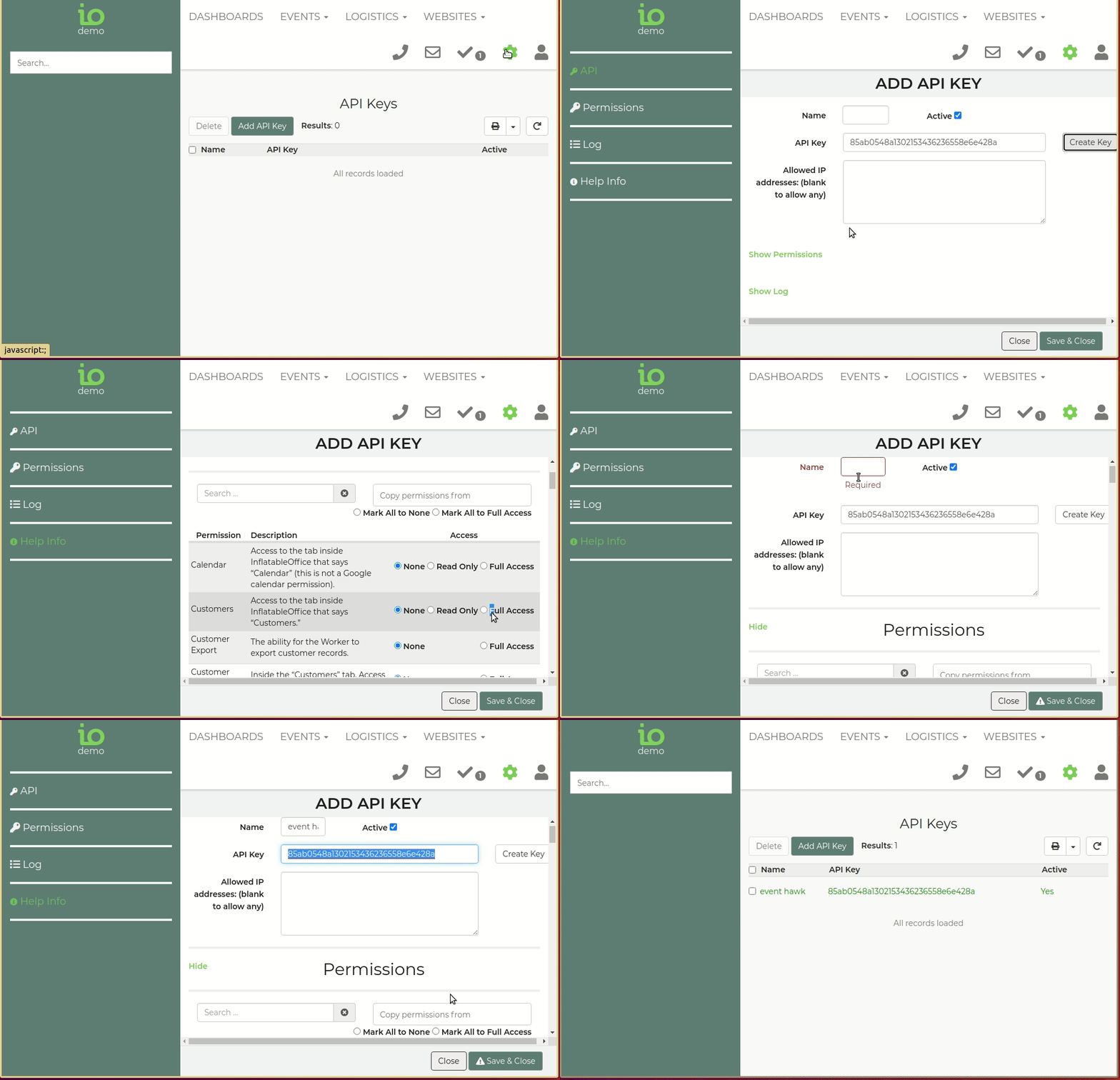
- Go to API Keys under Settings (you must be using an admin account).
- Click Add New.
- Enter a Name that tells you what the key is for, such as "Zapier" or "Website".
- Click Create Key to generate an API key, and copy it to your clipboard.
- It is recommended that you put the IP addresses of the servers making API calls in IP Restrictions. See the notes below.
- Save the key.
About IP Restrictions
- Leave the box empty to allow calls from any address.
- Enter full IP addresses, for example 203.0.113.10. Ranges and wildcards are not supported.
- Separate more than one address with a comma, a space or a new line.
- A call from an address that is not on the list is refused with the message "IP restriction".
Keep your key private. Treat an API key like a password. Anyone who has it can read and change data in your account, within the permissions you give the key. Use a separate key for each application so you can replace one without affecting the others.
Grant Access Permissions
- Go to the Permissions section when editing an API key.
- Grant access to the appropriate areas this API key will be using. Each area can be set to None, Read Only or Full Access.
Common ones include Settings Rental Inventory, Settings Categories, Customers, and Leads. For creating leads, you'll need Full Access for Leads Create.
| If the integration needs to | Set this permission |
|---|---|
| Read your inventory | Settings Rental Inventory: Read Only |
| Read your categories | Settings Categories: Read Only |
| Read customers | Customers: Read Only |
| Create or change customers | Customers: Full Access |
| Read leads | Leads: Read Only |
| Create leads | Leads Create: Full Access |
| Change or delete leads | Leads: Full Access |
Give a key only the access it needs. On multi-location accounts you can also limit a key to certain locations.
Test It by Getting a List of Your Rentals
- Go to https://rental.software/api6/rentals?apiKey= in your browser.
- Paste your API key at the end of the URL.
- Check the result against the table below.
| Result | What it means |
|---|---|
| A list of rental details (JSON encoded) | Success. The key works |
| "No API Key provided" | The URL has no apiKey value |
| "API key not found" | You typed your key wrong, or the key was removed |
| "IP restriction" | The key has IP Restrictions and your address is not on the list |
| "Subscription doesn't include API access" | The API & WordPress module is not active on your account |
| "Permission access restricted" | The key does not have permission for that area. See the Permissions section of the API key |
Need More Details Returned?
You can often add _body=true to a GET call to retrieve more info, but the request may take a little longer.
Rate Limit
We have rate limits per API key:
- 15 calls in 10 seconds
- 300 calls in 300 seconds
If you hit a limit, your requests will be rejected with HTTP code 429 Too Many Requests for a short cooldown period. The response includes a Retry-After header with the number of seconds to wait. The account owner is notified by an automated email when this occurs. Only one email is sent per hour, regardless of the number of rejected calls.
See API - Errors and Rate Limits for details and for how to handle a 429 in your code.
What to Read Next
- API - Overview and Quick Start: how requests and responses work, with a list of every endpoint
- API - Transaction Charges: what API calls cost
- API - Packages and Endpoint Access: which subscription package each endpoint needs
- Full API docs can be found here.