


Edit Worker Availability and Time Off from Desktop View
You can now add and edit a worker's availability and time-off requests from desktop. Workers don't need to update it themselves in the worker app. This is useful when:
- A worker needs help entering their availability
- You want to fix availability that's incomplete. For example, a worker can cover a late shift that runs past midnight but didn't mark those early-morning hours.
- You want one place to see and manage the availability workers have entered
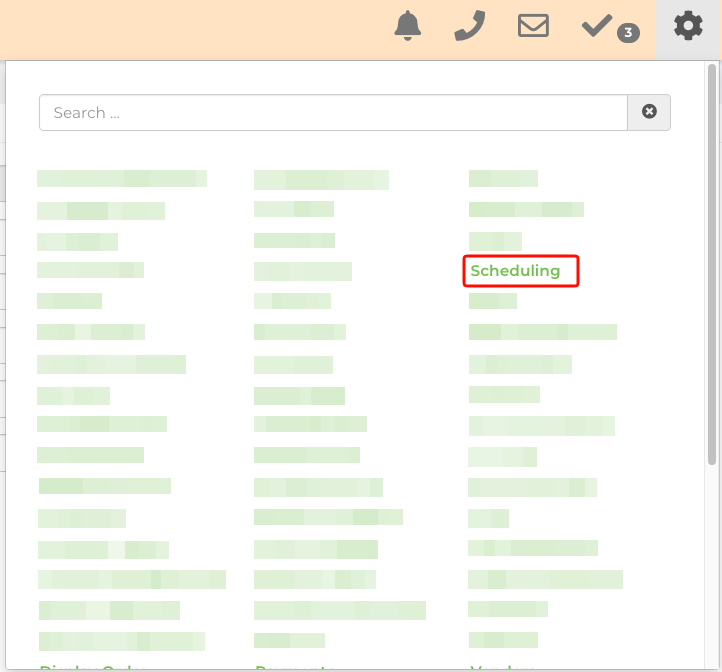
- Open Settings
- Select Scheduling
Add Worker Availability
- On the Scheduling page, select "Add Schedule"
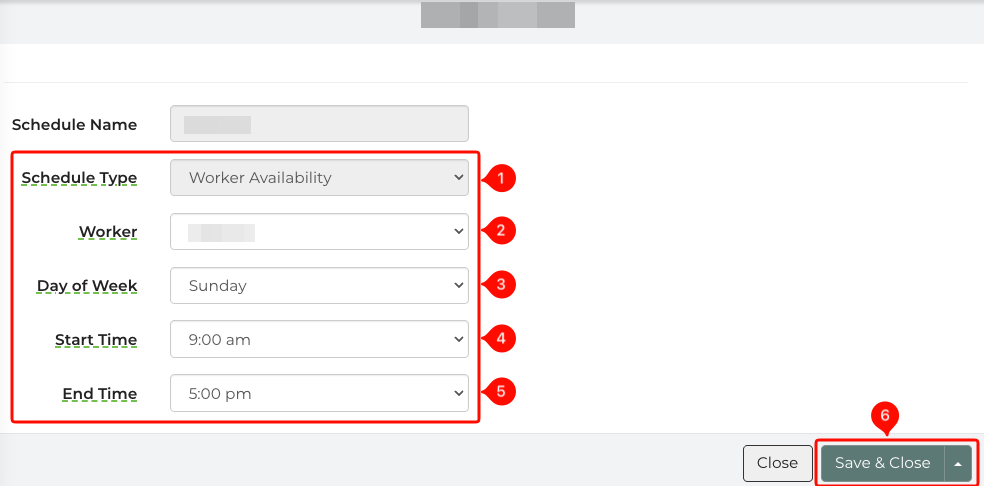
- Under Schedule type, choose "Worker Availability"
- Pick the worker and enter the days of the week and times they're available (the schedule name will be the workers name)
- Select Save & Close.
Add a Time Off Request for a Worker
- On the Scheduling page, select "Add Schedule"
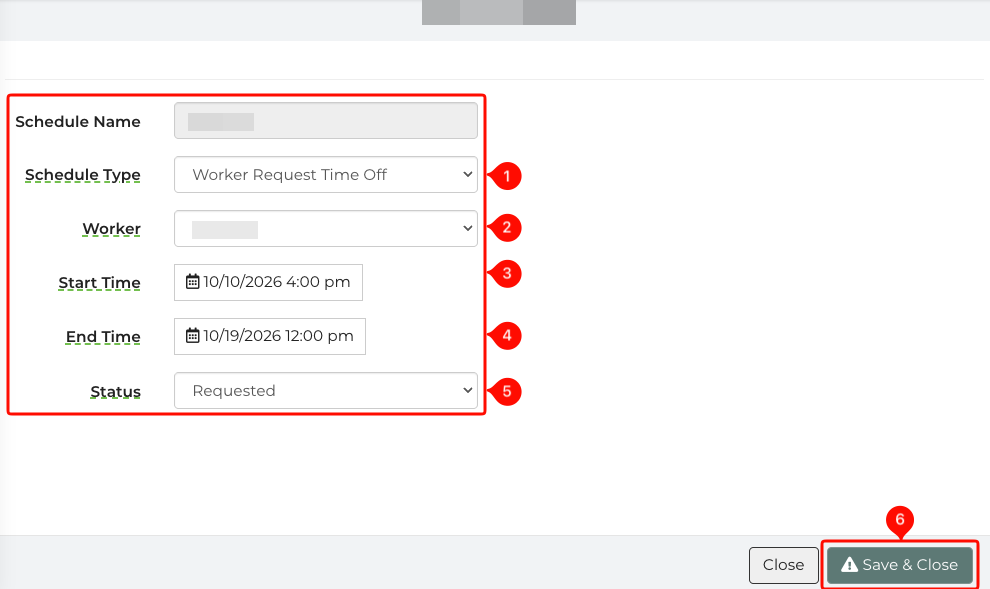
- Under Schedule type, choose Worker request time off.
- Pick the worker and enter the dates and times they'll be out (the schedule name will be the workers name)
- Select a status (Requested, Approved, Declined)
- Select Save & Close.
View or Edit Existing Availability and Time Off
- On the Scheduling page, use the preset filters to show entries by schedule type, such as Worker availability, Worker request time off or Lead Assignment.
- Open the entry you want to change.
- Make your changes and select Save.
FAQ
Q: Can workers still update their own availability in the worker app?
A: Yes!
Q: Why does a worker show as unavailable for a shift they can cover?
A: Their saved availability probably doesn't cover the whole shift. Open their availability on the Scheduling page and update the hours.