


Overview
The Workers App allows field crews, delivery drivers, and event operators to easily access, present, and collect electronic signatures on Signable Documents and Waivers directly from their mobile devices.
Whether you need a customer to sign a delivery acceptance agreement upon drop-off or need event attendees/parents to sign liability waivers at an active event, staff can handle the entire process paperlessly on-site.
Key Features & Use Cases
- Delivery Sign-Offs: Have customers review and sign contracts or delivery confirmation documents directly on the driver’s phone or tablet upon arrival.
- On-Site Event Waivers: Provide reusable, blank waiver forms on-site for walk-ups or participants before they enter an attraction or inflatable.
- Geotagged Signatures: Automatically capture GPS location and timestamp data when a signature is collected for verified proof of delivery and compliance.
- Instant Sync: Completed signatures sync back to the lead and document records in the software in real time.
Prerequisites & Setup
Before Workers can access documents in the Workers App:
- Configure Document Templates: Ensure your contracts, signable documents, and waivers are created under Settings -> Document Center -> Waiver Templates.
- Attach Documents to Leads: Ensure the appropriate signable documents or event waivers are attached to the lead.
- Worker Permissions: Verify that your staff have active Workers App accounts and the appropriate permission roles to view leads/events. See here for more information about permissions.
How to Use Signable Documents & Waivers in the Workers App
1. Accessing Documents for an Event
- Open and log in to the Workers App on your mobile device.
- Select your scheduled event or delivery stop from the Events list.
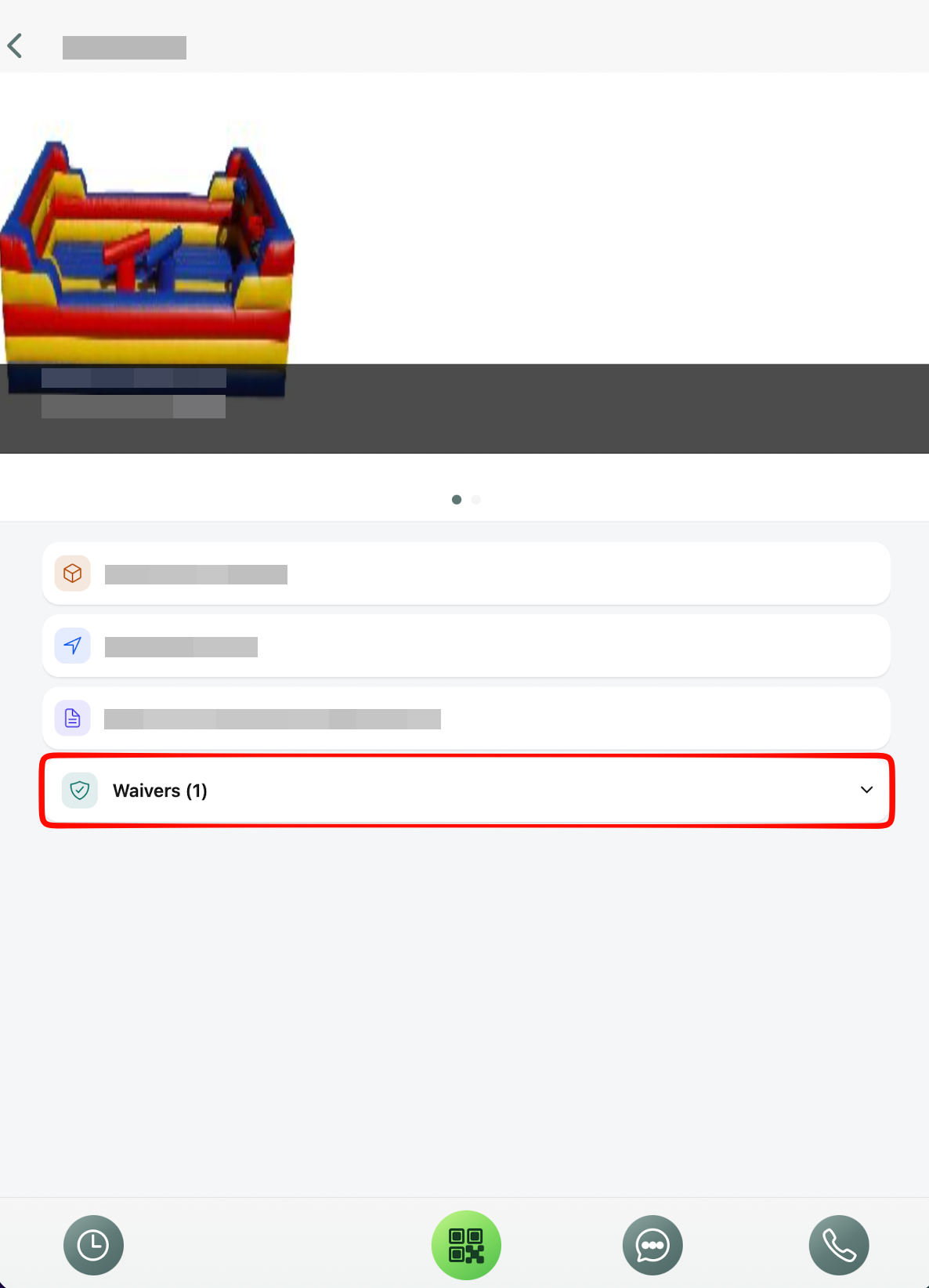
- Tap into the event details and locate the Waivers section.
2. Collecting On-Site Event Waivers
For events requiring participants or parents to sign liability waivers before participating:
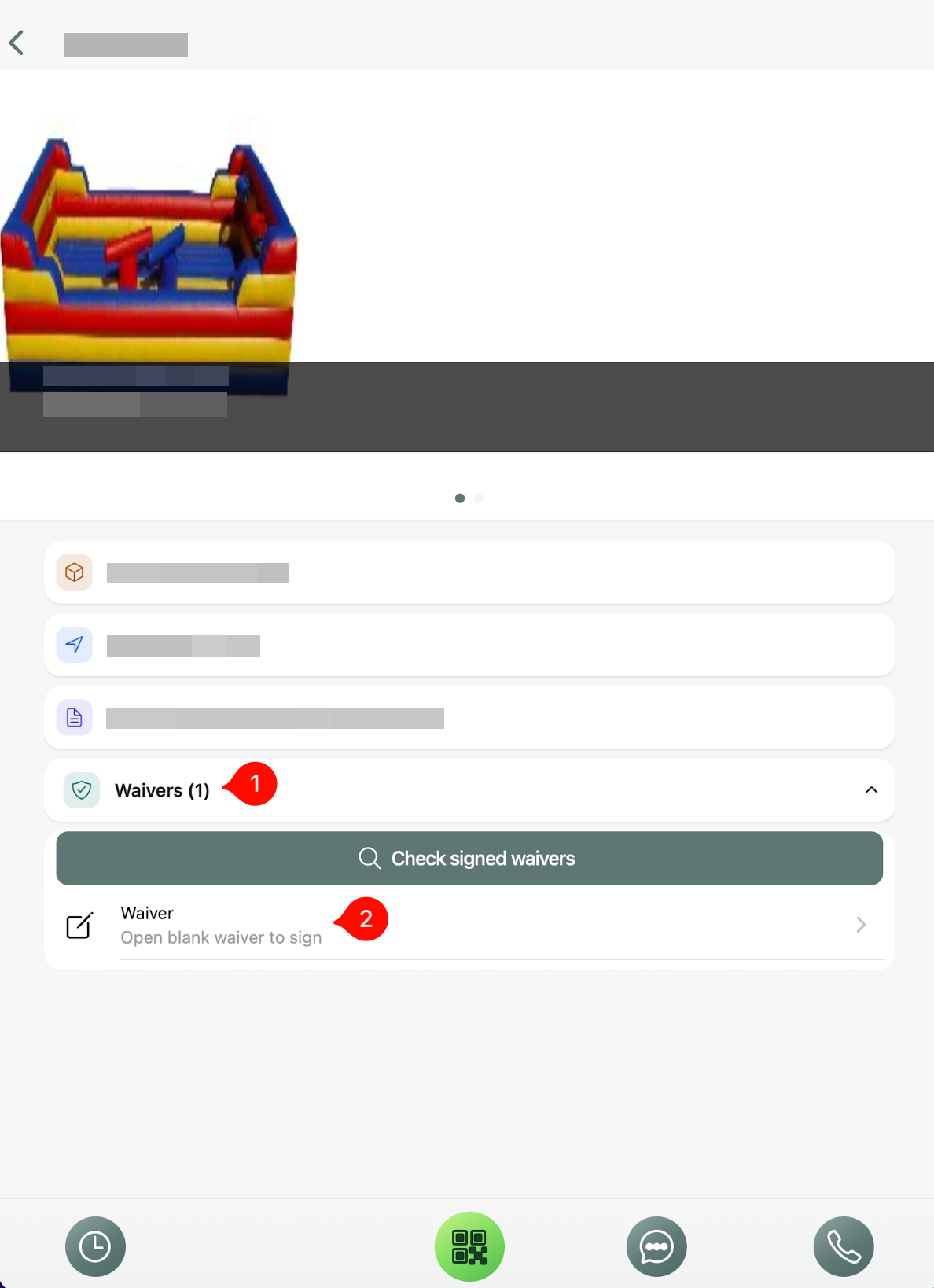
- From the event screen, tap Waiver.
- Hand the device to the participant or guardian to sign.
- Tap Submit.
- Once completed, the app resets to a fresh waiver ready for the next participant to print, sign and agree to the terms and conditions.
3. Checking Signed Waivers at the Event
Event operators can verify who has already signed:
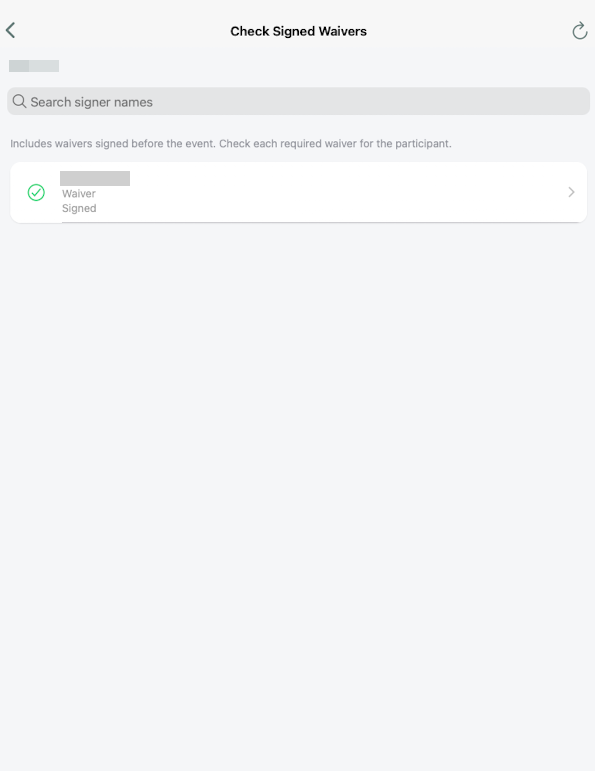
- Tap 🔍 Check Signed Waivers on the event page.
- Search or scroll through the list of signed waivers for that specific lead/event to confirm the signed waiver status.
Best Practices & Tips
- Enable Location Services: Ensure the Workers App has permission to access device location so signatures are accurately geotagged with delivery coordinates.
- Clean Screen / Stylus: For easier customer signatures outdoors, keep a mobile stylus handy.
- Multiple Waivers: If an event features multiple distinct attractions requiring separate waivers, ensure staff select the correct waiver type before handing the device to participants.
Frequently Asked Questions (FAQ)
Q: Where can I see the signatures after they are collected?
A: All signed documents and waivers immediately sync to the corresponding lead in the lead under the Documents section.
Q: What happens if the customer has already signed online prior to delivery?
A: The document status in the Workers App will reflect as already signed, eliminating duplicate signature requests.