


To view a contract after it’s been created, you can click the Contract button on the bottom of the screen, lead/event specific.

If this button is not there, then you need to first create a contract.
The contract page contains both the contract and payment details.
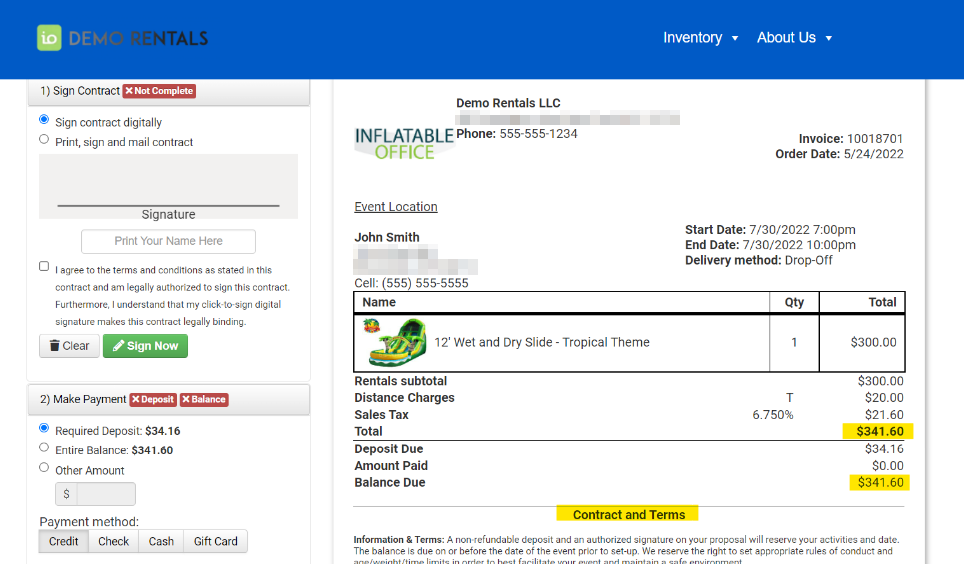
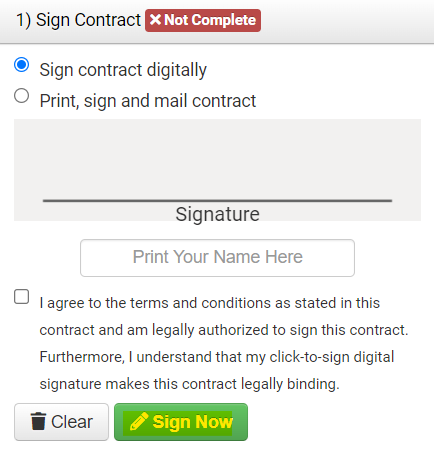
Scroll to the bottom of the page to see the generated contract. The customer can choose the "Sign contract digitally" option and check “I agree...” and the system will record their digital signature.
Require Payment before Contract Signing
By default, we require your customers to pay the deposit before they can sign the contract. Customers cannot sign the contract until the deposit is paid. However, this can be turned off. To turn this off, follow these steps:
- Go to Settings
- Document Center
- Pages
- Select "Contract Page"
- Unselect "Require payment first"
The setting to "Require payment first" can be toggled off at any time, allowing your customers to pay and then sign.