


How To Set Up Weekend Pricing
Weekend pricing uses a filter and conditional pricing to apply a different item price when an event starts and ends on selected weekend days.
Prerequisites
- Access to Settings, Filters, and Inventory.
- Autosave Leads must be enabled under Settings > General Preferences.
- A base price must already be configured for the inventory item.
- Determine which days your business considers the weekend.
Create the Weekend Pricing Filter
- Go to Settings > Filters.
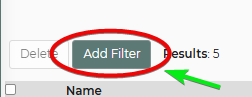
- Click Add Filter.
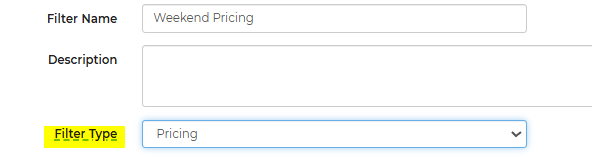
- Enter a descriptive Filter Name, such as Weekend Pricing.
- Set Filter Type to Pricing.
- Under Field Name, select the start-day condition that matches your weekend definition. For a Friday-through-Sunday weekend, select Lead Start Is Weekend (Fri-Sun), then click Add.
- On the next line, select Lead End Is Weekend (Fri-Sun), then click Add.
- Click Save.

Apply Weekend Pricing to an Inventory Item
- Go to Settings > Inventory.
- Open the inventory item that requires weekend pricing.
- Locate the Pricing section.
- Click Show Conditional Pricing in the upper-right corner of the section.

- If prompted, choose how the weekend price should affect the item’s regular price:
- Override & Stop: Replaces the regular item price when the filter matches.
- Add to Price: Adds an additional amount to the applicable base or override price.
- In the Filter field, select the weekend pricing filter you created.
- Enter or select a Price Name, then click Add.

- Enter the pricing structure for the weekend price.
- Click Done.
- Save the inventory item.
- Repeat these steps for each inventory item that needs weekend pricing.
Test the Weekend Price
- Create a test lead or submit a test quote through your website.
- Select start and end dates that fall within the weekend days defined by the filter.
- Add the configured inventory item.
- Confirm that the expected weekend price is applied.
- Repeat the test using weekday dates to confirm that the regular price applies.
Feature Options & Parameters
| Option | Effect |
|---|---|
| Filter Type: Pricing | Makes the filter available for inventory conditional pricing. |
| Lead Start Is Weekend | Requires the event start to fall within the selected weekend range. |
| Lead End Is Weekend | Requires the event end to fall within the selected weekend range. |
| Override & Stop | Replaces the regular price. Matching override conditions are evaluated from top to bottom. |
| Add to Price | Adds a weekend surcharge to the applicable item price. |
| Price Name | Identifies the pricing structure applied when the weekend filter matches. |
Use Cases
- Replace weekday pricing with a higher Friday-through-Sunday rental price.
- Add a fixed weekend surcharge without replacing the item’s regular price.
Troubleshooting & FAQs
Why is the weekend filter missing from conditional pricing?
Confirm that the filter was saved and that its Filter Type is set to Pricing.
Why is weekend pricing not being applied?
- Verify that Autosave Leads is enabled.
- Confirm that the correct filter is assigned to the inventory item.
- Make sure the conditional price and inventory item were saved.
- Check that both the event start and end satisfy the filter conditions.
Why does a rental that overlaps the weekend not match?
When the filter contains both start and end conditions, both must be true. A rental that starts before the configured weekend or ends after it will not match this filter.
Why is the price being added instead of replaced?
The conditional price is likely using Add to Price. Use Override & Stop when the weekend price should replace the regular price.
Why is the weekend price replacing other conditional prices?
Override & Stop conditions are evaluated from top to bottom. Move higher-priority pricing conditions above lower-priority conditions.
Does this apply to every inventory item automatically?
No. The weekend filter must be assigned to each inventory item that uses weekend pricing.