


Introduction
This feature adds distinct colors to calendar entries so you can quickly tell deliveries, pickups, and multi‑day (carry‑over) events apart at a glance.
Prerequisites
- Access to IO Calendar
- Delivery tool entries for deliveries and returns
- Multi‑day leads spanning more than one calendar day
- Permission to view Calendar and Leads
How It Works
- Single‑day events: Fixed Green Color
- Multi‑day events: Display in a fixed orange for clear visibility across days.
- Delivery tool events:
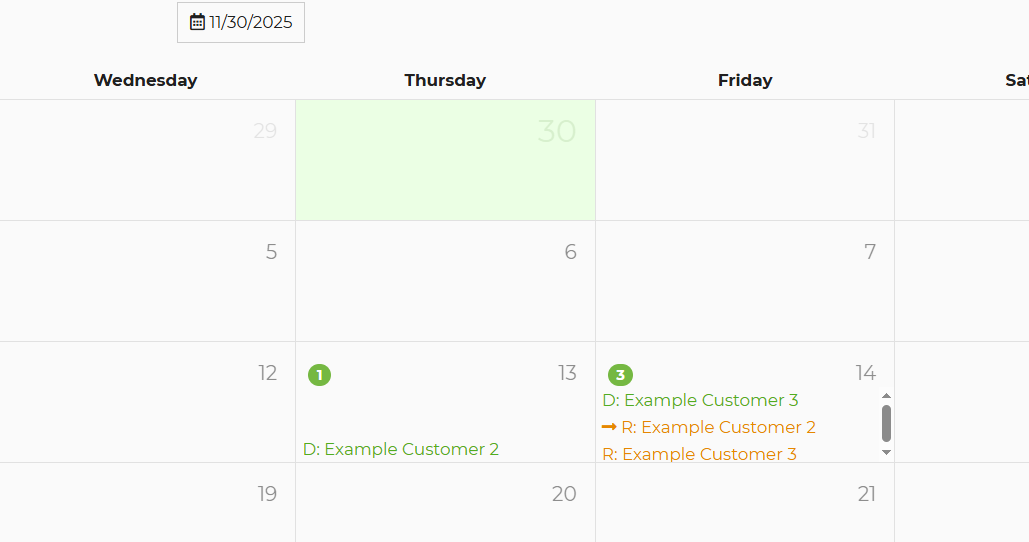
- Deliveries: Green with "D" indicator.
- Pickups/Returns: Orange with "R" indicator.
- Counter icons: Shows the number of events on that day. Green indicates the number of events starting that day and Red counters show the number of events continuing from previous day
Step-by-Step: Viewing Event Colors by Single or Multi-Day
1) Open the IO Calendar
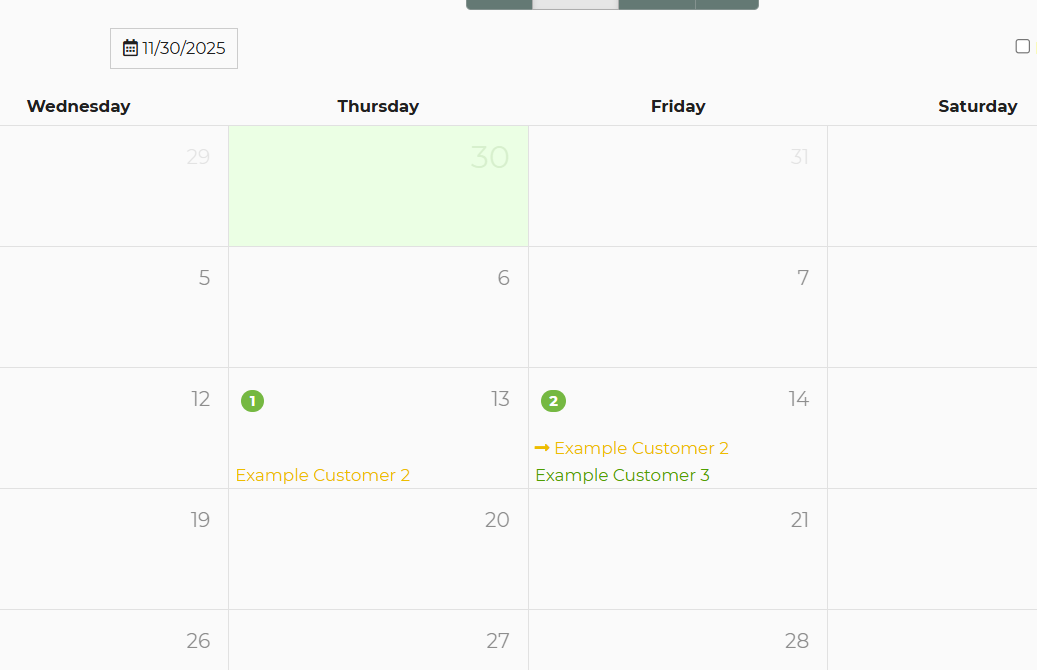
2) Check single‑day vs multi‑day
- Single‑day events appear with the normal status color.
- To see the multi‑day color, schedule a lead that spans multiple dates (End Date later than Start Date). The calendar will show it in red.
3) Check drop-offs and pickups
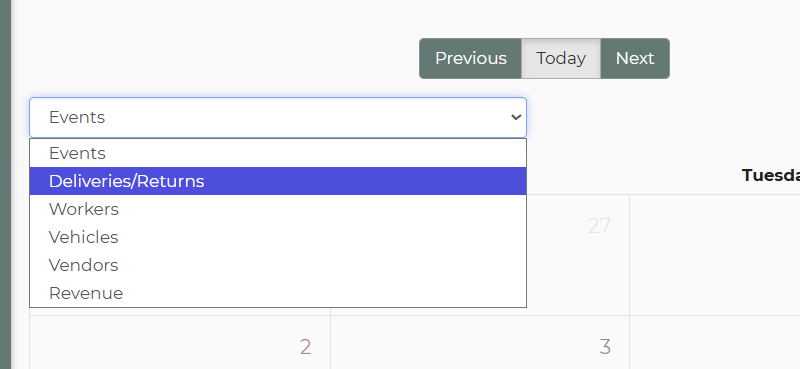
- Select Deliveries/Returns
- Calendar entries for delivery (drop‑off) show in green; return (pickup) show in orange.
4) Verify your view
- Colors are visible on the standard Calendar views. If something looks off, refresh the page and confirm the lead type (single‑day vs multi‑day) or that the delivery/return was scheduled.
Feature Options & Parameters
- Color mapping (current defaults)
- Single‑day events: Fixed Green
- Multi‑day events: Fixed Red
- Drop‑offs (Delivery): Green
- Pickups/Returns: Red
Use Cases
- Dispatch: Quickly distinguish delivery vs pickup days when planning routes.
- Operations: Spot multi‑day carry‑overs during busy periods to prevent conflicts and staffing gaps.
Troubleshooting & FAQs
My drop‑offs/pickups aren’t green/orange.
Confirm you scheduled delivery and return via the Delivery tool. The special colors apply to those scheduled entries.
Can I change the green/orange/yellow colors?
Yes, this is done through Settings -> General Preferences -> Calendar Settings.
Do colors show in Month view?
Yes, colors appear on entries. If a day looks condensed, click/expand the day to view entries clearly.
Colors don’t update after I change a lead.
Refresh the calendar. If your browser is caching the page, perform a hard refresh.
Related Links
- Conflicts on IO Calendar – Visual Indicators for Lead Conflicts
https://rental.software/support/knowledge-base/article/calendar-conflicts-on-io-calendar
- Using the Calendar to Manage Leads and Track Revenue
https://rental.software/support/knowledge-base/article/calendar-daily-revenue-view
- Lead Statuses
https://rental.software/support/knowledge-base/article/lead-statuses