


Check Worker Availability and Time Off in the Delivery Planner
The Delivery Planner checks worker schedules, recurring weekly availability, and time-off requests when you assign a worker to a shift. The worker picker groups workers by availability and explains any scheduling conflicts.
Prerequisites
- Access to Logistics > Delivery Planner. Full access is required to modify and save shifts.
- Approved workers who qualify for the shift position.
- Accurate recurring availability, time-off requests, and existing shifts for each worker.
- For multi-location accounts, workers and shifts must be assigned to the correct locations.
Assign a Worker and Check Availability
- Go to Logistics > Delivery Planner.
- Select the location and date range containing the delivery, pickup, or staffed event.
- Open the applicable event, operation, or vehicle menu and select Add Shift. You can also open an existing shift to edit it.
- Enter the shift position, start time, end time, and other shift details.
- Open the worker picker. Workers are divided into two sections:
- Available: The worker has no conflicting shifts or time off, and their recurring availability covers the entire shift.
- Unavailable: The worker has a scheduling conflict, time-off request, or availability restriction.
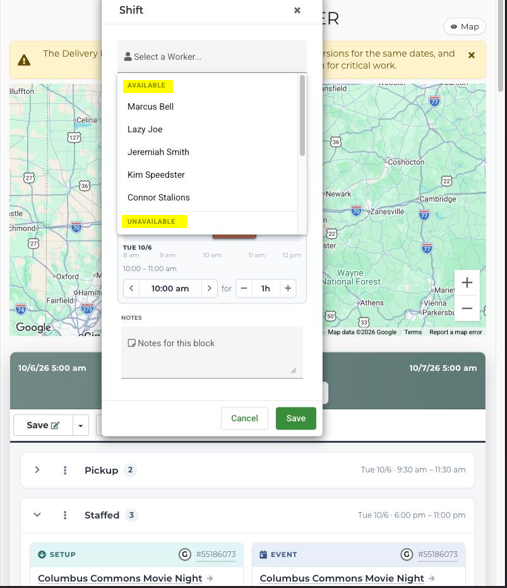
- Review the note below an unavailable worker’s name to identify the conflict.
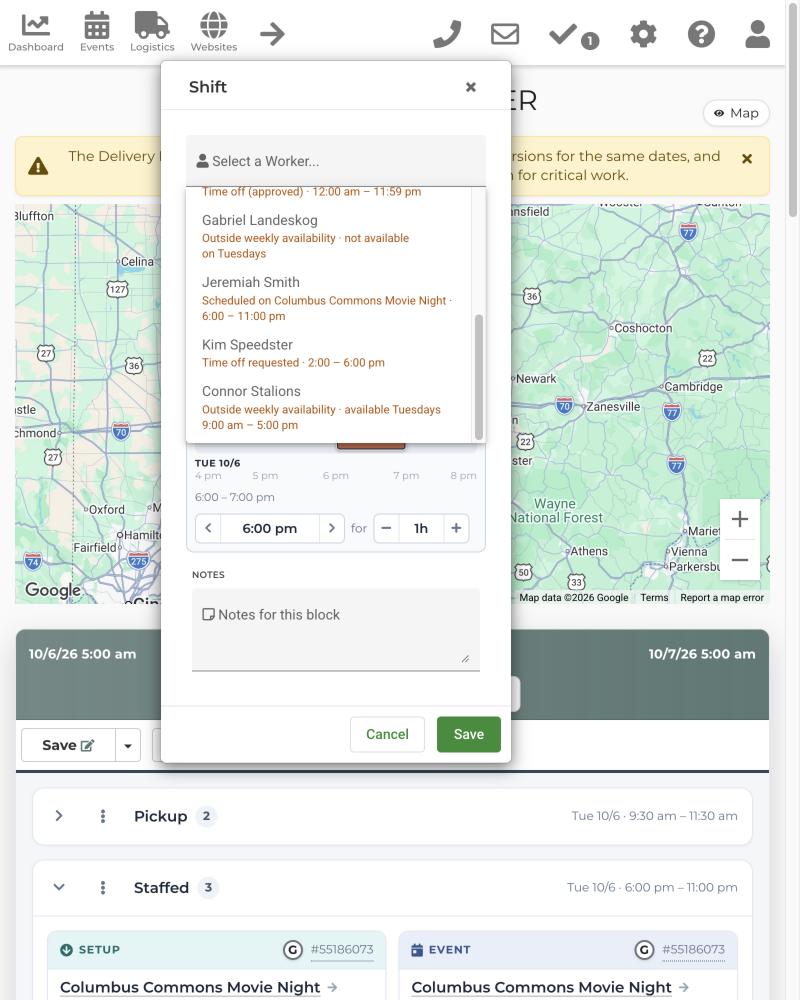
- Select an available worker. (You may select an unavailable worker when an override is necessary.)
- Save the shift details.
- Select the main Delivery Planner Save button to persist the schedule.
Understand Unavailability Reasons
The worker picker may display the following reasons below an unavailable worker’s name:
- Approved time off: The worker has approved leave covering all or part of the shift.
- Requested time off: A pending time-off request overlaps the shift. Declined requests do not make a worker unavailable.
- Weekly availability restriction: The shift is outside the worker’s recurring hours or occurs on a weekday when the worker is unavailable.
- Other scheduled shift: The worker is already assigned to an overlapping shift, including staffed-event shifts that may not appear on the current route.
- Scheduled at another location: In a multi-location account, the worker has an overlapping shift at another branch.
Feature Options & Parameters
| Option or Condition | Effect |
|---|---|
| Draft shift times | Availability is evaluated against the shift’s current start and end times. |
| Location timezone | The system evaluates the shift using the active location’s timezone. |
| Overnight shifts | Both calendar days are checked. The worker’s availability must cover the entire shift. |
| Pending time off | Requested and approved time off can place the worker in the Unavailable section. |
| Declined time off | Does not make the worker unavailable. |
| Availability override | Unavailable workers remain selectable. The grouping is advisory and does not block assignment. |
Use Cases
- Delivery crew scheduling: Confirm that a driver or crew member is free before assigning them to a delivery or pickup shift.
- Multi-location staffing: Identify workers already scheduled at another branch before completing the route schedule.
Troubleshooting & FAQs
Q: Why does a worker appear as unavailable when they can work part of the shift?
A: Recurring availability must cover the entire shift. Review the note below the worker’s name, then update the shift times or the worker’s availability.
Q: Why is a worker unavailable when no conflicting route appears in the planner?
A: The worker may have time off, a staffed-event shift, or a shift at another location. The reason shown below the worker’s name identifies the conflict.
Q: I changed the shift time, but the worker list still shows the previous result.
A: Close and reopen the worker picker after changing the draft start or end time. The system will recalculate availability using the updated times.
Q: Why can I still select an unavailable worker?
A: Availability warnings are advisory. Dispatchers can override the warning when needed.
Q: Why is a declined time-off request still affecting a worker?
A: Declined requests do not make workers unavailable. Check the displayed reason for another conflict, verify the request status, and reopen the worker picker.
Q: Why is an overnight worker marked unavailable?
A: Overnight shifts are checked against both days. Confirm that the worker’s recurring availability includes every hour from the shift start through its end on the following day.
Q: Why did my shift changes disappear after reloading?
A: Saving the shift dialog updates the working planner. Select the main Delivery Planner Save button to persist the change.