Using the AI Assitant for Settings Help and Common Tasks
AI Assistant helps you get answers and complete common setup tasks inside the software. It works best when you open the page you need help with before starting the chat.
Prerequisites
- You must be logged into your InflatableOffice/EventOffice account.
- You need access to the Help chat inside the software.
- You need permission to edit the setting, page, template, or item you want changed.
- For best results, open the settings page or feature page you want help with before starting the chat.
How to Use AI Assistant
- Go to the page you need help with.
Open the settings page or feature page you want to ask about or update. - Open Help.
Click the question mark at the top of the software. - Start the AI chat with the AI Assistant.
Open the AI Assistant chat option with the AI Assistant from the Help area.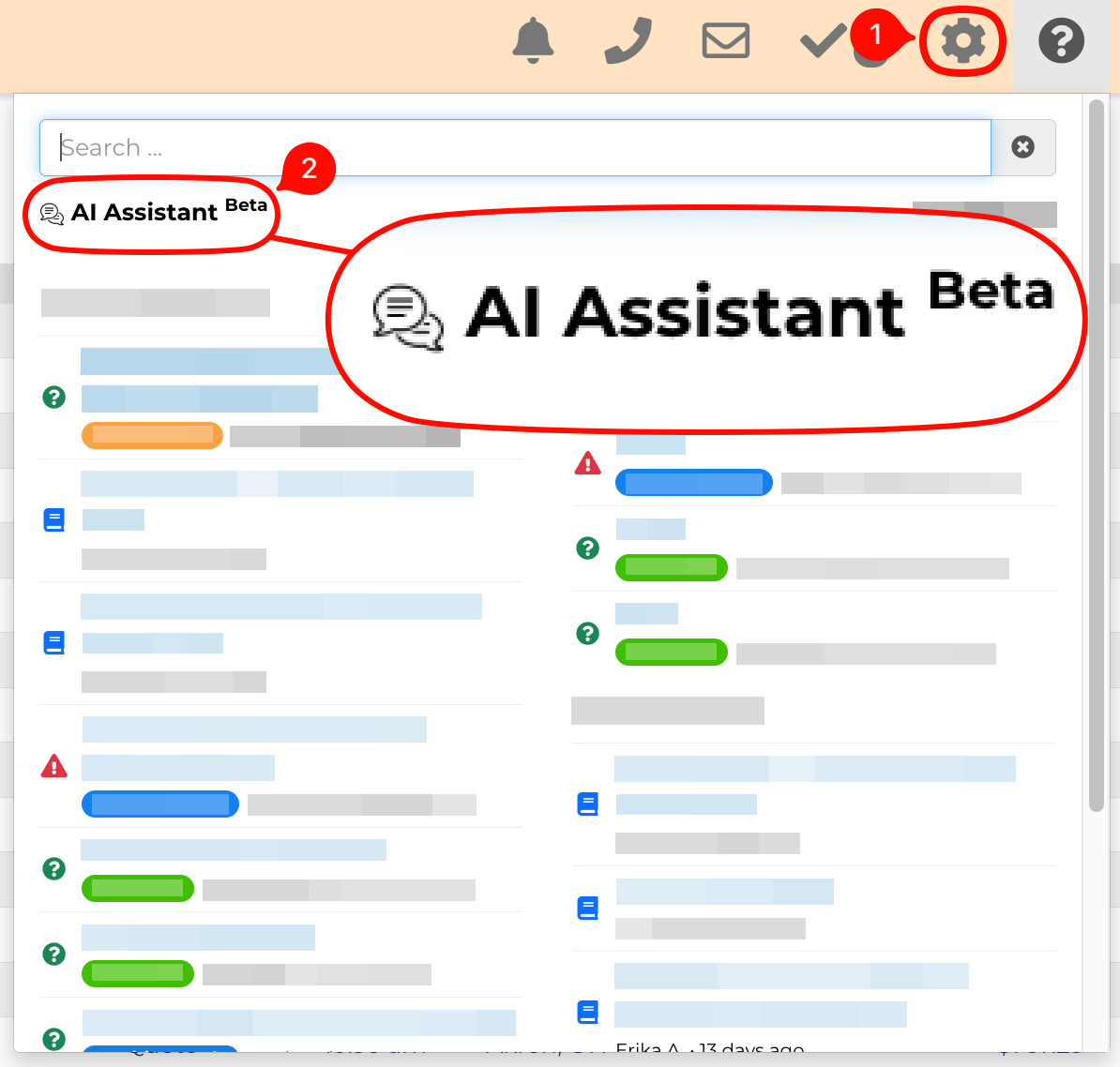
- Describe what you need.
Be specific. Include the setting name, the result you want, and any details that matter. - Answer follow-up questions.
The AI may ask for clarification before giving instructions or making a change. - Review or approve the action.
Some tasks may require your approval before the AI completes them. - Check the result.
Review the page or setting to confirm the outcome is correct.
AI Assistant Sidebar
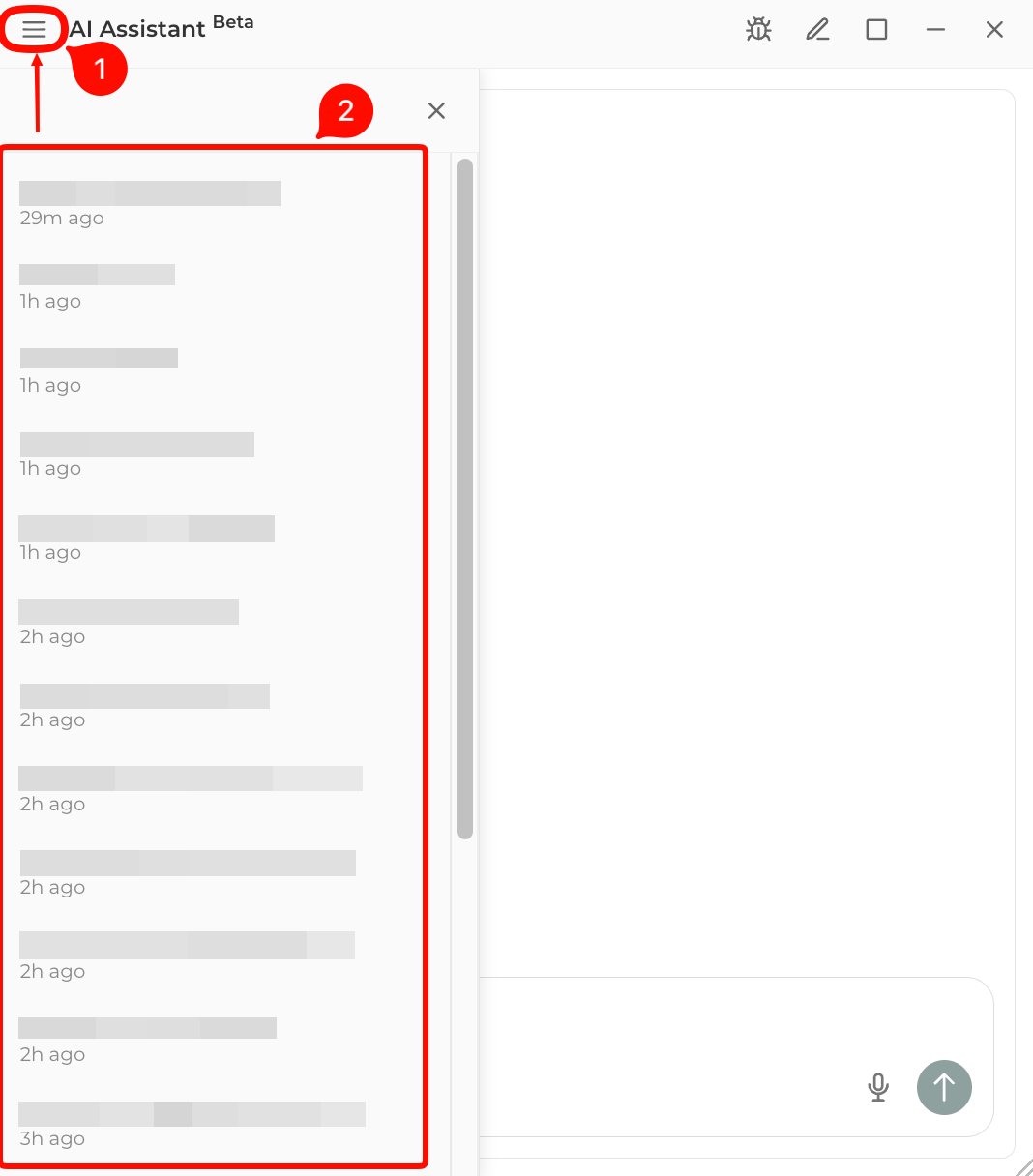
Once you are in the AI Assistant chat Box, you will notice '3 lines' in the top left hand corner that once clicked will open up the sidebar. In the sidebar, you will be able to sort through threads/conversations that you have had with the AI.
Voice-to-text
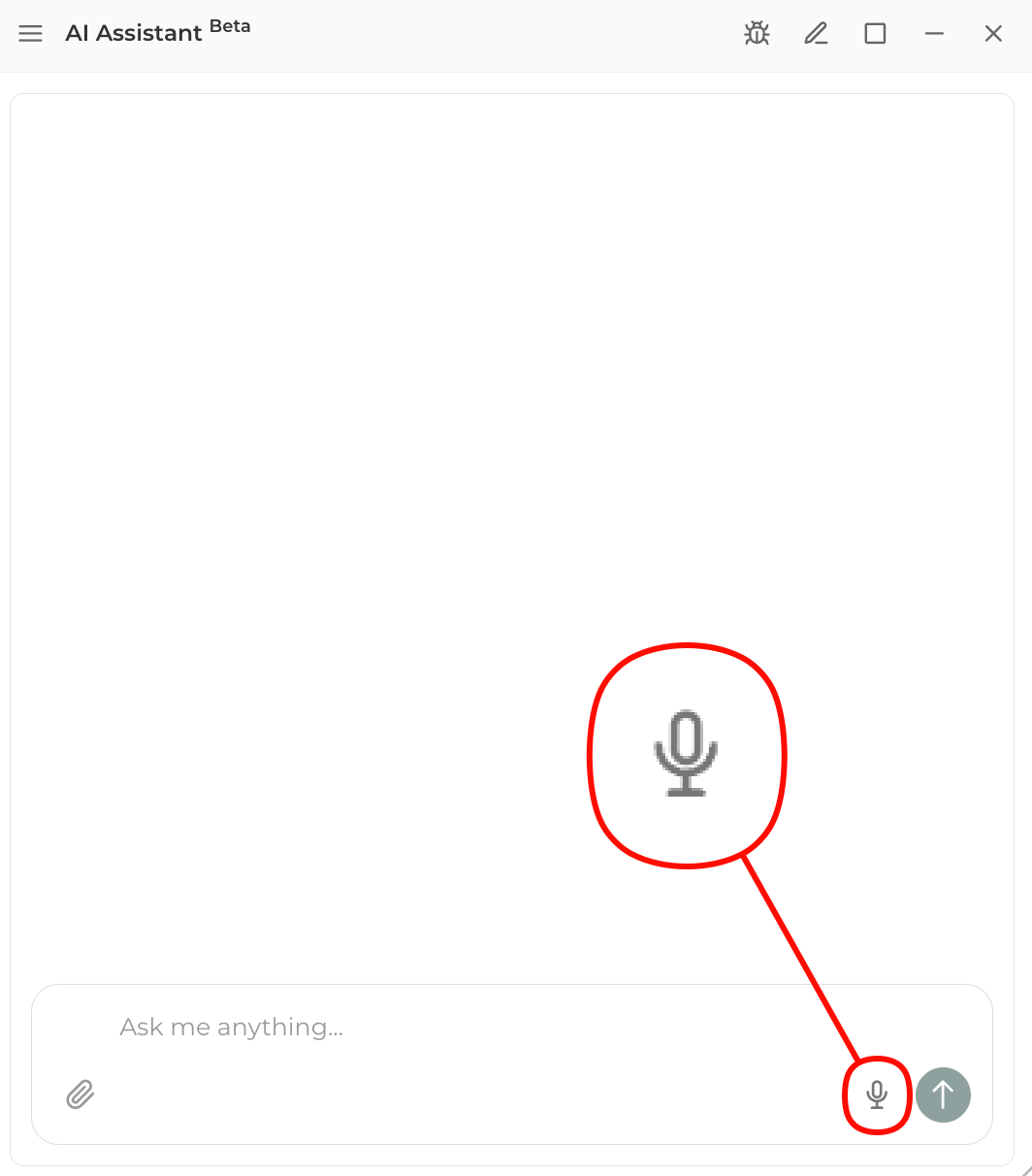
Voice-to-text is available using the AI Assistant Tool. To voice-to-text AI, simply click on the microphone, grant permissions for your device to enable the microphone feature and speak directly into the AI Assistant chat. This will take your recording, transcribe it into text and populates it on the AI Assistant chat box. This allows you to change any text in the prompt in case voice-to-text was unable to transcribe what you said. After you're done prompting the AI Assistant, you must hit the stop button. The text can be reviewed and edited prior to sending it.
Attach File
- Open Help.
Click the question mark at the top of the software. - Open the AI Assistant.
Select the AI Assistant option from the Help area. - Click the attachment icon.
The attachment icon is located in the bottom-left corner of the AI Assistant chat box.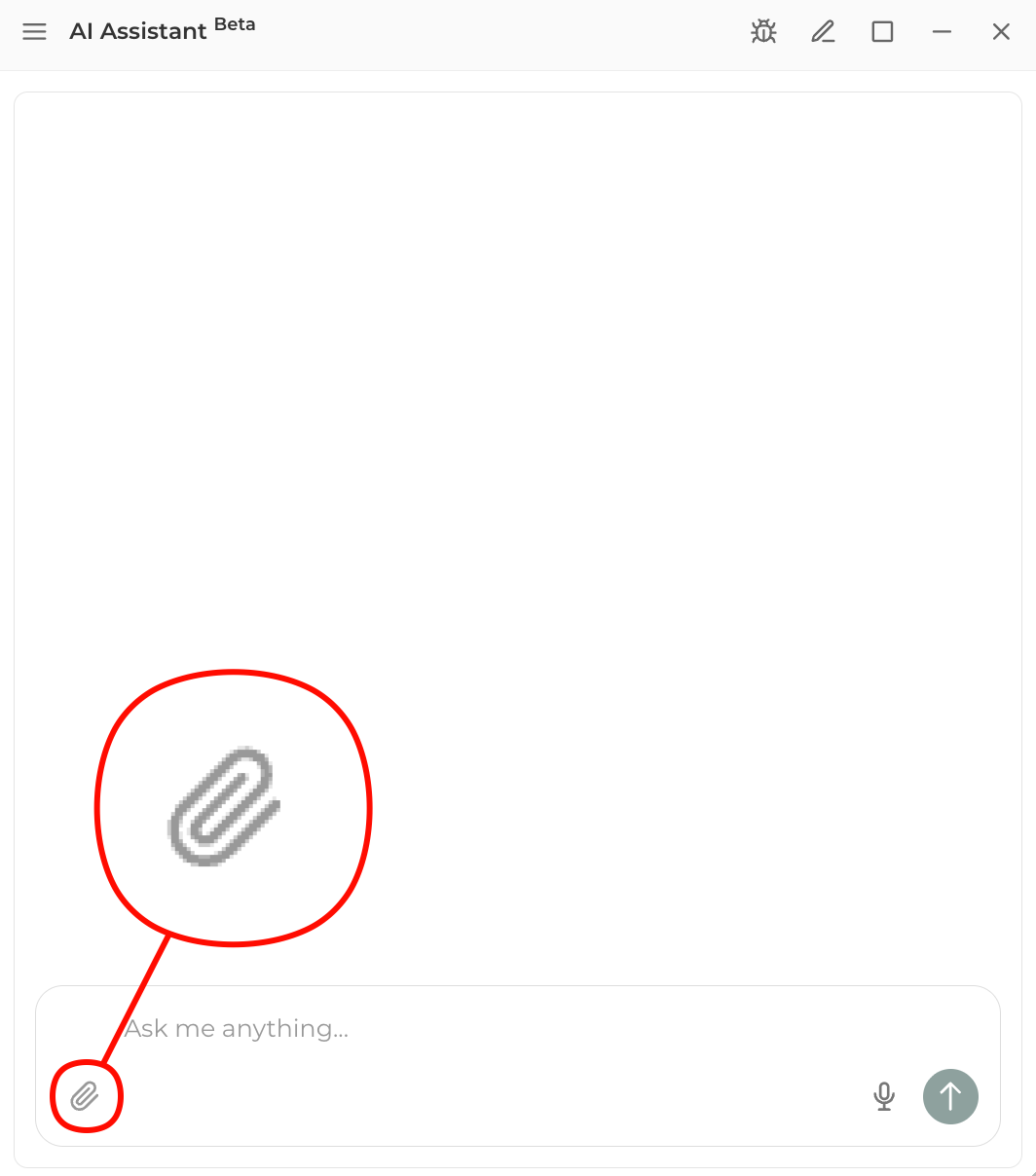
- Select a file.
Use the file picker to locate and select the file on your device. You can also drag and drop the image into the AI Assistant, or copy/paste the image in. - Confirm the file is attached.
Wait for the selected file to appear in the chat before sending your message. - Enter your prompt.
Explain what the file contains and what you want the AI to review or answer. - Send the message.
Submit the file and prompt the to AI Assistant, then review the response.
Managing Leads with the AI Assistant
You can use AI Assistant to look up, quote, create and update leads by typing what you need in plain language. You don't have to open the lead or fill out a form yourself.
What you can ask the AI Assistant to do
Look up Lead and Event Details
- Find a specific event and see its details, such as the equipment booked. The AI Assistant allows you to also select on the lead from the chat and directs you to the lead by selecting on the link provided.
- Check whether a customer has paid their deposit.
Example: "Has the Johnson birthday party on Saturday paid their deposit?" or "Show me all leads this weekend."
Check Item Pricing and Availability
- Ask whether an item is available on a certain date and time, and how many you need.
- See how much the item costs before you add it to a quote.
Example: "Do we have 2 cotton candy machines available on October 18 from 1–5 PM?"
Preview Price Changes without Saving
- See how a quote's total would change if you added or swapped an item. Nothing changes on the lead until you confirm.
Example: "What would the total be if I swapped the hot dog machine for a cotton candy machine on this lead?"
Update a Lead
- Save changes to an existing lead, such as adding a new item.
- Create an updated contract.
Email the Contract to your Customer
- AI Assistant can prepare an email with the updated contract link so your customer can sign it. This works the same way as sending a contract from the lead screen.
Create a New Lead
- Describe the event's location, date, time and equipment, and the AI Assistant will create and save the new lead.
Example: "Create a new lead for a corporate picnic at 123 Main St on November 2, 10 AM–4 PM, with a bounce house and a popcorn machine."
Things to keep in mind
- Your permissions still apply. The AI Assistant can only make changes you're allowed to make yourself. For example, if a booking is locked, the AI Assistant can't edit it unless you have permission to change locked bookings.
- Check before you confirm. Look over any changes, quotes or emails before you save or send them.
Feature Options & Parameters
| Option | What It Does |
|---|---|
| Current Page Context | The AI uses the page you are currently viewing to give more relevant help. |
| Detailed Prompts | More specific instructions usually produce better results. |
| Follow-Up Questions | The AI Assistant may ask for missing details before continuing. |
| Approval Requests | Some actions need confirmation before changes are applied. |
| General Help | You can ask how a feature works even if you do not want the AI to make changes. |
Use Cases
- Adjust settings faster: Open a settings page and ask the AI Assistant what to change or have it help make the change.
- Get page-specific help: Ask what a setting means or how it affects your workflow while viewing that page.
Troubleshooting & FAQs
Q: The AI Assistant is not giving the result I expected.
A: Be more specific. Include the exact setting, page, or item name and explain the result you want.
Q: Does it matter what page I am on?
A: Yes. This tool works better when you are already on the page you want help with.
Q: Why is the AI Assistant asking follow-up questions?
A: Some requests need more detail before the AI can give the right instructions or complete the task.
Q: Why did the AI Assistant not make the change right away?
A: Some tasks require your approval before the change is applied.
Q: Is this a live support agent?
A: No. This is an AI tool, not a live agent.
Q: I cannot find the AI Assistant.
A: Click the question mark at the top of the software. If needed, use the Help Page for more support options.
Q: The response was incorrect, hard to follow or I need additional assistance.
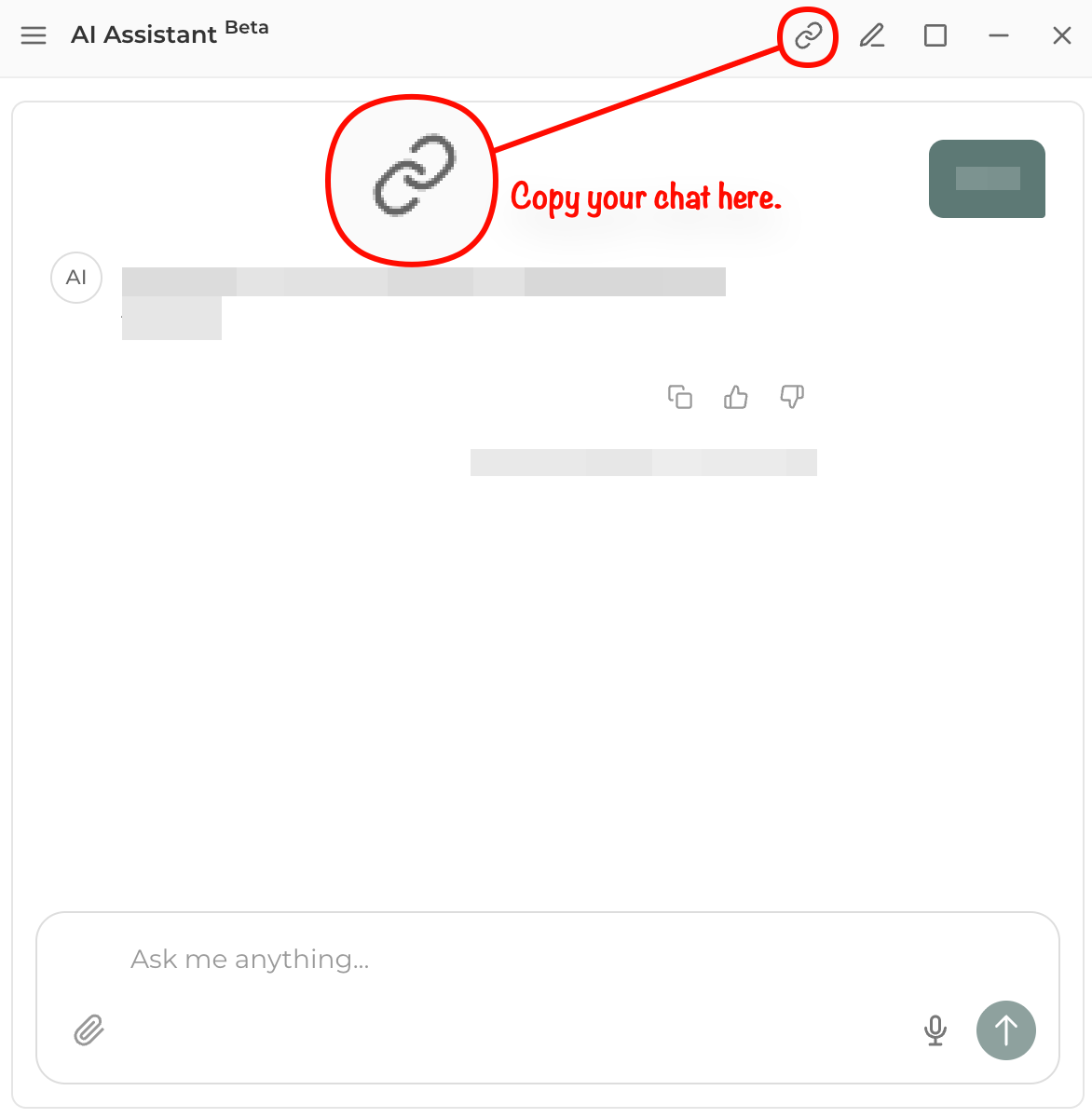
A: If you need to reference your AI Assistant chat, you can copy the thread and submit this link to the support team for further review. This will save to your clipboard on your device.