


Activating AI Chat and AI Tools
Use the AI Tools settings to turn on AI Chat capabilities and related AI features in your account. The main AI Agent setting must be enabled before the AI Assistant can create filters, reports, or manage supported templates.
How to Activate AI Chat and AI Tools
- Log in to your account.
- Go to Settings.
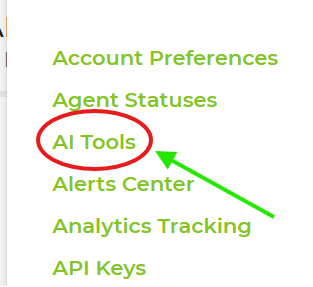
- Open AI Tools.
- Turn on AI Agent. You can select None, Read, or Full. Read lets AI look up information. Full also lets it create and change records. A worker still only reaches what their permissions allow, so the stricter of the two applies. You can also make changes for all of them by selecting None, Read, or Full next to 'Set All Tools'
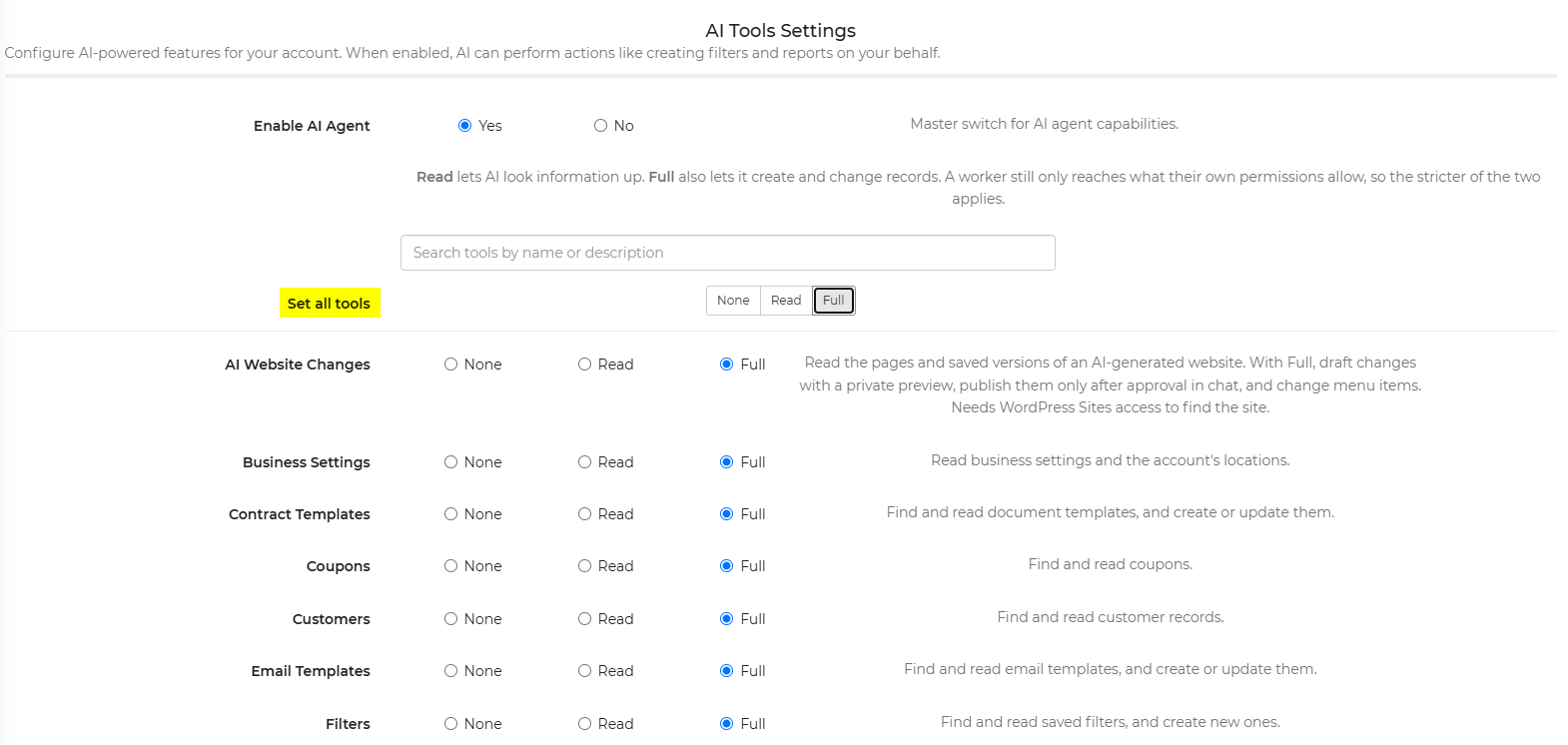
- Enable any additional options you want the AI to use.
- Save your changes.
- Open the Help area in the software to start using the AI Assistant
Navigation Path: Logged-In Account → Settings → AI Tools
Important: Turning on AI Agent alone does not enable every AI action. The specific options for filters, reports, and template management must also be turned on if you want the AI to perform those tasks.
If you ask the AI Agent to perform an action that isn't enabled in your AI Tools settings, it will mark the request as "failed" and explain which permission you need to turn on. The agent will also provide a direct link to the AI Tools page, where you can enable the required permission before proceeding with your request.
Feature Options & Parameters
| Feature | Parameters | Description |
|---|---|---|
| AI Website Changes | None / Read / Full | Access AI-generated website pages and saved versions. Full allows drafting changes, previewing privately, publishing after approval in chat, and changing menu items. Requires WordPress Sites access to locate the site. |
| Business Settings | None / Read / Full | View business settings and account locations. |
| Contract Templates | None / Read / Full | Find, read, create, and update contract templates. |
| Coupons | None / Read / Full | Find and read coupons. |
| Customers | None / Read / Full | Find and read customer records. |
| Email Templates | None / Read / Full | Find, read, create, and update email templates. |
| Filters | None / Read / Full | Find and read saved filters and create new filters. |
| Gift Cards | None / Read / Full | Find and read gift cards. |
| Insurance | None / Read / Full | Find and read insurance records. |
| Inventory | None / Read / Full | View rental items, categories, pricing, photos, and availability. Full also allows changes to descriptions, prices, photos, categories, quantities, accessories, and packages. |
| IO Phone | None / Read / Full | Read call and SMS history from the IO Phone log. |
| Leads | None / Read / Full | Find and read leads, bookings, and events, and update records. |
| Pack Lists | None / Read / Full | Find and read pack lists. |
| Payments | None / Read / Full | View payment transactions, income and refund summaries, and monthly financial trends. |
| QuickBooks | None / Read / Full | View QuickBooks connection status and account mappings. |
| Quote Page Templates | None / Read / Full | Find, read, create, and update quote page templates. |
| Referrals | None / Read / Full | Find and read referrals. |
| Repairs | None / Read / Full | Find and read repair records. |
| Reports | None / Read / Full | Find and read reports and create new reports. |
| Reviews | None / Read / Full | Find and read customer reviews. |
| Shifts | None / Read / Full | View worker shifts. |
| Signed Waivers | None / Read / Full | Find and read signed waivers. |
| Subscription | None / Read / Full | View account subscription details. |
| Surveys | None / Read / Full | Find and read surveys. |
| Tasks | None / Read / Full | Find and read tasks. |
| Template Variables | None / Read / Full | View available merge fields for document, email, and quote page templates. |
| Time Clock | None / Read / Full | View time clock entries. |
| Vehicles | None / Read / Full | Find and read vehicle records. |
| Vendors | None / Read / Full | Find and read vendor records. |
| Venues | None / Read / Full | Find and read venue records. |
| WordPress Sites | None / Read / Full | List WordPress sites and view site details, broken links, synchronization status, and sync plans. |
| Workers | None / Read / Full | Find and read worker records. |
| Customer AI Agents (Website) | Yes / No | Master switch that allows external AI assistants, such as ChatGPT and Claude, to check availability, price rental items, and build customer quotes through the website. This is separate from the back-office AI Agent. |
Use Cases
- Enable AI Chat so staff can ask software questions from the Help area.
- Allow the AI Assistant to create reports, filters, or template updates without giving access to every AI-managed feature.
Troubleshooting & FAQs
Q: I opened the AI Assistant, but it cannot create filters or reports.
A: Make sure the AI Assistant is enabled and that the specific toggle for Filter Creation or Report Creation is also turned on.
Q: The AI Assistant can answer questions, but it cannot edit templates.
A: Turn on the matching template permission, such as Contract Template Management, Email Template Management, or Quote Page Template Management.
Q: I do not see the AI Tools page.
A: Confirm that you are logged in and that you have permission to access account settings.
Q: Where do I use the AI Assistant after it is enabled?
A: Open the Help area in the software by clicking the question mark at the top of the screen.
Q: Do I need to enable every option?
A: No. Turn on AI Agent first, then enable only the features you want the AI to manage.