


Worker Rewards: A Complete Guide for Workers and Managers
Turn everyday work into rewards. Worker Rewards gamifies daily operations in the InflatableOffice Worker App. Workers earn points for on-time shifts, task completions, and peer recognition, which can be tracked on leaderboards and redeemed for company or InflatableOffice rewards.
1. How Worker Rewards Works (Key Concepts)
- Career Points: Accumulate over time across all activities and determine your Level (each 100 career points = 1 level; e.g., 320 career points = Level 4). Career points never decrease.
- Available Points: Your spendable point balance. Redeeming points deducts from your available balance, but does not reduce your career points or leaderboard rank.
- Worker Accounts Only: Rewards are visible and earnable exclusively with approved worker logins. Company admin logins do not earn points or display worker rewards views.
2. Company Setup & Management (Admins & Managers)
Setting up Worker Rewards and fulfilling rewards is handled through the InflatableOffice web dashboard:
Step 1: Enable the Feature
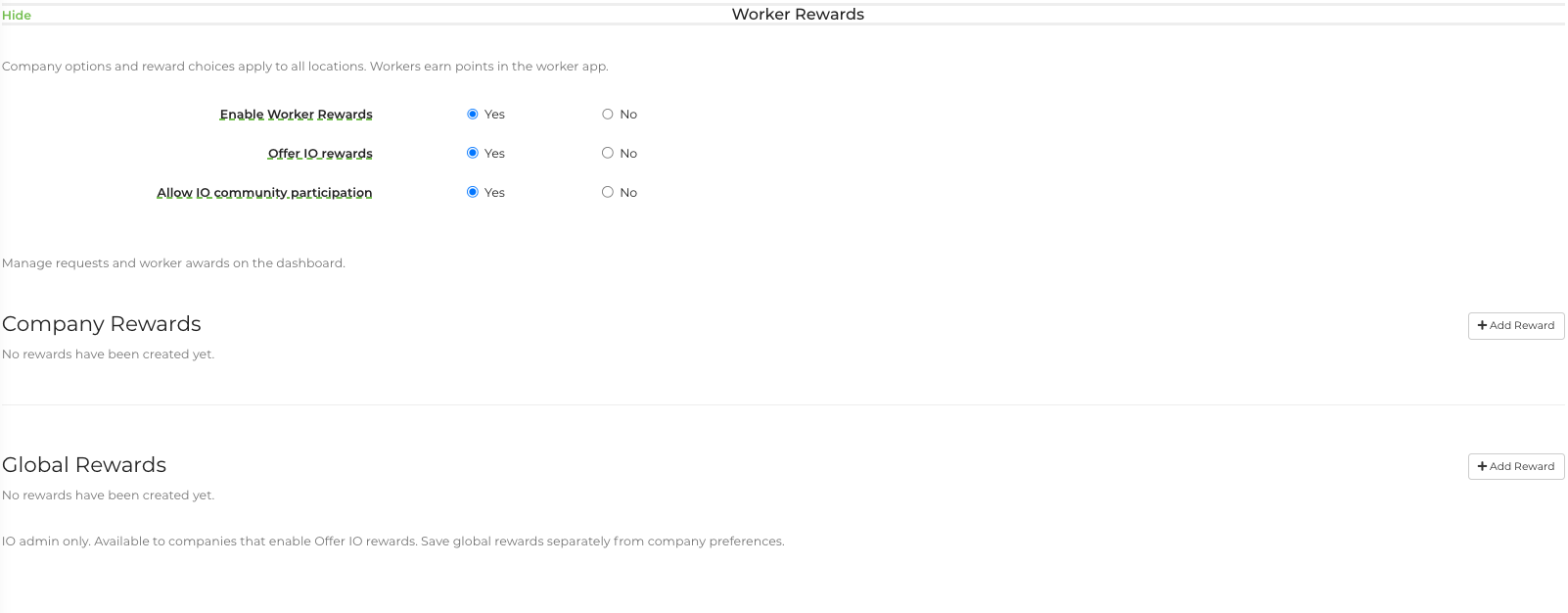
- Navigate to Settings -> General Preferences.
- Click Worker Rewards in the preferences sidebar to expand the section.
- Configure your company settings:
- Enable Worker Rewards: Turns on the feature across all locations.
- Offer IO rewards: (Optional) Adds pre-built InflatableOffice rewards to your workers' catalog (fulfilled directly by IO).
- Allow IO community participation: (Optional) Allows workers to compete on the global cross-company leaderboard and participate in community challenges.
- Click Save.
Step 2: Build the Company Catalog
- Under Company Rewards, click Add Reward.
- Enter the reward name, description, point cost, and availability.
- Click Save Reward (catalog changes save independently from general preferences).
Step 3: Add Web Dashboard Widgets
Go to your web dashboard, click Add Preset Chart, and add:
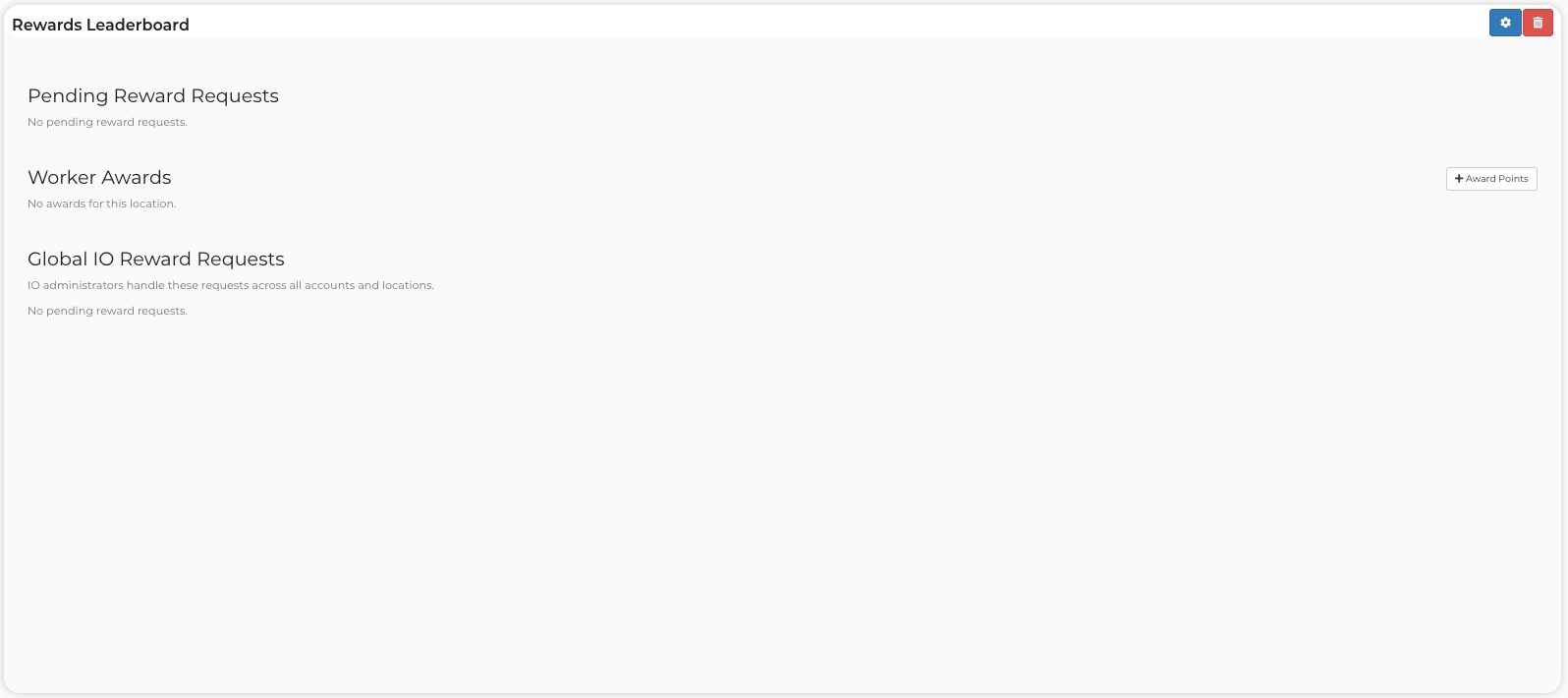
- Worker Rewards: Leaderboard (this month): Displays monthly company standings.
- Worker Rewards: Requests & Awards: Provides controls to fulfill requests and award points. (Requires an admin account or an assigned Location Responsible Worker).
Step 4: Manage Requests & Manual Awards
- Fulfill or Decline Requests: Under Pending Reward Requests, arrange fulfillment and click Fulfill (or Decline to return the reserved points to the worker). Note: Requests do not generate email alerts; monitor the dashboard widget regularly.
- Award Points: Click Award Points to grant discretionary points:
- Excellent work (+10 points)
- Followed required order (+5 points)
- Reverse Award: Used to retract an accidental manual award.
3. Getting Started in the Worker App
- Sign in to the Worker App with your approved worker account.
- Tap the sidebar menu and select Rewards.
- (Optional) Add the widget to your main screen: Go to Settings -> Dashboard Options, drag Rewards into Visible, and tap Save.
|
Tab |
What You Can Do |
|---|---|
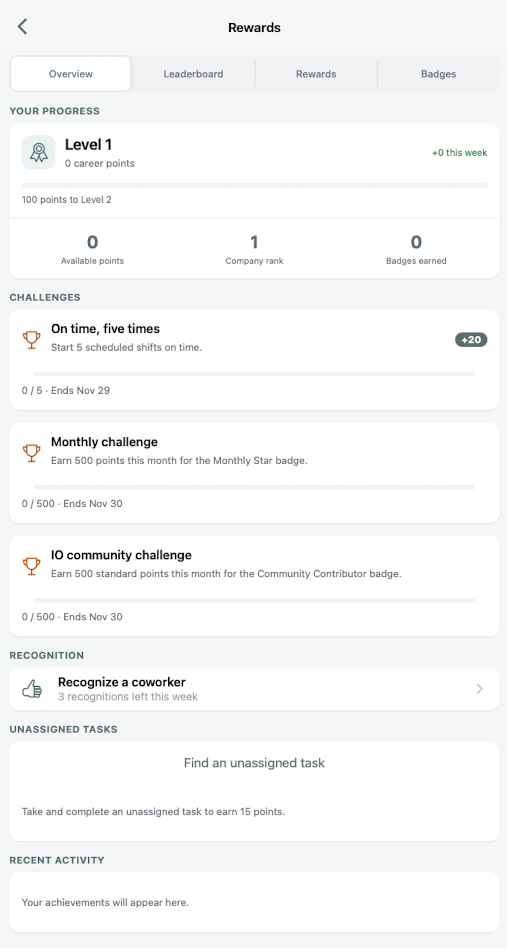
| Overview | View your level, available balance, rank, challenge progress, recent activity, and available unassigned tasks. |
| Leaderboard | Compare scores within your company or across the IO Community. |
| Rewards | Browse the catalog, check costs, and submit reward requests. |
| Badges | View earned achievements and progress toward milestones. |
4. How to Earn Points
Points are awarded automatically as shifts and tasks are logged:
|
Achievement |
Points |
Details / Rules |
|---|---|---|
| Start shift on time | 10 pts | Clock in through the app within a 5-minute grace period of scheduled start. |
| Complete an assigned task | 5 pts | Mark the task complete in the app's To Do workflow. |
| Take & complete an unassigned task | 15 pts total | Tap Find an unassigned task -> Take Task in Rewards, then complete it in To Do. (Replaces standard 5-pt task award; taking the task alone awards no points). |
| Receive coworker recognition | 3 pts | Awarded when a teammate sends you recognition. |
| Follow required work order | 5 pts | Discretionary award granted by a manager on the web dashboard. |
| Excellent work | 10 pts | Quality award granted by a manager on the web dashboard. |
| On time, five times (bonus) | 20 pts | Complete 5 on-time shift clock-ins within a single week. |
Note: Work completed prior to enabling Worker Rewards is not retroactively awarded.
5. Challenges & Badges
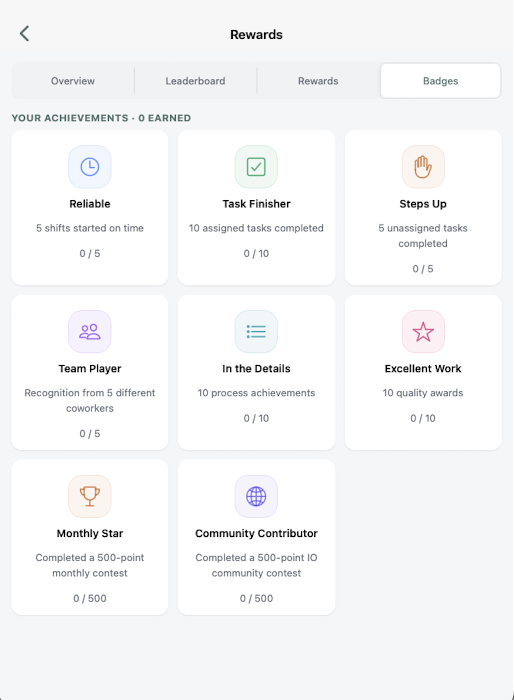
Track milestones under the Badges tab:
Active Challenges
- On time, five times: Clock in on time 5 times in a single week (+20 bonus points).
- Monthly Challenge: Earn 500 company points in a calendar month (Monthly Star badge).
- IO Community Challenge: Earn 500 community-eligible points in a month (Community Contributor badge).
Milestone Badges
- Reliable: 5 shifts started on time.
- Task Finisher: 10 assigned tasks completed.
- Steps Up: 5 unassigned tasks completed.
- Team Player: Recognition received from 5 different coworkers.
- In the Details: 10 process awards granted by managers.
- Excellent Work: 10 quality awards granted by managers.
6. Recognizing Coworkers
Send recognition directly to teammates for great work:
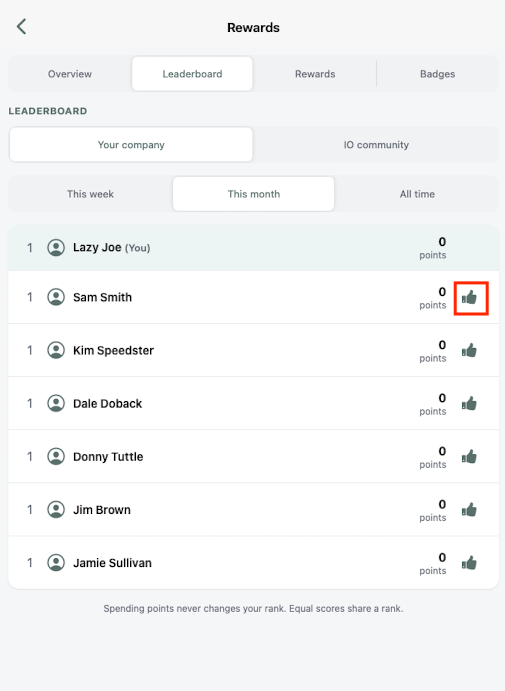
- Tap Recognize a coworker on the Overview tab (or tap the 👍 icon next to their name on the Leaderboard).
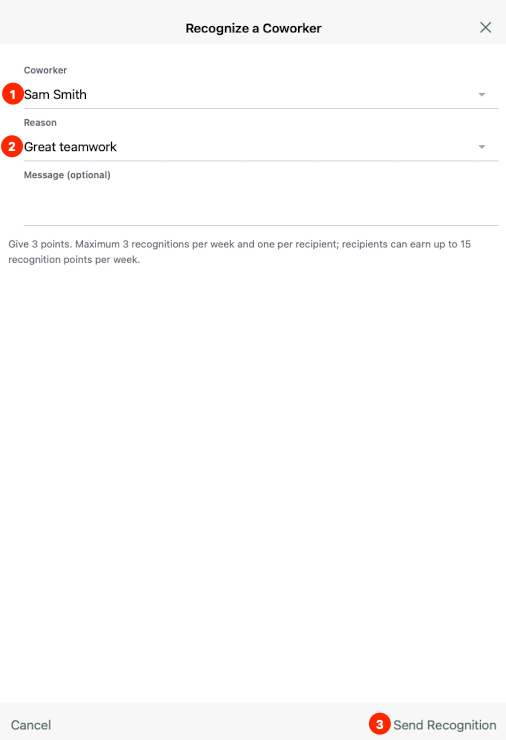
- Choose a coworker and select a badge: Great teamwork, Helpful coworker, or Excellent work.
- Add an optional message and tap Send Recognition.
Recognition Rules & Limits:
- Awards 3 points to the recipient at no point cost to you.
- You can send up to 3 recognitions per week (maximum 1 per recipient).
- Each worker can receive up to 5 recognitions (15 points) per week.
- You cannot recognize yourself.
7. Leaderboards
View standings filtered by This week, This month, or All time:
- Your Company: Reflects all company points (shift punctuality, tasks, peer recognition, manager awards, and challenge bonuses). Displays worker profile photos.
- IO Community: Compares workers across participating companies. To ensure fairness across organizations, only on-time shifts and completed tasks count (no recognition or manager awards; generic avatars are used).
8. Requesting & Redeeming Rewards
- Open the Rewards tab and verify your Available Points.
- Filter by All, Company, or IO Rewards.
- Select a reward, review the details, and tap Request Reward.
- Track your request under Your Requests:
- Pending: Points are reserved and deducted from available balance while awaiting review.
- Fulfilled: Marked complete by the fulfillment team (Company admin or IO team).
- Declined: Request was not approved; reserved points are immediately returned to your available balance.
Frequently Asked Questions (FAQ's)
Q: Why can't I see Rewards in the Worker App?
A: Check with your account administrator to ensure Enable Worker Rewards is turned on in Settings -> General Preferences. Also make sure you are signed in with an approved worker account (company admin accounts do not have access to worker reward views). If the sidebar link appears but the dashboard card is missing, go to Settings -> Dashboard Options in the app and move Rewards into Visible.
Q: I claimed an unassigned task, but didn't receive the 15 points. What happened?
A: Claiming a task does not award points on its own. After tapping Take Task in the Rewards tab, you must go to To Do and mark the task Completed to receive the 15 points.
Q: Why does my Company leaderboard score differ from my IO Community score?
A: The IO Community leaderboard only counts on-time shifts and completed assigned or unassigned tasks. Company standings also include coworker recognitions, manager discretionary awards, and challenge bonuses. Make sure you are also comparing the same timeframe (This week, This month, or All time).
Q: Why am I unable to send recognition to a coworker?
A: Check your weekly allowance on the Overview tab:
- You may have reached your weekly limit of 3 recognitions sent.
- You may have already recognized that specific teammate earlier in the current week.
- The recipient may have already hit their cap of 5 recognitions received (15 points) this week.
- You cannot send recognition to yourself or inactive accounts.
Q: My reward request is still pending. Who should I contact?
A: Company rewards are managed and fulfilled locally by your company’s managers or admins via their web dashboard widget. IO Rewards are fulfilled by the InflatableOffice team. Points remain reserved in pending status until the request is fulfilled or declined.