


Overview
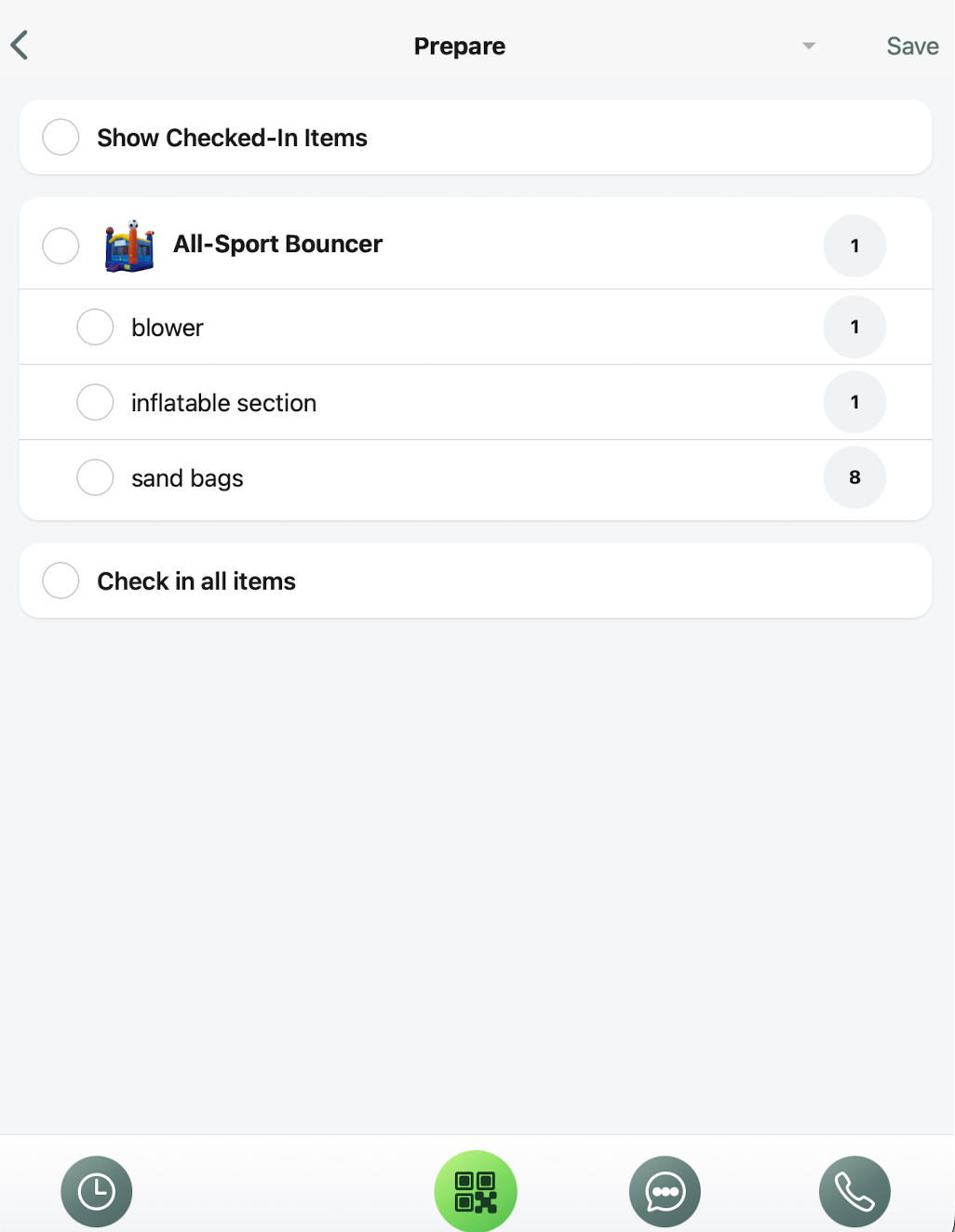
The Vehicle Packing List in the Worker App uses your Packing List Statuses to decide which items to show.
The list shows only the items that match the stage of the job:
- Loading for deliveries: only items going out.
- Coming back from pickups: only items returning.
How it Works
The list depends on two settings on the Packing List Statuses page:
- The order of your statuses
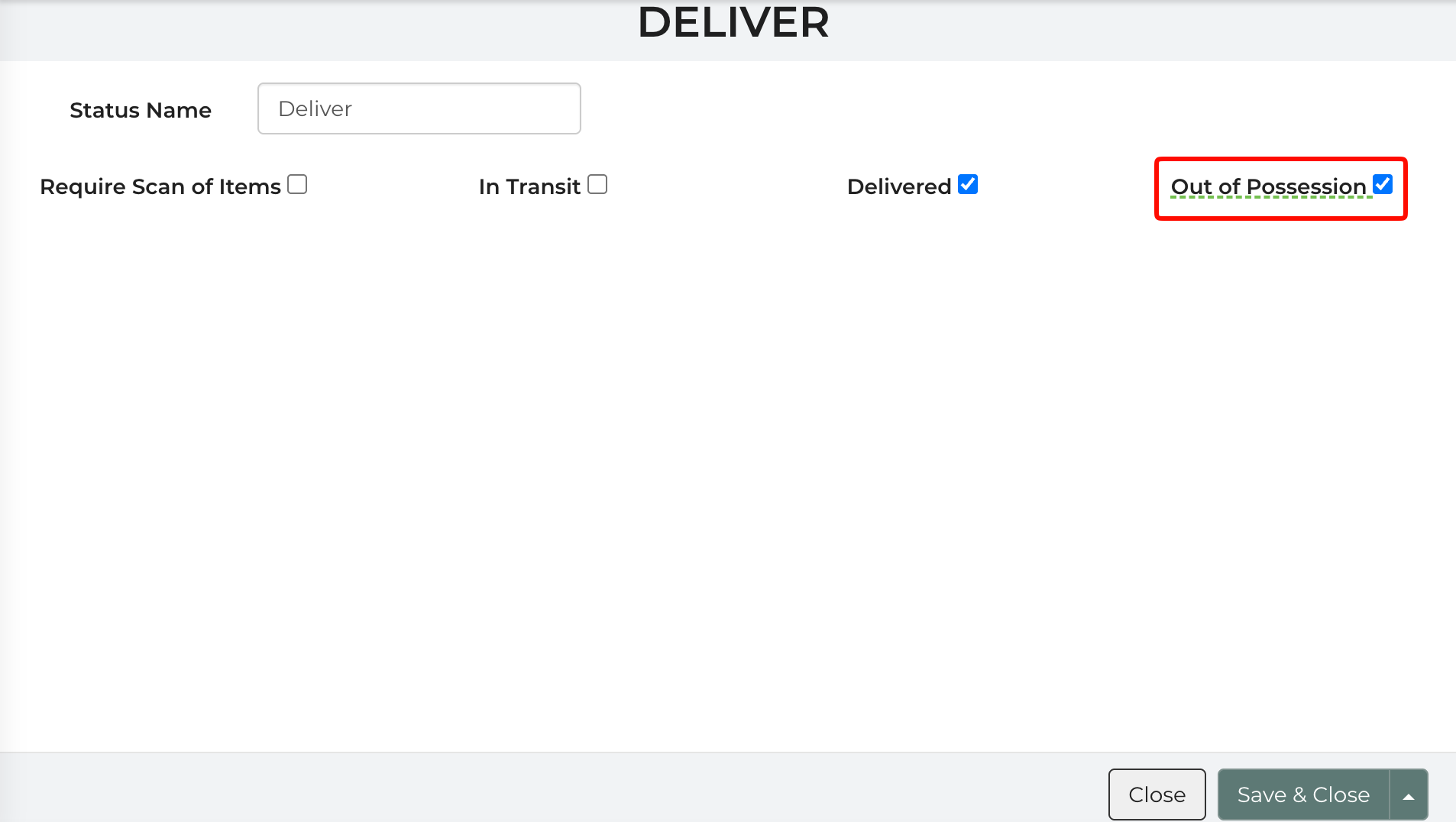
- Which status is marked "Out of Possession." This is the point where items leave your warehouse.
When a worker picks a status on the Vehicle Packing List:
|
Selected status |
Vehicle Packing List shows |
|---|---|
| The "Out of Possession" status, or any status before it | Delivery events for that vehicle |
| Any status after the "Out of Possession" status | Return events for that vehicle |
Note: If more than one status is marked "Out of Possession," the last one in the order is used.
Example
With Deliver marked as "Out of Possession":
- Prepare
- Load
- Deliver ← Out of Possession
- Reload
- Unload
- Verify
- If a worker selects Prepare, Load or Deliver, they see only the items going out on deliveries.
- If a worker selects Reload, Unload or Verify, they see only the items coming back from pickups.
Setting it Up
- Go to Settings -> Packing List Statuses.
- Open the status that means the items have left your warehouse (for example, Deliver), turn on "Out of Possession" and save.
Packing List in Workers App
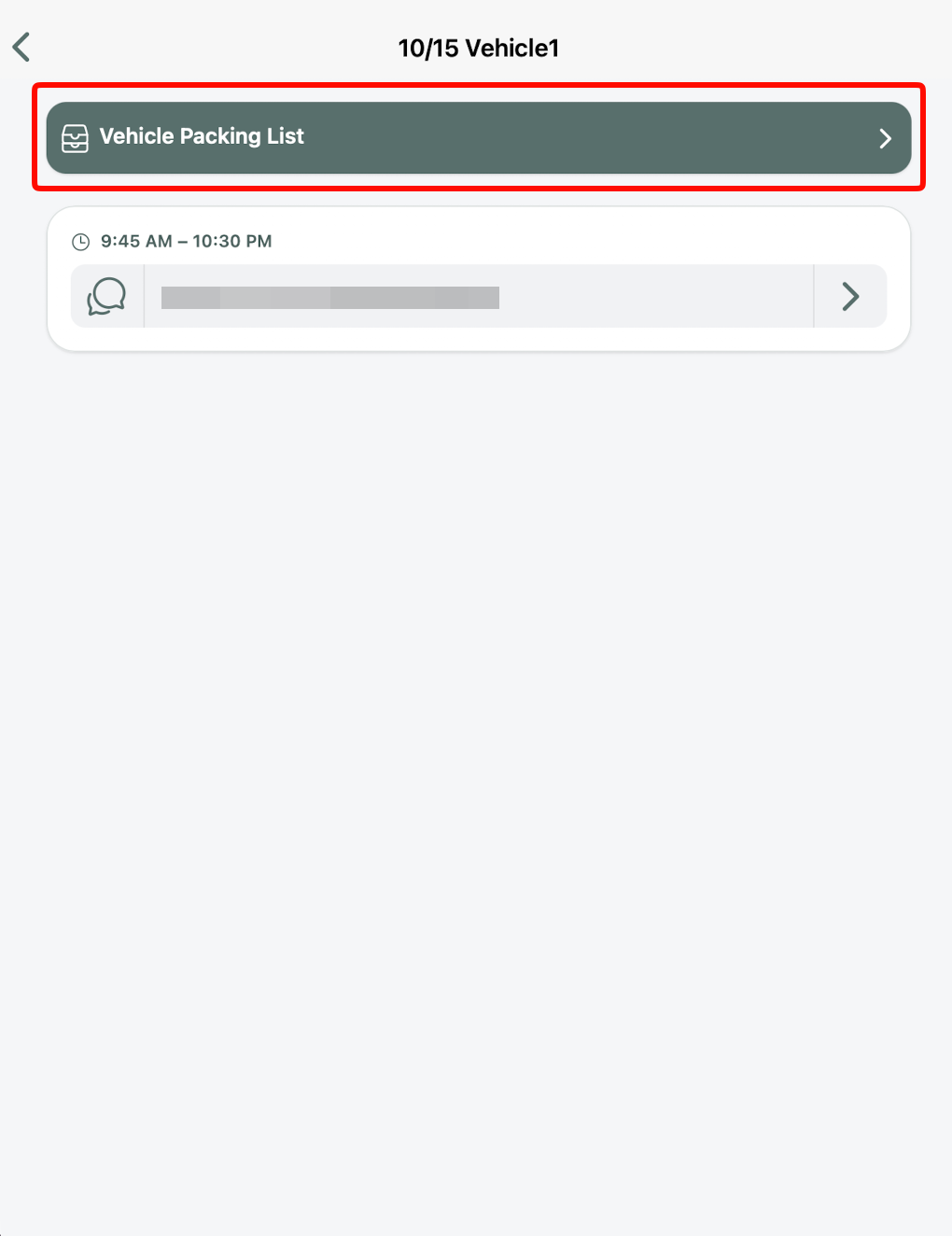
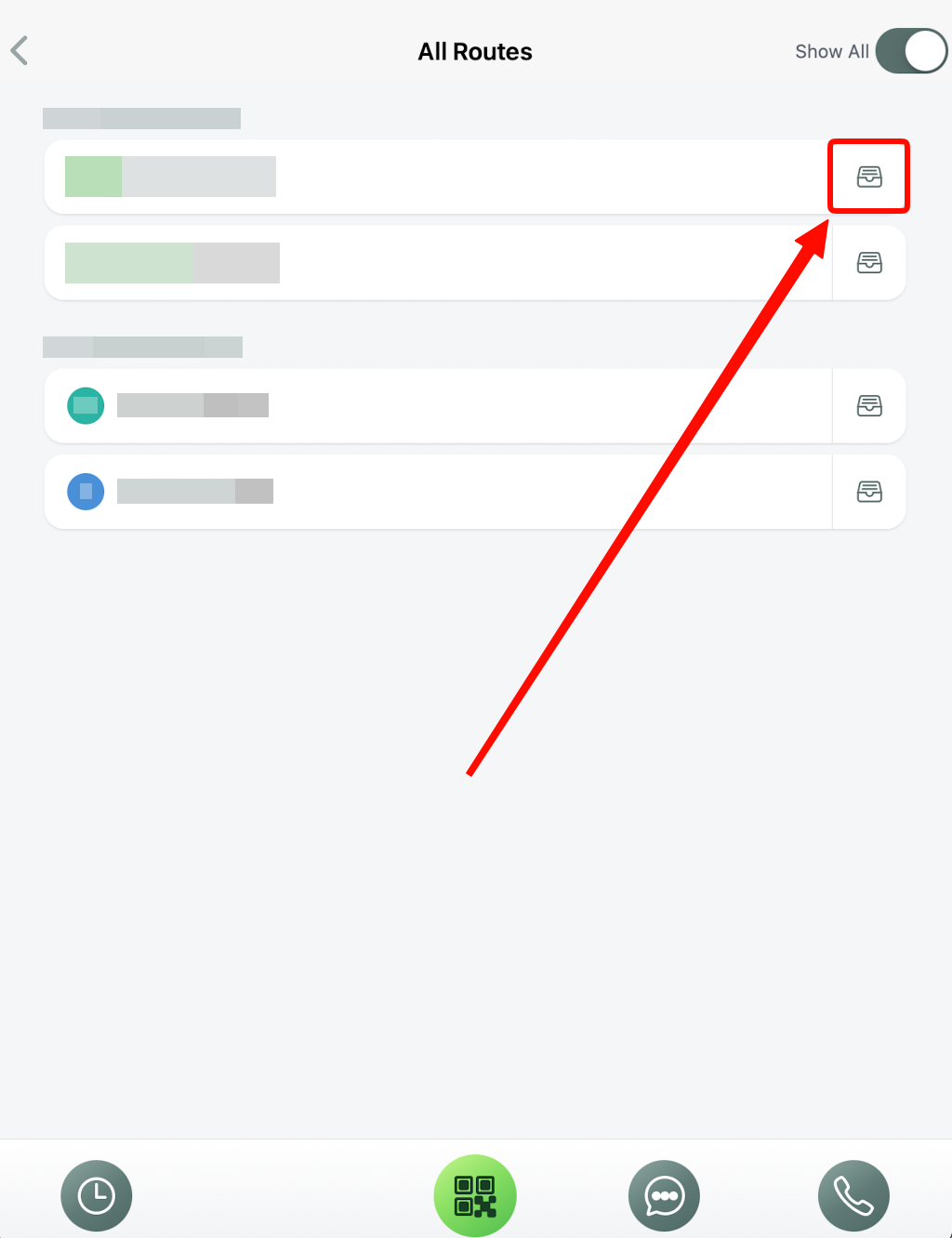
In the Workers App, open the menu -> Routes, mark "Show All," select the route, then select "Vehicle Packing List" at the top of the screen.
Then, select the vehicle in which you are preparing, loading, delivering, reloading, unloading, or verifying.
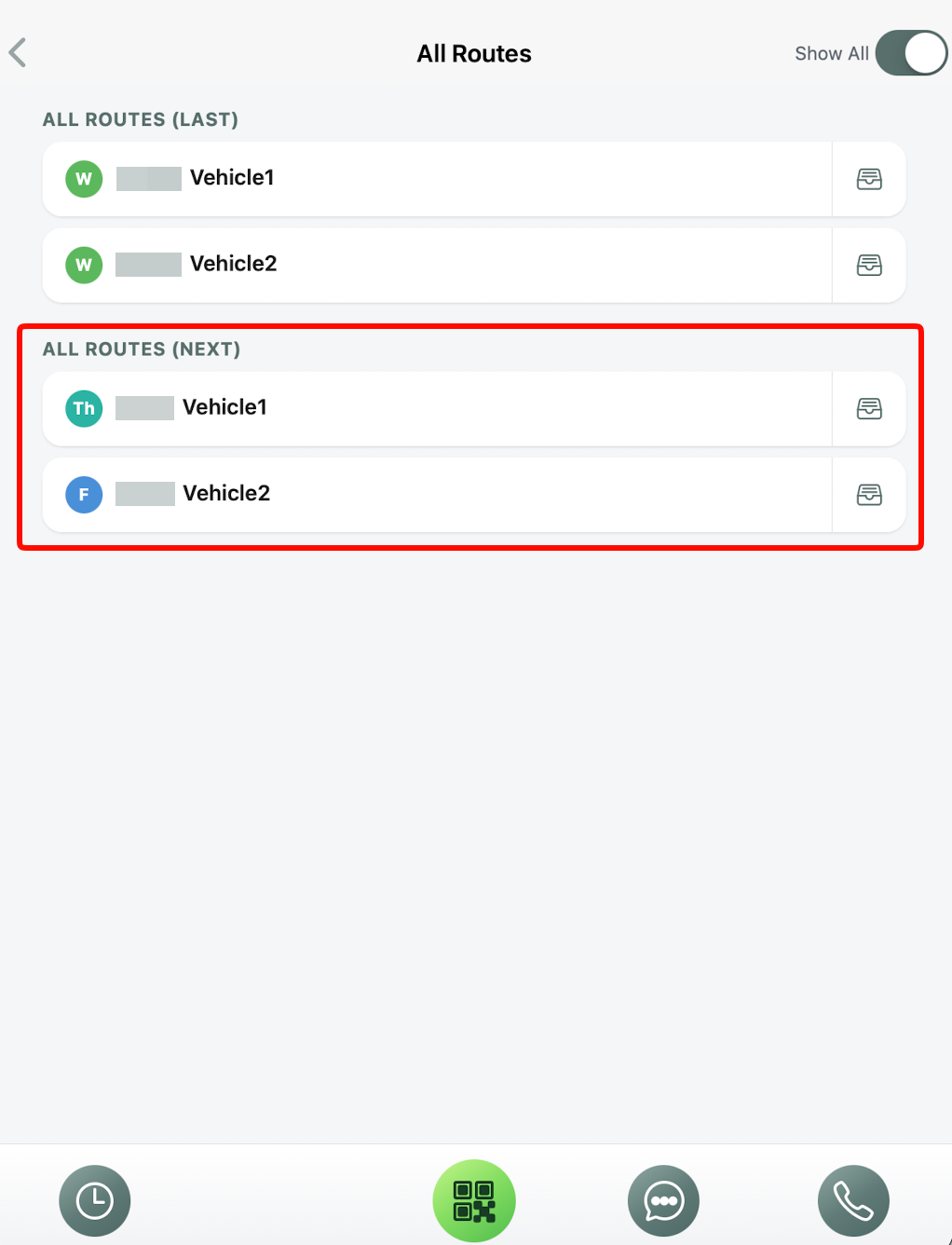
Note: you can also click on the inbox icon next to the vehicle to open up the packing list, too.
Troubleshooting
- Pickup items show up while loading for deliveries: The selected status is probably after your "Out of Possession" status. Check the order on the Packing List Statuses page.
- Delivery items show up during pickups: Make sure return statuses like Reload and Unload come after the status marked "Out of Possession".
- The list doesn't change as expected: Check whether more than one status is marked "Out of Possession." Only the last one in the order counts.
- A vehicle doesn't appear: The Vehicle Packing List only shows vehicles that have been routed on the Delivery Planner.