


Placing Items into Maintenance Using the Workers App
Proper maintenance tracking is essential for protecting your company’s assets and ensuring that equipment is in safe, working condition. Within the Workers App, workers have the ability to flag items for maintenance, keeping them out of rotation until they're repaired, inspected, or otherwise cleared for use. This not only enhances safety and accountability, but also helps prevent operational delays due to faulty or damaged items.
View items in Maintenance in the Worker App
The Worker App has a Maintenance screen that lists every item currently in maintenance. Warehouse staff and maintenance crews can see what needs repair without opening the desktop software.
Open the Maintenance Screen
- Open the Worker App and log in.
- Open the side menu by swiping from the left or tapping the menu icon.
- Tap Maintenance.
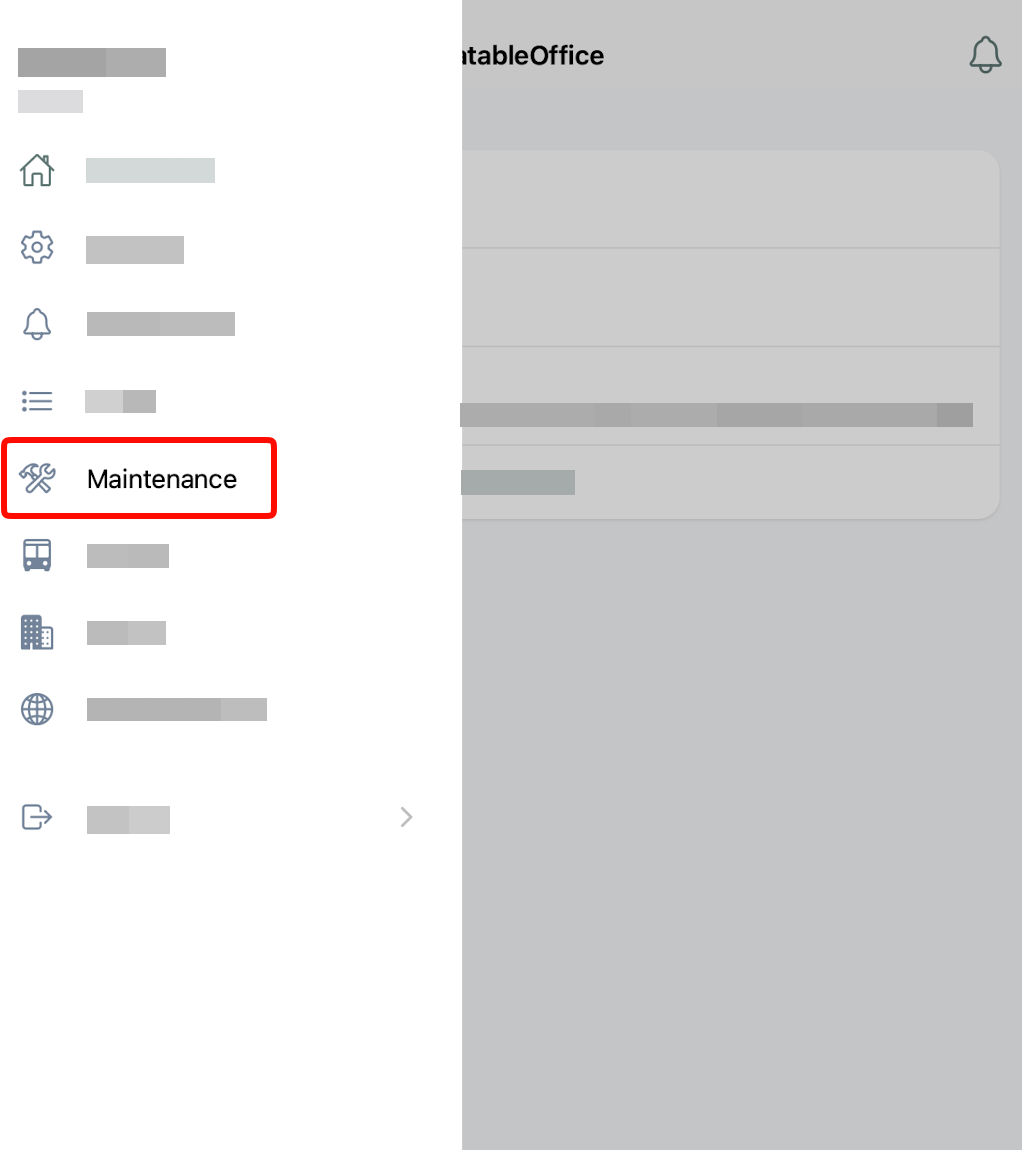
The screen lists all items that are in maintenance right now.
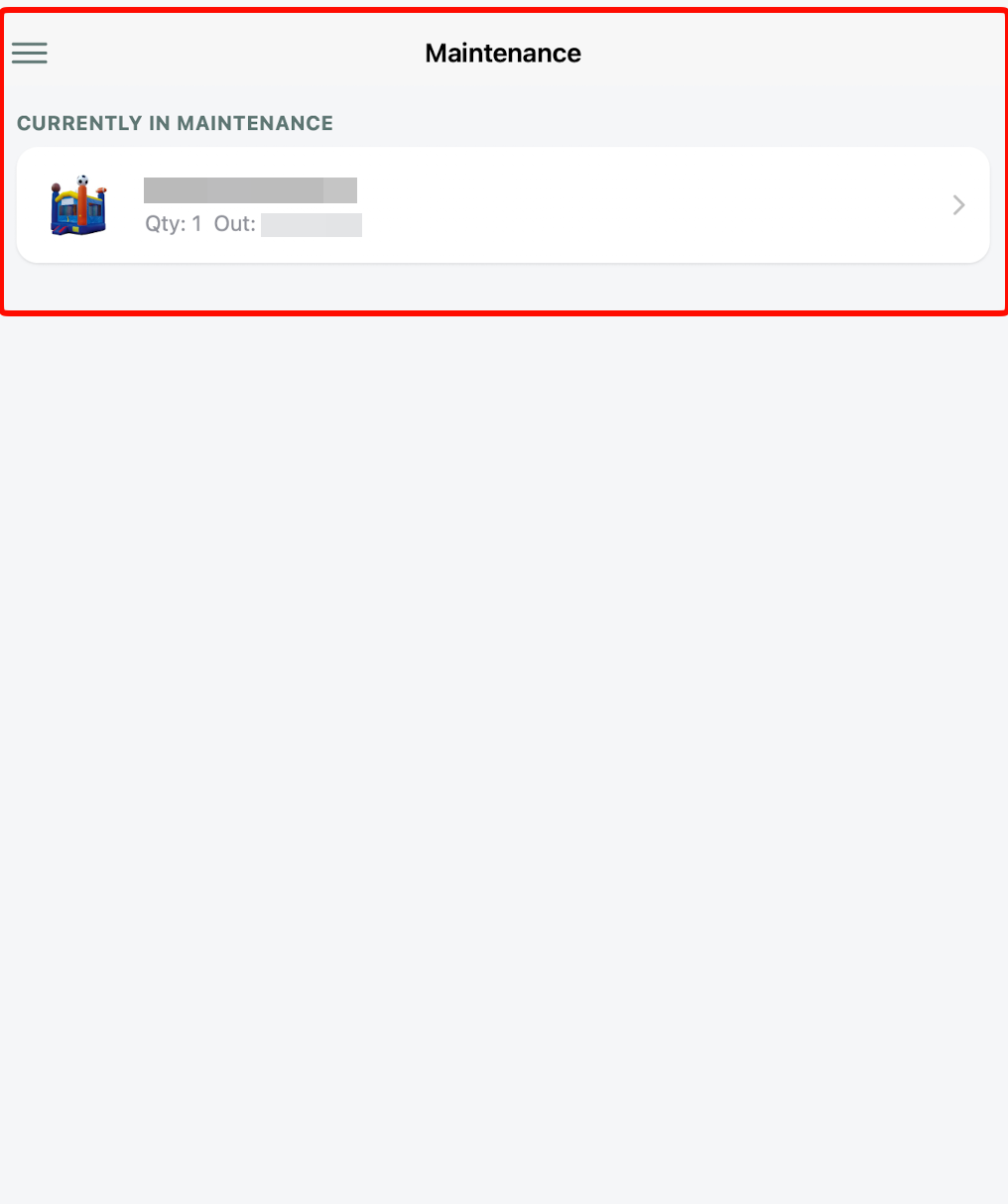
Who can see the Maintenance Screen
The Maintenance option only appears in the menu for workers who have full access to maintenance in their permissions. If a worker doesn't see it, check their maintenance permissions within their worker profile.
How to Add an Item to Maintenance
Adding an item to maintenance is quick and intuitive with the Workers App. Follow these steps:
- Open the Workers App
- Scan or long press the QR code button to search for the item
- Once the item is selected, add in all required information such as the item name, quantity, check out date. (Notes, check in date, lead ID, cost, condition and attachments are not required but always encouraged.)
- Save (top right corner)


Removing an Item From Maintenance
Once an item is repaired, inspected or ready for use again, an authorized worker can remove it from maintenance status, returning it to the available inventory. To return the item back into inventory, follow these steps:
- Open the Workers App
- Scan or long press the QR code button to search for the item
- Once the item is selected, check the item back into service.
- Save (top right corner)


Maintenance Priority
You can now set a priority on maintenance items in the Worker App, so your team can see what needs attention first. Each item can be marked Critical, High, Medium, or Low. You can then sort the maintenance list by priority, which puts the most urgent repairs and upkeep at the top. Workers in the field can quickly see which items to handle first, and nothing important gets lost further down the list.
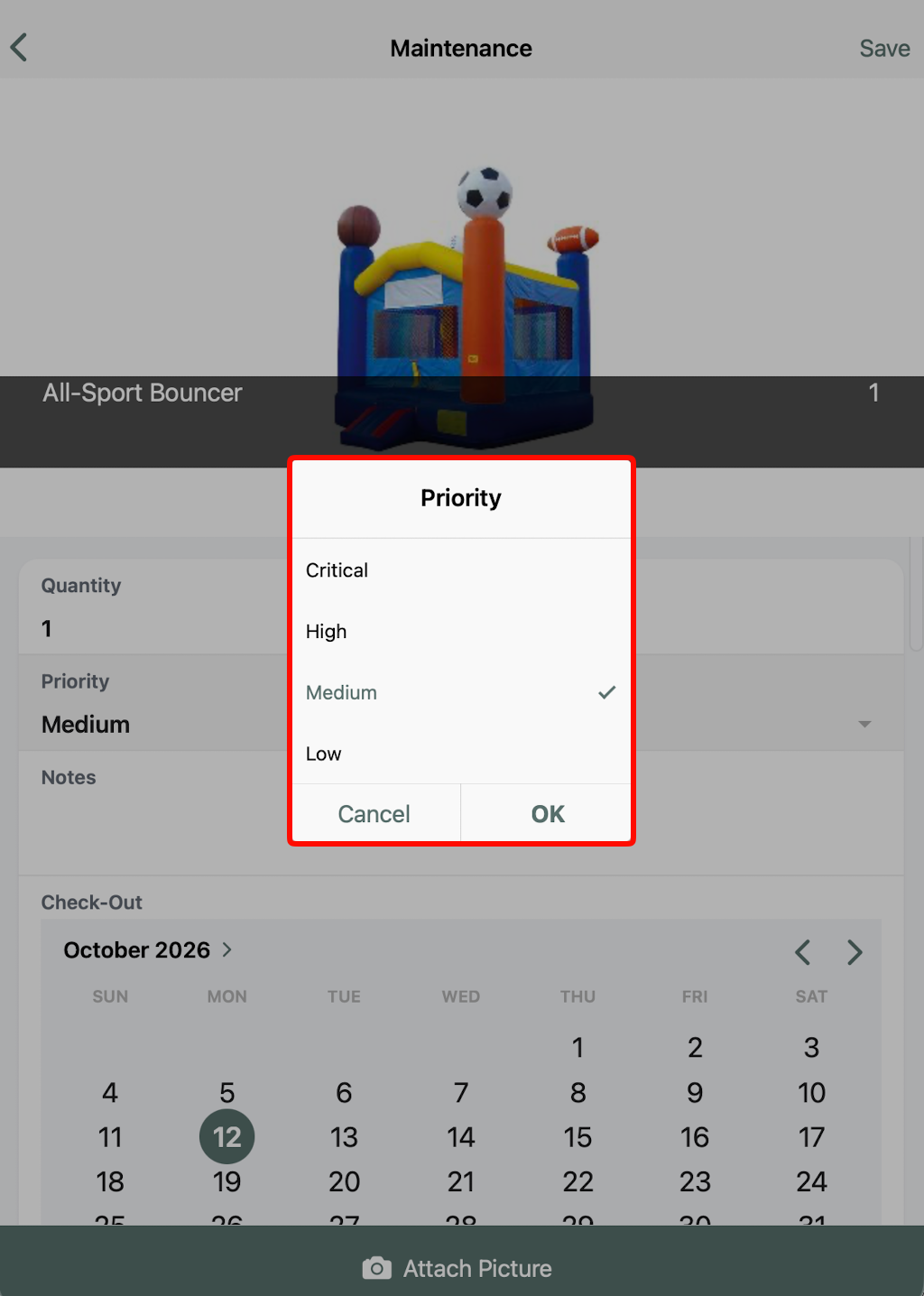
Critical (highlighted in red) = Equipment failure or unavailability that could stop the event, create a safety hazard, or severely disrupt operations.
High (highlighted in yellow) = Equipment issue that significantly impacts the event but may be manageable with a quick replacement or workaround.
Medium (highlighted in green) = Equipment issue that causes minor disruption but does not significantly affect event operations.
Low (highlighted in gray) = Minor equipment issue with little to no impact on the event; can be addressed when convenient.
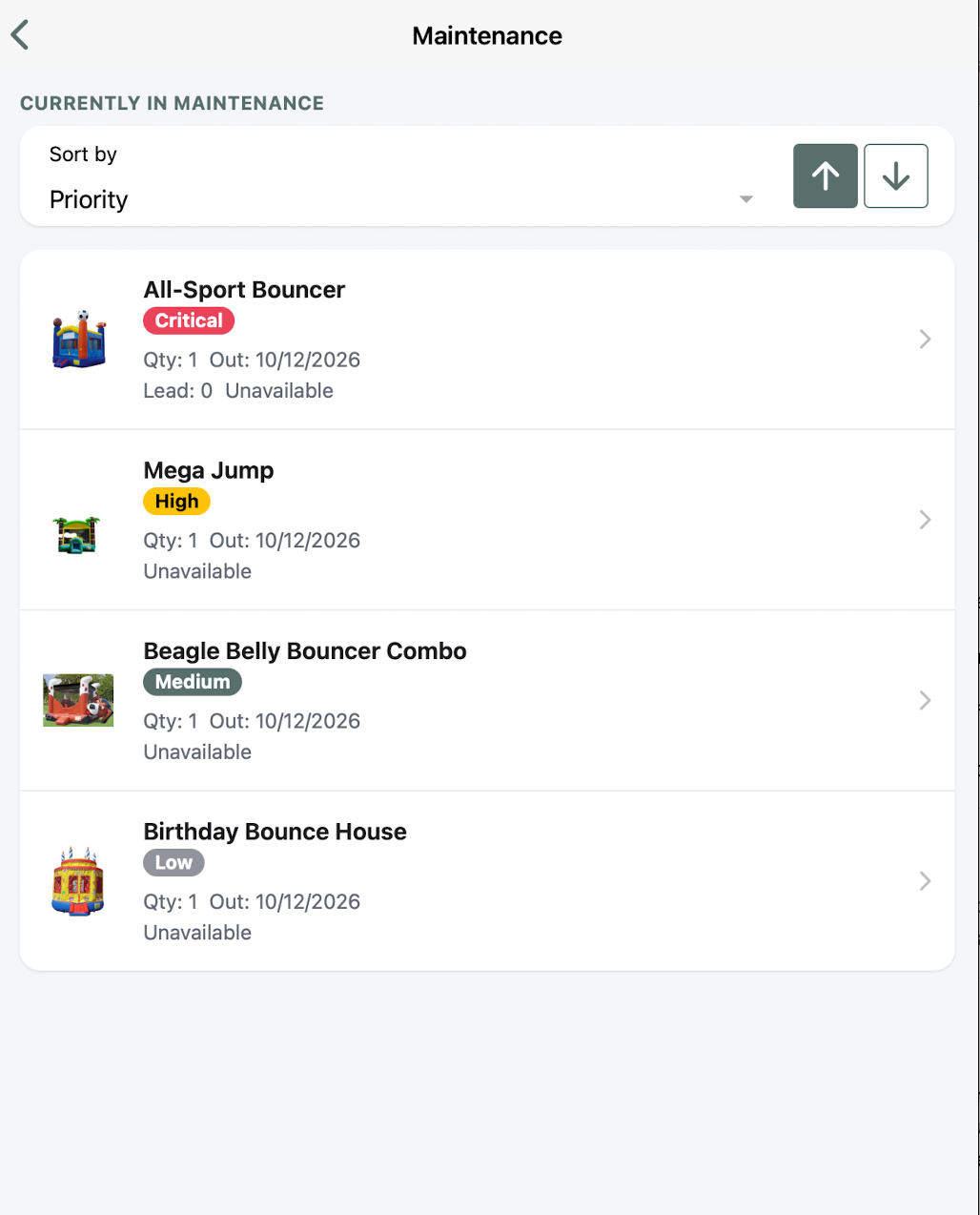
Maintenance Order
You can sort the order in which the items in maintenance displays on the app. The order can be ascending (⬆) or descending (⬇) based off of:
- Priority
- Inventory name
- Quantity
- Check-out
- Check-in
- Lead ID
- Availability
- Notes
What Does "Putting an Item Into Maintenance" Do?
When an item is placed into Maintenance through the Workers App, it becomes unavailable for future events and other workers will see that the item is currently under maintenance and will not be able to upsell the item. Putting items into maintenance is especially useful for items that are damaged, needing inspection, or are undergoing upgrades. This is going to be item specific and not the same as black out dates.