


The software allows for you to attach files to a lead for retrieving at a later date. Here are some examples of why you may want to do this:
- Taking pictures in the field documenting a proper setup.
- Taking pictures in the field for promotional purposes.
- Storing files the customer has sent you such as parking passes or campus maps.
- Storing a digital copy of field paperwork.
How to Attach a File to a Lead
- From the Leads/Event's page, search for the lead that you wish to add an attachment to.
- Click on the left side tool bar and select attachments. Once you're there, you can select the "Add Attachment" button and choose the attachment that you wish to attach. After attaching an attachment, it may take a few moments to populate into the lead. Make sure you save the lead.
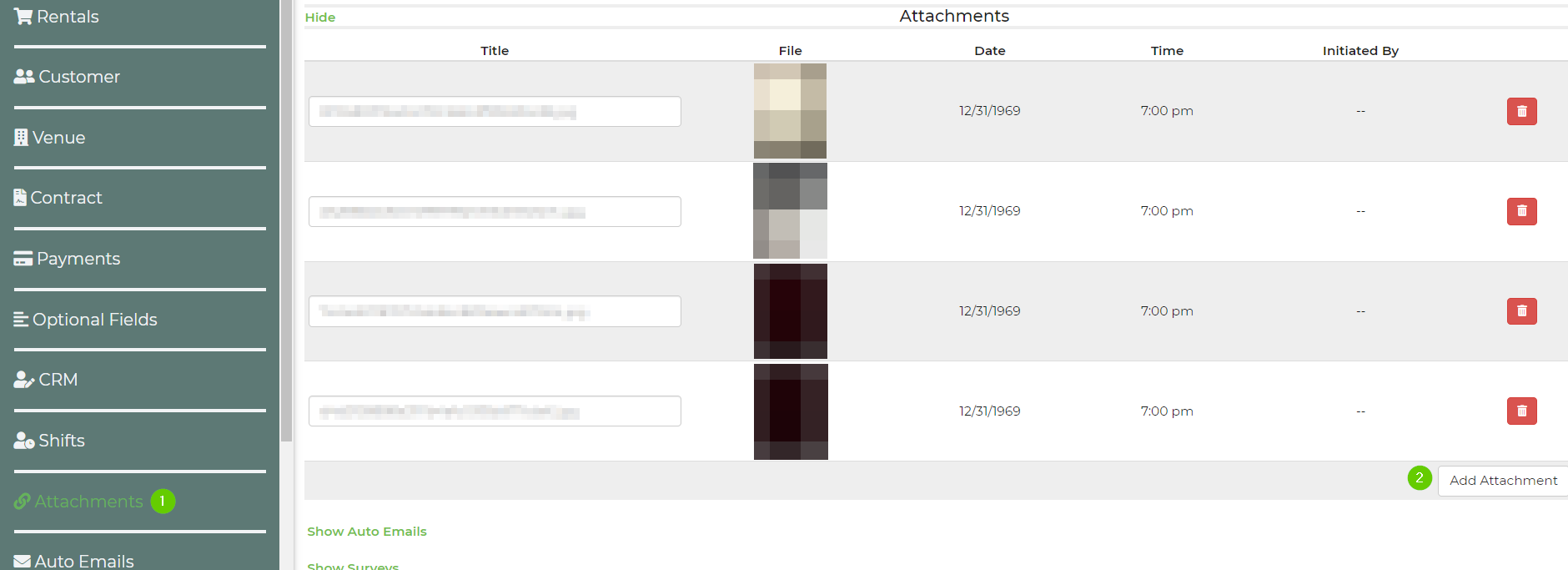
You will be able to view the lead attachments in the lead here:

Drag and Drop Attachments
- From the Leads/Event's page, search for the lead that you wish to add an attachment to.
- Click on the left side tool bar and select attachments. Once you're there, you can drag and drop attachments into the lead, as pictured below. After dragging and dropping the attachment, it may take a few moments to populate into the lead. Make sure you save the lead.

Share an Attachment by Email
- Open the lead
Go to Events -> Leads/Events and open the lead for the customer you want to email. - Open the Attachments section
In the left-hand column of the lead, click Attachments. - Upload the file
Click Add Attachment and select the document or image you want to share. - Save the lead
After the file finishes uploading, click Save in the bottom-right corner of the lead. - Copy the attachment link
Find the uploaded attachment in the list, right-click the attachment link, and select Copy. - Paste the link into your email
Open the email you want to send to the customer, then paste the copied link into the message body. - Send the email
Review the email and send it to the customer.
Feature Options & Parameters
- Attachments section – Stores files uploaded to the lead.
- Add Attachment – Uploads a new file to the lead.
- Save – Required after uploading so the attachment is fully added to the lead.
- Attachment link – The link you copy and paste into the email for the customer.
- Supported formats – Standard lead attachment file types apply, such as PDF, JPG, PNG, DOC, XLSX, MP4, ZIP, BMP, DOCM, DOCX, GIF, HTM, HTML, ICO, JPEG, MOV, MP3, ODF, PNG, PPTX, TIF, TIFF, VCF, VSD, and XLS.
- Maximum file size – 25MB per file.