


Overview
The API Key Integration add-on type is a streamlined software integration model in the InflatableOffice (IO) Add-on Store. Unlike traditional software add-ons that require manual developer onboarding or external credential provisioning, an API Key Integration provides an instant, 1-click connection between InflatableOffice and companion software apps (such as desktop, mobile, or specialized utility applications).
When an IO user subscribes to an API Key Integration add-on, InflatableOffice automatically provisions a dedicated, pre-scoped API key directly on the Add-on Store page. The user can immediately copy this key and paste it into the third-party application to unlock functionality.
How It Works: Architectural Overview
[Subscriber purchases Add-on in IO Store]
▼
[IO Automatically Mints Scoped API Key]
• Leads: Full Access
• Customers: Read-Only
• Inventory: Read-Only
▼
[Key Appears on Add-on Store Page]
• Masked by default
• "Show Key" & "Copy" button
▼
[Subscriber Pastes Key into Companion App] ──► [Instant Onboarding & Sync]
Key Differences from “Standard Software Subscription Add-Ons”
| Feature | Standard Software Add-On | API Key Integration |
| Add-On Type | Standard Software Add-on | API Key Integration (Admin-configured) |
| Key Generation | Manual (User goes to Settings > API Keys) | Automatic upon subscription |
| Display Location | Settings > API Keys | Directly on the Add-on Store page |
| Permissions | Manually chosen by user (risk of errors) | Hardcoded & Pre-scoped |
| Onboarding Delay | Waiting on partner email / account creation | Instant (Zero wait time) |
| Revocation / Reset | Manual deletion in settings | 1-click "Revoke" & "Generate" on page |
API Key Security & Permission Scoping
To ensure complete data security while eliminating setup confusion for operators, API keys minted under this integration type have strict guardrails:
1. Pre-Set Permissions
Every generated key is automatically created with the exact minimal permissions required by companion tools:
- Leads: Full Access (Read / Write)
- Customers: Read-Only
- Inventory: Read-Only
2. Multi-Location Inheritance
- Account Owner: The API key automatically inherits access to all locations configured on the account.
- Worker: If a worker with administrative rights subscribes or generates the key, the key is strictly constrained to the locations assigned to that worker.
3. Visibility & Access Guardrails
To view, copy, or manage the API key on the Add-on page:
- The user must be the Account Owner, OR
- A Worker who possesses at least the same level of permissions granted to the key (Leads: Full, Customers: Read, Inventory: Read) and matching location permissions. Workers lacking these permissions will not see the key.
End-User / Subscriber Experience
Step 1: Subscribe to the Add-On
- Navigate to the Add-on Store in InflatableOffice.
- Locate the listing and click Subscribe.
- Complete the checkout process.
Step 2: Access & Copy the API Key
- Return to the Add-on’s store page.
- An API Key section is now displayed with the key masked (••••••••••••).
- Click Show Key to reveal the key, or click Copy to copy it directly to your clipboard.
Step 3: Connect into the Application
- Download and install the partner application (e.g., from the provider's website, Apple App Store, or Google Play).
- Open the app and paste the copied API key into the connection/settings field when prompted.
- The app is immediately connected and ready to use.
Step 4: Revoking or Re-generating a Key
- Revoking Access: If an operator needs to disconnect an app or cycle keys, click the Revoke button on the Add-on page. Confirming the prompt permanently deletes the API key.
- Generating a New Key: Once revoked (or if deleted from Settings > API Keys), the page immediately displays a 1-click Generate API Key button. Clicking this instantly mints a fresh key with the exact same pre-set permissions.
Developer & Creator Guidelines
Listing Requirements & Admin Designation
- Create your Add-On using the process from Add-Ons - Add-On Creator | Add-Ons | Support.
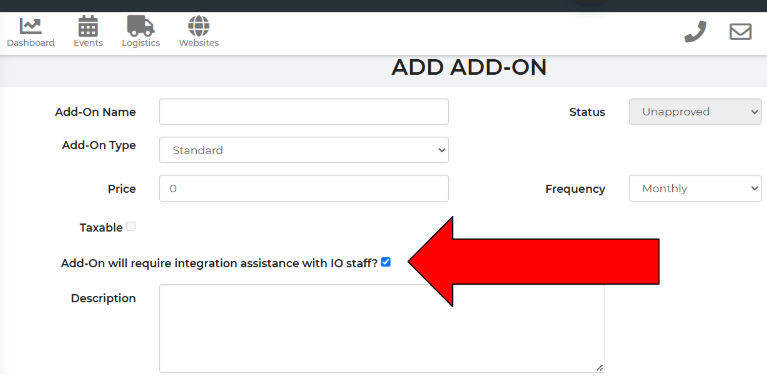
- Note: Be sure to check the "Add-On will require integration assistance with IO staff" box to notify IO admin.
- Admin Activation Only: For security, only the primary InflatableOffice administrative account (inflatableoffice) can assign the API Key Integration type to an add-on listing.
- Creator Subscriber Instructions: In the Subscriber Instructions field of your add-on submission, do not instruct users to go to Settings > API Keys. Use the standardized template below.
Recommended "Subscriber Instructions" Template:
Welcome to [App Name]!
- Download the [App Name] application from [Download Link / App Store Link].
- Copy the API Key generated for you right above in the API Key section of this page.
- Open [App Name], paste your API key into the setup prompt, and you're ready to go!(Need help? Contact [Creator Support Email]).
Verifying Subscription & Expiration Status
Because API keys remain in existence unless revoked or manually removed, third-party apps must verify that the user maintains an active paid subscription in InflatableOffice before unlocking premium app features.
Creators can query the InflatableOffice subscription endpoint:
- Endpoint: api6/addon_subscription
- Method: POST (or GET)
- Verification Fields: Pass your creator apiKey, your addon_id, and the subscriber's user_api_key.
- Statuses Returned: active, trial, cancelled, inactive, or expired. (See full technical specification in the API - Endpoint: Check Addon Subscription Status and Expiration for Users | Support Knowledge Base article).
Operational & Support Matrix
| Area | InflatableOffice Responsibility | Developer / Creator Responsibility |
| Store & Billing | Processes subscriptions, collects monthly fees (30% store fee), and distributes payouts (70%). | Manages payout account details (W-9 / ACH). |
| Key Lifecycle | Generates, displays, scopes, and revokes the API key on the Add-on Store page. | Securely stores and utilizes the key within their app backend/client. |
| Subscription Verification | Maintains API availability and api6/addon_subscription endpoint. | Implements verification checks in-app to ensure the user is an active subscriber. |
| Customer Support | Assists with checkout, store billing, and InflatableOffice API key generation issues. | Provides app installation support, desktop/mobile bug fixes, and feature onboarding. |
Frequently Asked Questions (FAQ)
Q: Does an API Key Integration add-on require the subscriber to purchase an extra InflatableOffice API module? A: No. Keys generated through this integrated add-on flow are linked directly to the add-on subscription (worker_addonsubid) and operate without requiring independent API module purchases or usage billing surcharges.
Q: Can the subscriber see or modify this key under Settings > API Keys? A: Yes. The key behaves as a standard API key labeled with the Add-on's name. It can be viewed or deleted under Settings > API Keys. If deleted there, the Add-on Store page will reflect the removal and display the Generate API Key button again.
Q: What happens if a subscriber cancels their add-on subscription? A: The API key remains until revoked, but the partner application’s subscription status check will return cancelled or expired. It is up to the partner app to restrict access accordingly when the subscription ends.