


Mileage Paid For lets you choose which miles a worker is paid mileage for: the delivery route, the commute between their home and the meet location, or a mix of both. Use it when a worker lives far from the warehouse and you want to pay for their drive in, or when workers ride in a company truck and should only be paid for their own commute.
You set it once for the account. You can then change it for one worker, or for a single shift.
Before You Start
Mileage Paid For only decides which miles count. Mileage pay itself still needs the usual setup:
- The position has Mileage Pay turned on. Go to Settings > Workers > Positions and open the position.
- The worker has a Mileage Rate. Go to Settings > Workers, open the worker, and look in the Preferences section.
- The worker has a home address on their profile. Commute miles are measured from that address.
See Workers - Payroll & Commission for more about pay rates.
The Options
A commute is the drive between the worker's home address and the Meet At location of the shift, for example your warehouse.
| Option | Miles that are paid |
|---|---|
| Delivery Route Only | The delivery route. This is the default, and it is how mileage worked before this setting existed |
| Commute to Meet Location + Delivery Route | Home to the meet location, plus the delivery route |
| Delivery Route + Commute from Meet Location | The delivery route, plus the meet location back to home |
| Commute to Meet Location + Delivery Route + Commute from Meet Location | Home to the meet location, the delivery route, and the meet location back to home |
| Commute Both Ways Only (no route miles) | Home to the meet location and back. The delivery route is not paid |
| Commute to Meet Location Only | Home to the meet location only |
| Commute from Meet Location Only | The meet location back to home only |
Set the Default for Your Account
- Go to Settings > Preferences > Delivery Preferences.
- Find Mileage Paid For and pick an option.
- Click Save.
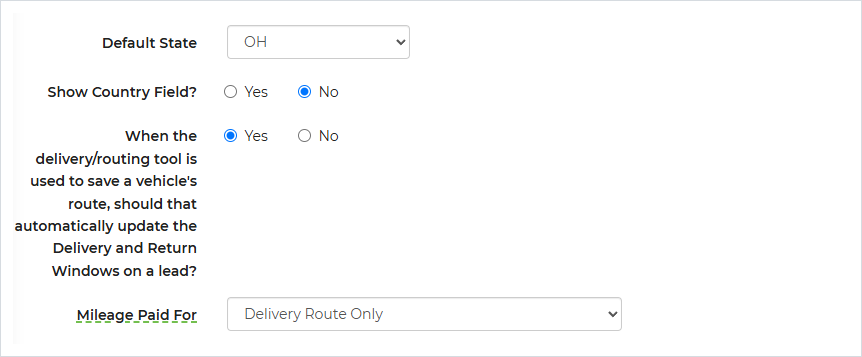
Every worker and shift uses this default unless you change it for them. If your account has more than one location, each location has its own default, and a shift uses the default of the location on its lead.
Change It for One Worker
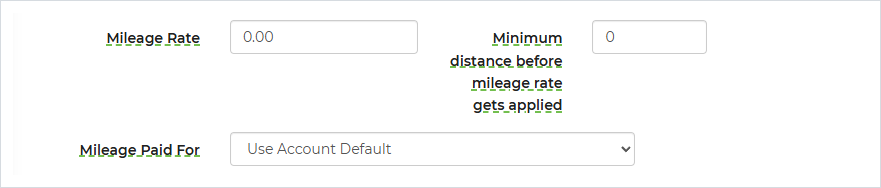
- Go to Settings > Workers and open the worker.
- Open the Preferences section.
- Find Mileage Paid For and pick an option. Use Account Default means the worker follows the account default.
- Click Save.
Change It for One Shift
On a lead, open the Shifts section. Each shift has a Mileage Paid For column. Use Worker Default means the shift follows the worker's setting. Save the lead when you are done.

The same field is on the shift editor of the Delivery Planner, for shifts you create from routing.
Which Setting Wins
- The shift, if it has its own option.
- Otherwise the worker, if the worker has their own option.
- Otherwise the account default.
Existing shifts and workers were not changed. They keep paying the delivery route only until you choose something else.
How the Miles Are Counted
- The commute is measured once, between the worker's home address and the Meet At location. A commute to the meet location adds that distance once. A commute from the meet location adds it once more.
- Commute miles are only added when the shift's Meet At is one of your locations. When Meet At is set to Event, the worker drives straight from home, so the route miles already start at their home and no commute is added.
- The worker's Minimum distance before mileage rate gets applied is taken off the total miles of the shift, commute included.
- Paid miles are multiplied by the mileage rate to get the mileage pay.
Example
Kim lives 25 miles from the warehouse. Her shift meets at the warehouse and she rides in the company truck, so you do not want to pay her for the route.
| Setting | Value |
|---|---|
| Mileage Paid For | Commute Both Ways Only (no route miles) |
| Mileage Rate | 0.50 |
| Minimum distance before mileage rate gets applied | 0 |
| Paid miles | 25 + 25 = 50 |
| Mileage pay | 50 x 0.50 = $25.00 |
Where to See the Result
Go to Logistics > Payroll. The mileage pay of each shift is included in the payroll summary, and the export has Total Miles, Paid Miles, Mileage Rate and Mileage Pay columns.
Good to Know
- This setting only changes which miles are paid. Hourly pay and contractor pay per item are not affected.
- If a shift's fields are locked because it is linked to a vehicle, Mileage Paid For is locked as well.
- If commute miles are missing, check that the worker has a home address and that the shift's Meet At is a location and not Event.