


Generate a Logo with AI
InflatableOffice’s built-in AI logo generator creates logo concepts for use on quotes, emails, invoices, and integrated websites. You can review each concept before selecting and saving it as your account logo.
Prerequisites
- You must be logged into your InflatableOffice account.
- You need permission to edit Account Preferences or add a WordPress website.
- Have your company name and optional design preferences ready.
- The logo option on the Add WordPress page only appears when your account does not already have a logo.
Where to Find the Logo Generator
The logo generator is available through the Create with AI button in two locations:
- Account Preferences: The button appears next to the logo Upload button. Use this location to create an account logo.
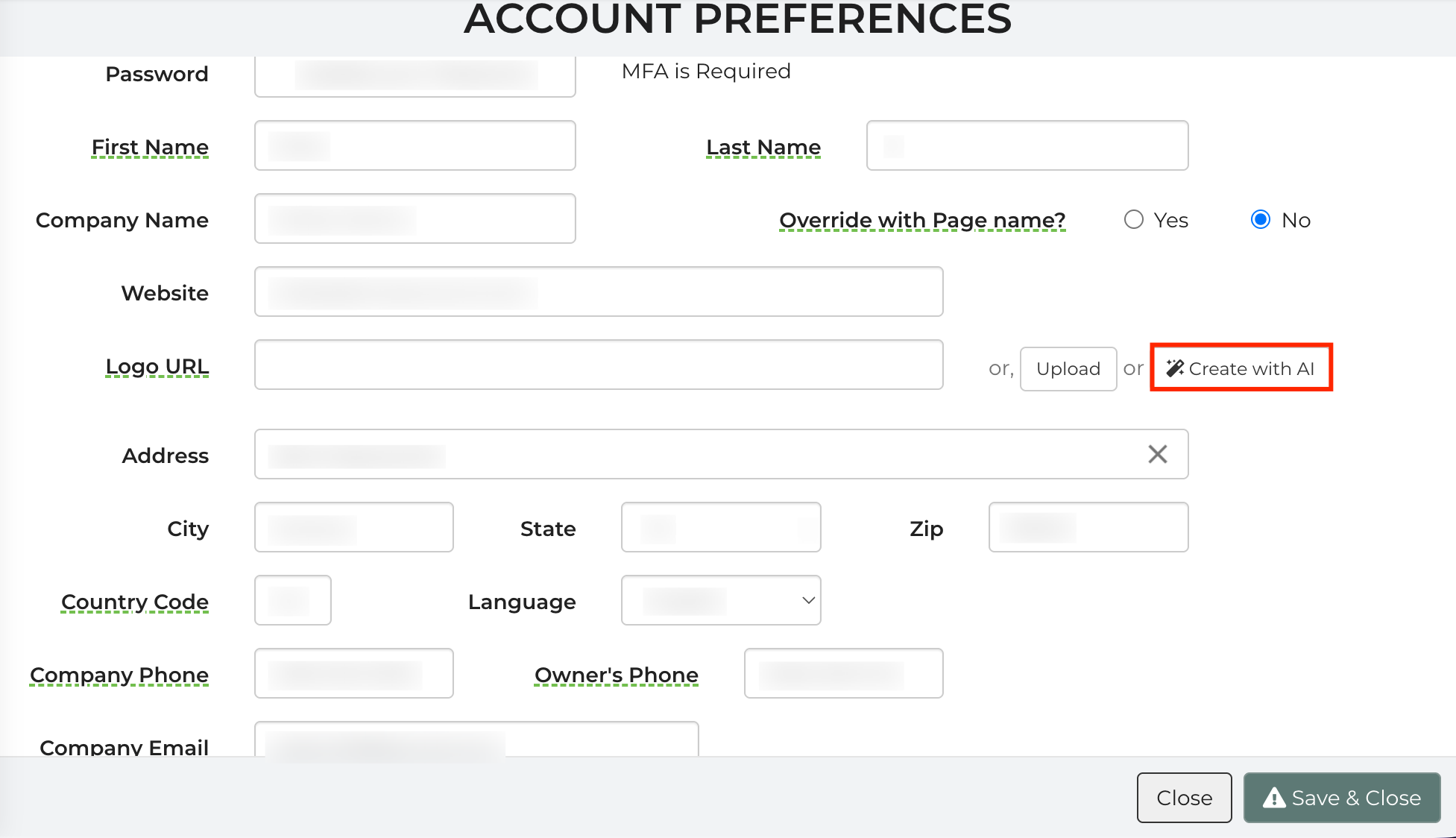
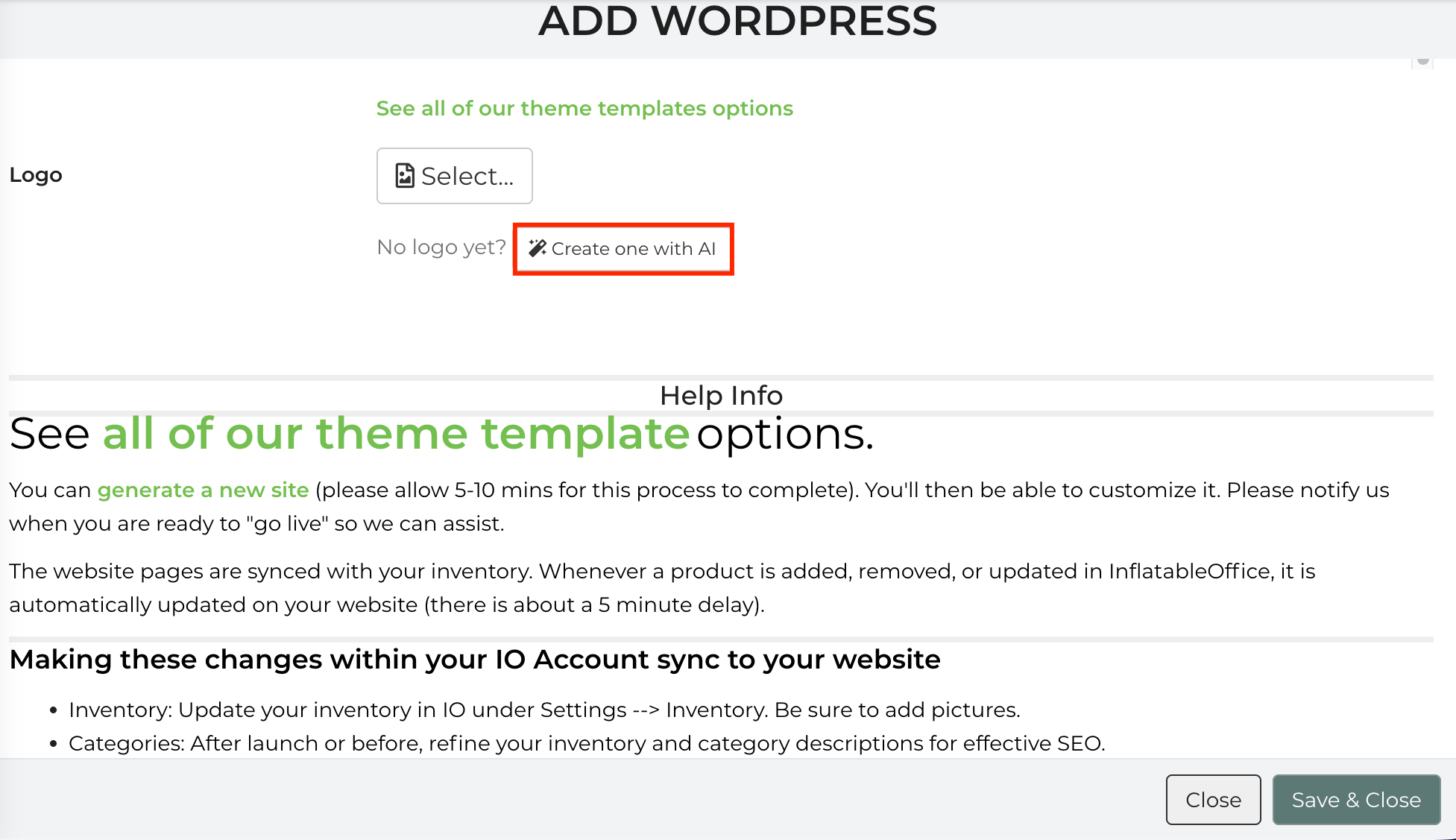
- Add WordPress: Go to Settings -> WordPress -> Add WordPress. Under the Logo row, select No logo yet? Create one with AI.
Note: This option only appears when the account does not currently have a logo.
How to Generate and Apply a Logo
- Open the generator.
Click Create with AI. - Enter your design information.
- Company Name: This should fill automatically. Confirm that it is correct.
- Style and colors: Optionally describe preferred colors, fonts, or design styles.
- About your business: Optionally describe your services, products, or industry.
- Generate concepts.
Click Draw New Ideas. Generation normally takes 15–40 seconds. - Review the three concepts.
- Wordmark: Focuses on the company name and typography.
- Symbol: Focuses on an icon or visual mark.
- Emblem: Uses a badge or crest-style design.
- Preview and select a logo.
Review each concept against the light and dark backgrounds. Select the design that remains clear and readable on both.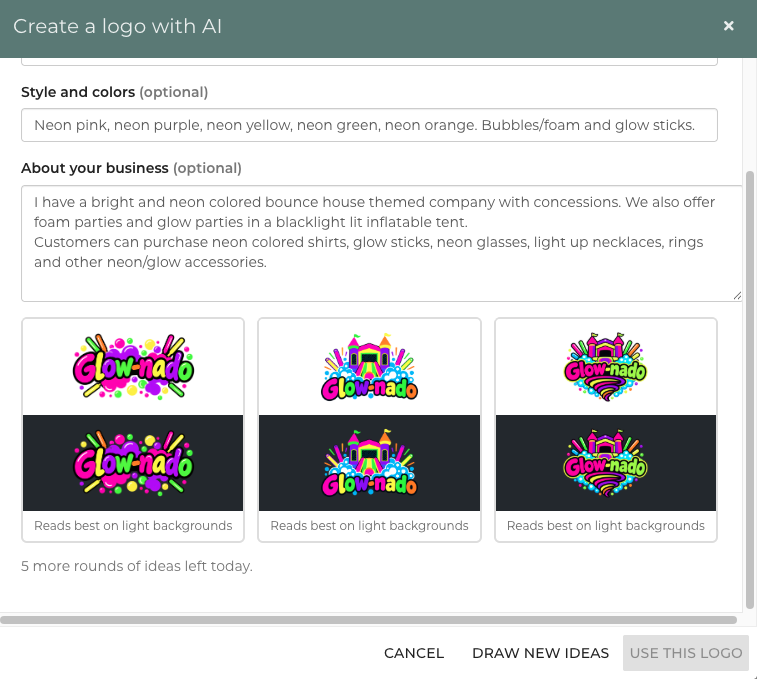
In this example, the third logo was the one selected. This is the view of that logo after selecting it and adding it to the website: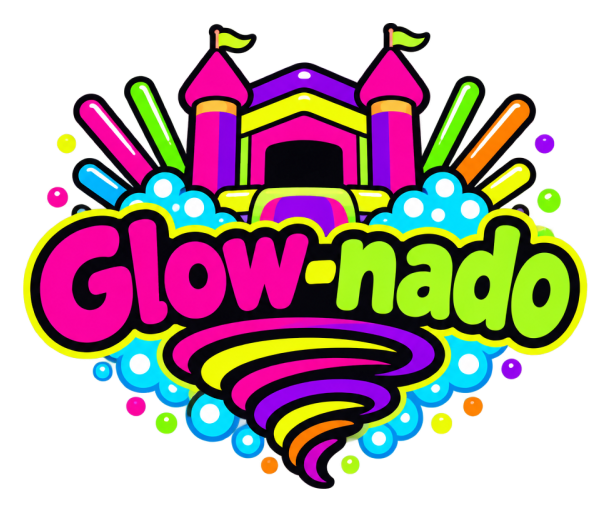
- Choose whether to update your websites.
To apply the selected logo to your integrated website, select Auto update your website(s) with this logo? - Save the logo.
Click Save & Close, or save the page where you opened the generator. Selecting a concept without saving does not update your account.
Feature Options & Parameters
| Option | Effect |
|---|---|
| Company Name | Sets the business name used in the logo concepts. |
| Style and Colors | Provides optional guidance about colors, typography, and visual style. |
| About Your Business | Provides optional business context for the generated designs. |
| Draw New Ideas | Generates a new Wordmark, Symbol, and Emblem concept. |
| Light and Dark Variants | Lets you check the logo’s contrast on different backgrounds. |
| Auto Update Websites | Applies the saved account logo to your integrated website or websites. |
| Daily Limit | Allows up to eight (8) logo-generation rounds per account each day. |
| Transparent Background | Creates logos that can be displayed on different document and website backgrounds. |
Use Cases
- Create a first logo: Generate an account logo before setting up quotes, emails, invoices, or a new WordPress website.
- Explore new branding: Generate several design rounds and compare Wordmark, Symbol, and Emblem styles before selecting one.
Troubleshooting & FAQs
Q: Why don’t I see “Create with AI” on the Add WordPress page?
A: The option only appears there when your account does not have a logo. To create a replacement, go to Account Preferences, remove the existing logo, and use Create with AI next to the Upload button.
Q: I selected a logo, but it is not appearing on my account.
A: Selecting a concept only stages the logo. Save the page or click Save & Close to apply it.
Q: Why isn’t the new logo appearing on my website?
A: Confirm that you selected Auto update your website(s) with this logo? before saving. If not, update the website logo separately.
Q: How long does logo generation take?
A: Generating the three concepts normally takes 15–40 seconds.
Q: What happens when I reach the daily limit?
A: Each account can run up to eight generation rounds per day. Wait until the next day for more rounds, or use the standard Upload button to upload an existing logo.
Q: Will opening the generator overwrite my current logo?
A: No. A generated concept does not become your account logo until you select it and save the page.
Q: How can I improve the generated concepts?
A: Add specific guidance under Style and colors and About your business. Include preferred colors, design style, industry, and services.