how do i find why 2 leads are marked as conflict

Cindy B. shared this question 2 hours ago
Answered

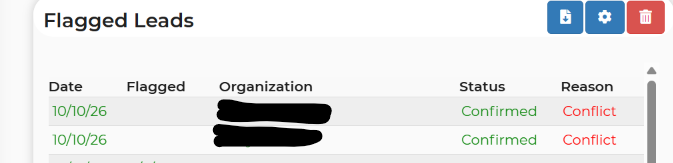
The only thing these 2 leads have in common is that they are on the same date. They have NO items in common. None of their items are marked as red as if they were double booked. How do I find out why the dashboard has them marked as Conflict? I tried asking the AI but it was no help.
2f382a6778d0993906b28a68c3f9b645

Comments (1)

photo
1

They are no longer on the dashboard, I saved the leads and the conflict went away, you have 2 different blackout dates for this date as well?

photo
1

I fixed the blackout date for 10/10 to be from 12 am on the 10th to 12 am on the 11th so the entire day for the 10th is closed. Then deleted the other one.


I tried the opening, saving, and closing trick on the other Flagged Leads as I don’t know why they are flagged either, but that trick didn’t work for them. Can you tell why they have flags of Booking or Send on them?

photo
1

Here are the reasons for flags:

The most common flags that could be found are in red or yellow:

Booking - This could indicate a contract has not been signed and/or a deposit has not been paid. This means a contract was generated out to the customer but the customer has not yet moved forward. Usually your customer will be in Contracted status - which is reserving the desired equipment.

Conflict - A conflict flag indicates when one or more item(s) are conflicting; booked by another lead or if an item(s) is out for maintenance. You cannot manually clear a conflict flag. To clear this flag, you must adjust the lead accordingly. If a lead has a conflict flag, the software will stop another customer from being able to book the requested item.

Bounced Email - A bounced email flag is when an email that is sent to a customer has bounced; usually when you or your customer enter in the wrong email address by mistake.

Tight Turnaround - This flag will populate because an item(s) has a tight turnaround time. Much like a conflict flag, you cannot manually clear a tight turnaround flag.

Call - This could indicate a customer had used the "Contact Us" section, which is typically found at the bottom of your website, or through the "About Us" section in your menu on your website. Any comments will be found in the "Event Notes" section within the lead.

Contract - This could indicate that auto-booking is turned off or there is a setting prohibiting auto-booking from going through (most oftentimes found in the Online Quoting settings or your customer isn't meeting the distance criteria). If a contract flag appears, you would have to manually send the contract to the customer. Keep in mind, to send the contract out, the lead must be in Contracted status. For more information about the lead statuses, please see here.

Cust Survey - This flag will populate when the customer receives and completes the survey sent with the "Customer - Thank you" email. This email can be activated through your Settings -> Email Center.

Mgr Survey - This flag will populate when the "Worker - Manager Report" survey is completed by the manager assigned to the shift. This email is most often used when the manager reports on the event; such as what items need repaired, reporting on any injuries sustained and if any shift times need to be adjusted. The email can be activated through your Settings -> Email Center. To send this email to your workers, you must have the Workers Module activated.

photo
Leave a Comment
 
Attach a file
You can't vote. Please authorize!