


Overview
The Itinerary section in the IO Workers app allows workers to view itinerary information associated with a scheduled event. This helps workers review the information available while using the app.
Step-by-Step Instructions
Step 1: Open an Event
- Open the Workers App.
- Select the event you want to view.
- The event details screen will open.
Step 2: Locate the Itinerary Section
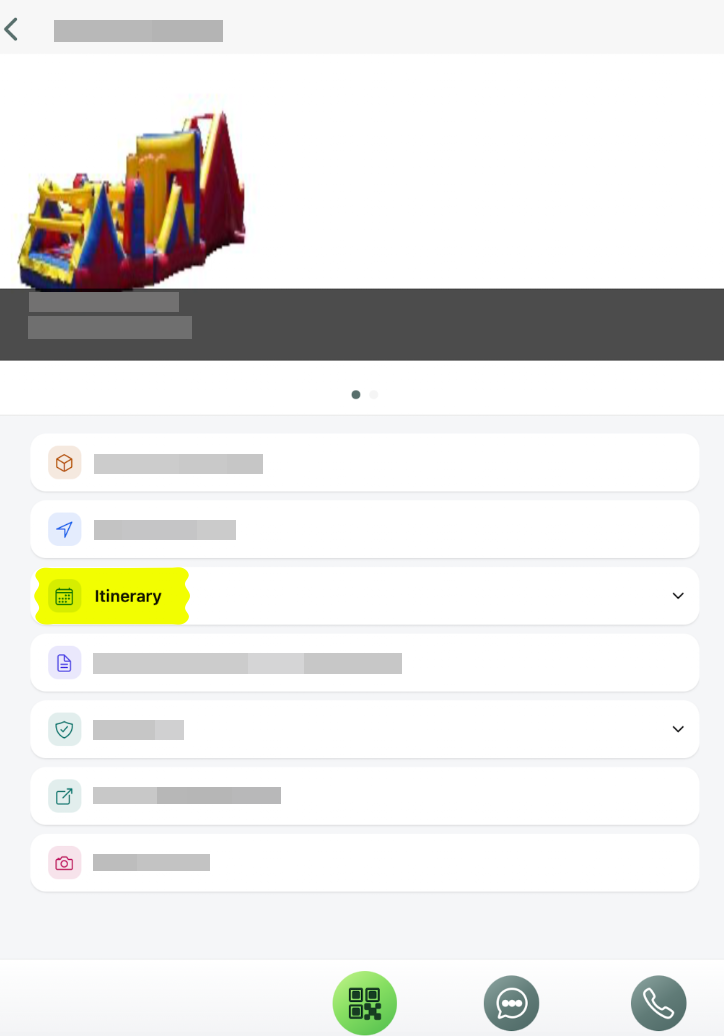
- On the event details screen, locate the Itinerary section.
- The section appears in the list of available event actions.
- Tap Itinerary to expand the section.
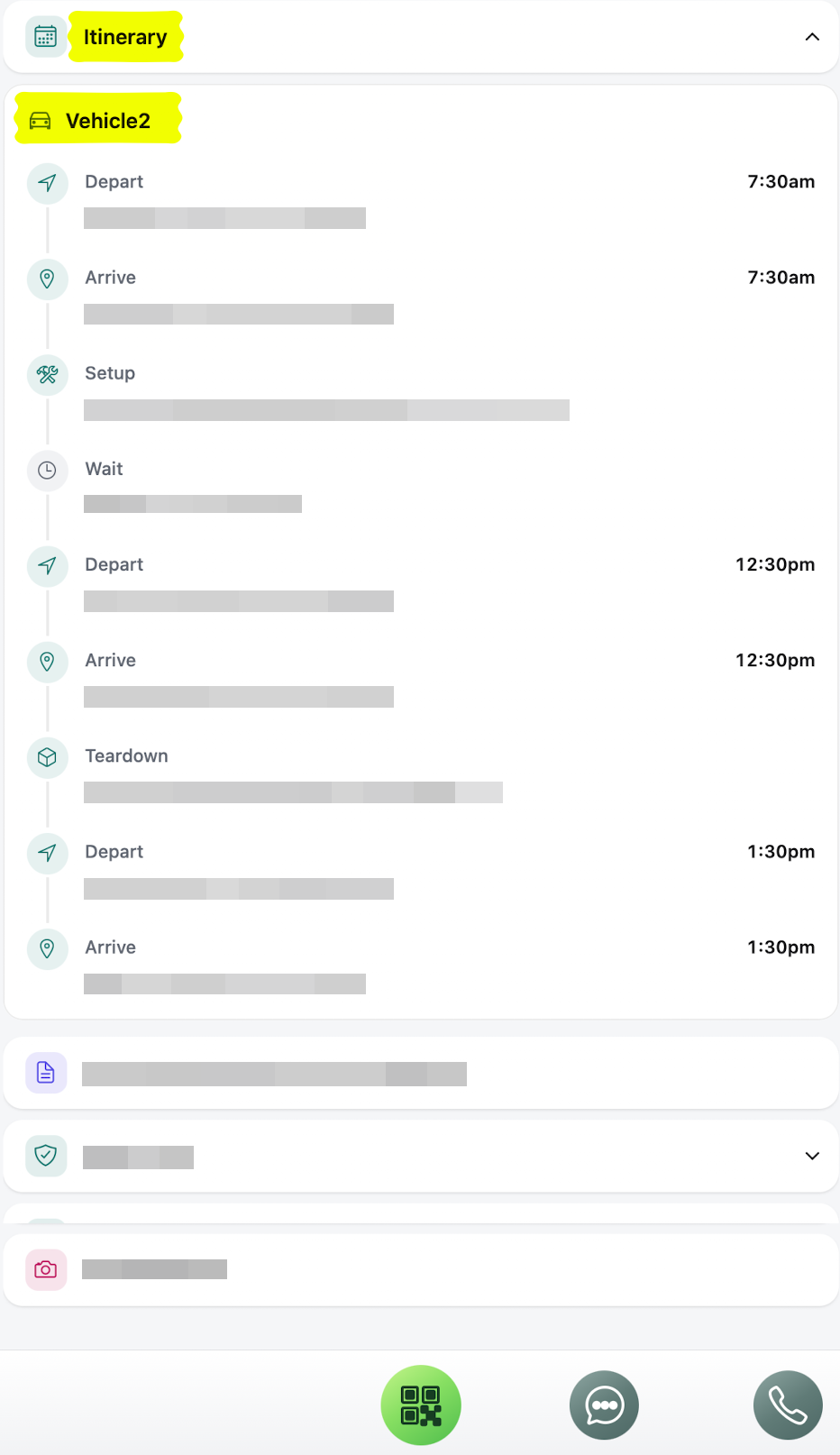
- After tapping Itinerary, review the information displayed in the expanded section.
- Check the available itinerary details for the event.
- Use the information provided to help prepare for the assigned job.
Not expanded:
Expanded:
Step 3: Return to the Event Details
- When you have finished reviewing the itinerary, tap the Itinerary section or its expand/collapse control to close it.
- You can then continue using the other options available on the event details screen.
Troubleshooting
If you cannot view the Itinerary section:
- Verify that you have opened the correct event.
- Tap the Itinerary section to see whether it expands.