


Overview
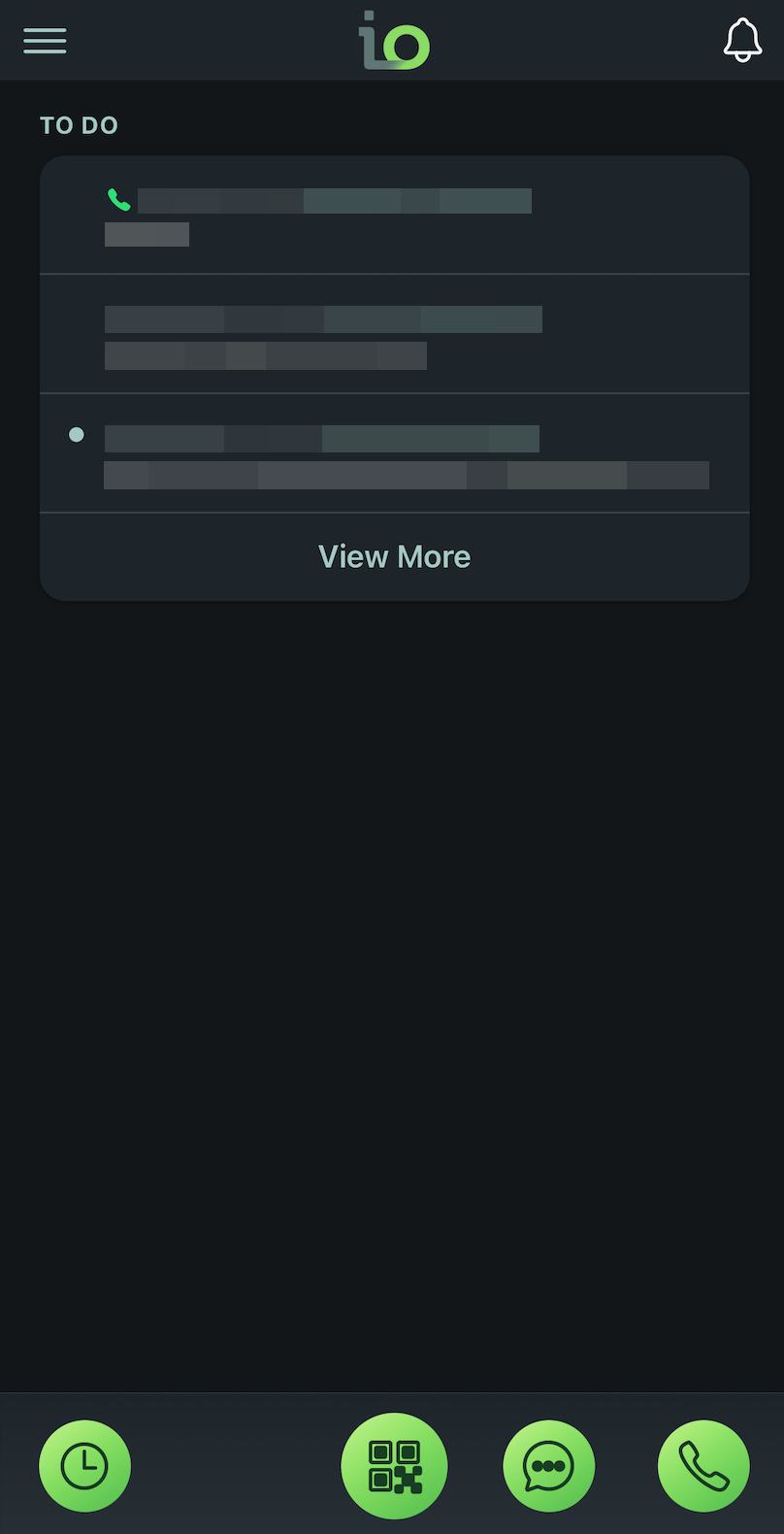
Dark mode changes the app's appearance to use darker backgrounds and lighter text. This may provide a more comfortable viewing experience when using the app in low-light environments. You can turn dark mode on or off at anytime.
Step 1: Open the IO Workers App
- Open the IO Workers app on your mobile device.
- Log in using your Workers account credentials, if prompted.
- You'll be taken to your Dashboard.
Step 2: Open the App Settings
- Locate the Settings menu.
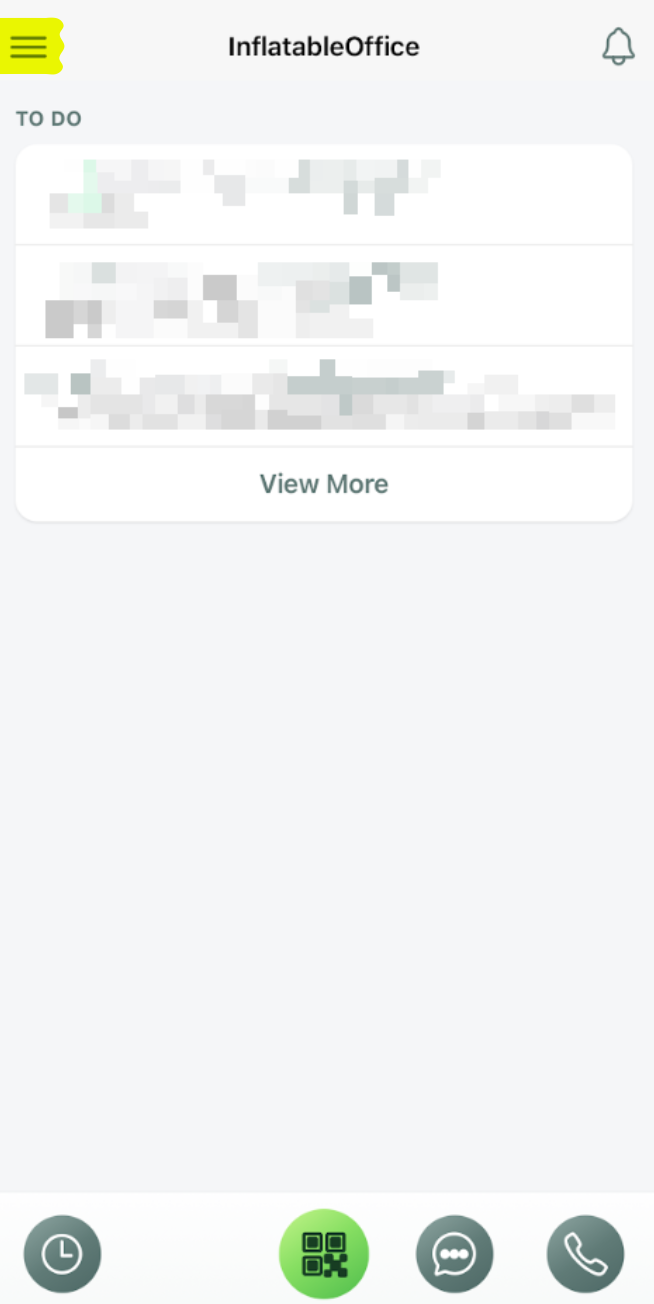
Step 3: Locate the Dark Mode Option and Enable
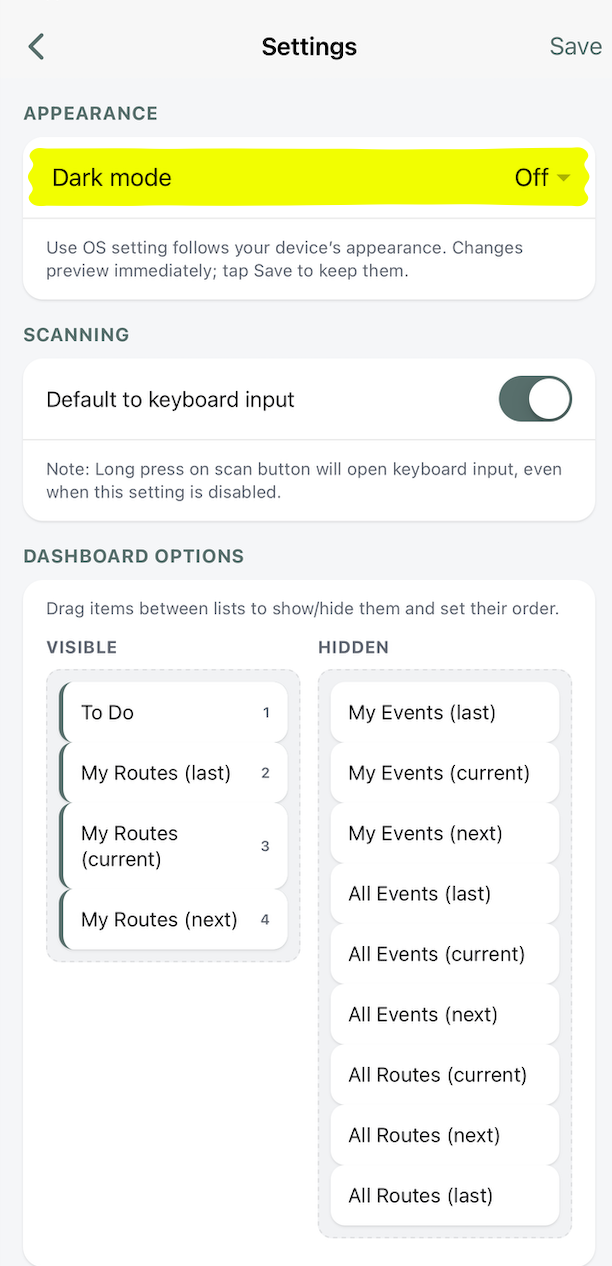
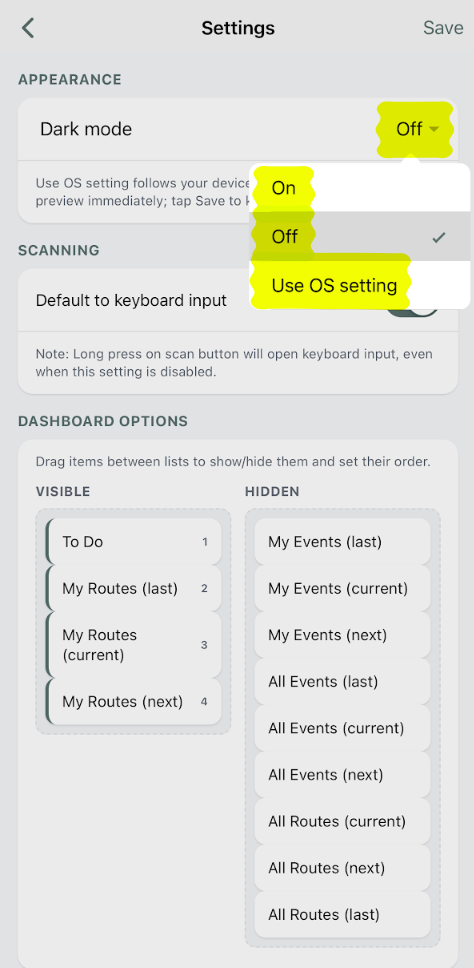
- Select Dark mode.
- Select "On," "Off,' or "Use OS setting"
- Save.
- Return to the main screen to review the changes.
Step 4: Verify the Appearance
- Navigate through the available screens in IO Workers.
- Confirm that the app's appearance has changed as expected.
- Verify that event details, packing lists, and other information remain readable.
Understanding the Differences Between Modes
- On = Dark mode is enabled
- Off = Dark mode is disabled
- Use OS setting = using the OS (Operating System) settings your phone/system uses
Troubleshooting
If you cannot find a Dark mode option:
- Confirm that you are using the latest version of IO Workers available for your device.
- Check the app's settings for an appearance or theme option.