


Customer reviews
I've watched the video several times on setting up the Customer Reviews section but I am running into problems.
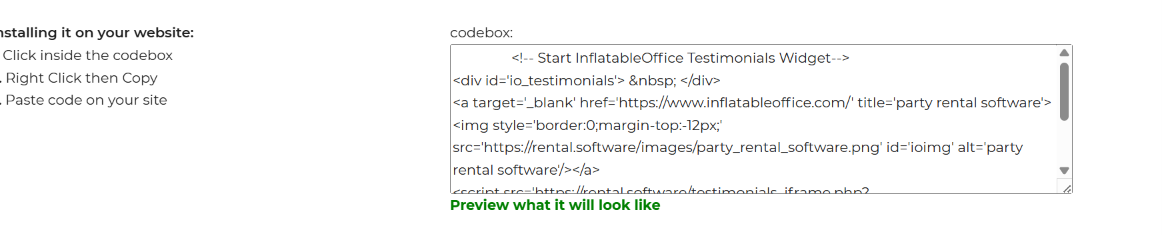
Is this code already installed on my website somewhere (the code that it says to copy and paste into my website?) If it is not already installed, where exactly do I paste it at on "the site."
It also mentioned we can have FB and Google reviews show on our website also and to use a plugin. What plugin is recommened?
And I can't find these settings in General Preferences - Reviews.....
Configuring our internal review tool:
you can go to the General Preferences settings page and scroll to the reviews section to find code that you can use to show your reviews on your website. In the code, there are some parameters you can change to alter the way it selects and displays reviews.
- number_of_reviews - this changes how many reviews will be displayed at once
- show_average_rating - using a 1 for this will show your average star rating, while a 0 will hide it
- show_stars - this number can be 1-5 and will only show reviews where you got that number of stars or greater
- show_date - using a 1 for this will show the review date, while a 0 will hide it
- show_reviewer_name - using a 1 for this will show the reviewer name, while a 0 will hide it
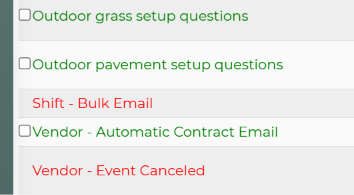
I can't find the Rate Us in the Email Center it talks about. I even sorted it by name but there is nothing that says Rate Us. Where can I find this at if not in the Email Center?
There was no Share Review Form in Google like the video talked about although I did copy a link there that said I could use it to ask for a review so I put that in.
For Facebook, I can't find the Templates and Tabs section that was talked about. I have a feeling that maybe things have changed since the video was created. Can someone please tell me the instructions for finding this with the way FB has things laid out now? I searched all over and can't find a Share Reviews tab anywhere. And the FB link on Google for sharing reviews just takes me to a page for me to make a post, not a place for people to do a review.
The video said that anything less than a 4 will still come to us but where do I go to look for it or does it mean I will just get an email instead of it going directly to Google, FB, or my web page?
Thank you,
 The same question
Hi Cindy,
I can add the reviews on the website for you. First, can you tell me if you have an address associated with your Google business page? Do you want internal Inflatable Office and Google reviews to show on your website or only your Google reviews? At the moment we can only display Inflatable Office and Google reviews on the website, but you are more than welcome to browse through different plugins to see if you can find any plugins that can display Facebook reviews.
The email template you are looking for in the email center is called Customer-Thank You.
The link you would paste under the review settings in general preferences is the review link, so what you did is correct! If you go to your Facebook page and go to the section where you would leave a review, this is the URL you would copy I believe.
For internal reviews that are less that the minimum rating you enter under the review settings in general preferences, these will be left in Inflatable Office. You can view these internal reviews by going to Settings-->Reviews.
Hi Cindy,
I can add the reviews on the website for you. First, can you tell me if you have an address associated with your Google business page? Do you want internal Inflatable Office and Google reviews to show on your website or only your Google reviews? At the moment we can only display Inflatable Office and Google reviews on the website, but you are more than welcome to browse through different plugins to see if you can find any plugins that can display Facebook reviews.
The email template you are looking for in the email center is called Customer-Thank You.
The link you would paste under the review settings in general preferences is the review link, so what you did is correct! If you go to your Facebook page and go to the section where you would leave a review, this is the URL you would copy I believe.
For internal reviews that are less that the minimum rating you enter under the review settings in general preferences, these will be left in Inflatable Office. You can view these internal reviews by going to Settings-->Reviews.
Hi Cameron,
.....address associated with your Google business page?................do you mean the physical address for our business? If so, then it is the one lited with you guys in our account.
Do you want internal Inflatable Office and Google reviews to show on your website or only your Google reviews?......................
I'll gather them all. Is it possible to have them go to both places at once? If so, that is what I'd choose.
find any plugins that can display Facebook reviews................................. The video gave instructions on how to have FB reviews come in (sending the 4 stars and above directly to FB and anything lower to use somehow). Where I got stuck is the part in the video where it told me to click on Templates and Tabs. I could not find anything called "Templates and Tabs" following the instructions in the video.
So "Rate Us" in the video is now called Customer-Thank you? I changed that to active now. Does it go out automatically after a rental or is this something I need to do manually each time?
Facebook page and go to the section where you would leave a review....................I could not find this while I was on the site as the admin. Should I just go incognito to see where it might offer it to a stranger and copy that link? If not, can you give me instructions on how to find it on GMB (which I think is now called Meta) as I think FB has changed things since the video was made.
these will be left in Inflatable Office. You can view these internal reviews by going to Settings-->Reviews.................................... In there is a 5 star from one of you guys but it does not show up on my website. Under " Reviews & Links" tab on my website, it says "Testimonials & Links" but I don't see the one from IO in there so I'm not sure any thing that will come to IO will show up on my website. In all the years we've been in business we've only had one bad review (Google) and it came from a real dirt bag customer that lied about his gate width the presence of stairs to get into his tiny yard with a BIG bounce and then got super snarky about it when we tried to rectify it by offering a smaller bounce. Those are the kind of reviews I'd like to keep from showing up so I don't have to take the time to justify myself against their stupidity. So like the video showed, Anything less than 4 stars need to come internally but I don't want them showing up on IO either. So I need to just periodically check the Settings-Reviews to look for them or will I get a notification email about them so it lets me know to go look for them?
Thank you,
Cindy
Hi Cameron,
.....address associated with your Google business page?................do you mean the physical address for our business? If so, then it is the one lited with you guys in our account.
Do you want internal Inflatable Office and Google reviews to show on your website or only your Google reviews?......................
I'll gather them all. Is it possible to have them go to both places at once? If so, that is what I'd choose.
find any plugins that can display Facebook reviews................................. The video gave instructions on how to have FB reviews come in (sending the 4 stars and above directly to FB and anything lower to use somehow). Where I got stuck is the part in the video where it told me to click on Templates and Tabs. I could not find anything called "Templates and Tabs" following the instructions in the video.
So "Rate Us" in the video is now called Customer-Thank you? I changed that to active now. Does it go out automatically after a rental or is this something I need to do manually each time?
Facebook page and go to the section where you would leave a review....................I could not find this while I was on the site as the admin. Should I just go incognito to see where it might offer it to a stranger and copy that link? If not, can you give me instructions on how to find it on GMB (which I think is now called Meta) as I think FB has changed things since the video was made.
these will be left in Inflatable Office. You can view these internal reviews by going to Settings-->Reviews.................................... In there is a 5 star from one of you guys but it does not show up on my website. Under " Reviews & Links" tab on my website, it says "Testimonials & Links" but I don't see the one from IO in there so I'm not sure any thing that will come to IO will show up on my website. In all the years we've been in business we've only had one bad review (Google) and it came from a real dirt bag customer that lied about his gate width the presence of stairs to get into his tiny yard with a BIG bounce and then got super snarky about it when we tried to rectify it by offering a smaller bounce. Those are the kind of reviews I'd like to keep from showing up so I don't have to take the time to justify myself against their stupidity. So like the video showed, Anything less than 4 stars need to come internally but I don't want them showing up on IO either. So I need to just periodically check the Settings-Reviews to look for them or will I get a notification email about them so it lets me know to go look for them?
Thank you,
Cindy
The reason I asked whether you have an address listed on your Google Business page is because there are two different review plugins available for displaying reviews on your website.
The first plugin can display Google reviews only and requires manual updates whenever new Google reviews are added. This plugin would need to be used if your Google Business page does not have an address listed.
If your Google Business page does include an address, there is a second plugin available that can display both Google and IO reviews. You can choose to display one source or both, and individual reviews can be hidden if needed. This plugin automatically updates as new reviews are submitted. Please note that this plugin can display a maximum of the 5 most recent Google reviews at one time.
If you would like to use the plugin that updates automatically, please add an address to your Google Business page if one has not already been added.
To display reviews on your website, the review plugin will need to be added to your site. I’ve included an article here with a tutorial video that explains how to set up and display the widget if your Google Business page has an address listed.
If you prefer not to add an address to your Google Business page and are okay with manually updating reviews, please let me know where you would like the reviews displayed on your website and I can add them for you. Please keep in mind that this option only supports Google reviews. If you would like to display both Google and IO reviews, we recommend adding an address to your Google Business page so you can use the newer review widget referenced in the article above.
Regarding the Facebook review link, here are the steps I found for locating your direct review page URL:
The thank you email is currently configured to send automatically 2 days after an event is completed.
To change the timing of this email:
If you hover over the question mark icon next to the Send field, you will see additional information about how automatic email timing is calculated.
The reason I asked whether you have an address listed on your Google Business page is because there are two different review plugins available for displaying reviews on your website.
The first plugin can display Google reviews only and requires manual updates whenever new Google reviews are added. This plugin would need to be used if your Google Business page does not have an address listed.
If your Google Business page does include an address, there is a second plugin available that can display both Google and IO reviews. You can choose to display one source or both, and individual reviews can be hidden if needed. This plugin automatically updates as new reviews are submitted. Please note that this plugin can display a maximum of the 5 most recent Google reviews at one time.
If you would like to use the plugin that updates automatically, please add an address to your Google Business page if one has not already been added.
To display reviews on your website, the review plugin will need to be added to your site. I’ve included an article here with a tutorial video that explains how to set up and display the widget if your Google Business page has an address listed.
If you prefer not to add an address to your Google Business page and are okay with manually updating reviews, please let me know where you would like the reviews displayed on your website and I can add them for you. Please keep in mind that this option only supports Google reviews. If you would like to display both Google and IO reviews, we recommend adding an address to your Google Business page so you can use the newer review widget referenced in the article above.
Regarding the Facebook review link, here are the steps I found for locating your direct review page URL:
The thank you email is currently configured to send automatically 2 days after an event is completed.
To change the timing of this email:
If you hover over the question mark icon next to the Send field, you will see additional information about how automatic email timing is calculated.
Replies have been locked on this page!