What Can Workers View?
Within the Workers App, users can access a dedicated section that logs all recent communication activity. This includes recent contacts, incoming and outgoing calls, and incoming and outgoing text messages.
To use this feature, you must have IO Phone enabled on your account. Without IO Phone, the Workers App will not be able to log or display phone and text message activity.
How to use IO Phone within the Workers App
To locate IO Phone within the Workers App, this will be on the events or dashboards page at the bottom right corner.
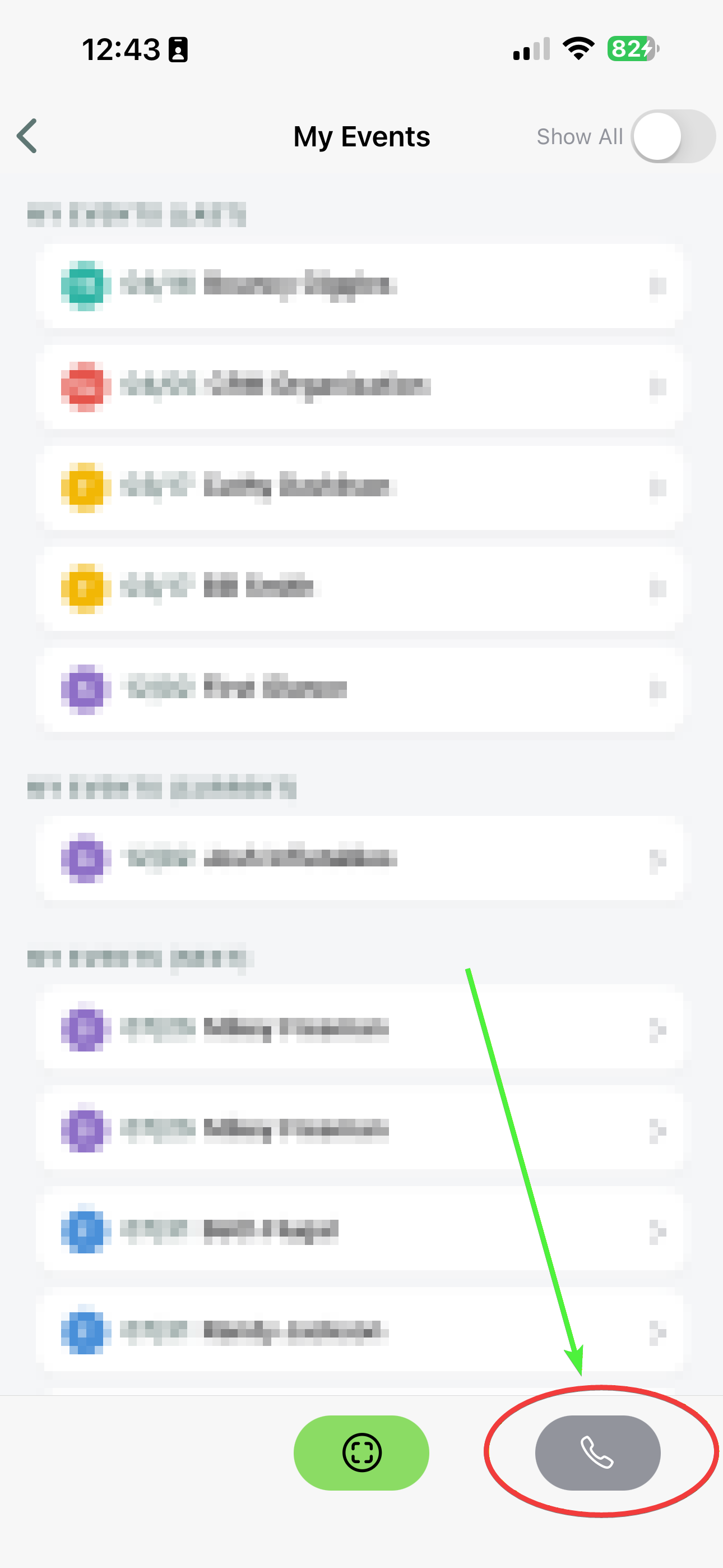
Recents/Log
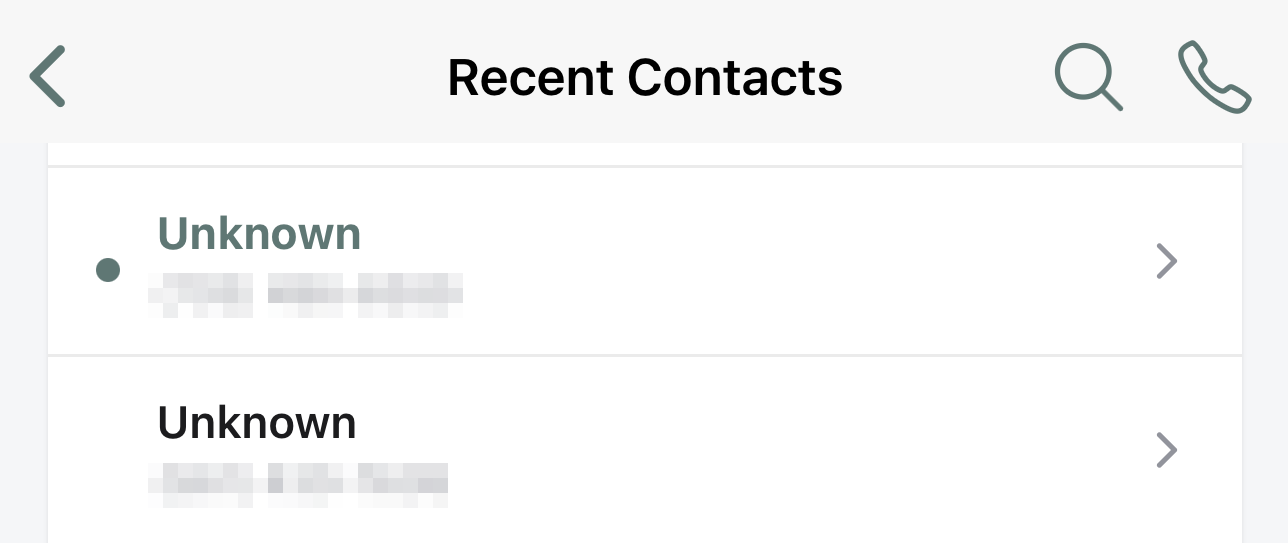
A dark green dot to the left of the customers information is indicating that those logs have not been open, and the black writing indicates the log has been open, as seen below.
Dialing Out
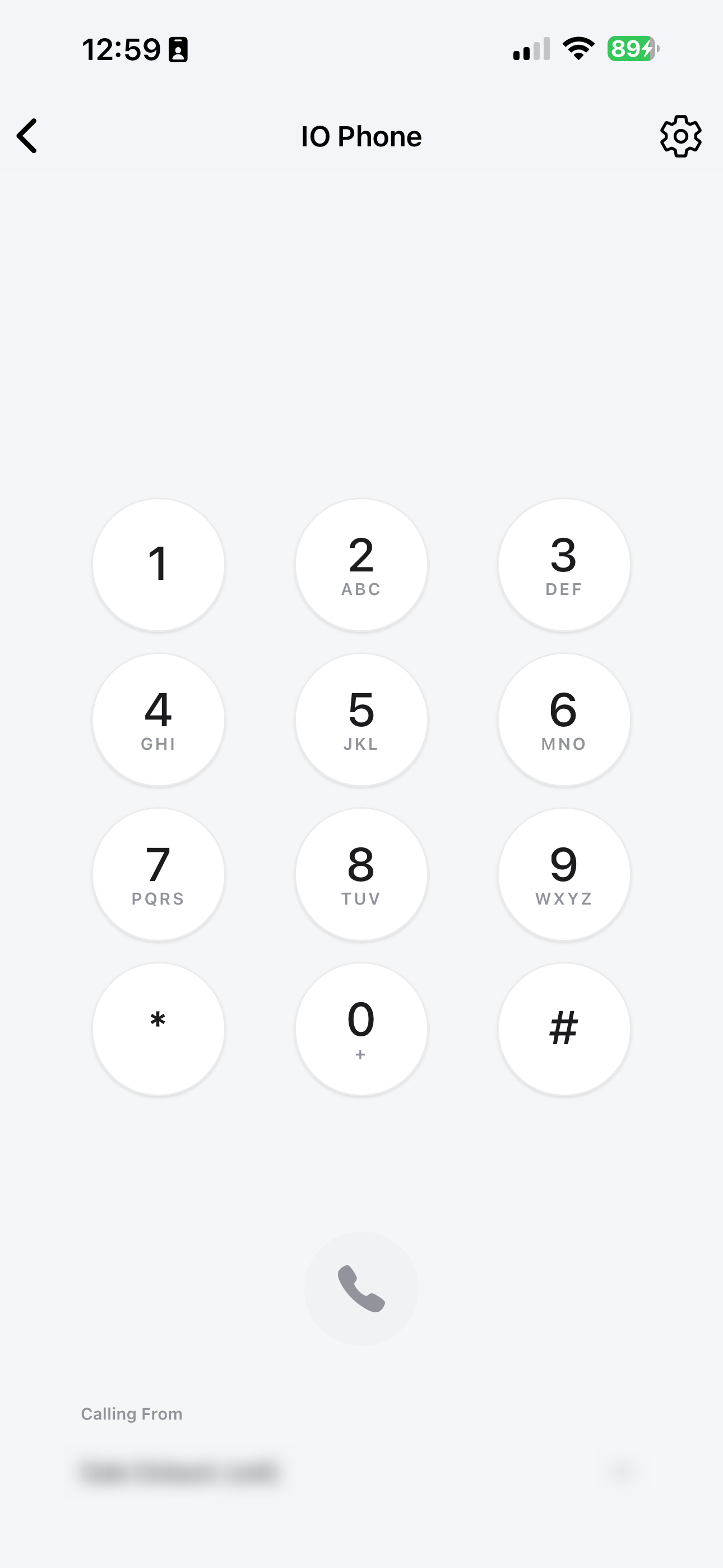
To dial out, the phone dialer will be found in the top right corner. This goes for any of your recently contacted customers.
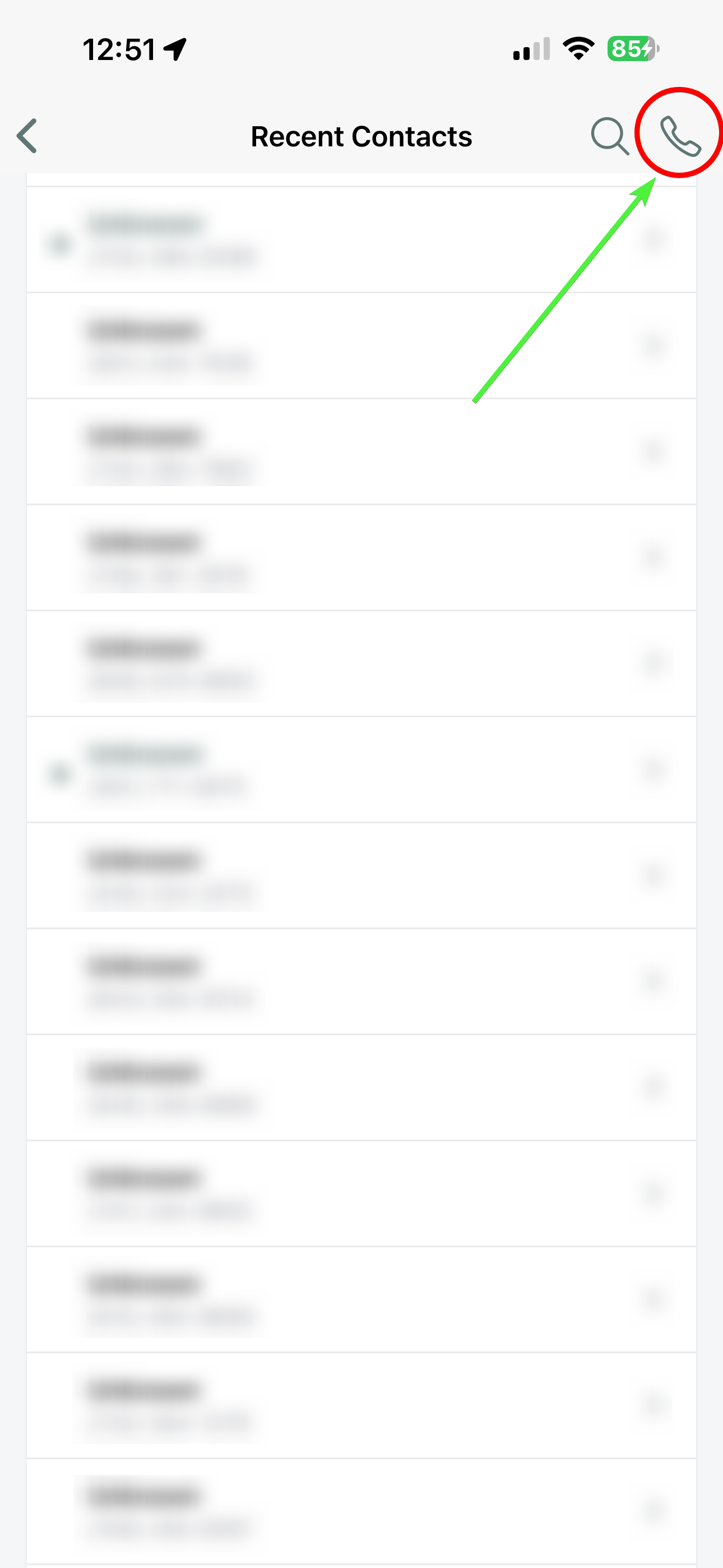
Once you tap the phone dialer in the top right, the dialer will appear.
Set a Default IO Phone Number on the Worker App
When using the Worker App to place and receive calls through IO Phone, you may have multiple worker numbers assigned to your account. This means the number you use most frequently will automatically be selected as the outgoing caller ID when placing calls, saving you time and ensuring consistency.
How It Works
- Open the Worker App and navigate to your IO Phone settings.
- You'll see a list of all worker numbers assigned to your account.
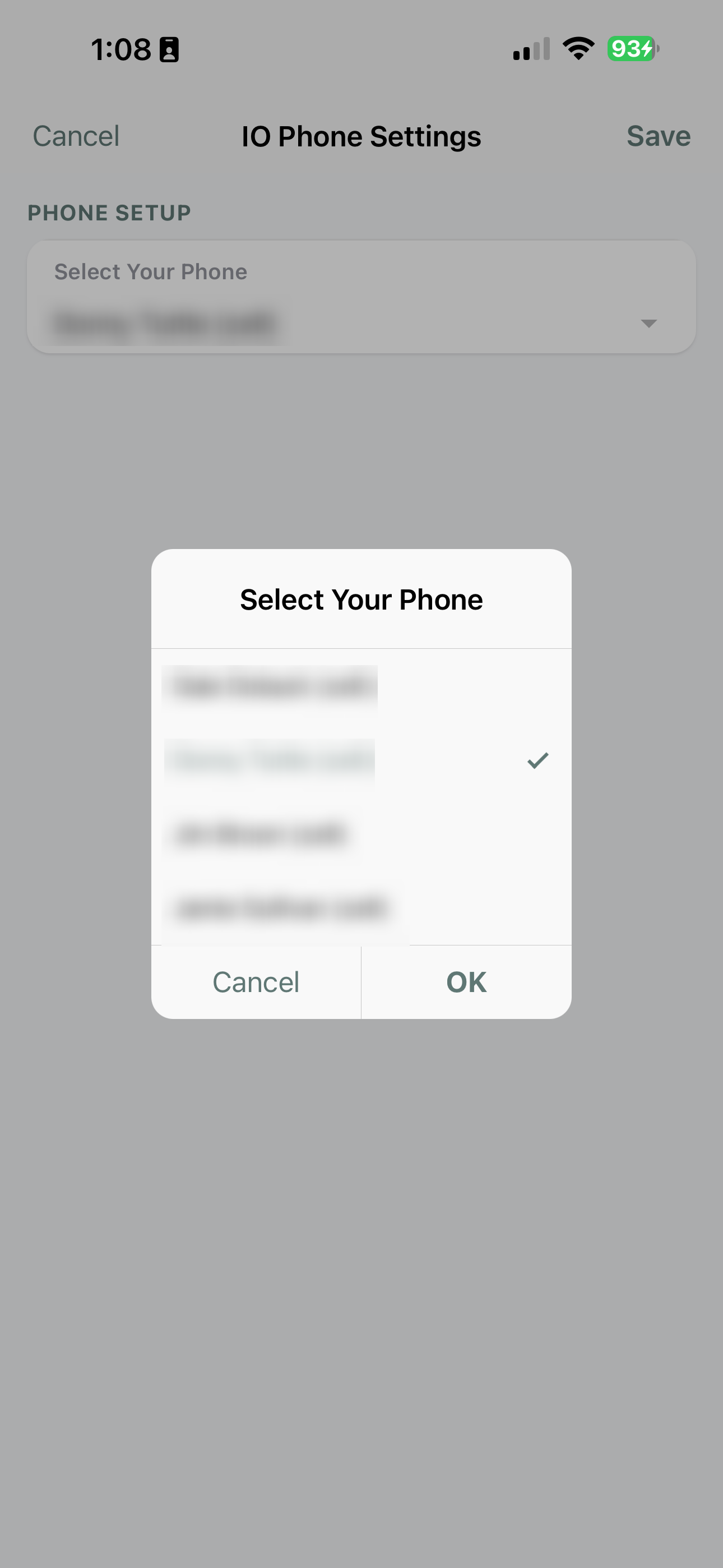
- Select the number you'd like to use as your default.
- Once set, all outbound calls will use that number unless you manually choose a different one for a specific call.
Who Is This For?
This feature is ideal for workers who have multiple IO Phone numbers but primarily use one for outbound calls. Instead of checking which number is active before every call, your preferred number is always ready to go.
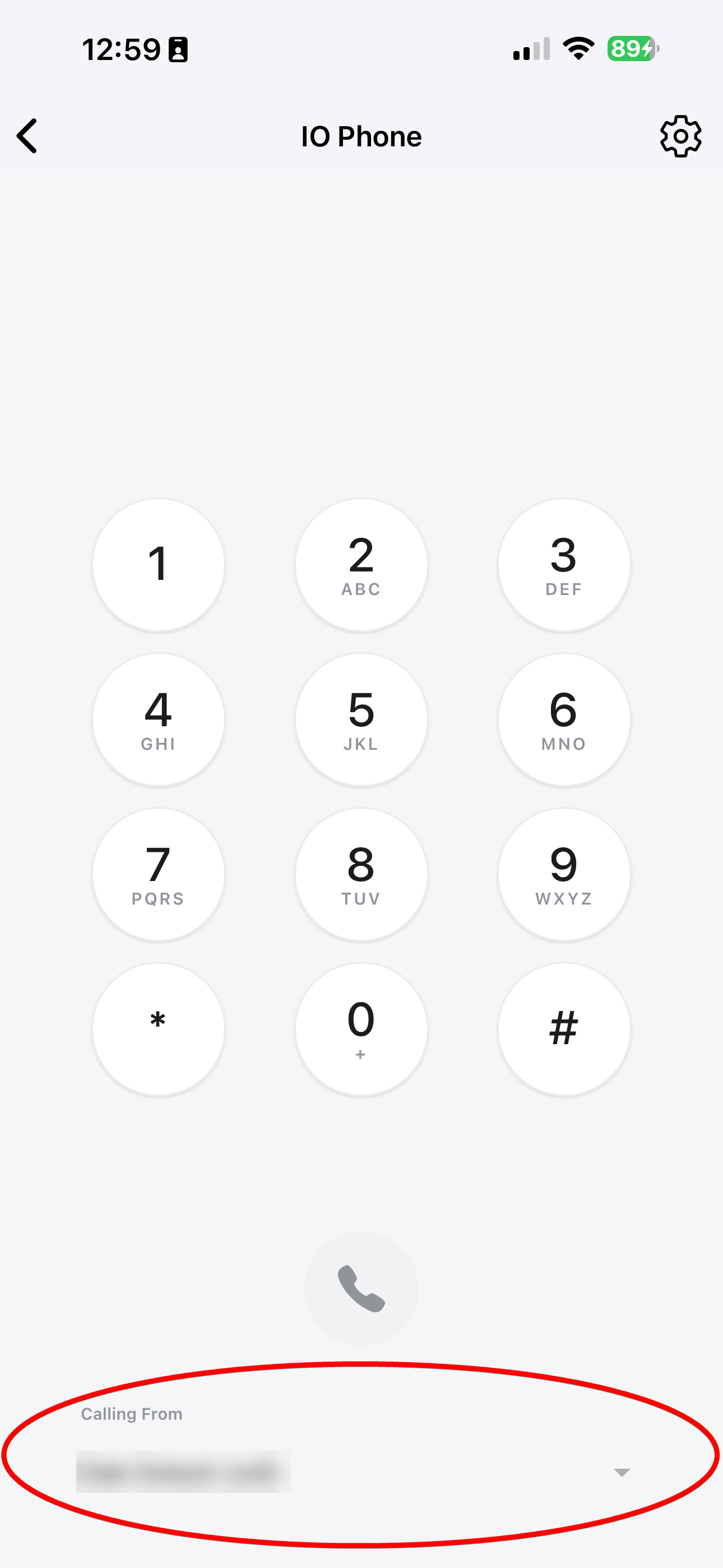
This can also be located in the settings gear in the top right corner of the IO Phone Settings. You would select a number, click, "OK," and then "Save," in the top right corner.
Calling the Customer
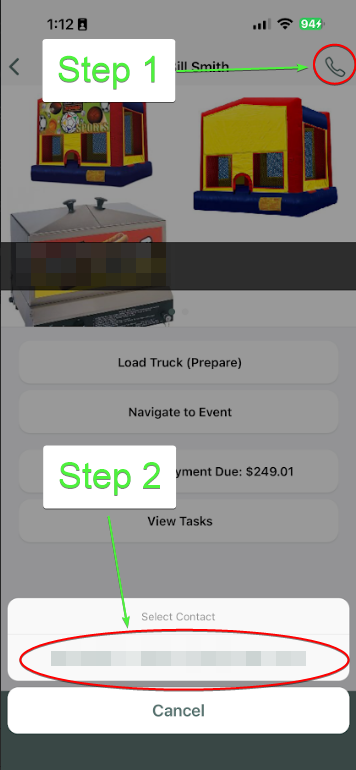
To call the intended customer, locate the phone icon in the top right corner of the call/text log and it will allow you to directly call your customer.

You can also locate the customer and call them directly from their lead under the Events page in the app.